
Run flows
Open a workspace, write a flow, run it on a device, and read the result.
Testers work in one loop: open a workspace, write a flow, run it on a device and read the result. Each execution of a flow is a run.
Workspaces
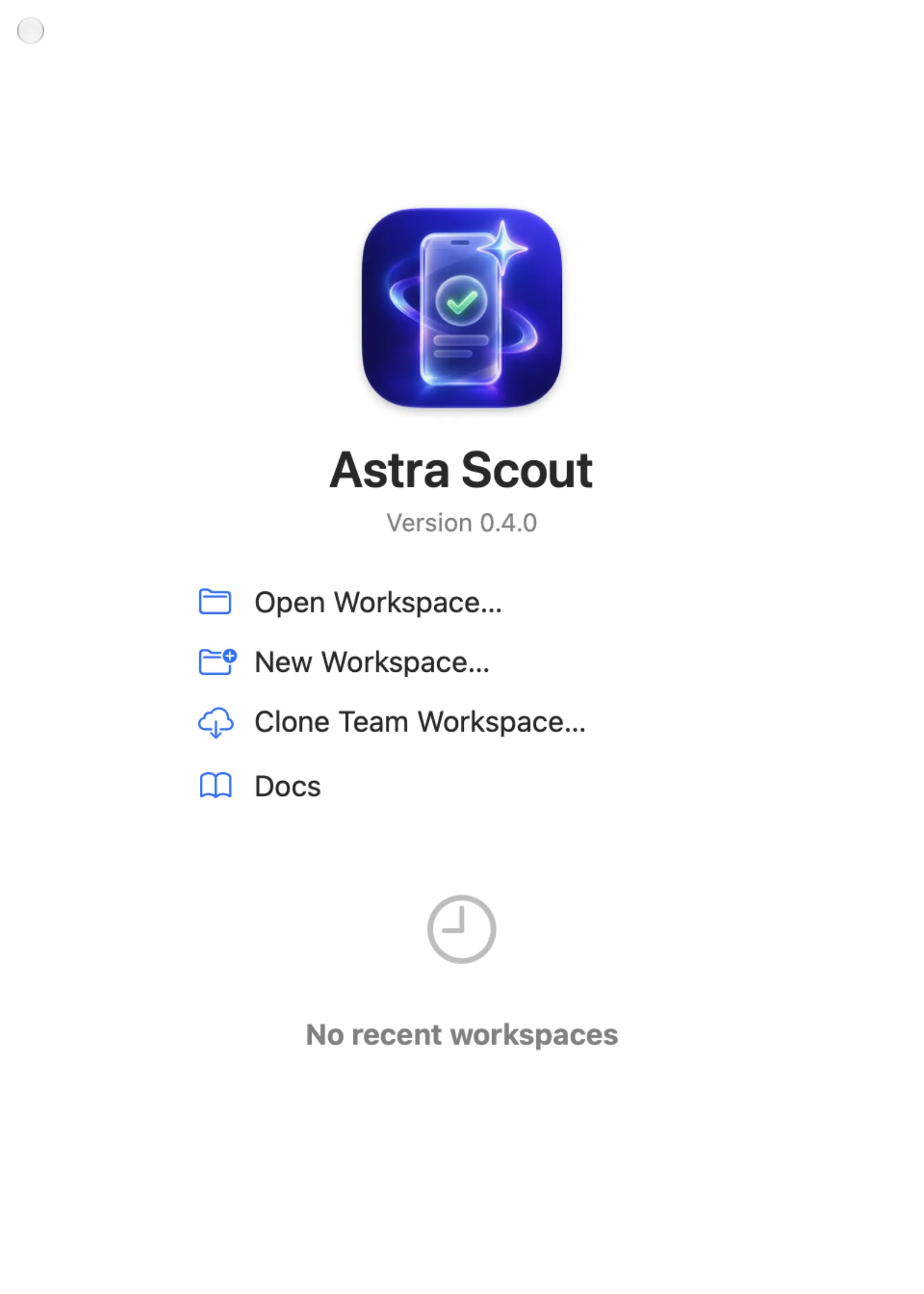
A workspace is a folder that contains Maestro flows (.yaml files) and anything else kept next to them. Use the File menu, or the Welcome to Astra Scout window when no workspace is open:
| Command | What it does |
|---|---|
New Workspace… (Cmd+N) | Chooses or creates a folder for tests and gives it the workspace layout below. |
Open Workspace… (Cmd+O) | Opens a folder that already has flows. |
| Close Workspace | Closes the current workspace. |
| Open Recent | Reopens a workspace used before. Clear Recent at the bottom of the submenu empties the list. |
To create a workspace:
- Click New Workspace… in the Welcome to Astra Scout window, or choose File > New Workspace….
- A folder panel opens with the message "Choose or create a folder for the Maestro tests". Pick an existing folder or use the panel's new-folder button.
- Click Create. The workspace opens in the main window.
To open a folder that already has flows, click Open Workspace…. The panel says "Choose a workspace"; select the folder and click Open.
If a workspace folder no longer exists, the app asks for the project folder to be reopened.
A new workspace starts with this layout. Open Workspace… leaves a folder as it is.
<workspace>/
├── first-flow.yaml   a sample flow to run and learn from
├── README.md         what each folder is
├── *.yaml            your flows
├── subflows/         flows that other flows call
├── tracking-specs/   tracking specs, with a README (see Tracking)
└── artifacts/runs/   the video and screenshots of each run; a linked workspace uploads them as team runs, not as synced files
first-flow.yaml has appId: ${APP_ID} (the app picked in the toolbar), a tracking header, and steps to run (launchApp, takeScreenshot), with disabled steps (lines starting with #: assertVisible, assertEvents) that you enable by removing the #. tracking-specs/sample.yaml is the catalog it points to. The samples are written only into a folder that has no .yaml file yet; a workspace with flows is never changed.
The Files navigator
The Files navigator shows your files and folders.
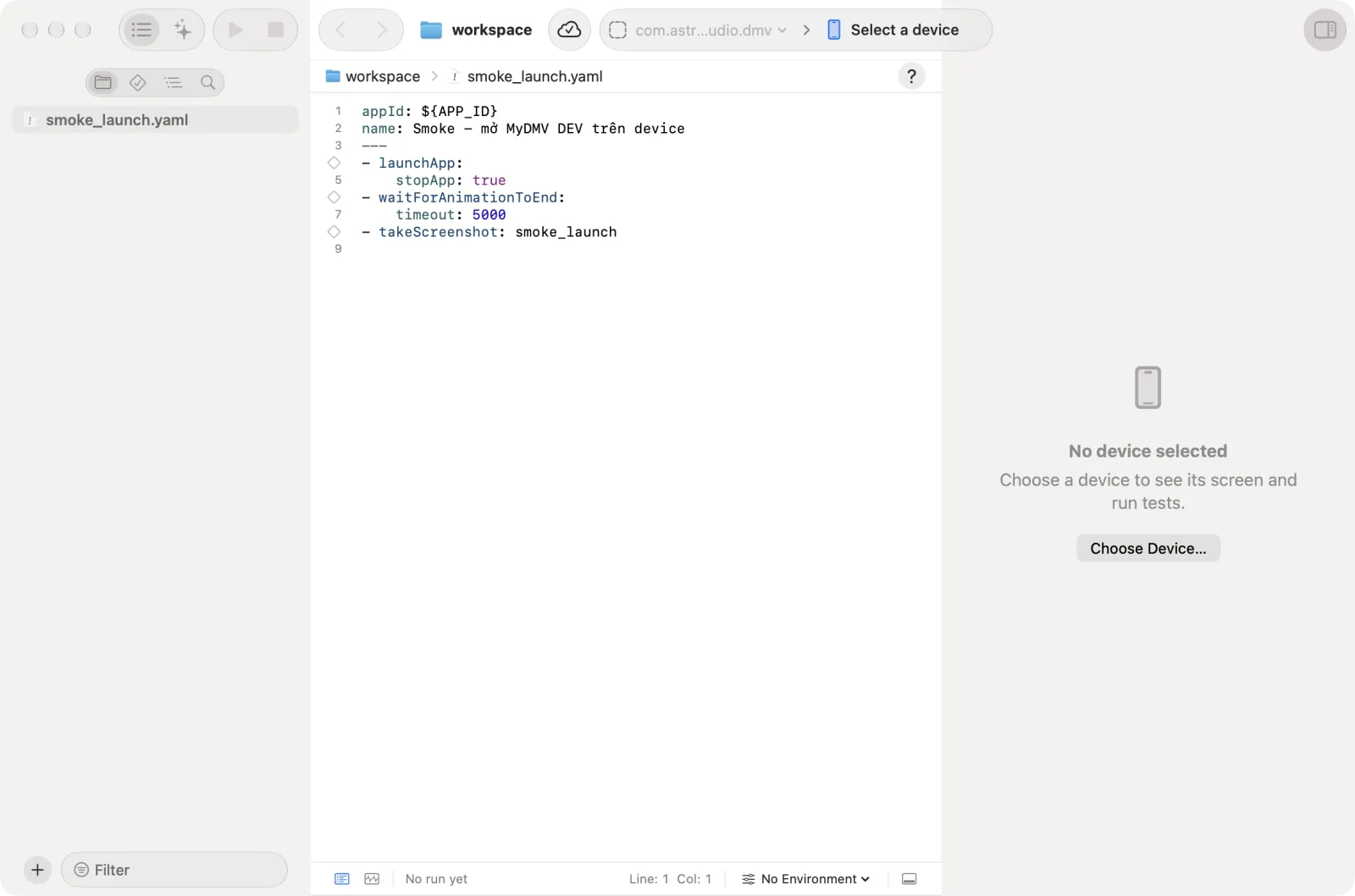
At the bottom of the navigator there is an Add (+) button and a filter field. The filter narrows the list as you type.
Create a file or a folder
- Click the Add (+) button, or right-click a folder or an empty space in the navigator.
- Choose New File… (
Shift+Cmd+N) or New Folder…. - For a file, pick a template (Mobile test, JavaScript file, Text file or Tracking Catalog) and click Next. Enter a name and click Create. A mobile test also asks for an App ID. The full steps are in Create a flow.
- For a folder, type the name in the Create Folder sheet and click Create.
A flow with appId: ${APP_ID} runs on the app picked in the toolbar app picker. With no app picked yet, a run asks for one. If the environment sets APP_ID itself, that value wins. A flow with a fixed appId (for example appId: com.example.app) runs on exactly that app, whatever the app picker says.
Actions on an item
Right-click an item in the navigator. The menu depends on what you click:
| You click | Menu |
|---|---|
| A flow file | Run Test (enabled for a runnable flow when a device is connected), Show in Finder, Duplicate, Rename, Delete |
| Another file | Show in Finder, Duplicate, Rename, Delete. Run Test is shown but disabled. |
| A folder | New File…, New Folder…, Show in Finder, Rename, Delete |
| Empty space | New File…, New Folder…, Show in Finder |
| Several items | Delete Selected (N) only |
Delete asks first ("Delete item?") and moves the item to the Trash. Drag files and folders to move them; Astra Scout asks for confirmation with Move or Cancel.
Other ways to create a flow: see Create a flow.
Find in the workspace
Use this to find every flow that mentions a text, for example a screen name or an appId.
- In the navigator, switch to Find (the magnifying glass in the icon bar under the switch at the top).
- Type in the Find in workspace field. Results appear after a short pause. The search ignores upper and lower case and skips hidden files.
- Matches are grouped by file, with the number of matches at the right of each file name. The search stops at the first 1,000 matches and says so.
- Click a match. The file opens with the match selected.
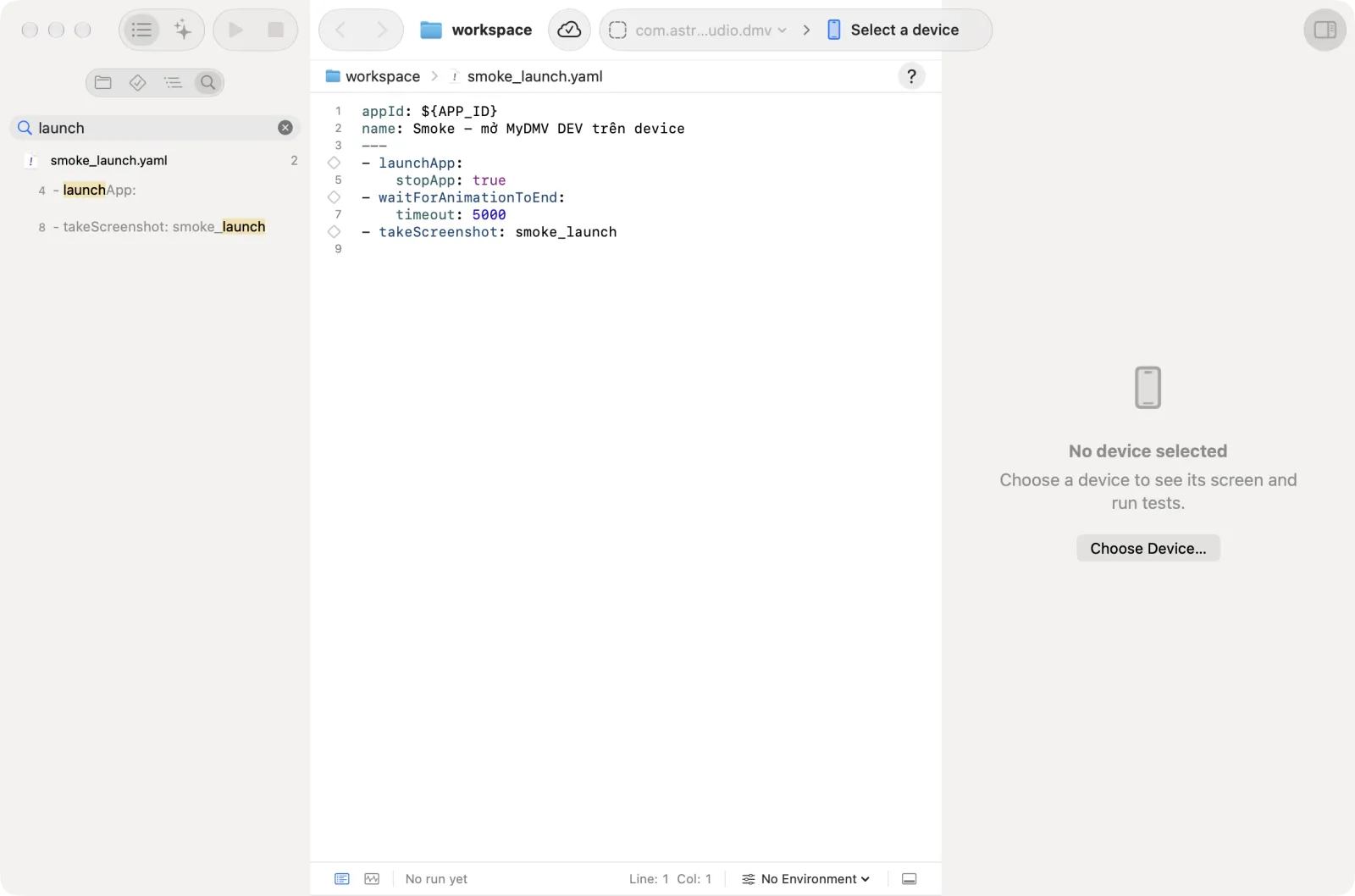
Press Esc or click Clear Find to empty the field.
The editor
The editor shows one file at a time. Use Go Back and Go Forward in the toolbar (Ctrl+Cmd+← and Ctrl+Cmd+→) to move between files you opened. The editor suggests Maestro commands as you type. In the suggestions, commands the connected device cannot run are struck through, and in the text they are underlined with a dotted line; hover over the underline to read why.
- The bar above the editor (the jump bar) shows the workspace, the folders and the file. Click a segment to open a menu of the files next to it and jump to another one. For a
.yaml,.ymlor.jsfile it ends with a ? button that opens the docs. - With Autosave on (the default), files save after a short delay. Turn it off with File > Autosave or in Settings > General.
Cmd+Ssaves immediately andCmd+Wcloses the file. - While a flow runs, each command line shows its state: pending, running, completed or failed.
- Click a line number in the gutter to open a small menu. It has Run “command” and Run from Here. With several commands selected, the first item is Run N Selected Commands instead (N is the number of selected commands). A line that calls another file with
runFlowalso has Open file name. These items run on the connected device without leaving the editor. On anassertEventsline, right-click the line number for Show Event Details first. See Tracking. - With Autosave off, closing a file or quitting asks whether to save the changes. Choose Save, Cancel or Don’t Save (
Cmd+D). - If another program changes a file you have edited, Astra Scout asks which to keep: Keep My Changes or Reload from Disk. A file you have not edited reloads by itself.
Need a command quickly?
Turn on Device > Inspect Elements, right-click an element on the device screen and use Insert into Editor. See Inspector.
Choose the app under test
The first segment of the toolbar capsule, left of the device picker, is the app your flows run on. It reads No App until you choose one. The choice is saved in the workspace, so every user of the workspace uses the same app. The picker is disabled until a workspace is open.
Click the app picker in the toolbar.
Choose an item from the menu:
Item Use it for This Project The app already saved in the project On device name An app installed on the connected device Recent An app used before Other App ID… Type a bundle id such as com.example.app, then click Use. Use stays disabled and the note "Invalid App ID (bundle id)" shows until the id is valid.Builds for the device kind, Builds… The newest team builds, to switch the build in use, and the Builds window. Shown when the team has a project for the picked app. The app picker now shows the app. Flows with
appId: ${APP_ID}run on it, and Explore starts with it.
Run a flow
Ways to run flows
- One flow: click Run Test (
Cmd+R). See Run a flow. - Only some commands: Run some commands.
- Every flow in the workspace: Run all flows (
Shift+Cmd+R). - From a terminal: the plugin skill
run-flowor the MCP toolrun_flow. See The scout plugin. - Fix a failing flow until it passes: Auto-fix.
- Connect a device. See Devices.
- Open the flow file.
- Click Run Test in the toolbar (
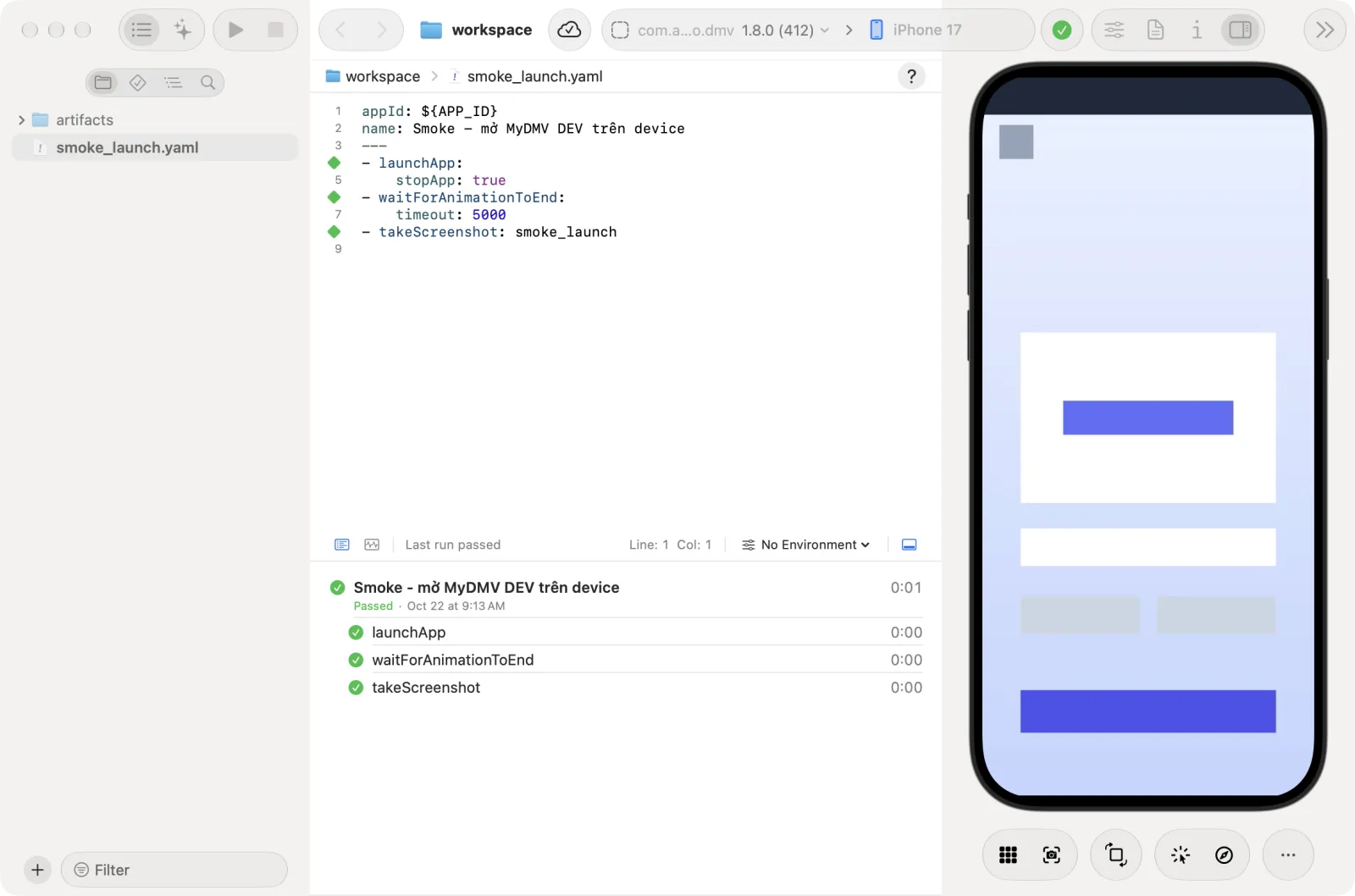
Cmd+R). Run Test is enabled only when a device is connected and the open file is a flow. It stays disabled while any run is going. - Watch the runner. The status in the runner bar changes to "Running" and the flow name, and each line of the editor shows its state.
- Use Stop (
Cmd+.) to cancel. While a run is stopping the status reads "Stopping…". - When the run ends, the status reads "Last run passed" or "Last run failed". See Read the results.
Before a run starts, Astra Scout checks the driver (and, on iOS device, whether the screen is locked). Purchase-like steps run like any other step. See Purchase testing.
Run some commands
- Select two or more commands in the editor.
- Choose Run > Run Selected Commands (
Option+Cmd+R), or right-click and choose Run N Selected Commands.
Only those commands run on the device. Both are disabled while any run is going.
Run all flows in a workspace
- Connect a device.
- Choose Run > Run All Tests (
Shift+Cmd+R). Every flow in the workspace runs. The runner bar reads "Running all tests". - To stop, choose Run > Stop (
Cmd+.). During a workspace run the toolbar button is labelled Stop All Tests.
Videos from a workspace run share one folder, with _2, _3 added to duplicate names.
Choose an environment
The Environment menu at the right of the runner bar applies named variables and tags to the run. Its button reads No Environment or the name of the chosen environment. The menu lists None, then each environment, then Manage Environments…. It is disabled while a run is going. See Environments and variables.
The runner bar
The thin bar under the editor stays visible even when the runner is hidden. From left to right:
- Steps and Tracking switch what the runner shows: the steps and logs of a run, or the Tracking check.
- The status of the last run: "No run yet", "Running" and the flow name, "Running all tests", "Stopping…", "Last run passed" or "Last run failed".
- The cursor position (Line and Col) of the open file, except for a tracking spec shown as a form, and, when the workspace is a git repository, the current branch.
- The Environment menu and the Hide Runner / Show Runner button (
Shift+Cmd+Y).
The small capsule in the toolbar, beside the device picker, shows the last run too: a spinner while it runs, a red mark with the number of failed steps, or a green check when it passed. Click it to open the steps of that run.
Run notices
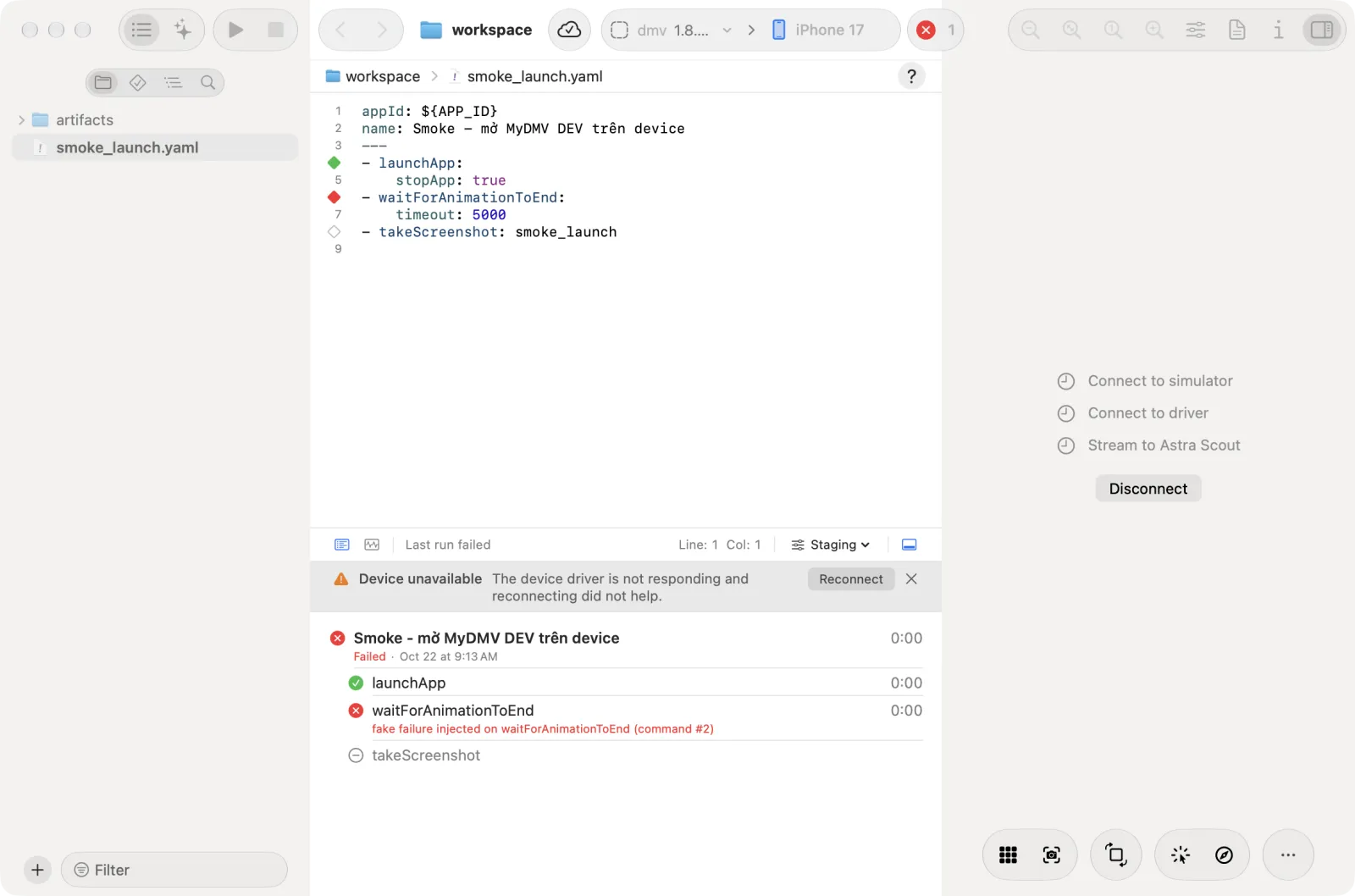
When a run cannot start or stop, a notice bar appears above the steps. Examples: "Another test is already running", "No device connected", "YAML validation failed". Click the x (Dismiss) button to close it. When the driver stops answering and reconnecting did not help, the notice reads "Device unavailable" and has a Reconnect button.
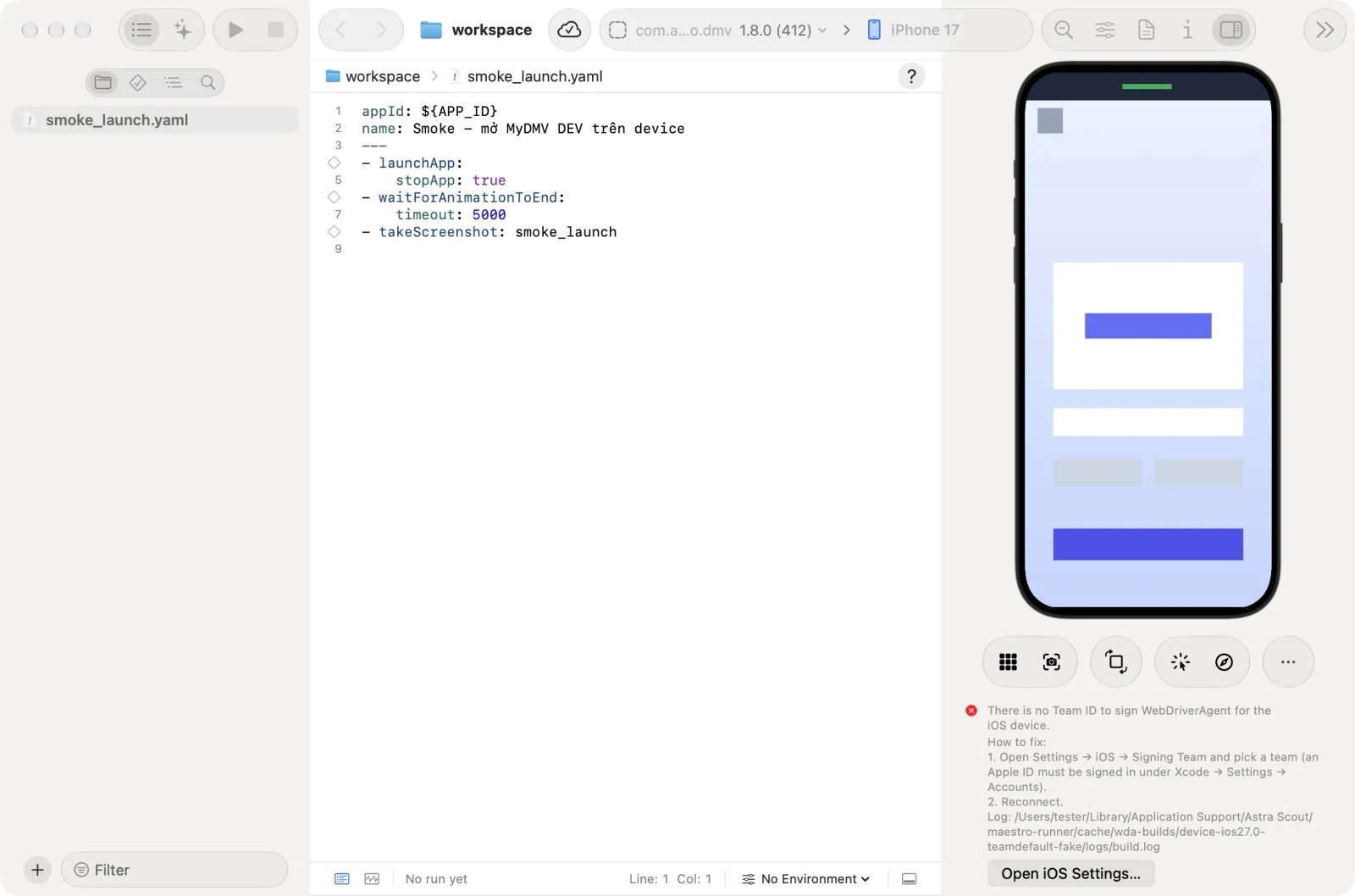
If the iOS device could not be signed, the connect panel shows the error with Reconnect, Disconnect and an Open iOS Settings… button. See Devices.
Read the results
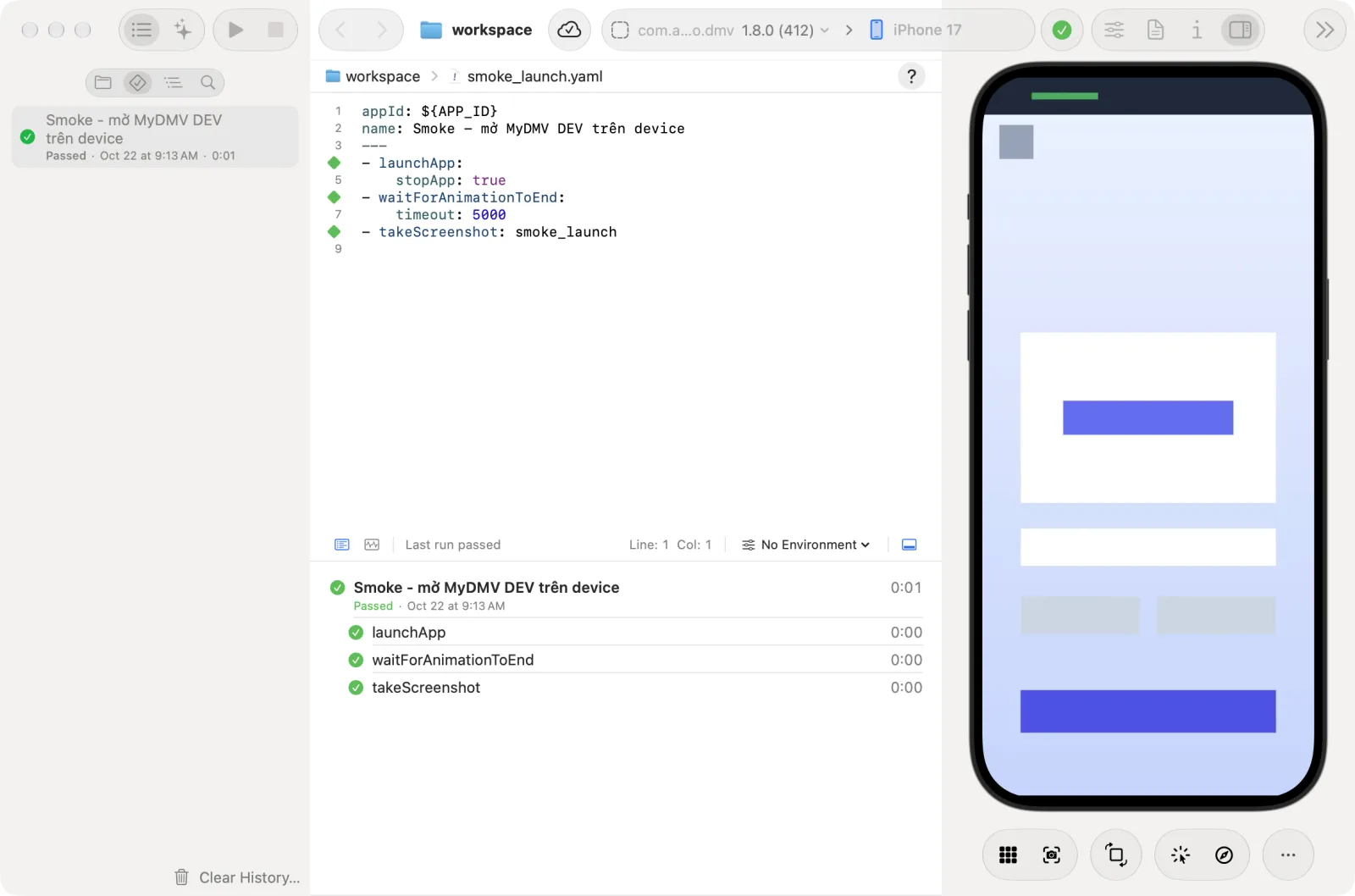
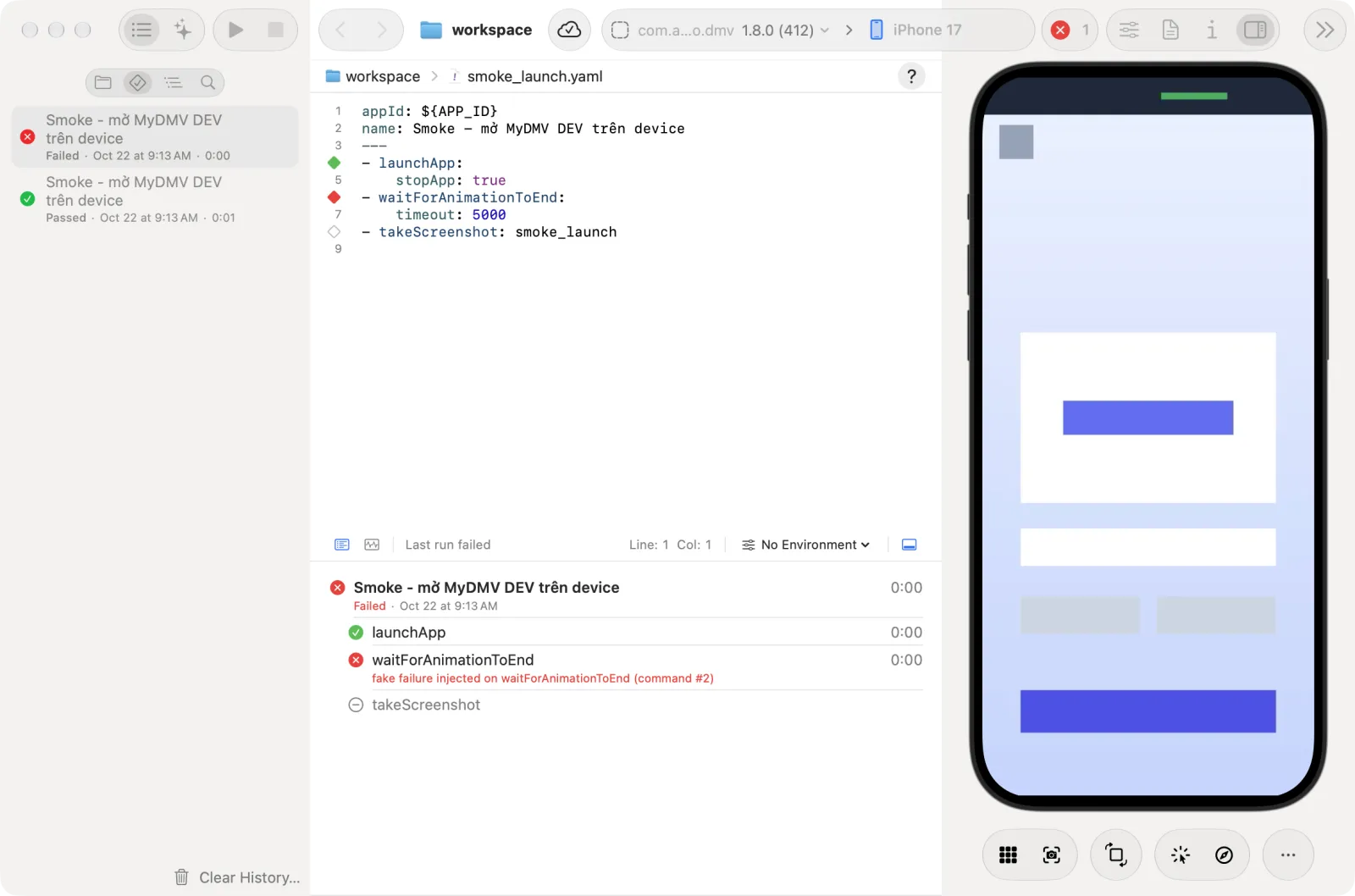
The Test Runs navigator lists the runs, newest first. Each item shows a status icon, the flow name, the result (Passed, Failed or "Running test"), the date and the duration.
- Click Test Runs in the navigator's icon bar.
- Click a run. The runner opens with one row per flow (result and time under its name, duration at the right), then one row per step. A failed step shows why right under it.
- Click a row to see its detail pane at the right of the list. For a step, it shows the error and its Logs.
- Double-click a row to open the flow file.
Each row has a status icon: pending, in progress, passed, failed, warning or skipped. Rows for assertEvents show each expected event as its own row, with the time it arrived or the problem. After you report a bug to Jira, the flow row shows a link to the Jira issue. In a workspace linked to a team project, the navigator also lists the runs of the team: see Team runs.
Right-click a row, or use the buttons in the detail pane, for these actions:
| Action | Where | Purpose |
|---|---|---|
| Open File | Menu and detail pane | Jump to the flow file |
| Copy Logs | Detail pane, next to Logs of a step; also in the Full Log sheet | Copy the log of a step |
| Show Recording | Menu and detail pane | Play the video of the run over the device mirror. Two icon buttons at the top right of the player, Download Recording and Close Recording, save the video and go back to the mirror. |
| View Full Log… | Menu only | Open the whole log of the run in a sheet |
| Fix with AI | Menu and detail pane | Hand a failed flow to the AI. See AI assistant. |
| Auto-Fix… | Detail pane only | Let the AI fix the flow and run it again until it passes. Disabled when the AI cannot start. |
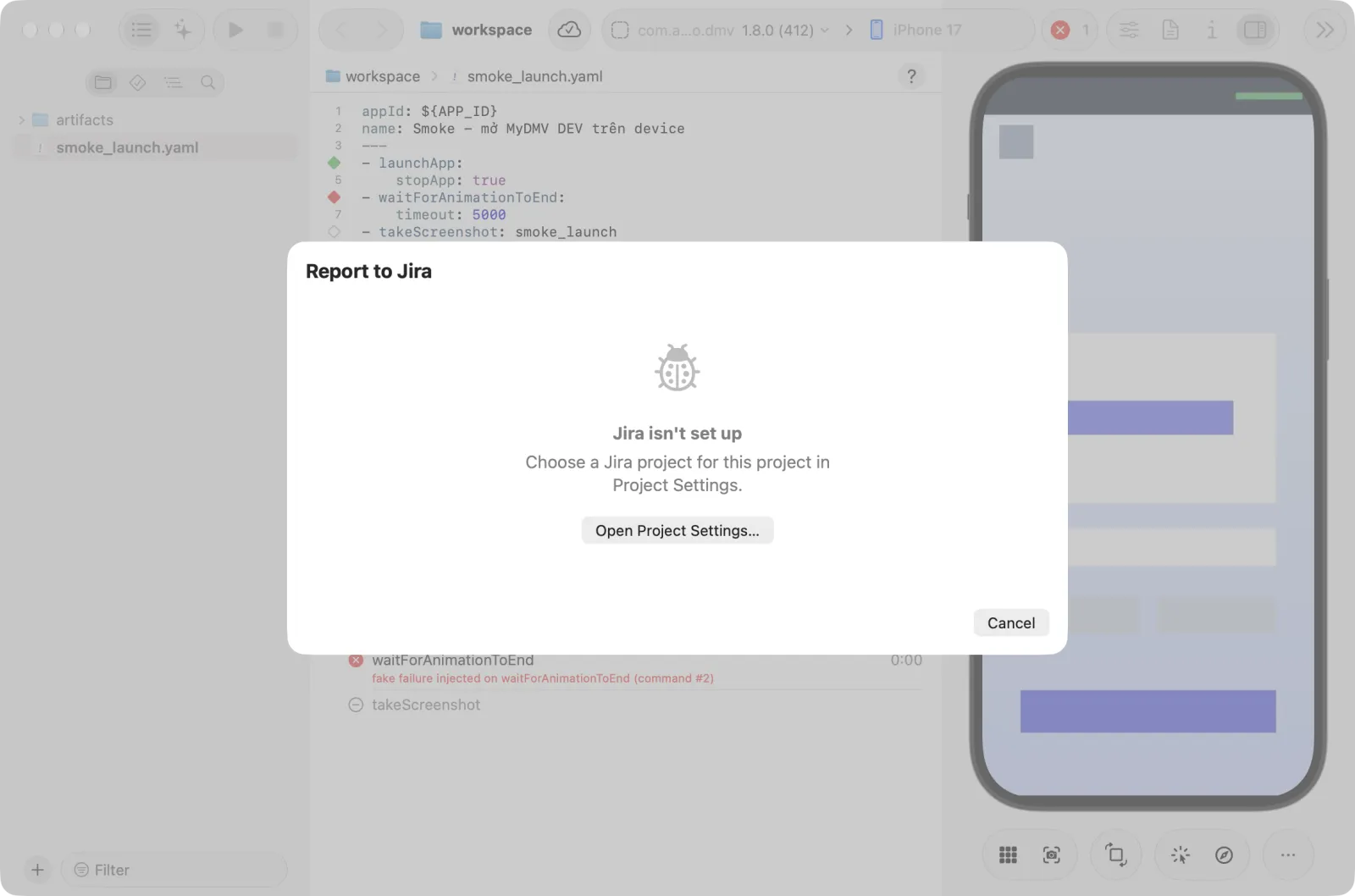
| Report Bug to Jira… | Menu and detail pane | See Jira |
Clear History… at the bottom of the navigator removes the local run history for the workspace, after you confirm.
Verdicts
Besides pass or fail per step, each run has a verdict label that Astra Scout computes from the driver's own report of what happened on the device. The AI never writes it.
| Label | Meaning | What to do | CLI exit code (used when running from a terminal or CI) |
|---|---|---|---|
| Passed | Every step passed. | Nothing. | 0 |
| Failed | A real app or flow failure: wrong selector, failed assertion, app crash. | Open the failing step, then fix the flow or report the bug. | 1 |
| Incomplete | Stopped before a conclusion: Stop was pressed, a limit was reached, the AI timed out. | Run again. | 2 |
| Unsure | A required AI check could not reach a conclusion, so a person must review it. | Open the step's screenshot and decide yourself. | 2 |
| Blocked | Device or environment problem: lost connection, driver not responding, app not installed, signing error, no AI for a required AI check. | Reconnect the device or fix the environment, then run again. | 3 |
Details
AI checks (assertWithAI, assertNoDefectsWithAI, extractTextWithAI) are optional: true by default. A failed, unsure, blocked or timed-out optional AI check shows as a warning and the run still ends Passed. Add optional: false to the step to let it decide the verdict as described above.
A step cut short by the device disconnecting makes the run Blocked (ENVIRONMENT_UNAVAILABLE, the step says "Device disconnected"), even an optional or continueOnFailure step. A flow whose steps all finished keeps its verdict when the connection closes right after.
To see the reason, click the flow row. The detail pane shows the verdict, the reason, the Reason code, the Deciding step, the CLI exit code and a Report link (JSON) with the report text below it. The report is stored with the run as Markdown and JSON.
Reason codes
A reason code is a short name for why a run could not reach a conclusion. Testers usually need only the "Meaning" column; the code is for reporting to the team or for scripts. A Blocked run always has a reason code. An Incomplete run has one when the cause is known. A run with a reason code is never treated as an app bug, so no bug report is suggested.
| Code | Meaning |
|---|---|
ENVIRONMENT_UNAVAILABLE | Device or driver not ready (lost connection, WDA or the device driver not responding) |
APP_NOT_INSTALLED | The app is not installed |
APP_FILE_REQUIRED | clearState on an iOS device needs a build in use. Click Open Builds… and choose one. See Builds. |
AUTOMATION_UNSUPPORTED | The command is not supported on this platform |
AI_PROVIDER_UNAVAILABLE | AI not installed, not signed in, errored or timed out |
AI_BUDGET_EXHAUSTED | Out of AI calls (exploration) |
STEP_BUDGET_EXHAUSTED | Step, round or time limit reached |
POLICY_DENIED | Denied by policy |
NEEDS_HUMAN | The tester must act on the device (system purchase or password dialog) |
SYSTEM_OVERLAY | An iOS system dialog or sheet covers the app. Steps that match text or ids on that dialog act on it directly. |
DEVICE_LOCKED | The iOS device screen is locked and has a passcode |
UNKNOWN | Blocked, but no fact states the cause |
Videos
Flow videos are saved in the open workspace:
<workspace>/artifacts/runs/<run start date_time>/<flow file name>.mp4A takeScreenshot with a relative path, such as - takeScreenshot: home, saves home.png in <run start date_time>/<flow file name>/, beside the video, rather than next to the flow file, so each run keeps its own screenshots. An absolute path is kept as written. Commands run outside a flow file in a workspace save their screenshots in a run folder of their own.
Astra Scout creates artifacts/runs/.gitignore containing * so videos are not committed. It does not edit the workspace's own .gitignore. Videos from commands run outside a flow file and from exploration live in the app's data folder under tests/<session>/videos/.
Run history plays videos from those paths. If a file is deleted, the video disappears from history.
Commands that cannot run
Commands the connected platform does not support are marked in the editor and rejected by the AI and MCP tools. See Supported platforms.