
Tracking
Check the Amplitude events your QA build sends while a flow runs: declare them in the flow, read the result at the line.
Tracking checks the Amplitude events your app sends while a flow runs, such as "Sign In Completed": which events were sent, which are missing, which properties are wrong. The result is ready when the flow ends, without waiting for the data to reach Amplitude.
Ways to check tracking
- See what the app sends: have the QA build send its events to Astra Scout, run a flow, open the Tracking window.
- Write checks by hand:
assertEventsin the flow. - Write checks from a run: Assign events from a run.
- Read the result: in the editor, in the Tracking window, in Amplitude, iOS vs Android or from a terminal.
Not sure where to start? See Tracking: where to start.
Two files work together:
| File | Holds |
|---|---|
| The flow | Which events each action must send: assertEvents steps right under the action, and a tracking header |
The catalog (tracking-specs/<app>.yaml) | The rules for every run: events, properties, allowed values and general rules. See Tracking catalog |
Have the QA build send its events to Astra Scout
Astra Scout can only check the events it receives. Normally the app sends its events to Amplitude; the QA build has to send them to Astra Scout on the Mac that runs the flow.
App developers configure the QA build as described in Send QA build events to Astra Scout. For each platform:
- iOS: the QA build reads
scoutServerUrl, the address Astra Scout passes each time a flow opens the app, and uses it as itsserverUrl(the address the Amplitude SDK sends events to). One QA build works for every tester, on simulators and iOS devices. - Android: the QA build sets a fixed
serverUrl, because Astra Scout does not pass the address to Android apps yet. - Release (production) builds: cannot send to Astra Scout. Testers can only look the user up after testing, see Amplitude results.
Copy a fixed address
Use this when the QA build does not read scoutServerUrl (for example an Android build). Astra Scout lists the addresses:
- Open the Tracking window: Window → Tracking (
Shift+Cmd+T). - Click the Actions button (the
…icon) in the toolbar. - Under Copy Address for the QA Build, click the place the app runs: iOS Simulator, Android Emulator, Android Device over USB (adb reverse) or Device on the same Wi-Fi. The address is copied. The first row shows how many events Astra Scout has received.
| Where the app runs | Address |
|---|---|
| iOS Simulator on the same Mac | http://127.0.0.1:5051/2/httpapi |
| Android emulator | http://10.0.2.2:5051/2/httpapi |
| Real Android device on USB | http://127.0.0.1:5051/2/httpapi, after running adb reverse tcp:5051 tcp:5051 |
| iOS device or Android over Wi-Fi | http://<Mac name>.local:5051/2/httpapi. The device and the Mac must share the Wi-Fi, and Receive events from devices on the network in Settings → Amplitude must be on (it is by default) |
The QA build should send each event right away (flushQueueSize: 1, flushIntervalMillis: 1000), so it shows up while the step that sent it is still on screen. Set this serverUrl in QA builds only, never in release builds.
One QA build for every Mac (iOS)
Each time a flow runs launchApp on iOS, Astra Scout gives the app a launch argument named scoutServerUrl. Its value is the address of the Mac running the flow, with a code of the device's own. iOS puts it in UserDefaults, so the QA build only has to read it:
// QA builds only: prefer the address Astra Scout passes when it opens the app.
if let scout = UserDefaults.standard.string(forKey: "scoutServerUrl"), !scout.isEmpty {
    serverUrl = scout
}
The effect:
- One build works for every tester and every Mac.
- A simulator and an iOS device on the same Mac get different addresses, each matching how that device reaches the Mac.
- A device's events only go into that device's runs; another phone on the same network never mixes in.
A flow that sets scoutServerUrl in launchApp: arguments: keeps its own value. Xcode setup and the full form of the address: Send QA build events to Astra Scout.
Events sent to the shared address (without a device code, for example http://127.0.0.1:5051/2/httpapi) still land in the run in progress; they just cannot be told apart by device.
Turn the network listener off on an untrusted network
Astra Scout only receives events, but other machines on the same network can send to it. Turn off Receive events from devices on the network in Settings → Amplitude on a public network; simulators keep working. The switch applies after you click Restart Server Now.
Check a run
Open a workspace. Astra Scout finds the catalog in
tracking-specs/in the workspace and up to three parent folders. Each app has one catalog, for exampletracking-specs/mydmv.yaml. The Tracking tab and window say "No spec in tracking-specs/ (searched the workspace and its parent folders)." when they find none.Run a flow with Run Test (
Cmd+R) or Run All Tests (Shift+Cmd+R).In the runner bar under the editor, click Tracking (next to Steps). The tab sums up the newest run: the verdict, "Flow checks: N of M passed", the first problem ("N more in the Tracking window" when there are more) and the API keys the events came with.
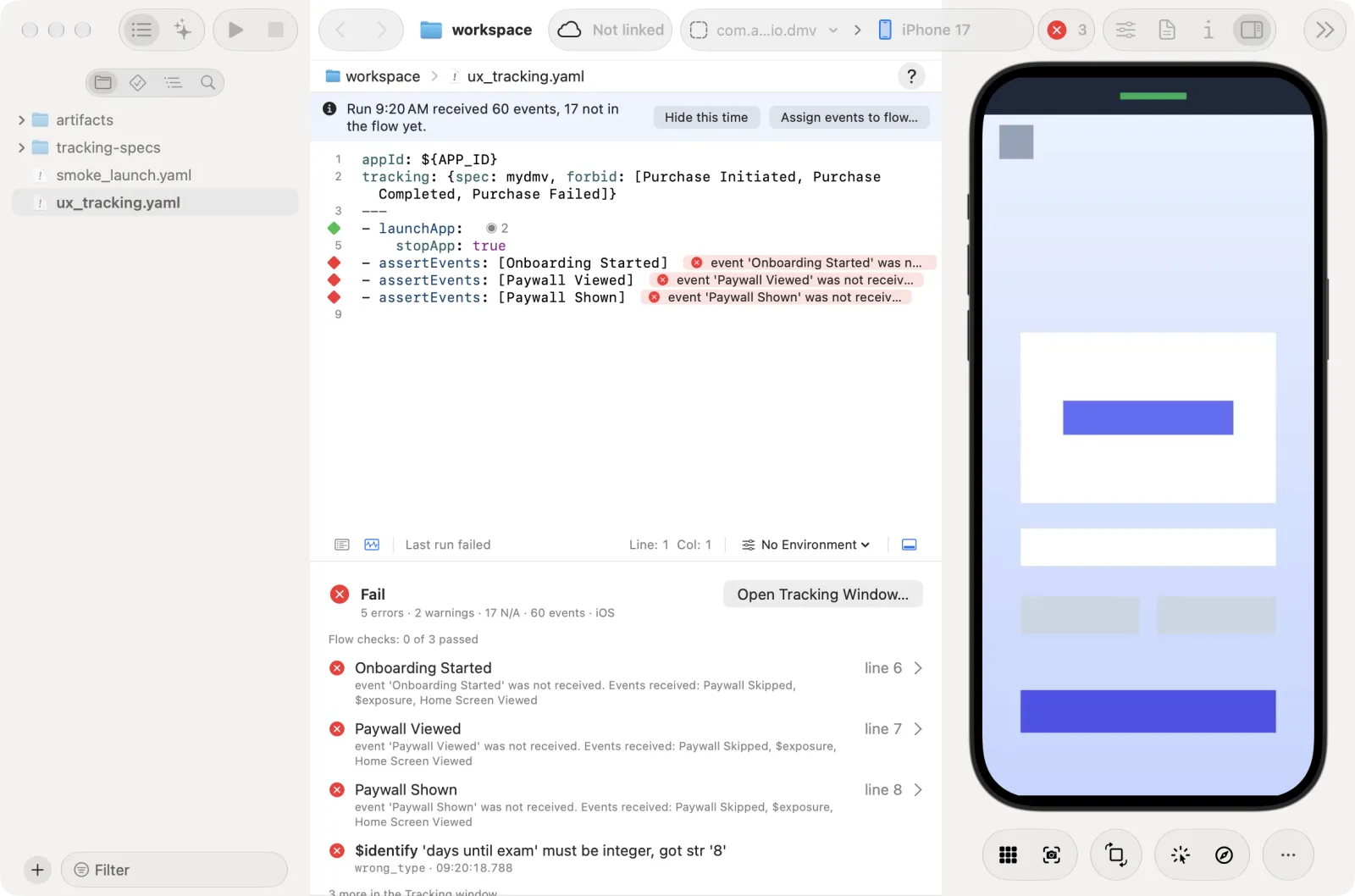
Click the problem, or Open Tracking Window…, to see the run in full.
If nothing arrives, the tab tells you why. "The app sent no API key through Astra Scout (is its serverUrl set to Scout?)" means the build does not send to Scout: check the serverUrl. "Amplitude capture: …" means the listener could not start.
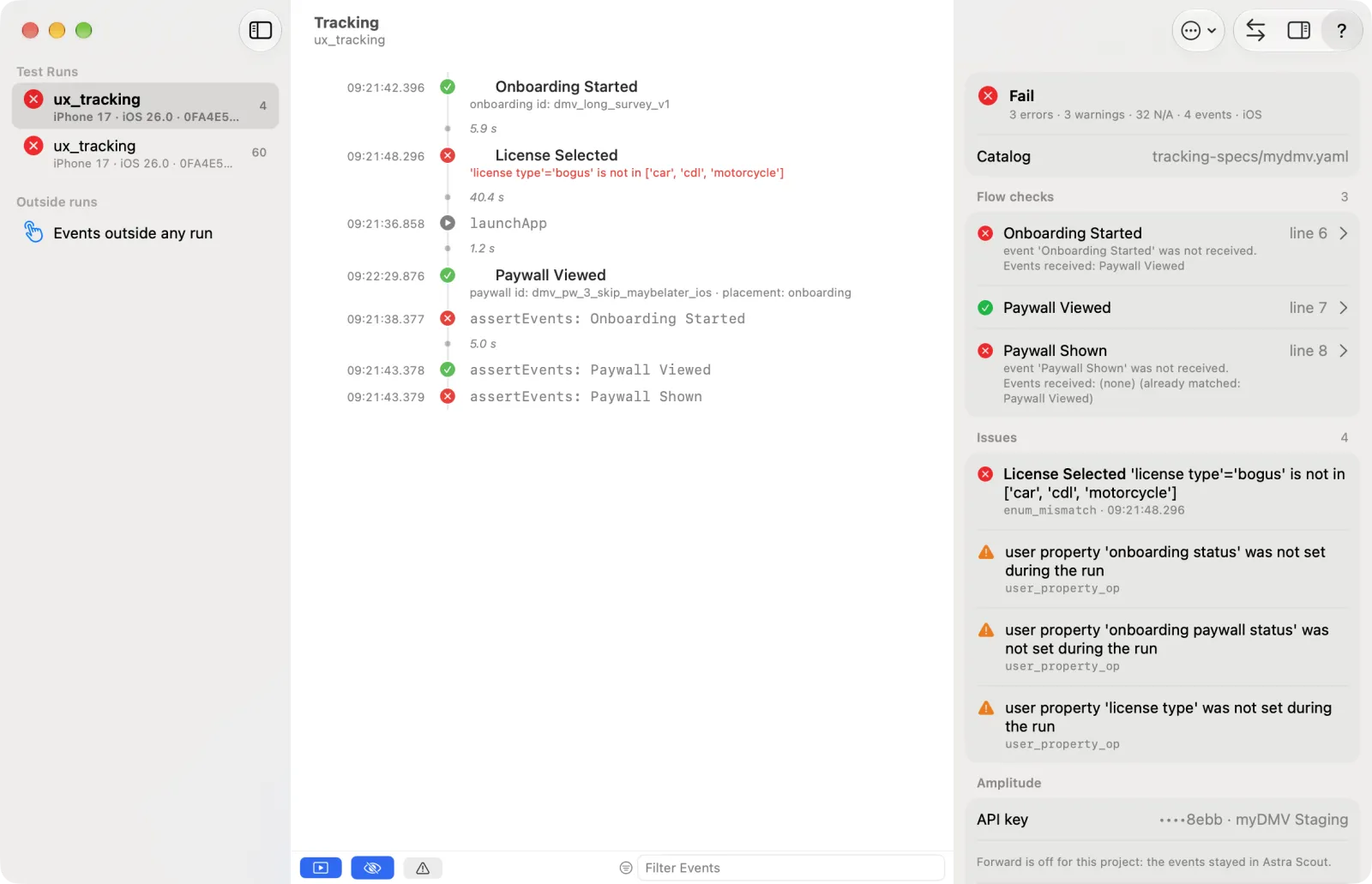
The Tracking window (Window → Tracking, Shift+Cmd+T) shows one run at a time and follows the newest run until you pick another. It never opens by itself.
| Part | Shows |
|---|---|
| Sidebar | Section Test Runs: each captured run with its flow, platform, event count and a pass, warn or fail mark ("No run captured yet" when empty). Section Outside runs: the row Events outside any run with a count |
| Event stream | The run's events in time order, with the steps of the flow between them (launchApp, tapOn…), so you can see which step sent which event. An assertEvents step shows its result. A run started by an agent through MCP or by the API shows its steps too, as they run. Each event shows its problem, if any; a pause of a second or more shows as a gap |
| Inspector | With no event selected: the verdict (status icon, Pass, Warning or Fail, and "N errors · N warnings · N events · platform"), the Catalog row, the Flow checks, the Issues (hidden when empty; click one to show its event), the Amplitude section, the Server events section, the user properties at the end of the run and the Rules. With an event selected: its properties, the user properties it sets, and all the user properties at that event. The Show Issues button at the top of that view goes back to the issues of the run |
The bar under the stream has these controls:
| Control | Does |
|---|---|
| Show Flow Steps | Shows the flow's steps between the events. On by default; Scout remembers the choice |
| Hide SDK Events | Folds away $identify and [Amplitude] … events unless the check flags one. On by default, so [Amplitude] … events look missing until you turn it off; Scout remembers the choice |
| Problems Only | Leaves only the events with a problem |
| Group | A menu shown when the catalog's events have groups: All Groups, one group, or No Group, which holds the events the catalog does not list |
| Filter Events | A text filter |
A glyph before an event's name says where it comes from: a blue A for the Amplitude SDK ([Amplitude] Application Opened reads "Application Opened"), a purple flask for Amplitude Experiment ([Experiment] Assignment, $exposure), a grey person for $identify; the app's own events have none. Turn Hide SDK Events off to see them.
The toolbar of the window has:
- Actions (the
…button): Check Again, Export JSON…, the Platform (Auto reads it from the events), the Copy Address for the QA Build items and Clear Captured Runs. - Compare iOS ↔ Android…, see below.
- Hide Inspector / Show Inspector, and a help button that opens Tracking: where to start.
Declare the checks in the flow
Put the check right under the action that sends the event. A flow also names its catalog in a tracking header before the ---:
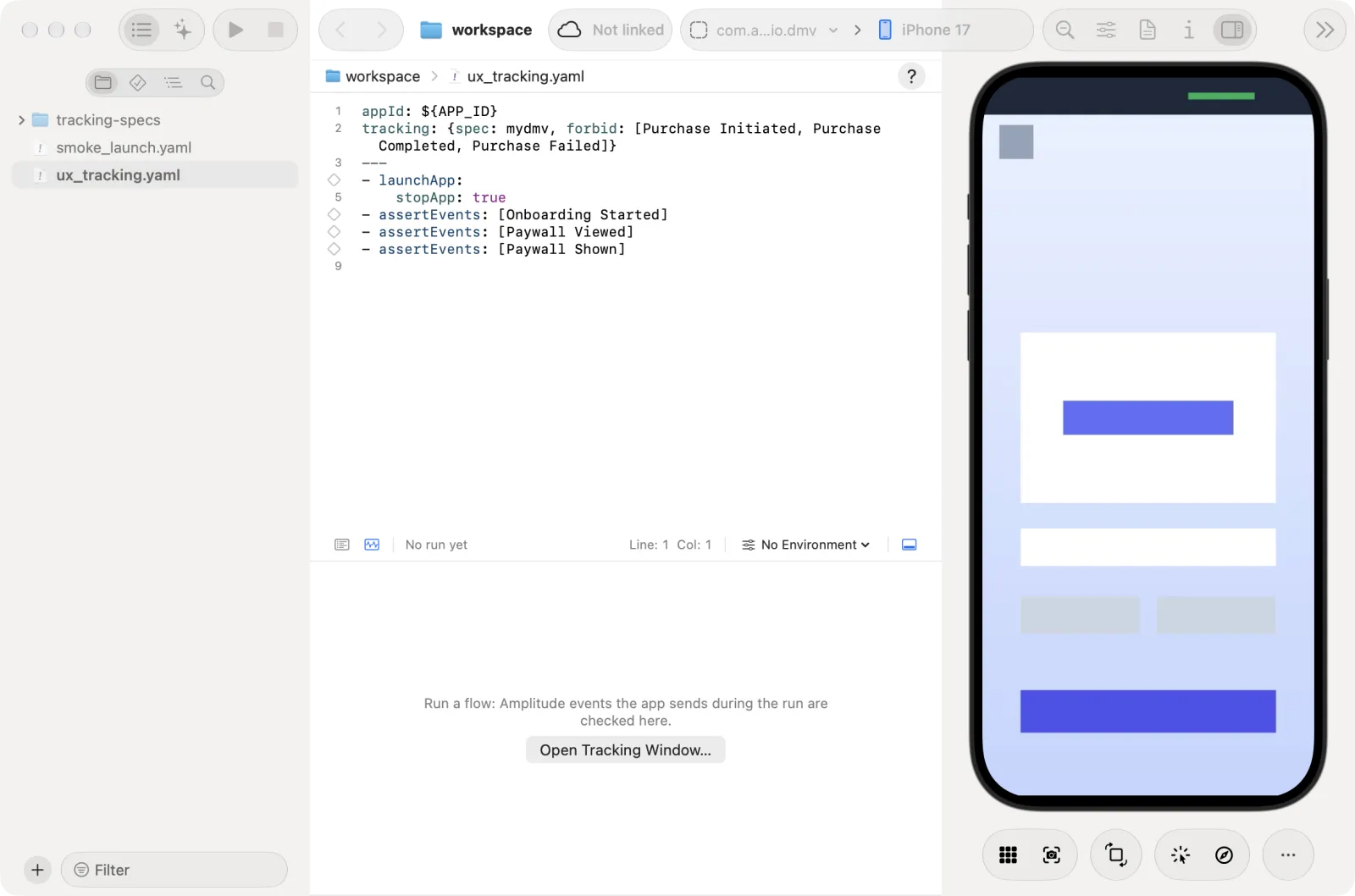
appId: ${APP_ID}
tracking:
  spec: mydmv                  # tracking-specs/mydmv.yaml; optional when the workspace has one catalog
  forbid: [Purchase Initiated, Purchase Completed, Purchase Failed]   # events the whole run must not send
---
- tapOn: "Car"
- tapOn: "Continue"
- assertEvents:
    - License Selected:
        license type: car
placement: onboarding| Header key | Meaning |
|---|---|
spec | The catalog, as a name without extension or a relative path |
forbid | Events the run must not send, whatever the step |
Only the header of the top-level flow counts. An unknown key under tracking, or a spec that does not resolve, makes the flow invalid. The Catalog row in the inspector of the Tracking window names the catalog the run is checked against. With several catalogs in the workspace it is a menu: it defaults to The flow's catalog, and another catalog picked there applies to that flow file.
The three forms
- assertEvents: [Onboarding Step Viewed, Profile Created]   # names only
- assertEvents:                                             # names with values
    - License Selected:
        license type: car
    - Paywall Viewed: { placement: onboarding }
- assertEvents:                                             # with a timeout
    timeout: 8000
    events:
      - Paywall Viewed: { placement: onboarding }
A property value is a plain value, which must equal what the app sent, or a map of conditions (in, min, max, regex, type). A date (date: 2026-10-19) is compared as written. The full list is in the assertEvents reference.
How a check works
- Window. The check looks at events from 500 ms before the last action that touched the app (a tap, typing, a swipe,
launchApp). Waiting and asserting commands do not move it. SotapOn, thenassertEvents, checks the events of that tap. Times are on the Mac's clock, so a device clock that is off does not matter. - Timeout. The step waits up to
timeoutmilliseconds (default 5000) for events that have not arrived. The wait counts from theassertEventsstep itself. - Once each. Every listed event must match one event the app sent. An event that one
assertEventsmatched is not used again by a later one. The order inside one step does not matter. - After a block. An
assertEventsright after arunFloworrepeatchecks every event the block sent. - Branches. An
assertEventsinside arunFlowwithwhenis checked only when that branch runs. A line that never ran has no result. - Failures do not stop the flow. A missing event or a wrong value fails the step and says which; the next commands still run, and the run ends failed.
forbid. Any event in the list, at any point, fails the checkflow:forbidden.- Every event is also checked against the catalog, listed in a flow or not: unknown names, wrong types, missing required properties, general rules.
SDK events such as $identify and [Amplitude] … are ignored by assertEvents.
Typing in the editor
Write the catalog name of an event (its Display name) in assertEvents, forbid and rules. Assign events to flow… writes the catalog name too.
To write a check by hand:
- Open the flow file and put the caret on a new line right under the action that sends the event.
- Type
- assertEvents:. Inside the step the editor suggests event names from the flow's catalog. - Accept a name. The editor then suggests the properties of that event (required ones first), then the allowed values of a property. Accepting a name that has required properties adds a line for each.
- Run the flow and read the result at the line, see below.
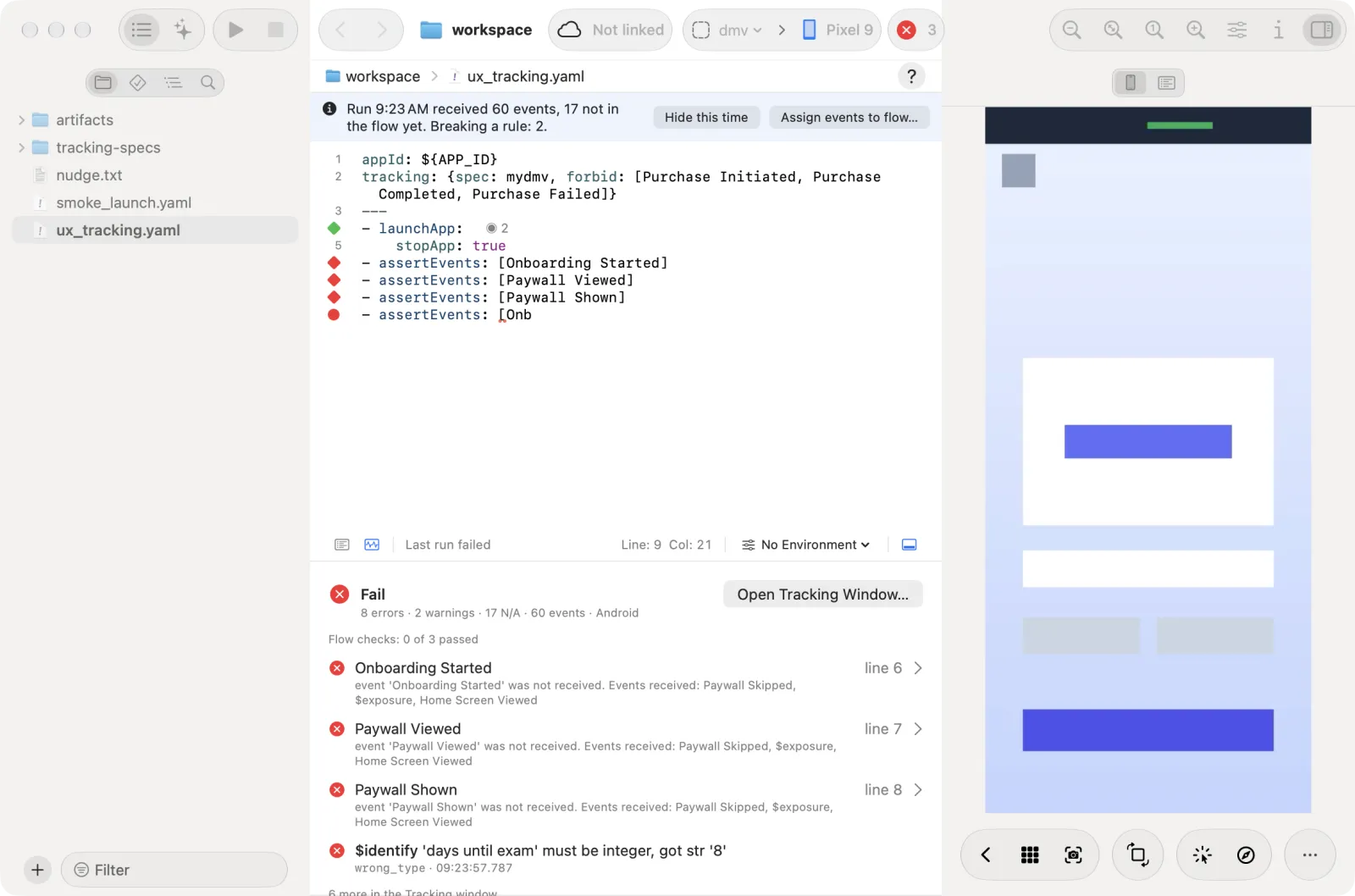
Results in the editor
After a run, the editor shows each assertEvents result where you wrote it. Results show only while the file is unchanged since the run started; edit the file and they hide until the next run.
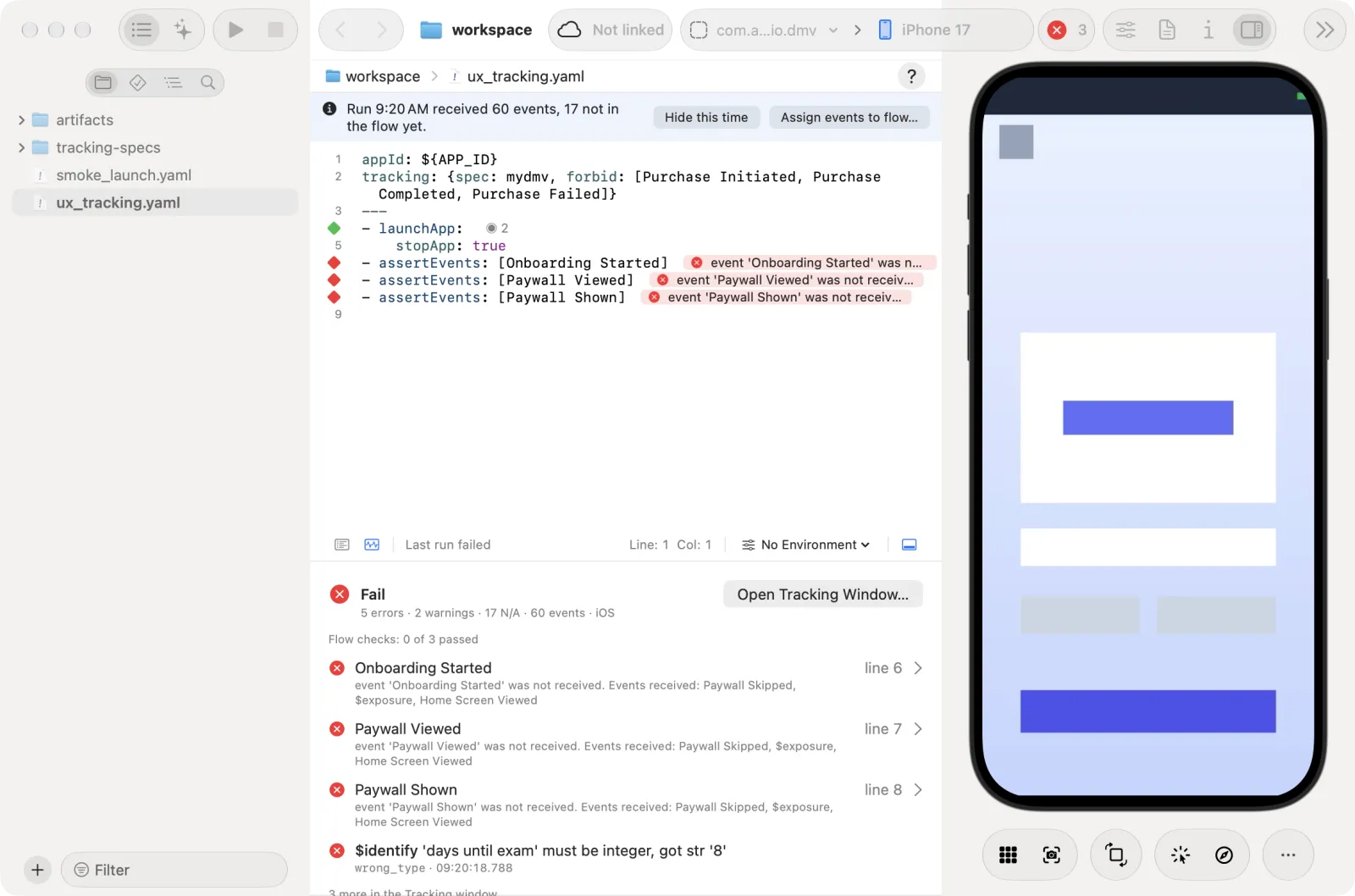
| Where | Shows |
|---|---|
| Line numbers | ✓ passed, ✕ failed, ▲ warning (an optional or interrupted step). A line that ran several times shows its worst result |
| End of a failed line | A short banner with the message, for example which event never arrived |
| Run table | Under each assertEvents step, one row per expected event: matched with its time, or the problem (picture below) |
| Flow checks list | In the Tracking tab and the Tracking window: one row per run of an assertEvents line. The chevron (Show in Flow, also in the row's context menu) opens the file at that line |
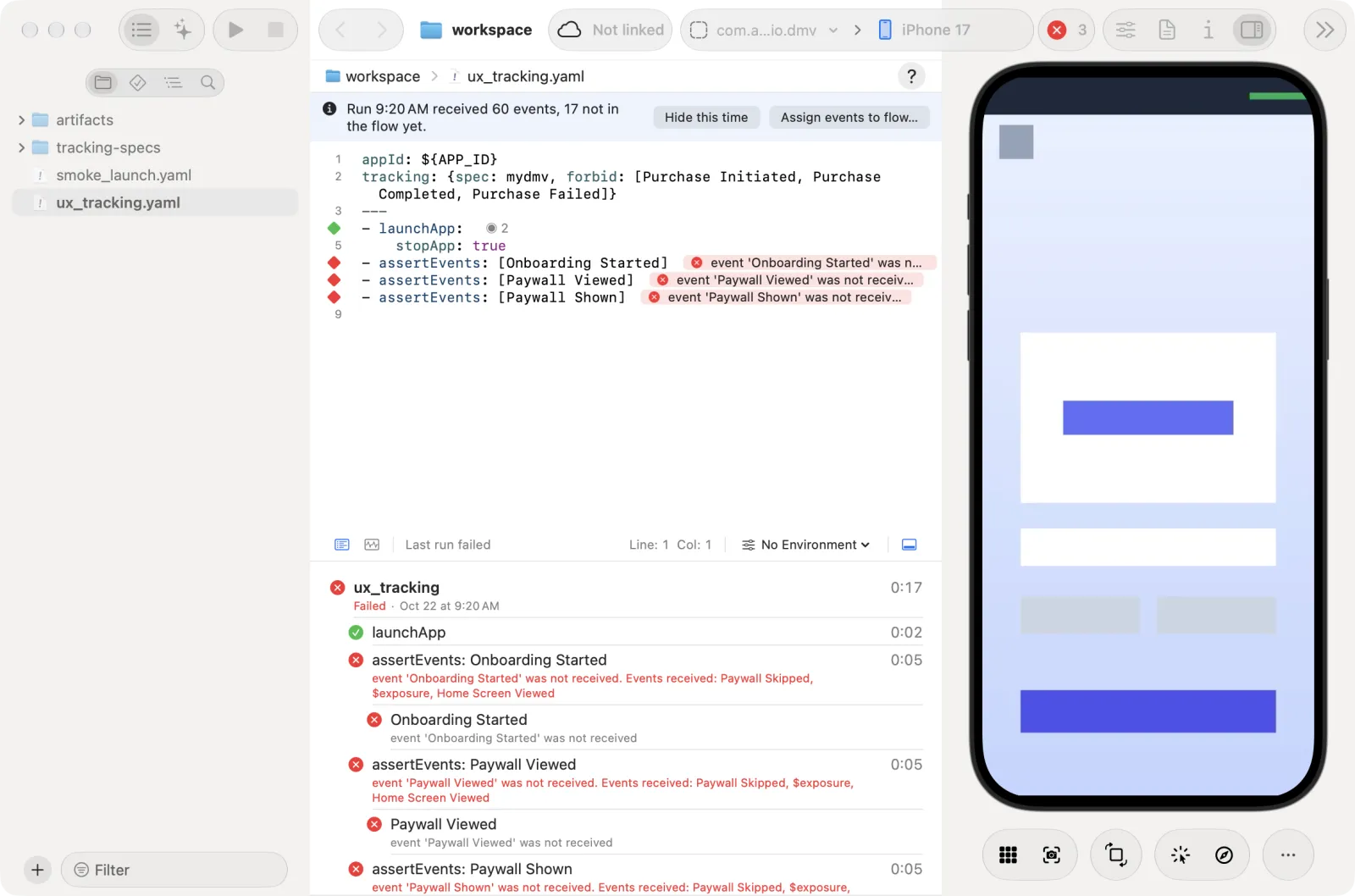
Click a ✓ ✕ ▲ mark or a banner to open the Event tab in the inspector. The Event tab is the list icon of the segmented control at the top of the inspector (the other one is Device). The control shows only while the caret is in an assertEvents step or on an action line. The tab never opens by itself when you move the caret.
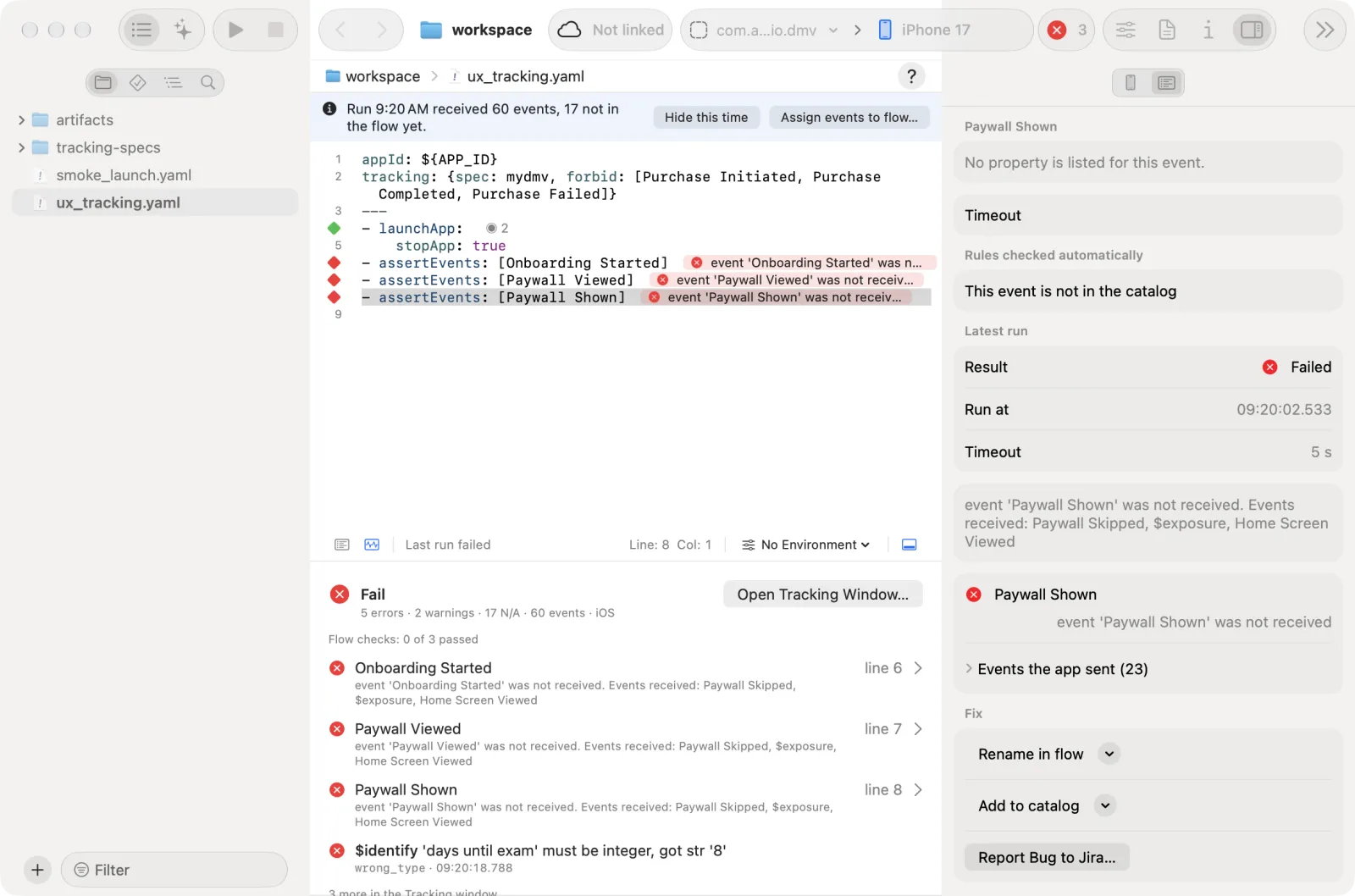
The Event tab has these sections, top to bottom:
| Section | Shows |
|---|---|
| One section per expected event, titled with the event name | The values you wrote, one row per property. Pick an allowed value from a menu, tick a boolean, type other values, add or remove a property. Edits go through the text, so ⌘Z undoes them. A condition such as { in: [1, 2] } is read-only here: edit it in the text |
| Timeout | The step's timeout in milliseconds. Empty means the default, 5000 ms |
| Rules checked automatically | The catalog rules that apply to these events, in plain sentences, each with Show in Catalog. An event the catalog lacks says so |
| Latest run | Result, time, timeout, the match or problem for each expected event, and the events received in the window with their properties |
| Fix (failed lines) | Quick fixes, below |
Quick fixes
| Button | Does |
|---|---|
| Rename in flow | A menu of the event names the app did send, closest first. Picking one rewrites the name in the flow. With several failed events it reads "Rename <event> in flow", one menu per event |
| Add to catalog | A menu of the events the catalog lacks. Picking one opens an alert "Write this event into the catalog?" that names the event and the catalog file, with Add and Cancel |
| Report Bug to Jira… | Starts a Jira report with this line's failure selected |
Assign events from a run
Scout can write the assertEvents checks from what the app sent in a run.
Run the flow once. Capture must be set up (see above).
Read the info bar. When the newest run of the open flow sent events the flow does not check, a blue bar appears above the editor: "Run 14:02 received 31 events, 12 not in the flow yet." It adds "Breaking a rule: N." when some break a rule. Hide this time closes it for that run.
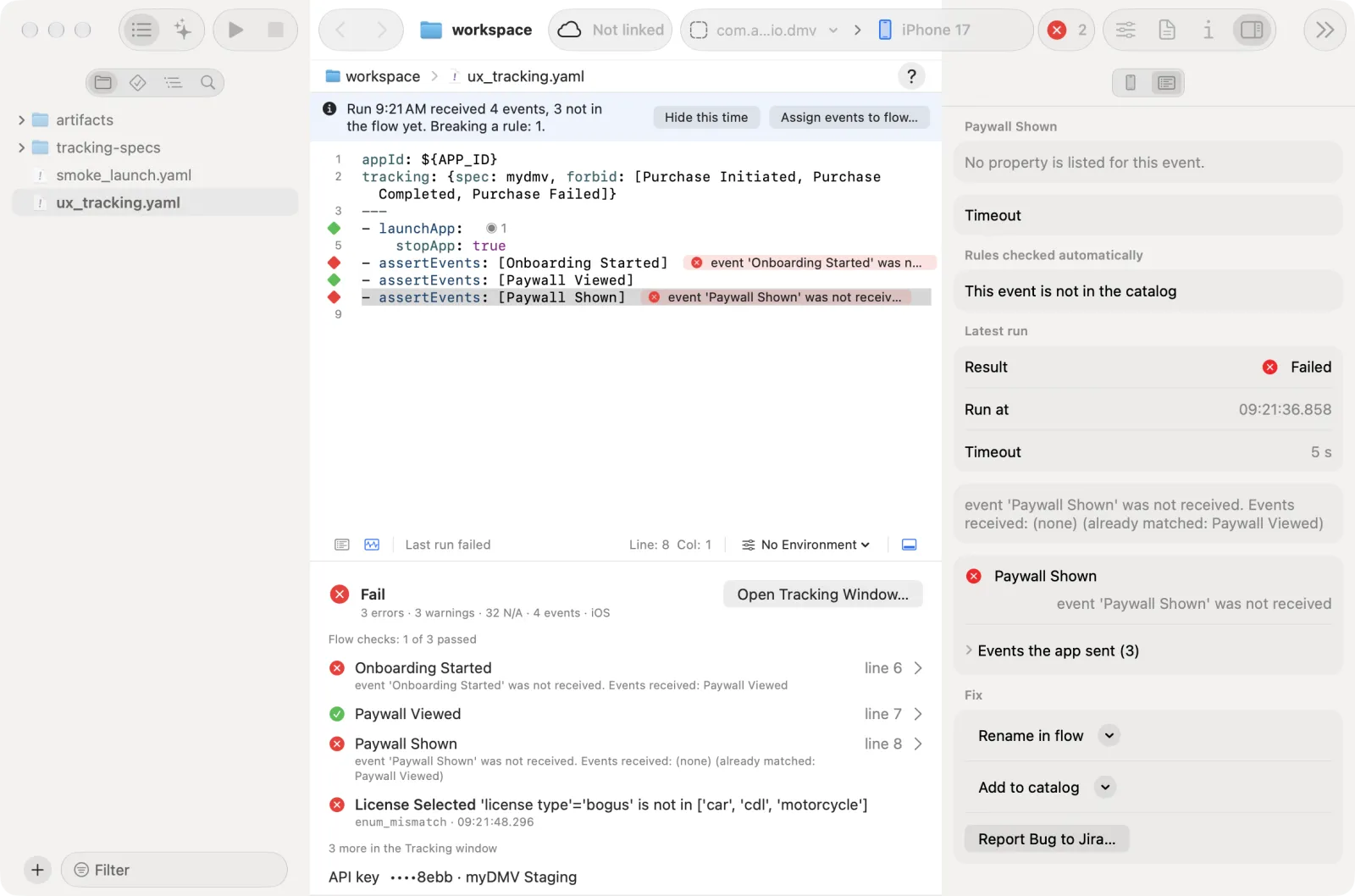
Look at the grey counts. Each action line shows
◉ N, the number of events the app sent after that action. The line with the caret spells it out. To write one event only, click the count (or right-click the action line and choose Add Event Check…). The Event tab lists those events. Add event name writes the name, Add with values writes the name with the values the app sent.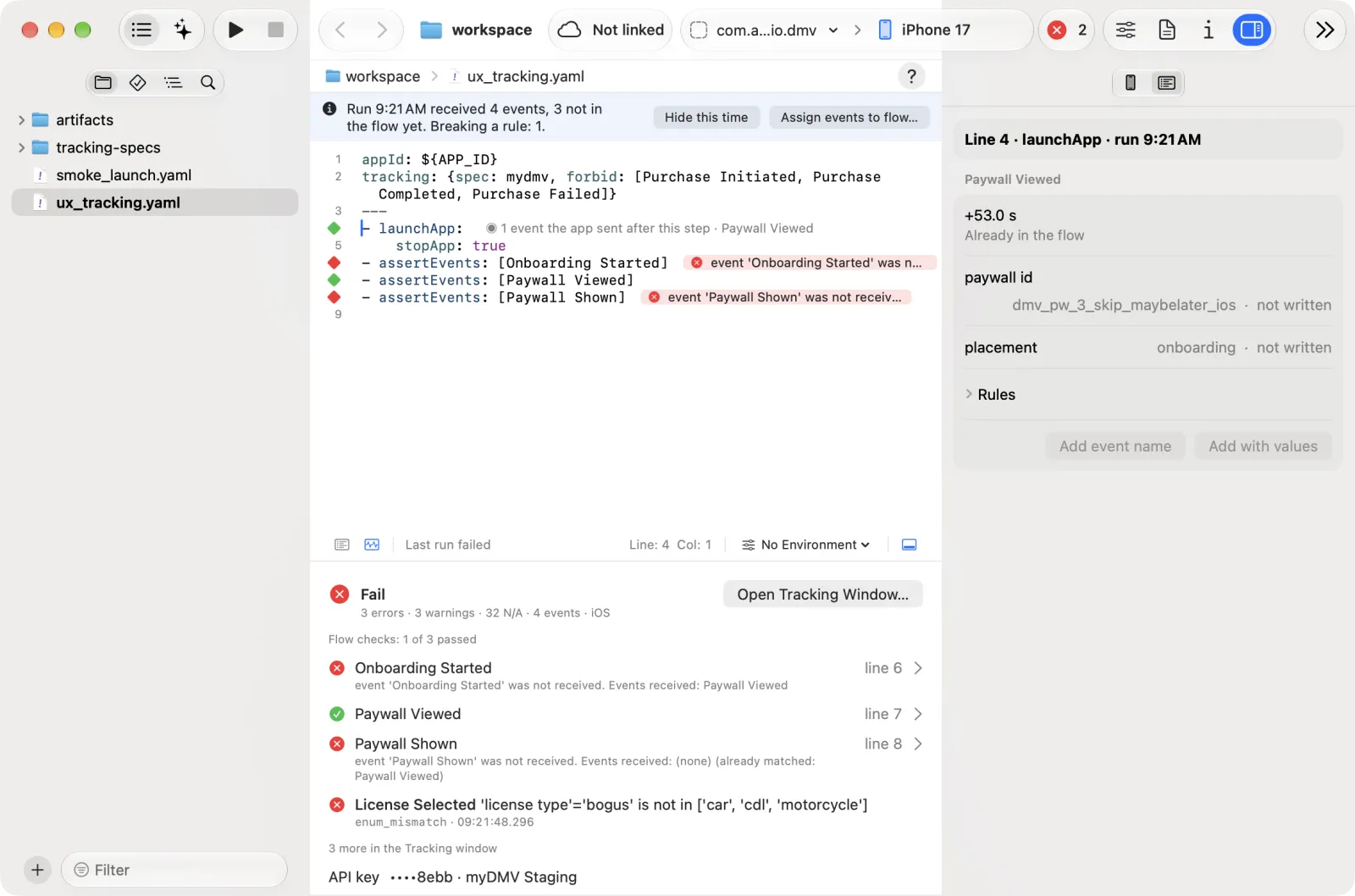
Open the sheet. To write many at once, click Assign events to flow… in the info bar. The sheet "Assign events to flow from a run" opens. Each event is listed under the action that ran just before it.
Tick and write. Pick the events to check and click Write to flow.
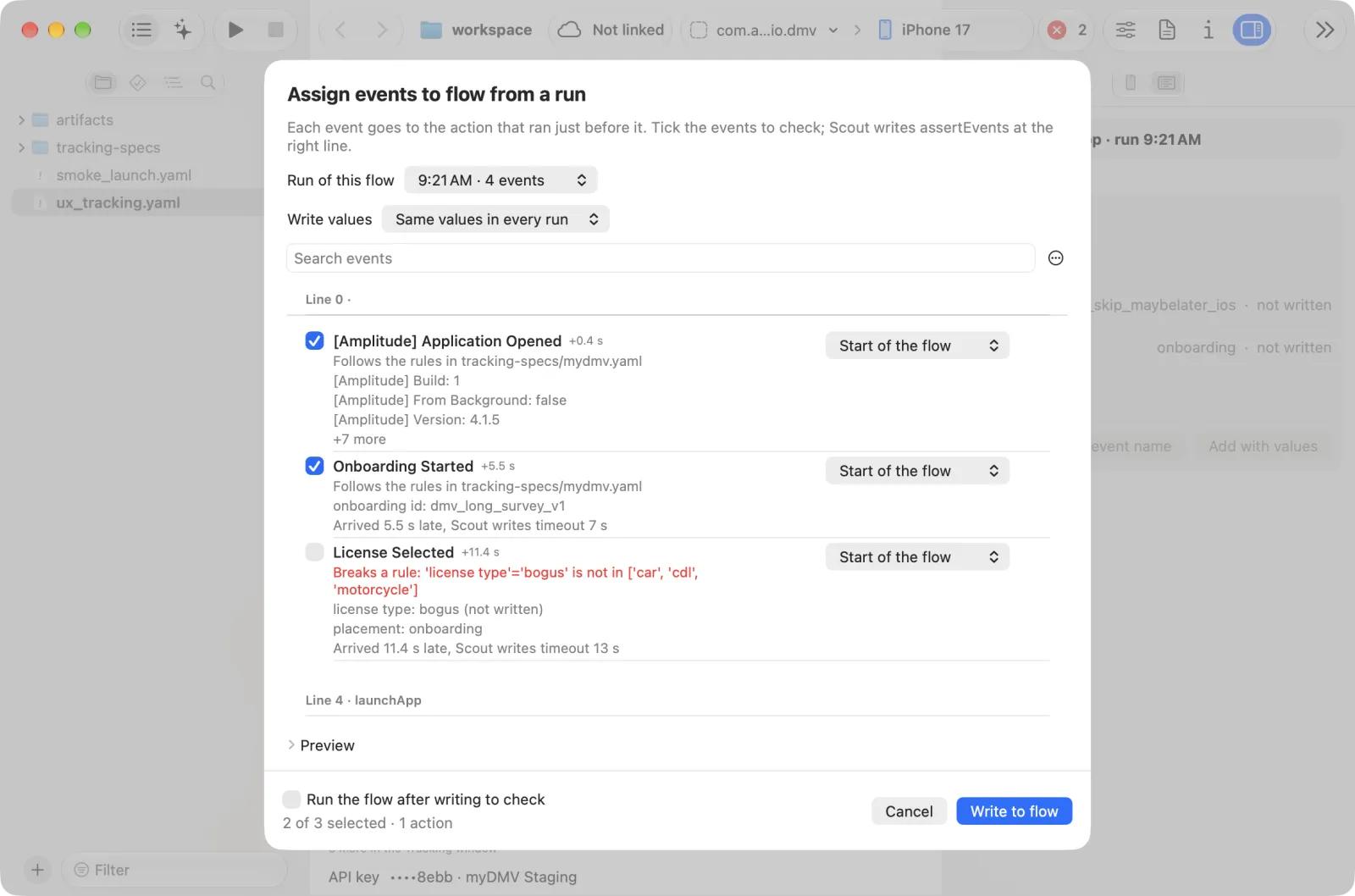
What the sheet does:
Run of this flow picks any run of this file.
Events that follow the catalog rules, and events the catalog lacks (shown with a warning), are pre-ticked. An event that breaks a rule is not ticked. The … menu next to the search field has Select all events that follow the rules and Clear selection to change many at once.
Write values is Same values in every run or Event names only. With the first, Scout writes only the values that stay the same across runs and leaves out ids, times and dates, marked "not written".
SDK events (
$identify,[Amplitude] …) are left out and have no tick box.Wrong action. If Scout guessed the action wrong, Move to action puts the event under another one.
Late events. An event that arrived more than 5 s after the action gets a longer
timeout, and the row says so.End of flow. Events sent after the flow ended appear under After the flow ends. They have no tick box and are not written: no step in the flow can check them.
Subflows. An action inside a
runFlow: file:subflow gets itsassertEventsright after therunFlowline in the open flow. The subflow file is not changed. An action inside arunFlowwithwhengets it inside that branch.Open Preview and switch between Selected events and All changes to see the lines before they are written.
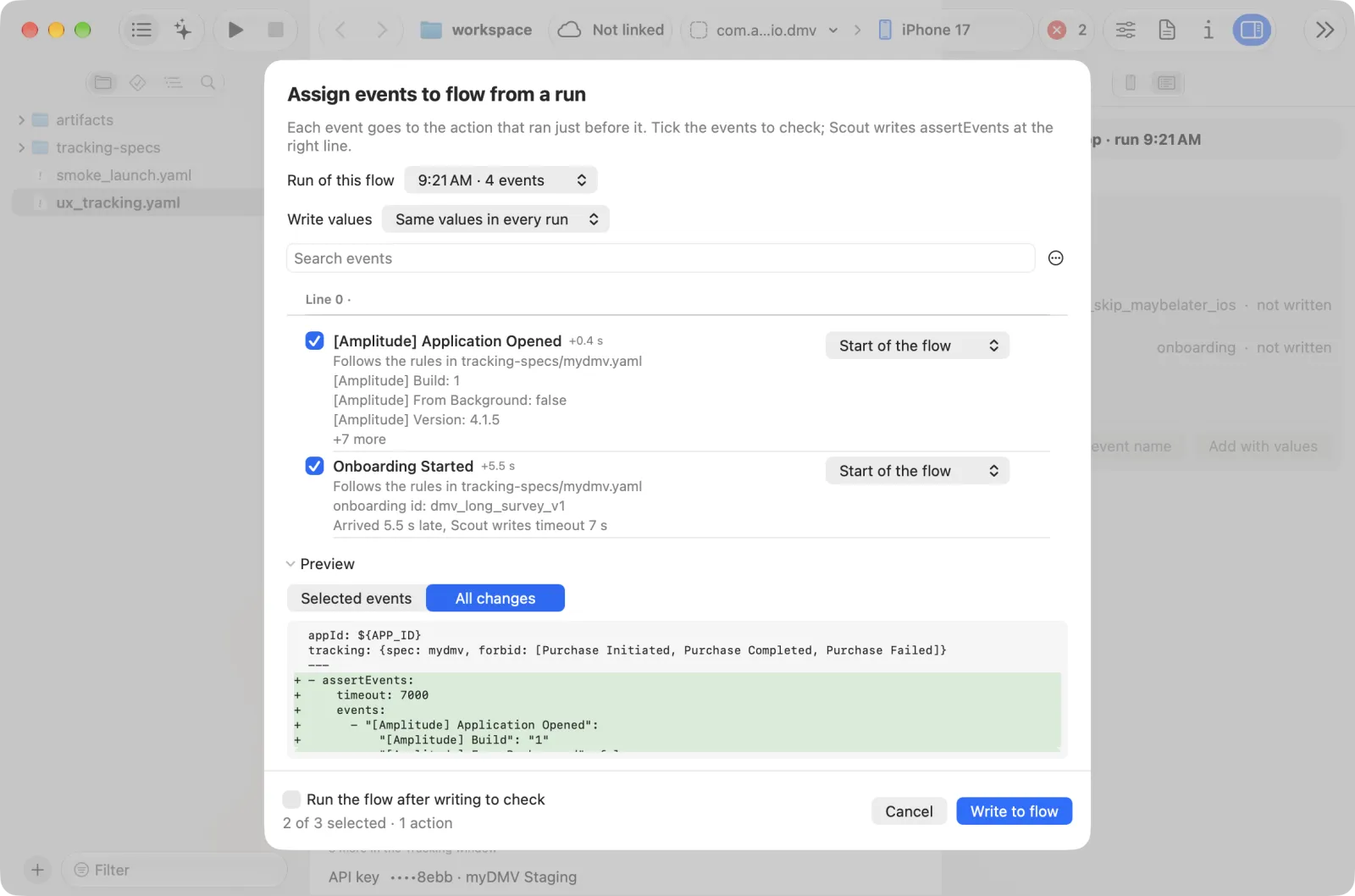
Run the flow after writing to check runs the flow again.
Scout writes into the open editor text, as one change: ⌘Z undoes the whole assignment, and comments and other lines are untouched. If an action line changed since the run, its events show "line changed, run the flow again".
What a run is checked against
| Check id | Comes from | Applies when |
|---|---|---|
schema:*, global:* | The catalog: events, enums, user_properties, global_rules | Always, for every event of the run |
cross:* | cross_checks in the catalog | Always. N/A when the events to compare are not in the run |
assert:<file>:<line> | One per assertEvents line. It fails when any execution of the line failed. A failed optional step is a warning | The line ran. A line that never ran has no row |
flow:forbidden | tracking.forbid in the flow header | The header has a tracking section. N/A when forbid is empty |
userprop:<property>@<event> | user_property_rules.rules in the catalog | The trigger (after) event is in the run. N/A without it |
identity:* | identity in the catalog | device_id and user_id format: always. Login rules: a login event is in the run. Logout rules: a logout event is in the run |
server:<id> | server_checks in the catalog | The after event is in the run. N/A without it |
amplitude:* | Read-back from Amplitude | See Amplitude results |
A rule that does not apply is N/A, not a pass. A run where every rule is N/A is N/A as a whole.
The Flow checks list has one row per assertEvents execution: status, the event names, the reason when it failed, and "line N". A row selects its event in the stream. An assertEvents failure is not repeated under Issues, because its row here shows it.
While the run is still going, an assertEvents that is still waiting, a user property set or a final value that has not arrived yet shows Pending instead of failing, and the result is Pending until the run ends or a rule fails. A wrong event or property fails at once.
A rule with severity error fails the check; warn is only recorded. Events that arrive outside any run appear under Events outside any run. Use Export JSON… to attach the spec, report and events to a ticket, and Clear Captured Runs to reset (both are in the Actions menu).
To change the rules, see Tracking catalog. The sections below cover checks that live in the catalog but need more than a property rule.
User property rules
The catalog can also check the user properties the app sets (Amplitude Identify ops such as $set, $setOnce, $add, $unset). Add a user_property_rules section. Each rule needs an after event: it runs only when that event is in the run, and is N/A otherwise.
user_property_rules:
  severity: warn                 # default for the rules below
  forbid_ops: ["$clearAll"]      # ops that must not appear
  rules:
    - property: access level
      op: "$set"                 # $set, $setOnce, $add, $unset, $append, $prepend, $preInsert, $postInsert, $remove or any
      after: { event: Purchase Completed, within_ms: 10000 }
      value: { in: [trial, premium] }
      final: { equals: premium } # value after applying every op of the run
    - property: first open date
      op: "$setOnce"
      after: { event: Onboarding Started }
      set_once_stable: true      # never overwritten by $set, $unset or $clearAll in the run
      amplitude: final           # also check the value stored in Amplitude
    - property: onboarding paywall status
      op: "$set"
      after: { event: Paywall Skipped, where: { placement: onboarding } }   # same conditions as assertEvents
      value: { equals: skipped }
persist: true # still stored after a new session| Key | Meaning |
|---|---|
property, op | The property and the operation to look for (op defaults to any) |
value | Constraint on the value of each matching op, like event properties, plus type, regex, max and from_prop |
after | Required. The event that triggers the rule; where limits it to events with these property values. The op must come within within_ms (default 10000) after the named event, or up to before_ms (default 1000, -1 turns it off) before it: apps often identify just before the event they set the property for |
count | How many matching ops (default at least 1) |
final | Constraint on the value after reducing all ops of the run |
forbid_ops | Ops that must not occur, such as $clearAll |
set_once_stable | A $setOnce property is not changed by another op in the run |
persist | The property survives into a new session (checked against Amplitude) |
severity | error or warn for that rule. Rules checked only on the captured payload default to error, rules that need Amplitude default to warn |
Each rule has the id userprop:<property>@<event>. Rules marked needs_confirmation: true stay warnings until the team confirms them.
User property catalog
Add user_properties at the top of the spec (next to events) to check every value the app sets, like event properties: type, enum or enum_ref, regex, min, not_empty, forbidden. A user property the catalog does not list gets global_rules.unknown_user_properties (ignore, warn by default, or error). Each property and each value is reported once, because SDKs repeat $setOnce on every event.
user_properties:
  days until exam: { type: integer }
  access level: { type: string, enum_ref: access level }
global_rules:
  unknown_user_properties: { severity: warn }
The same choice exists per event for event properties: extra_properties: ignore | warn | error on an event (default global_rules.unknown_properties). With required: true on its properties, ignore means "these must be there, others don't matter" and error means "exactly these".
Login and Amplitude profiles
The catalog's identity section checks user_id and device_id around login, and whether Amplitude merged the anonymous profile into the user's:
identity:
  login_event: [Sign In Completed, Signup Completed]   # a name or a list
  device_id: stable              # or reset_on_logout (needs logout_event)
  user_id: { regex: "^[0-9a-f]{24}$" }
  amplitude_merge: true          # default when login_event is set
The device_id and user_id format checks always run. The login checks run when a login event is in the run, and the logout checks when a logout event is. Together they check that no event carries a user_id before login_event, that events after it do (a grace of 2 events or 10 s), that the user_id does not change without a logout and matches its format, and, with logout_event, that it is gone after logout. amplitude_merge reads the user back from Amplitude and warns when the device_id the app had before login is not in that user's profile: Amplitude kept two profiles for one person.
Connect Amplitude
Capturing events needs no Amplitude account. To also check what Amplitude actually stored, add your project in Settings → Amplitude (Add Project…):
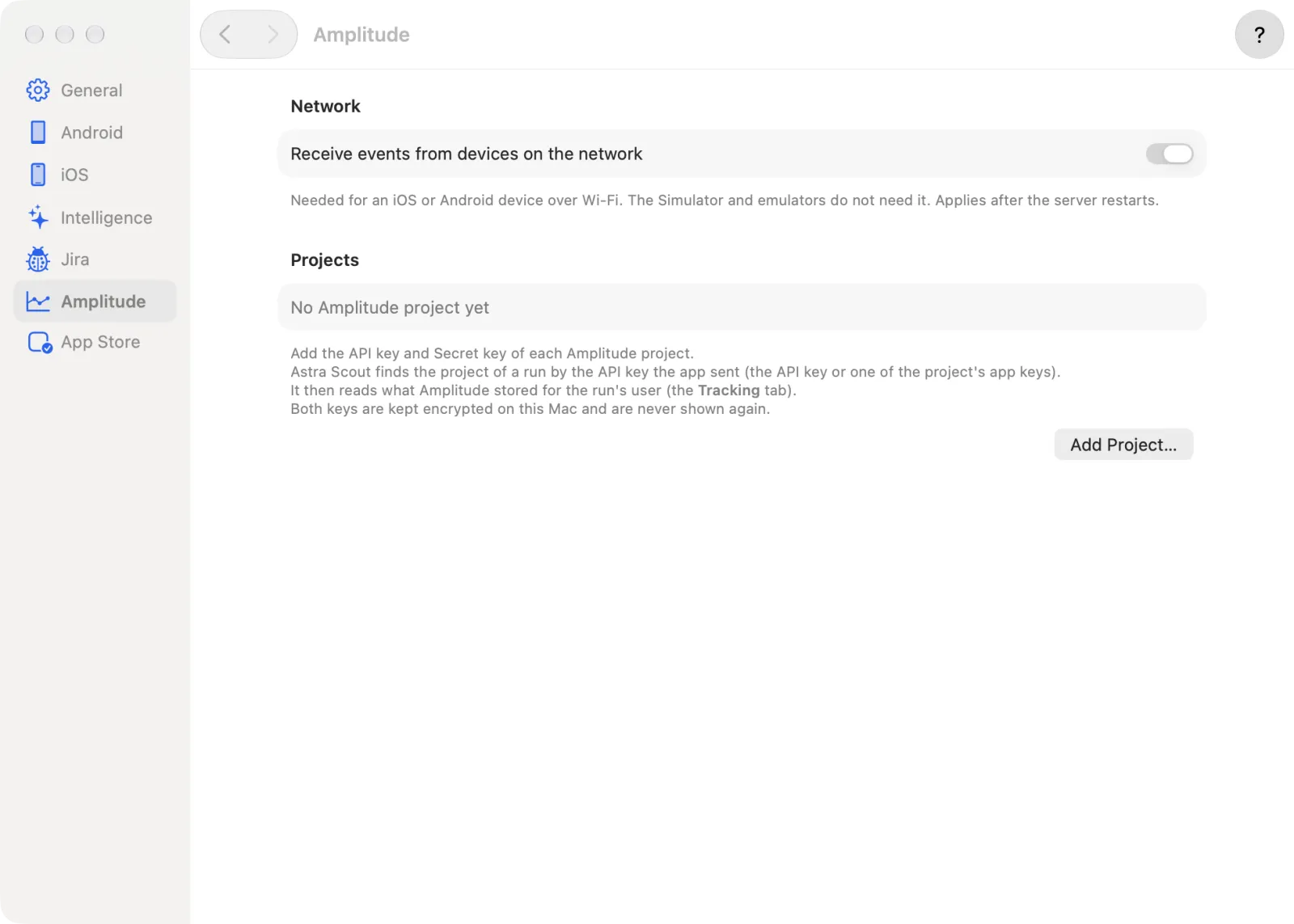
In Amplitude, open Settings → Projects → your project → General and copy the API Key and the Secret Key.
In Astra Scout, open Settings → Amplitude and click Add Project…. The add form opens. Fill the name and both keys. Region is Auto by default: the form says "When you save, the app tries the US region, then EU." You can still pick US or EU yourself. Click Save.
On the project's row, Test Connection checks the keys. The row also has Edit… and Delete Project.
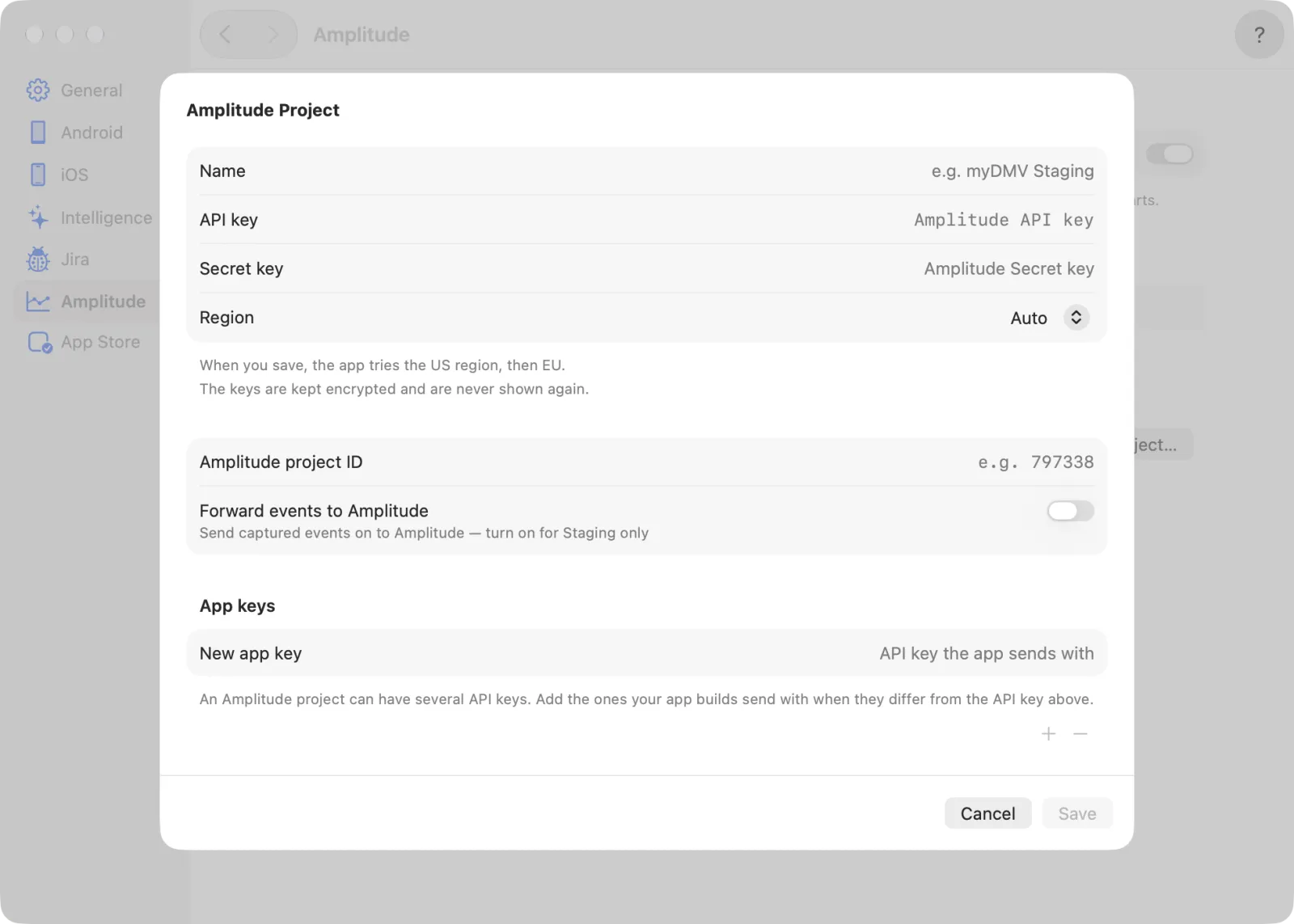
Set Forward events to Amplitude, on the project's row or in its form. It is off by default for each project. When you turn it on, a dialog asks you to confirm. Turn it on only when the project is for Staging: events captured during a run are also sent to Amplitude, so they can be read back. Keep it off for Production: test data must not go there. For Production, use the read-only lookup instead.
Optionally fill in Amplitude project ID (digits only, for example
123456, from Settings → Projects in Amplitude). Scout cannot read it from the keys. If Amplitude reports a project for the run, the form offers Amplitude reports project N, use it?. It never fills the field on its own.
A run uses the project whose API key the app sent, so you do not pick the project per run.
An Amplitude project can have several API keys (Organization settings → API Keys lists them per project). When your app builds send with another key than the one you gave Scout, for example the project's legacy key, add it under App keys in the same project form (the project's row lists them as "App keys ••••8ebb"). Only the key is needed, no Secret key. A run sent with the API key or any app key belongs to that project; Scout still reads Amplitude with the API key and Secret key. The form shows app keys by their last 4 characters only.
Wrong Amplitude project
When the spec names its project (source.amplitude_project_id) and the project ID is set in Settings → Amplitude, Scout compares the two for every API key the app sent. A mismatch is the rule amplitude_wrong_project with severity error: the message names both project IDs and never the key. The check is local and needs no network. It is na, with a reason, when the spec has no source.amplitude_project_id, the run sent no API key through Scout, the key is not in Settings → Amplitude, or that project has no project ID.
Amplitude results
The Amplitude section names each API key the run sent by its last 4 characters and the project it matched in Settings → Amplitude (by API key or app key), or says the key is not there, with Open Amplitude Settings…. Below the keys it has rows for Forwarded ("N sent · N failed · N skipped"), Status and User, and the buttons Look Up a User… and Check in Amplitude at its foot. Status reads "Waiting for Amplitude · attempt N · next check in N s" while Scout polls, then "Read from Amplitude · N events".
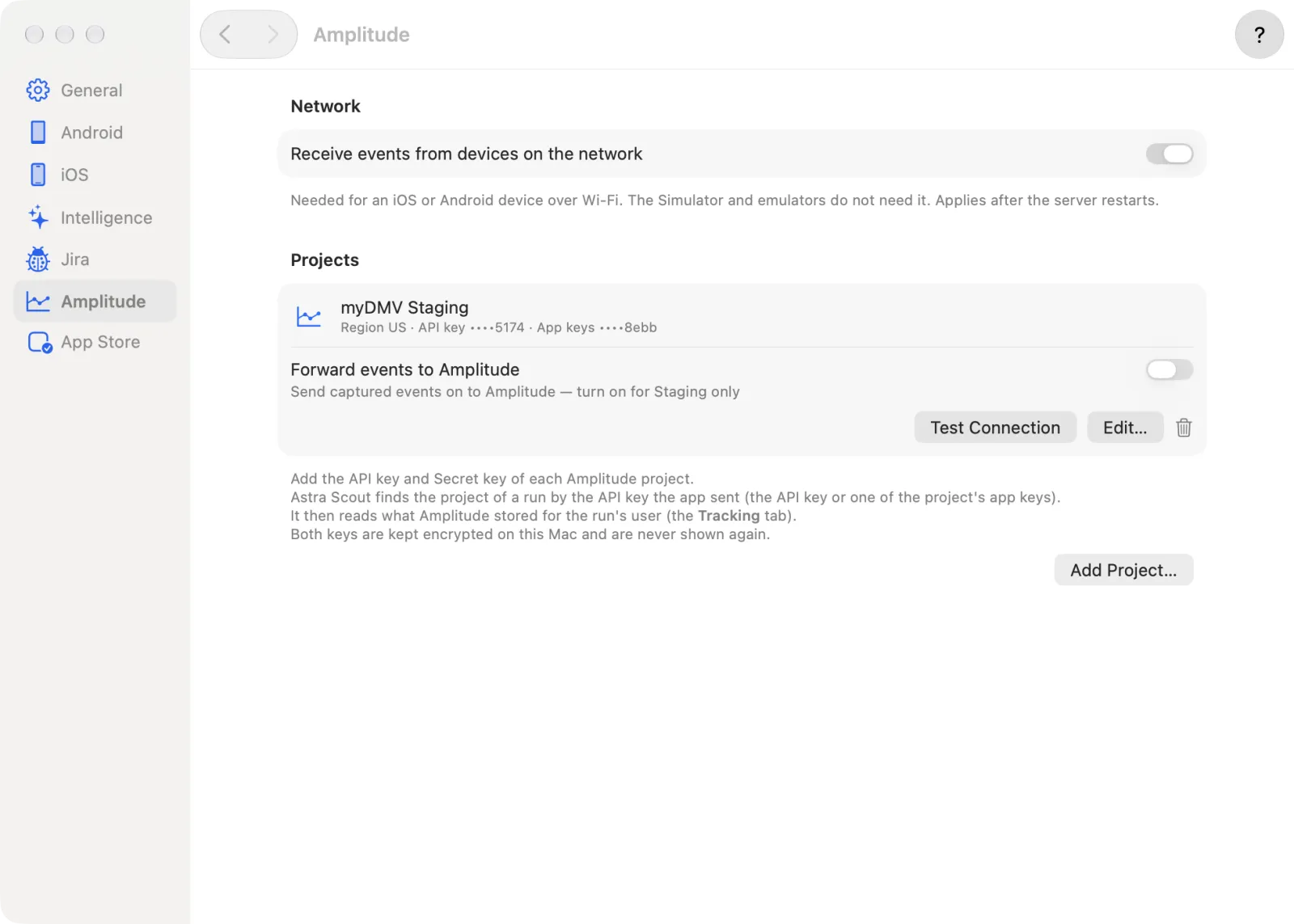
The Rules list shows the rules that failed, warned or are pending first. The rules that pass are folded under "All N rules pass".
After a Staging run, Scout reads the test user back from Amplitude and fills in the rules that use amplitude, persist and set_once_stable. Amplitude can take a while to ingest events, so Scout polls for up to about 2 minutes. These rules show up in the Tracking window next to the others, and in the report. Check in Amplitude reads the run back again.
| Result | Meaning |
|---|---|
na | Not checked: no Amplitude project is configured for the key, the read-back has not finished yet, or there was nothing to compare |
amplitude_unavailable (warn) | Amplitude could not be read (wrong keys, rate limit or timeout). It is never a pass |
For a run that was not forwarded (Production), look a test account up by hand:
- In the Tracking window, open the Amplitude section of the inspector and click Look Up a User….
- Fill User ID, or Device ID (one of the two is enough), and pick the Project. The list is empty until you add a project in Settings → Amplitude.
- Click Check in Amplitude. Scout only reads the stored properties and latest events and checks them against the spec. Nothing is sent to Amplitude.
The MCP tool amplitude_user_lookup does the same from a terminal.
Server events
Some events are sent by your backend, not by the app (for example Trial Started after Apple or Google confirms a purchase). Add a server_checks list to the catalog. Each check starts from an after event: when that event is in the run, Scout looks for the backend event in Amplitude after the run.
server_checks:
  - id: trial_started          # optional; the default is the after event. Ids are unique
    after: { event: Purchase Completed }
    wait_minutes: 15           # default 15, at most 60
    severity: warn             # default warn
    expect_one_of: [Trial Started, Subscription Started]
    props:
$revenue: { type: number, min: 0 }| Key | Meaning |
|---|---|
id | Name of the check; its row is server:<id> |
after | The event in the run that triggers the check. Without it in the run the check is N/A |
wait_minutes | How long the event may take to appear (default 15, 1 to 60) |
severity | error or warn if the event is missing or wrong (default warn) |
expect_one_of | Event names. One of them must show up for the test user, after the trigger event |
props | Constraints on the properties of that event, like event properties |
Backend events are looked up by user_id. When the app's events in the run have none (the tester is not signed in), Scout uses the user Amplitude has linked to the run's device; the result names the user_id it used. Events the app sent in the run never count, matched by insert_id; a backend event may carry the app's device_id.
Scout reads the test user's latest events at 1, 2, 4 and 8 minutes after the run, then every 8 minutes until wait_minutes is over. All the checks of a run share one polling loop; each has its own wait and result. Each lookup counts against Amplitude's rate limit, which Scout shares per project (4 requests a minute), so a default check costs about 4 requests. A rate-limit answer makes Scout wait and retry. The rows appear under Server events in the inspector of the Tracking window:
| Result | Meaning |
|---|---|
| Pending | Still looking: Scout shows the attempt number and when it checks next |
pass | A matching event arrived and its properties are right |
fail or warn | No matching event within wait_minutes (the spec severity). The message lists the other events Amplitude had after the trigger, so you can see what the backend sent instead |
na | Not checked, with the reason: the trigger event is not in the run, the run has no known user_id or device_id, no Amplitude project is configured, or the read-back was interrupted |
amplitude_unavailable (warn) | Amplitude could not be read (wrong keys or access denied). Never a pass |
The results are kept in memory only, like the runs. After the Studio server restarts, a pending check shows na ("server check interrupted, re-run"): run it again.
Compare iOS ↔ Android
To see whether both apps send the same tracking, run the same flow file on iOS and on Android, then compare them:
- Open the Tracking window and click Compare iOS ↔ Android… in its toolbar. The button is off when the workspace has no valid catalog.
- In the sheet, pick the Flow. It lists only flows with a run on both platforms ("No flow with a run on both platforms" when there is none). The sheet lists only the runs of that file.
- Pick an iOS run and an Android run. The newest finished run of each is preselected. Runs of different flow files are refused.
- Click Compare. The sheet shows the result. Click Done to close it.
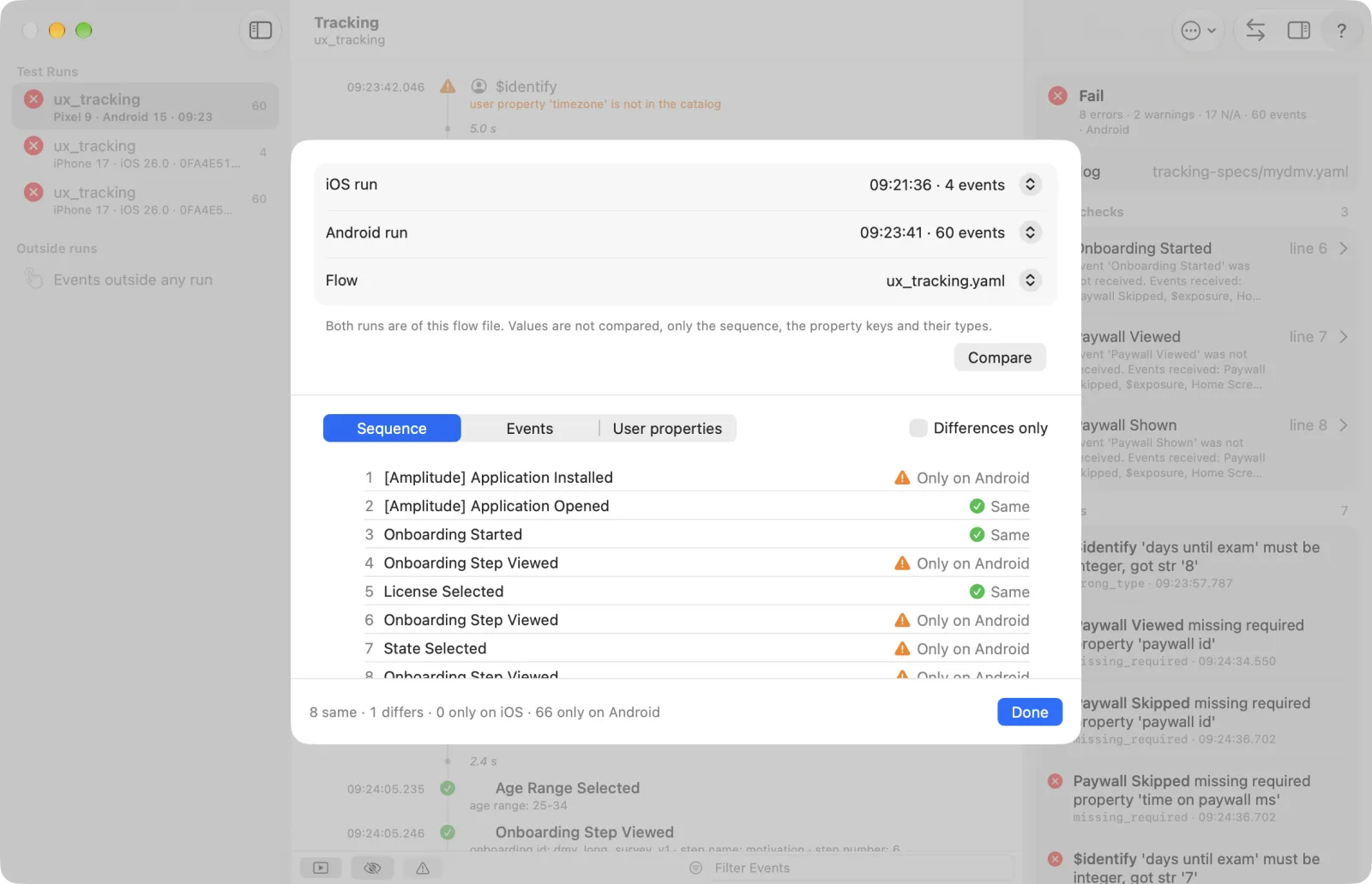
The tabs Sequence, Events and User properties show each row as Same, Differs, Only on iOS or Only on Android. Turn on Differences only (next to the tabs) to hide the rows that match. Scout does not compare values: only the order of events, the property names and their types (string, number, boolean, list, object). It is informational only: it adds no findings to a check or a report.
Platform-only items can be skipped in the catalog:
parity:
  ignore_events: [Notification Permission Requested]
  ignore_props: [haptics enabled]   # also applies to user properties
SDK-internal events ([Amplitude] …) are always left out.
Privacy
The API key and Secret key are stored sealed on your Mac. They never appear in reports, logs, exports or MCP output. The history Scout keeps on disk to compare runs identifies users by hash only, and old entries are cleaned up automatically.
From a terminal
The MCP tool check_tracking (the plugin's check-tracking skill) checks the events of a run against the spec named in the flow header. specPath is optional; the answer is spec_not_found when no catalog resolves. The report lists the flow header and one row per assertEvents line. It also includes the server event rows, which may still be pending right after the run: call it again later. compare_tracking_runs does the same comparison as Compare iOS ↔ Android… (optional flowPath, specPath, iosFlowId, androidFlowId; it defaults to the newest finished run of each platform of the same flow file). Other tracking tools: read_tracking_spec, list_tracking_specs, suggest_tracking_spec, edit_tracking_spec, get_unassigned_events, get_tracking_coverage and import_taxonomy. See The scout plugin.