
Astra Scout Studio
A tour of the Astra Scout window: navigator, editor, runner, inspector, and toolbar.
Astra Scout Studio is the main window of the app, laid out like Xcode. This tour names each area of the screen and says what it does; each area links to a page with more detail.
Take the tour
Start Astra Scout. When no workspace is open, the Welcome to Astra Scout window opens. It has Open Workspace…, New Workspace…, Docs and a list of recent workspaces.
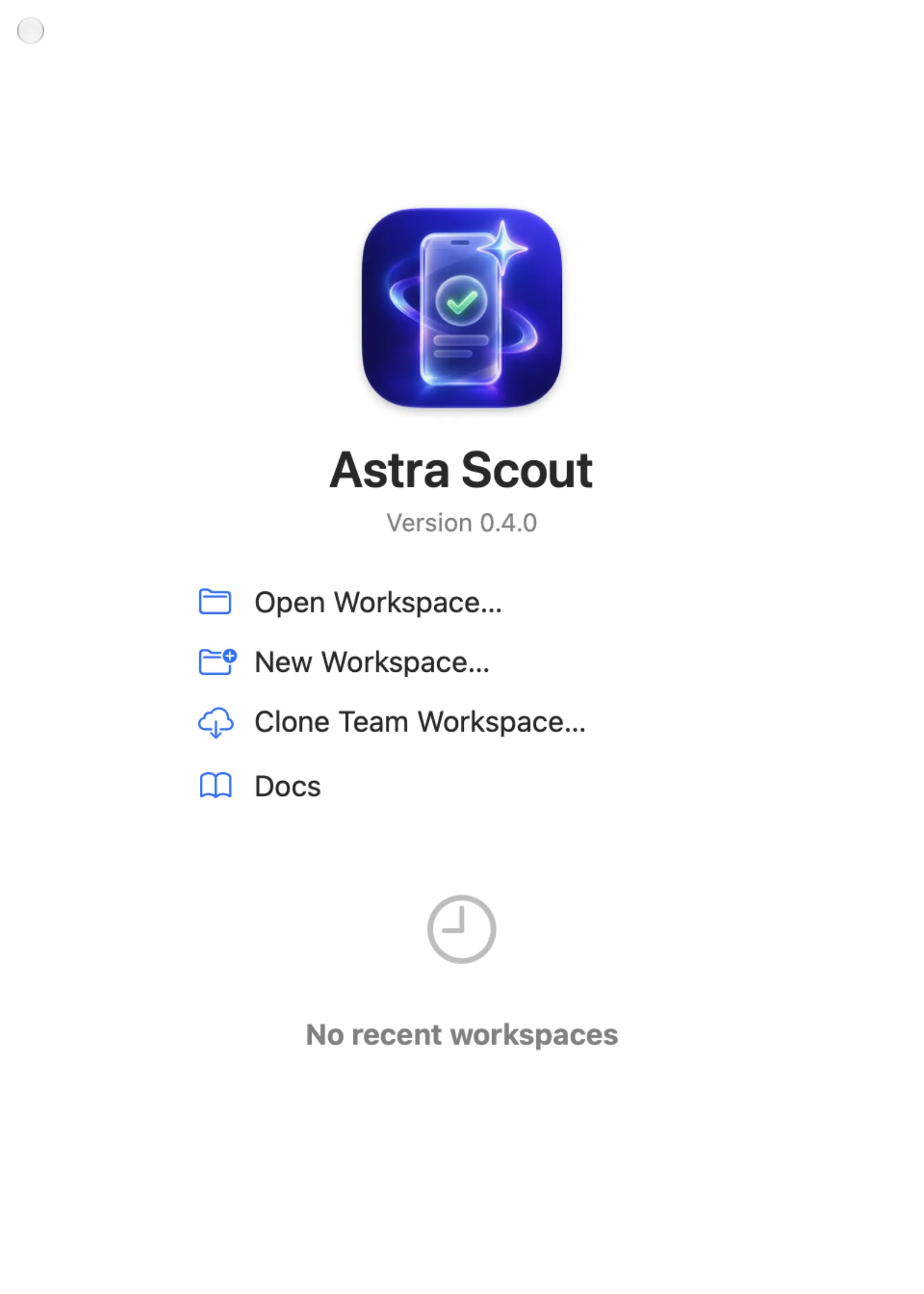
Click New Workspace… to create a folder for tests, or Open Workspace… to open a folder that already has flows. Double-click a recent workspace (or select it and press Return) to open it again. See Run flows.
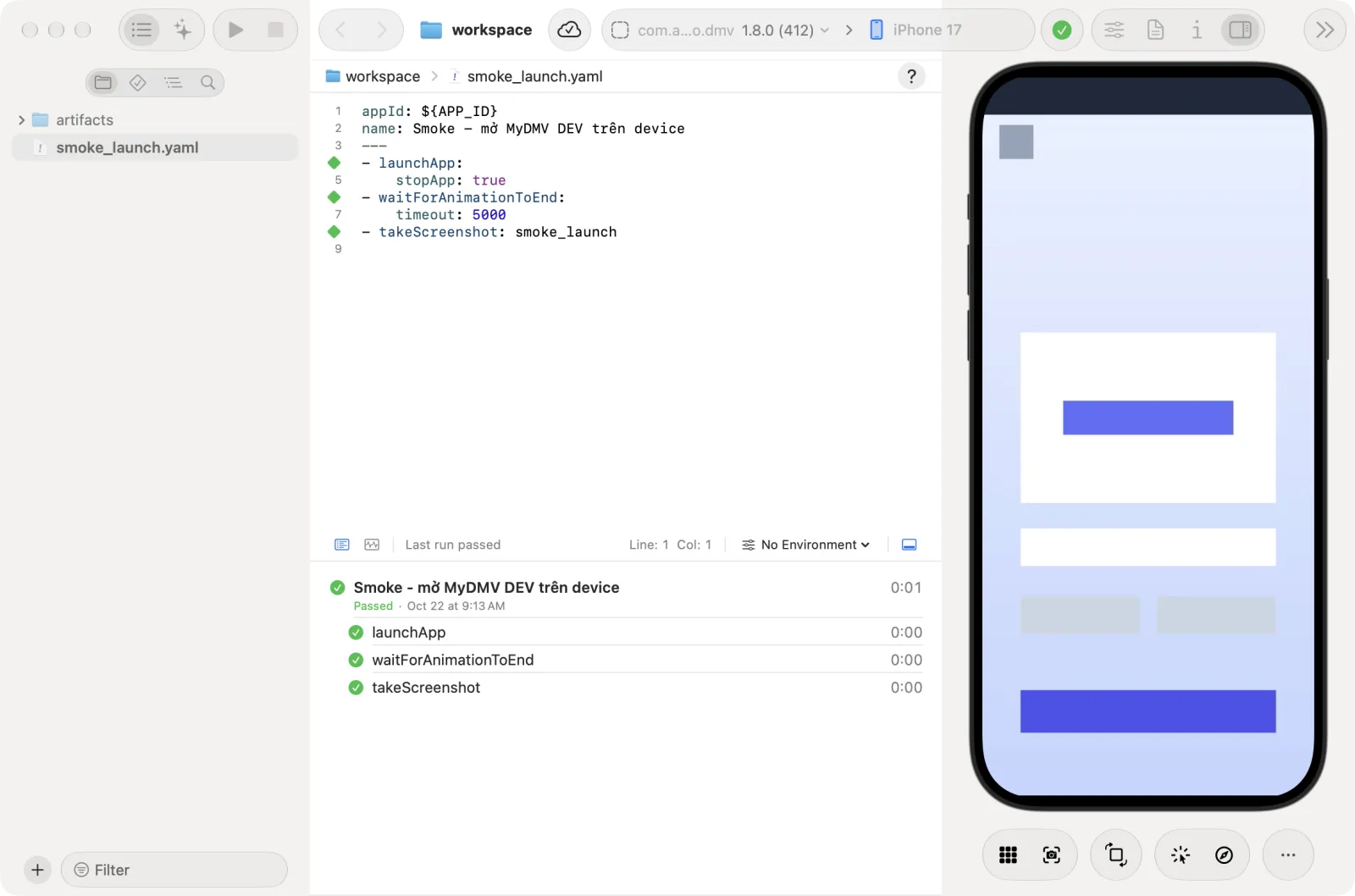
The workspace opens in the main window. Before you open a file or choose a device, the editor says No file open, the device picker says Select a device and the app picker says No App.
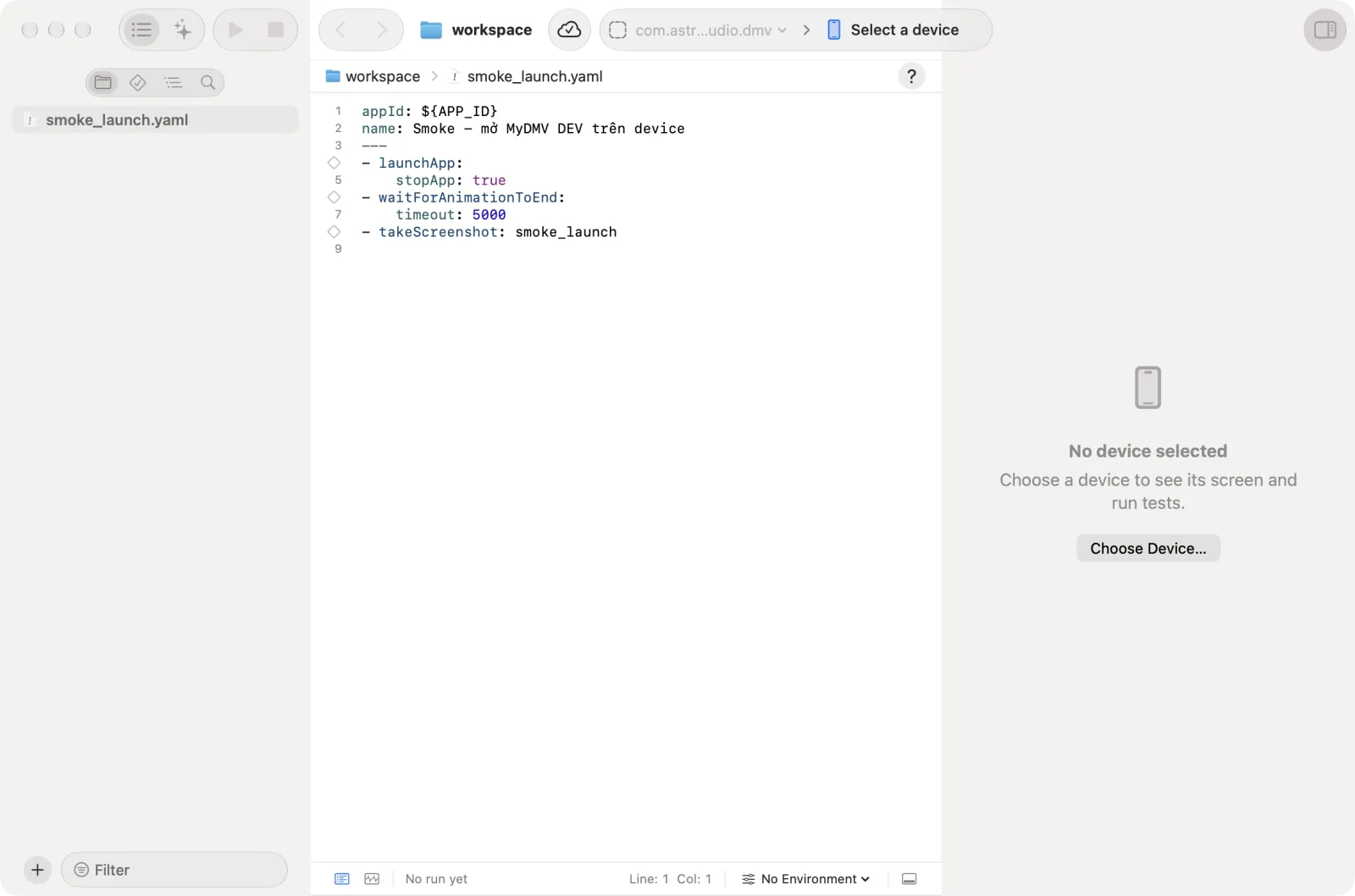
Open a flow in the Files navigator, choose a device in the device picker and click Run Test. The next section names every part of the window after a run.
The layout
The window has a navigator on the left, the editor in the center with the runner below it, an inspector on the right, and a toolbar on top.
| Area | What it does |
|---|---|
| Navigator (left) | The lists for finding and opening things. Show or hide it with View > Hide Navigator (Cmd+0). See Run flows. |
| Editor (center) | Where you edit YAML flows. It suggests Maestro commands as you type, underlines commands the connected device cannot run and shows a status icon on each line while a flow runs. In AI mode, the open conversation takes the editor's place. |
| Runner (below the editor) | The list of steps of the run in progress or just finished, with logs. It has a Tracking view and the Environment menu. Show or hide it with Shift+Cmd+Y. |
| Inspector (right) | The device column. It mirrors the connected device and lets you tap, swipe and type on it. Show or hide it with the Inspector button at the top right or Option+Cmd+0. See Devices and Inspector. |
| Toolbar | Go Back and Go Forward, the workspace name, the app-under-test picker and the device picker, a capsule with the last run's status, the zoom buttons, the device column's buttons and the Inspector button. |
The switch at the top of the navigator has two modes: Navigators and AI assistant. In Navigators mode, the icon bar below it picks one list:
- Files: the workspace files.
- Test Runs: the runs you have done.
- Element Hierarchy: the elements on the device screen.
- Find: search in the workspace.
Run Test and Stop sit beside the switch. When the navigator is hidden, they move to the main toolbar.
Toolbar details
- The app picker and the device picker form one capsule in the middle. The app is on the left (it reads No App until you choose one), the device is on the right (it reads Select a device).
- The status capsule beside it shows the last run. Click it to open the run's steps in the runner.
- The zoom buttons (Zoom Out, Zoom to Fit, Physical Size, Zoom In) show only while the device column is open and a device is shown.
- Settings, Reports and Info are toggle buttons at the top right, left of the Inspector button. They show only while the device column is open. Settings and Info exist for iOS and Android. Reports exists for iOS only. Click one to open that pane under the mirror; click it again to close it. See Devices.
Other windows
Some features open in their own window:
- Explore app, titled Explore app.
- The device mirror popped out of the main window, titled Mirror. See Devices.
- The Tracking window: Window > Tracking (
Shift+Cmd+T). - The Builds window: Window > Builds (
Option+Cmd+B). - Project Settings: File > Project Settings… (
Option+Cmd+,). See Settings. - Settings: Astra Scout > Settings… (
Cmd+,).
Closing a workspace
Closing the workspace window, or choosing File > Close Workspace, returns to the Welcome to Astra Scout window. If Autosave is on, unsaved files are saved. If it is off, Astra Scout asks about each file with unsaved changes, with the buttons Save, Cancel and Don’t Save. The close button of the window shows a dot while a file has unsaved changes. Quitting the app asks the same way.
Help buttons
A ? button opens the matching page of this documentation. You find it in the path bar above the editor (jump bar), above a .yaml, .yml or .js file, in the Element Hierarchy navigator, in the Explore window and in every Settings pane except Jira, which has its own Open Admin Guide button.
Main features
- Run flows: run one flow or the whole workspace, read logs and watch the video.
- Create a flow: every way to make a flow, side by side.
- Testing for a team: set up a tester's Mac and iOS device and run the team's flows without the source code.
- Inspector: click an element to generate a command.
- Devices: iOS Simulator, iOS device and Android.
- Environments and variables: named sets of variables and tags.
- AI assistant: chat, auto-fix and AI commands in flows.
- Explore app: the AI tries your app like a user.
- Tracking: check Amplitude events during a run. Files under
tracking-specs/open in a form editor instead of the text editor; see Edit tracking specs. - Purchase testing: preparing a test environment for purchase steps.
- Jira: report bugs from a run.
- Settings: the General, Android, iOS, Intelligence, Jira, Amplitude and App Store panes, Project Settings, and the setup check.
The menu bar
Menus cannot be shown in pictures, so they are listed here.
| Menu | What is in it |
|---|---|
| Astra Scout | Check for Updates… (only when the app can update itself), Settings… |
| File | New File…, New Workspace…, Open Workspace…, Open Recent (with Clear Recent), Project Settings…, Close Workspace, Save, Autosave, Close File, Close Window |
| Edit | Find submenu: Find…, Find and Replace…, Find Next, Find Previous, Use Selection for Find |
| View | Show Navigator or Hide Navigator, Show Inspector or Hide Inspector, Show Runner or Hide Runner, Show Preview or Hide Preview (only for a Markdown file) |
| Run | Run Test, Run Selected Commands, Run All Tests, Stop, Manage Environments… |
| Device | Install App…, Explore the App…, Report Bug to Jira…, Inspect Elements, Element Hierarchy, Zoom, Simulator, Android |
| Window | Tracking, Builds and the other open windows |
| Help | Astra Scout Docs, Ways to Create a Flow, Tracking: Where to Start, Setup Check…, Show Server Log (opens server.log) |
Appearance and language
Astra Scout follows the macOS appearance (Light or Dark). It has no theme setting of its own. Choose the interface language in Settings > General > Language: System default, English or Tiếng Việt. It takes effect the next time the app starts. The pane offers Restart Now when you change it.
Keyboard shortcuts
| Shortcut | Action |
|---|---|
Cmd+S | Save the active file |
Cmd+W | Close the active file |
Shift+Cmd+W | Close the window, when a file is open (without a file, Cmd+W closes the window) |
Cmd+R | Run Test |
Option+Cmd+R | Run Selected Commands |
Shift+Cmd+R | Run All Tests |
Cmd+. | Stop |
Shift+Cmd+E | Device > Explore the App… |
Shift+Cmd+B | Device > Report Bug to Jira… |
Shift+Cmd+I | Device > Install App… (opens Builds) |
Option+Cmd+B | Window > Builds |
Option+Cmd+I | Device > Inspect Elements |
Option+Cmd+E | Device > Element Hierarchy |
Cmd+0 | Show or hide the navigator |
Option+Cmd+0 | Show or hide the inspector |
Shift+Cmd+Y | Show or hide the runner |
Shift+Cmd+M | Show or hide the preview of a Markdown file |
Cmd+N / Cmd+O | New Workspace… / Open Workspace… |
Shift+Cmd+N | New File… |
Cmd+, | Settings |
Option+Cmd+, | Project Settings… |
Shift+Cmd+T | Tracking window |
Cmd+= / Cmd+- | Zoom In / Zoom Out the device mirror |
Cmd+9 / Option+Cmd+9 | Zoom to Fit / Physical Size |
Cmd+F / Option+Cmd+F | Find… / Find and Replace… in the editor |
Cmd+G / Shift+Cmd+G | Find Next / Find Previous |
Cmd+E | Use Selection for Find |
What runs where
Tests run on your Mac: the app, the local server, your devices and your runs. Flows and runs stay on your Mac unless the workspace is linked to the team (Team Sync) or you use Builds. In those cases, flows, runs and builds go to the team's cloud. Astra Scout sends no telemetry. You sign in with your company Google account so the app knows you are allowed to use it. Simulators, Android devices and iOS devices are supported. Web testing is not available.