
Builds
Choose the team's build of the app and install it on the connected iOS device, simulator or Android device.
Developers upload builds of the app to the team. In Astra Scout, a tester picks a build and installs it on the connected device. Every build comes from the team: Astra Scout has no file picker for app files. To upload builds, see Share builds with testers.
Before you start
- You are signed in to Astra Scout with your Google account. The Builds window asks for it otherwise.
- The team has a project for the app, with at least one build uploaded.
- To install a build, connect a device of the same kind. See Devices.
Open the Builds window
Use any of these:
- Choose Window > Builds (
Option+Cmd+B). - Open the app picker in the toolbar and choose Builds….
- Choose Device > Install App… (
Shift+Cmd+I). - Click Open Builds… on a run that stopped with
APP_FILE_REQUIRED.
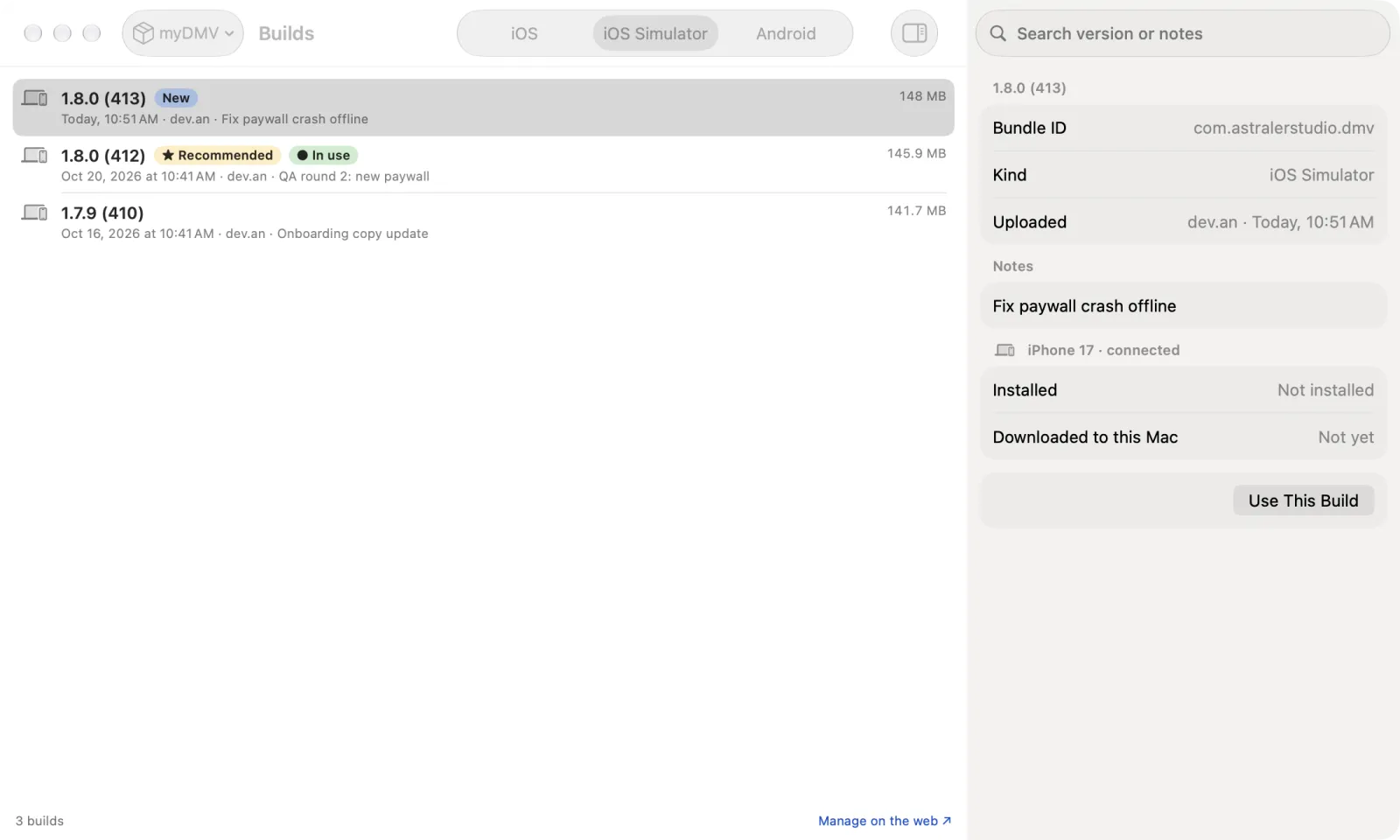
The window has the projects on the left, the builds of the selected project in the middle and the details of the selected build in the inspector on the right. Show or Hide Details toggles the inspector.
Choose a build
- Select the project in the Project list.
- Select iOS, iOS Simulator or Android above the list. Each kind has its own builds. The window selects the kind of the connected device.
- Select a build. Use the search field (Search version or notes) to narrow a long list.
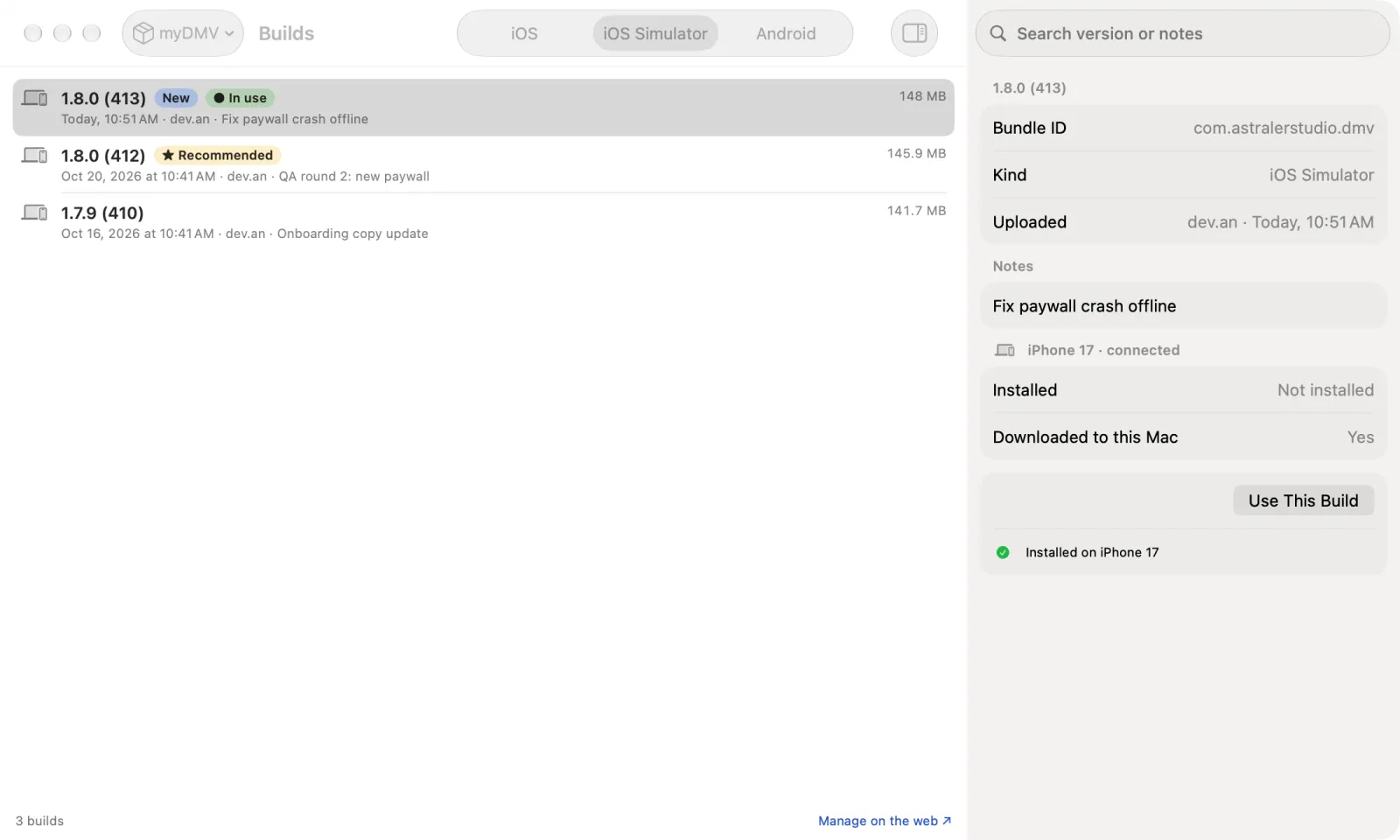
- Click Use This Build.
clearState and Run use the build in use until you choose another. When you have not chosen one, they use the recommended build.
Each row shows the version and build number, the upload date, who uploaded it, the first line of the notes and the size. Badges mark a build:
| Badge | Meaning |
|---|---|
| Newly Uploaded | The build arrived after you last looked |
| ★ Recommended | The build the team recommends for this kind |
| ● In use | The build that clearState and Run use |
The app picker also lists the newest builds under Builds for the kind of the device. Choose one there to switch the build in use without opening the window. A check mark shows the build in use.
Install a build
- Connect the device.
- Select the build.
- Click Install on and the device name.
The inspector shows Downloading… and then Installing…. Installed shows the version on the device. Downloaded to this Mac says whether the build is saved locally. Downloaded builds stay usable when the Mac is offline; the window then shows "Offline: showing the builds saved on this Mac".
When the iOS device is not in the profile
A build for an iOS device installs only on iOS devices in its provisioning profile. When the connected iOS device is not in it, the row shows "This device is not in the build's provisioning profile" and the inspector shows Not in the profile with the iOS device's UDID.
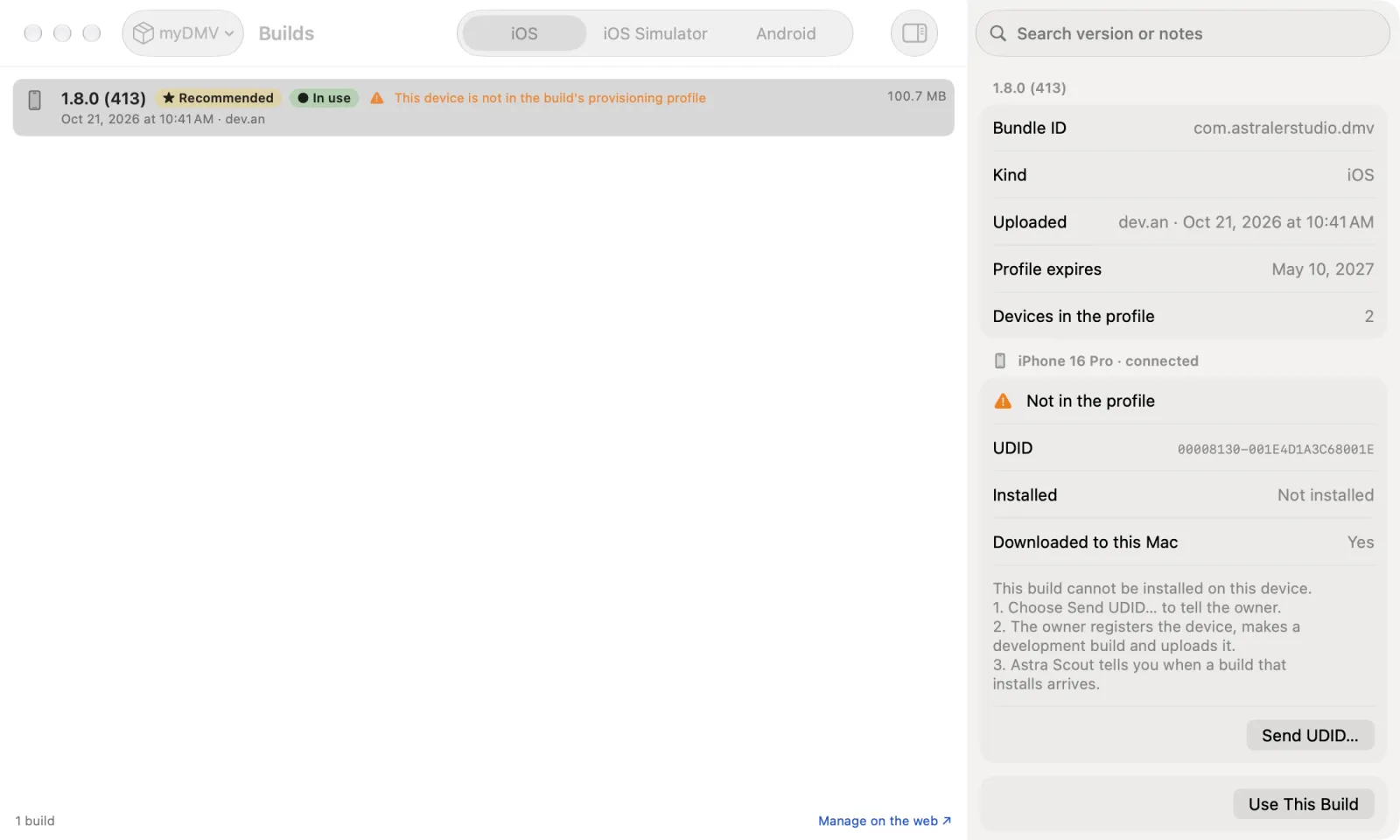
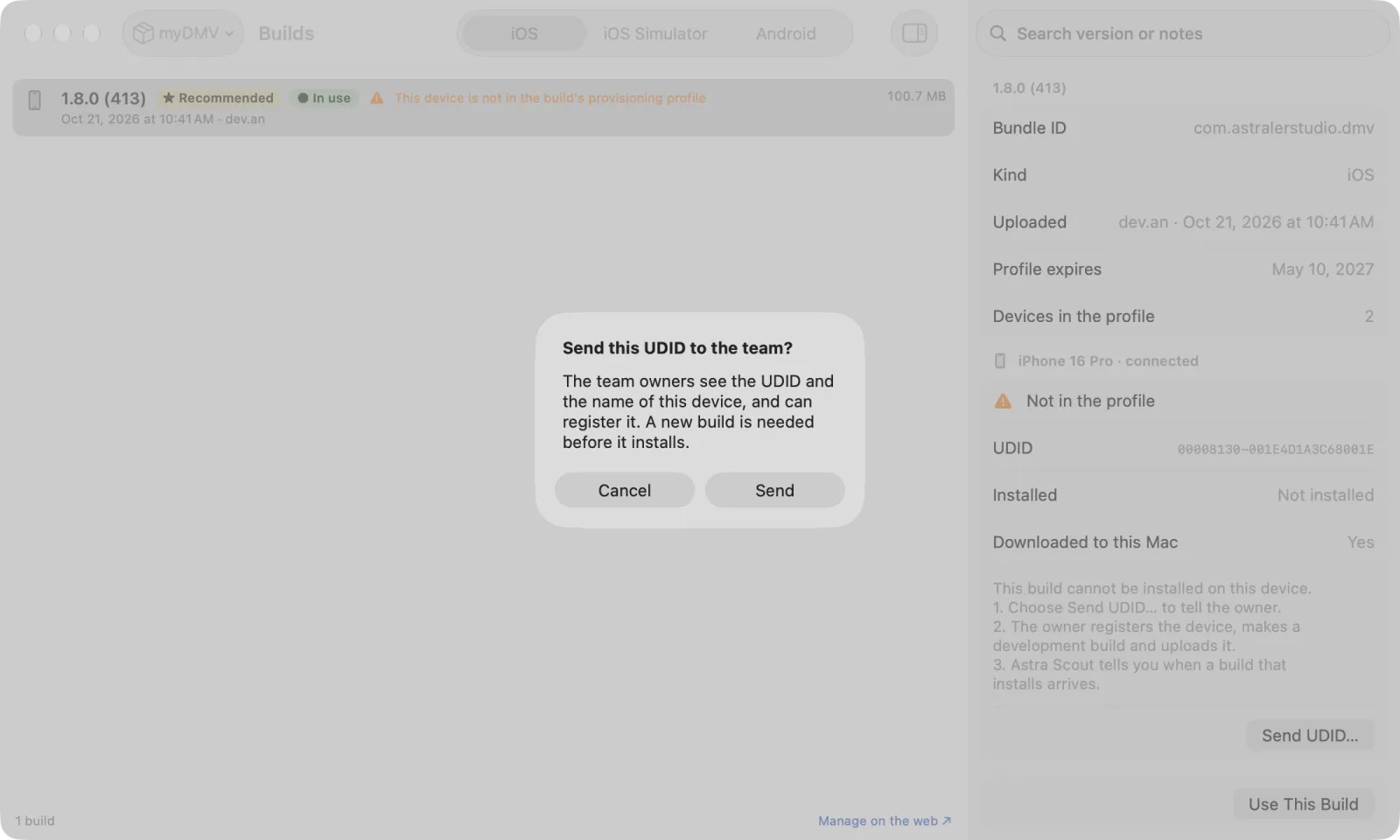
- Click Send UDID…, then Send. The owners of the team see the UDID and the name of the iOS device.
- Wait for the owner to register the iOS device and for the developer to upload a new build. See Register an iOS device.
- The notification of the new build arrives. Select it and click Install on the iOS device.
The inspector shows "UDID sent, waiting for the owner to register it" until then.
New build notifications
Astra Scout checks for new builds of the app under test every 5 minutes. A new build shows the notification "New build:" with the app and version, and the button View in Builds. The build in use never changes by itself.
Run reports
A run report records the build the run used.
Troubleshooting
| Symptom | Fix |
|---|---|
| "Builds are not turned on" | This version of Astra Scout has no team builds service. Update Astra Scout. |
| "Sign in to see the team's builds" | Sign in to Astra Scout with your Google account. |
| "Could not load builds" | Read the message, then click Try Again. |
| "No iOS builds yet" | Nobody uploaded a build of this kind. Ask the developer to upload one. |
| "No iOS app in this project" | The project has no app id for this kind of build. An owner adds it on the builds web page. |
APP_FILE_REQUIRED ("No build chosen for an iOS device") | Open the Builds window and click Use This Build on an iOS build. |
| Install on is disabled | Connect a device of the same kind as the build and select a build. The button stays disabled while the iOS device is not in the build's profile. |