
Supported platforms
Check which macOS versions, devices, and platforms Astra Scout supports.
Which Macs run Astra Scout, and which devices it tests on.
Host
Astra Scout runs on macOS 14 or later, on Apple silicon or Intel. The download link in Installation is the Apple silicon build. Xcode is needed for the iOS Simulator and for an iOS device. Xcode also signs the app that controls the iOS device, so the iOS device accepts it.
Target devices
| Target | Supported | Notes |
|---|---|---|
| iOS Simulator | Yes | Needs Xcode and an iOS runtime (downloaded in Xcode). |
| iOS device | Yes | Needs an Apple ID signed in to Xcode to sign WebDriverAgent (see below). |
| Android emulator | Yes | Needs the Android Studio SDK and an AVD (a virtual phone created in Android Studio). |
| Real Android device | Yes | Needs USB debugging turned on in the phone and allowed for the Mac. |
| Web browser | No | Not supported. |
| Windows or Linux host | No | The app targets macOS. |
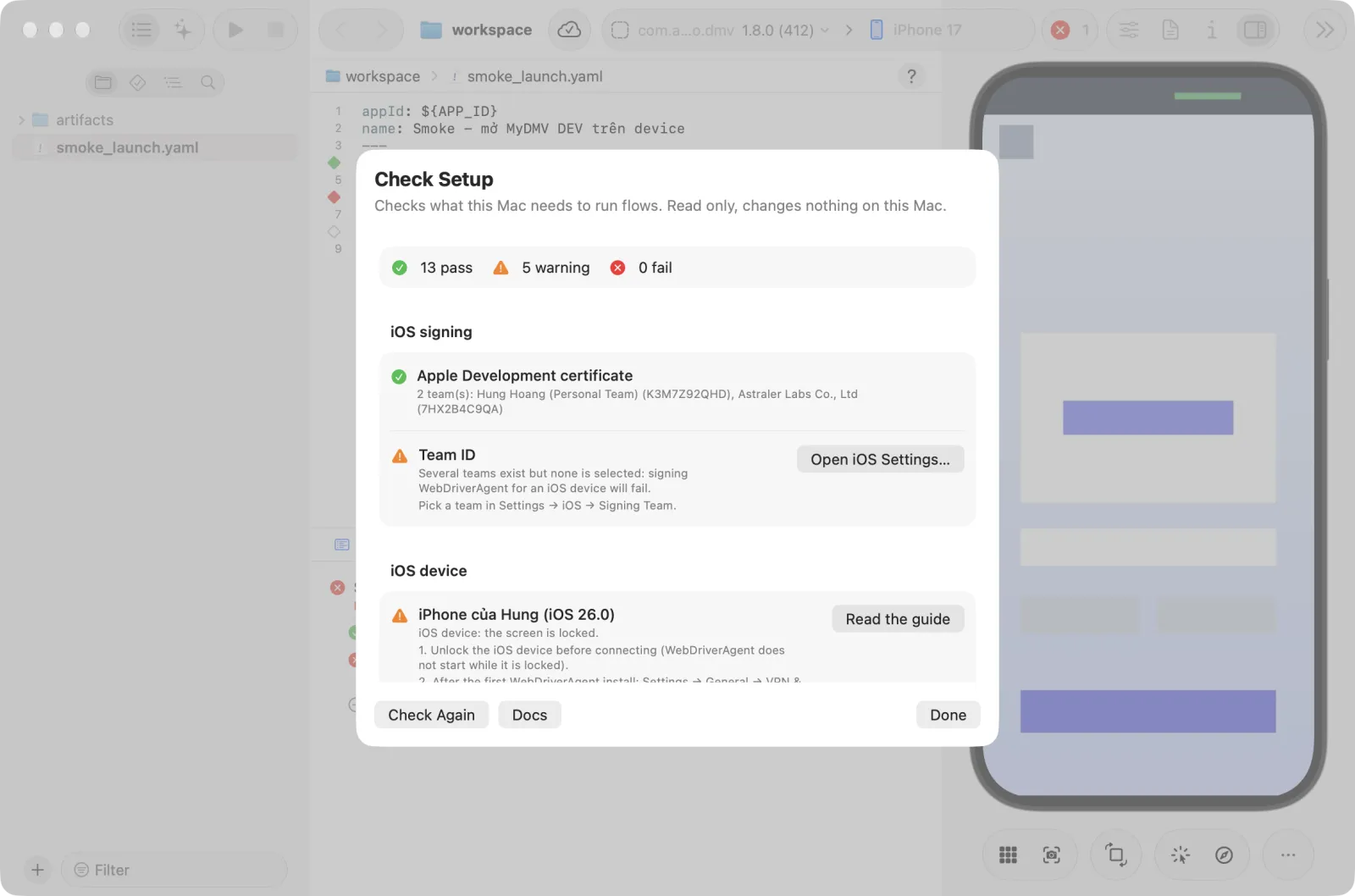
To see which targets the Mac is ready for, open Help → Setup Check….
iOS details
- Flows control the iOS device and the simulator through WebDriverAgent (WDA), a small app that runs inside the device and receives commands. On an iOS device, WDA must be signed with the Apple Development team before the iOS device lets it run. See Devices.
- An iOS device is mirrored to the Mac through Apple's video stream (CoreDevice), over a cable or Wi-Fi.
- With Xcode 27 and an iOS device on iOS 27, taps and drags on the mirror reach the iOS device almost instantly. Without both, gestures replay after you release the mouse.
clearState, the command that wipes app data, uninstalls and reinstalls the app. On an iOS device it reinstalls the build in use from the team's Builds. See Devices.
Android details
- Flows run through maestro-runner's DeviceLab driver, so
evalWebViewScriptandrunWebViewScriptwork on Android. - The Android SDK, which includes
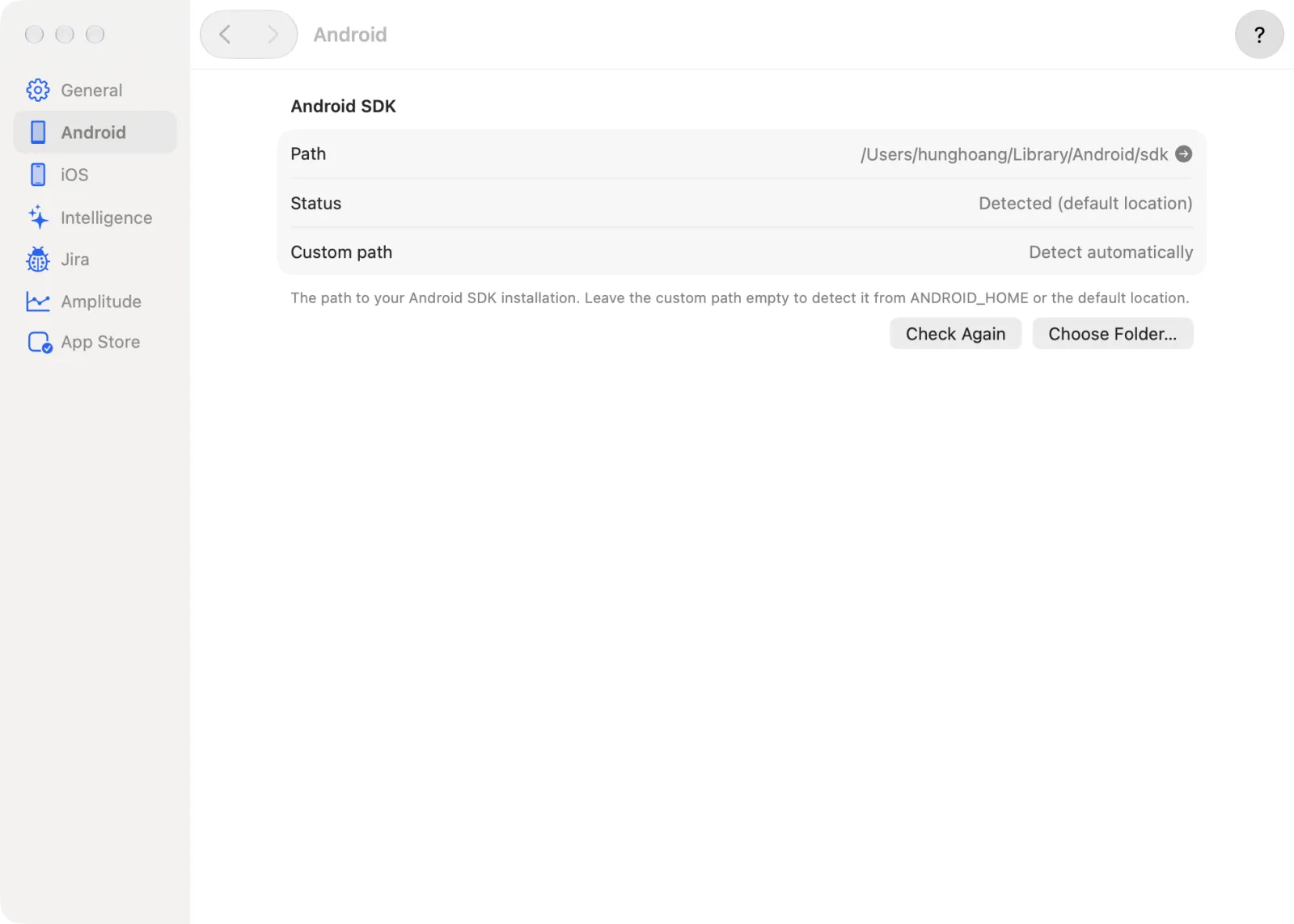
adb, is found in this order: the path in Settings → Android, then theANDROID_HOMEenvironment variable, thenANDROID_SDK_ROOT, then~/Library/Android/sdk.
To check or change the SDK:
- Open Astra Scout → Settings… and choose Android.
- Read Path and Status. The status says where the SDK was found, for example Detected (ANDROID_HOME), Set in Settings or Not found.
- To use another SDK, click Choose Folder… or type a path in Custom path. A valid path shows Path verified.
- Click Check Again after installing an SDK while Settings is open.
Commands that depend on the platform
Not every flow command works on every platform. Astra Scout only accepts the commands that run on the connected device's platform, plus the three AI commands (assertWithAI, assertNoDefectsWithAI, extractTextWithAI). Commands that cannot run on the connected device, such as travel on iOS or acceptAlert on Android, are:
- struck through in the editor suggestions,
- marked in the file with an error,
- checked by the MCP
validate_flowandsave_flowtools, which report them.
If no device is connected, a command missing on only one platform is shown as a warning. Commands inside a block that only runs on the other platform are not flagged, for example runFlow with when: platform: iOS.
Technical details
- On an iOS Simulator, taps and swipes from flows and from the mirror go through the
devicehidtool, with WDA as the fallback. The simulator's element tree is read throughxcuiaxon iOS 27+ simulators; older ones use WDA. - The iOS Simulator screen is rendered by the app itself through Xcode's SimulatorKit.
- With Xcode 27 and an iOS device on iOS 27,
devicehidsends taps and drags straight to the iOS device. - The Android screen is mirrored with a scrcpy H.264 stream, with a screenshot loop as the fallback.