
Tracking: where to start
The whole tracking path in four steps, the ways to do each step, and which way fits your team.
Tracking checks the analytics events your QA build sends while a flow runs. It has four steps, and most steps have more than one way. Pick a way for each step; each way links to the page that explains it.
The path
| Step | You | Result |
|---|---|---|
| 1. Receive events | Point the QA build at Astra Scout | Events from the app show up in the run |
| 2. Have a catalog | Keep one list of events and rules per app | Every event is checked against it |
| 3. Declare checks in a flow | Say which events each action must send (assertEvents) | A ✓ or ✕ at the line |
| 4. Read the results | Look at the run | You know what passed, failed or differs |
Steps 2 and 3 are optional for a first look: after step 1, run a flow to see what the app sends.
A first look
Install a QA build that sends its events to Astra Scout. Step 1 says what the QA build needs.
Open the Tracking window with Window → Tracking (
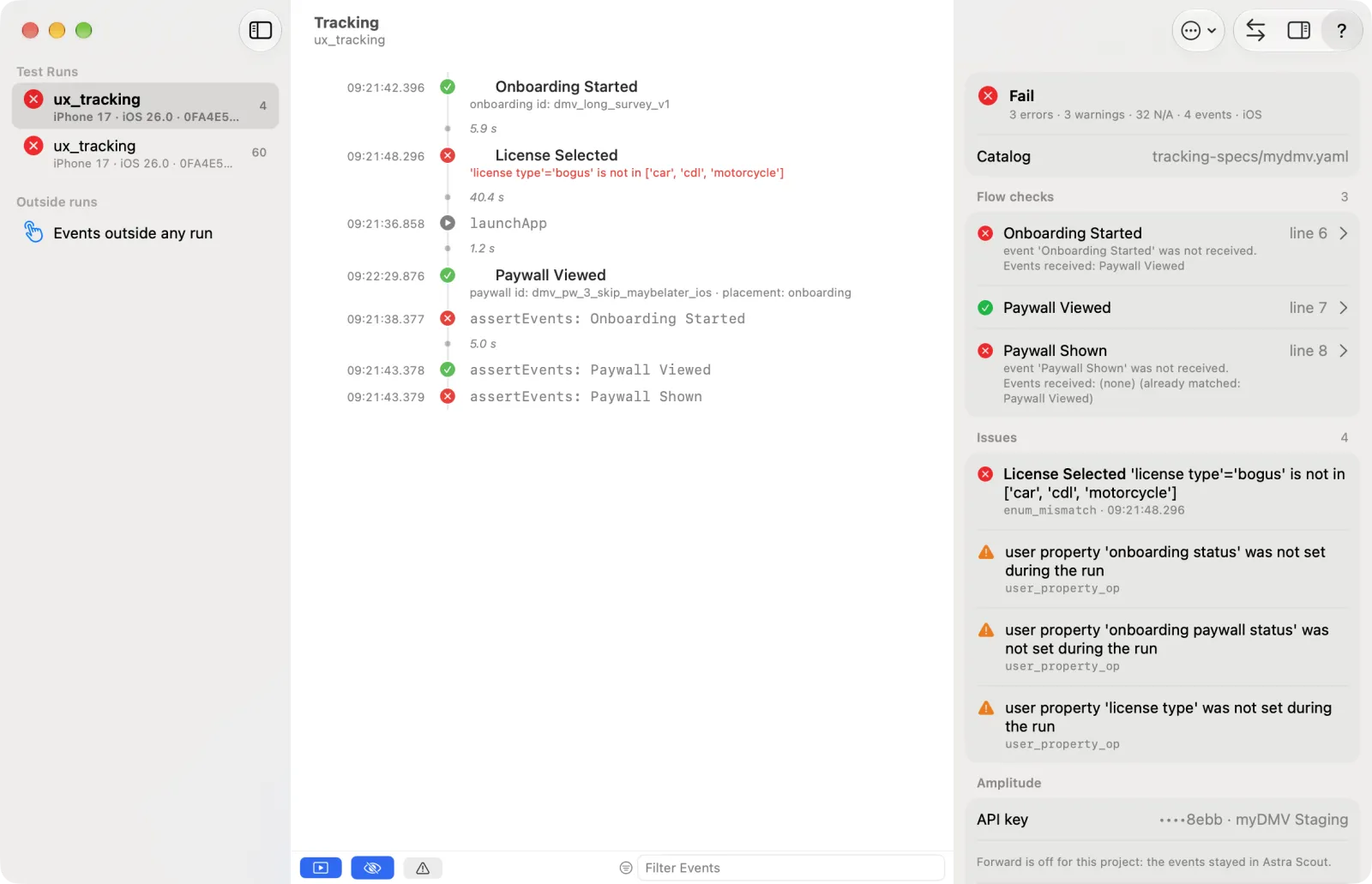
Shift+Cmd+T). It is empty until a run sends events.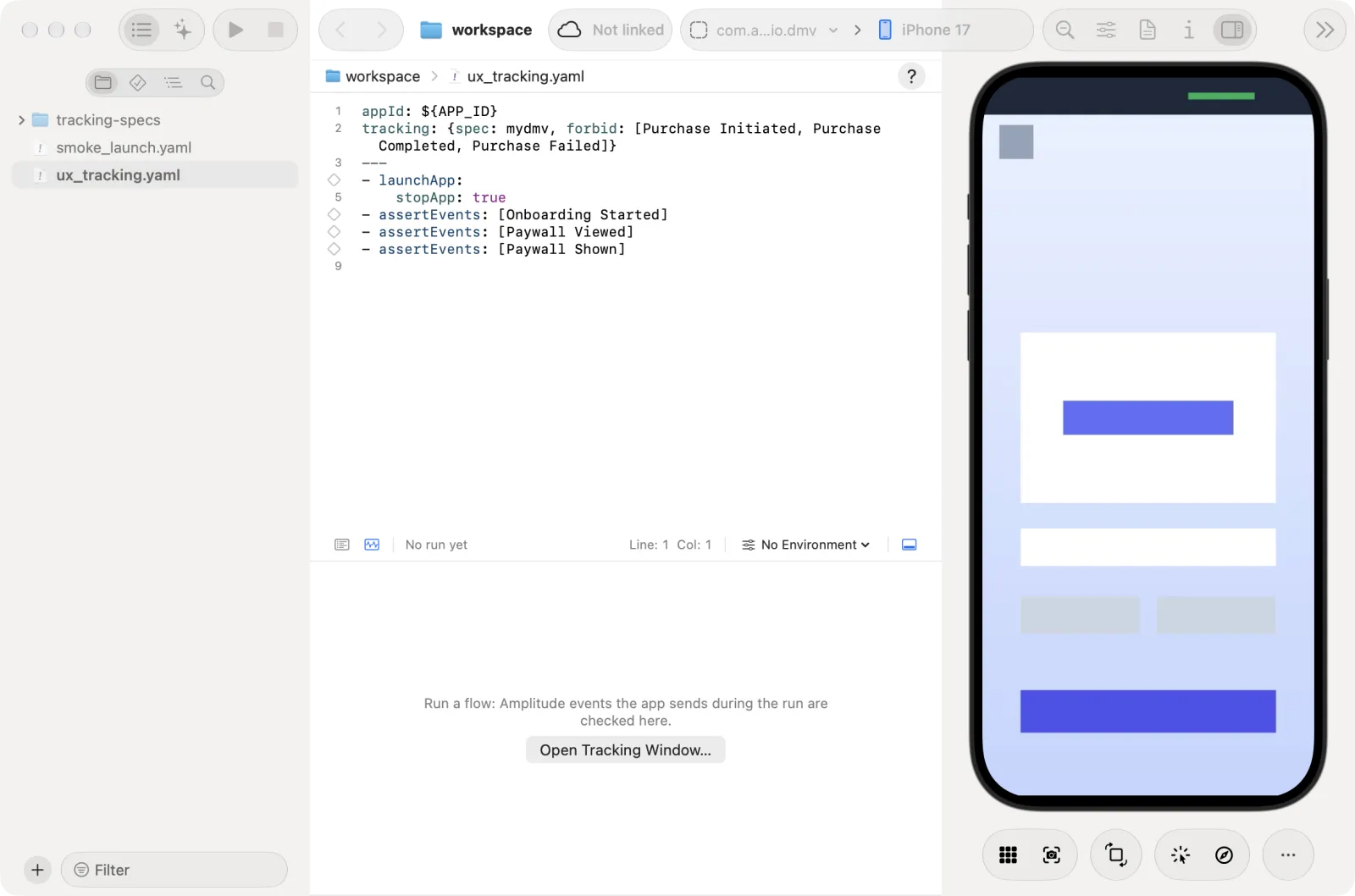
Run a flow: Run Test (
Cmd+R).In the runner, open the Tracking tab. It sums up the newest run: the verdict, the counts and the first problem.
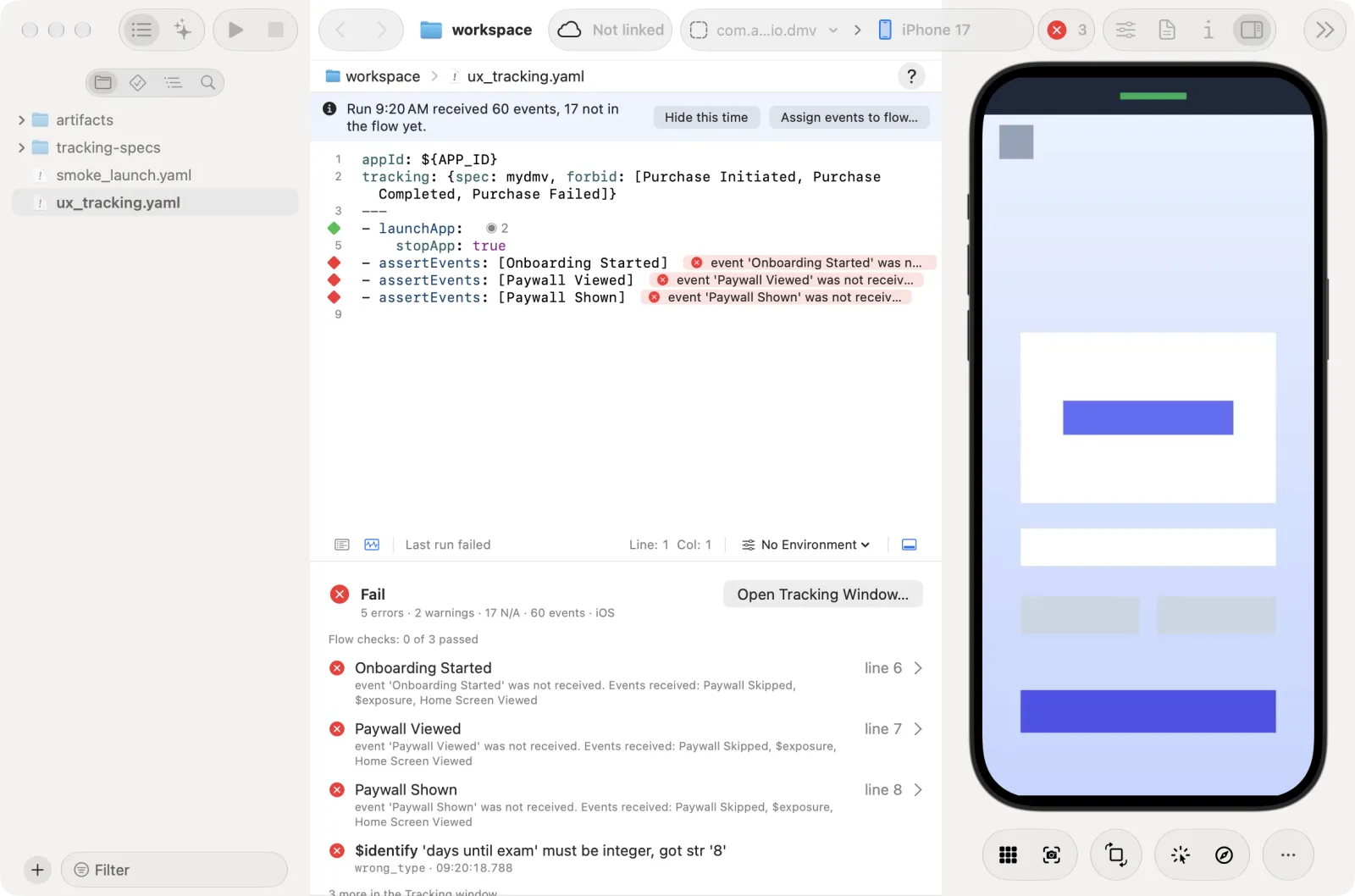
Click Open Tracking Window… to see every event the run sent. The window follows the newest run.
Which way should I use?
| Your situation | Start with |
|---|---|
| I only want to see what the app sends | Do step 1, run a flow, open the Tracking window (Window → Tracking, Shift+Cmd+T) |
| My team already has a taxonomy sheet | Import… the sheet into the catalog |
| I have no sheet yet | Start from the sample catalog the new workspace gives you, or add events by hand |
| The app already sends events and I do not want to type checks | Run the flow once, then Assign events to flow… |
| I work in a terminal with an AI | Use the scout plugin: edit-tracking-spec and check-tracking |
| I test on both iOS and Android | Run the same flow on both, then Compare iOS ↔ Android… |
Step 1: Receive events
The app's QA build has to send its events to Astra Scout instead of Amplitude. App developers set this up in the QA build. Testers choose Window > Builds, select the QA build and click Use This Build.
| Way | Best for | Page |
|---|---|---|
The QA build reads scoutServerUrl, which Astra Scout passes when it opens the app (iOS) | One QA build shared by every tester, simulator and iOS device | Send QA build events to Astra Scout |
| The QA build sets a fixed address | Android, or a build used on one Mac only | Copy a fixed address |
Step 2: Have a catalog
The catalog is one file per app, tracking-specs/<app>.yaml. It lists the events, their properties, allowed values and general rules.
| Way | Best for | Page |
|---|---|---|
| Start from the sample catalog | A new workspace. It already has tracking-specs/sample.yaml with one event to learn from | Tracking catalog |
| Import… from the taxonomy sheet (the spreadsheet that lists all events and properties of the team). It can check guessed enums (fixed lists of allowed values) against the values Amplitude stored (Values from Amplitude) | Teams that keep the event plan in a spreadsheet | Import your taxonomy |
| Enter events by hand: + → New Event… in the catalog view | A small app, or a few events to add | Add an event by hand |
| + → Amplitude SDK Events… | The events the Amplitude SDK sends itself, with no code in the app (autocapture) | Amplitude SDK events |
| Add to catalog for an event the app sent | The app sends an event the catalog lacks | Events the catalog lacks |
Ask the AI: the plugin's edit-tracking-spec skill, or the MCP tool edit_tracking_spec | Terminal users; many edits at once, a rename everywhere, an import with a preview | The scout plugin |
To make a new catalog file, choose File → New File…, then Tracking Catalog: see Create a catalog.
Assign events to flow… (step 3) does not change the catalog: it writes into the flow.
Step 3: Declare checks in a flow
Put an assertEvents step right under the action that sends the event, and name the catalog in the flow's tracking header (a new workspace's sample flow already has tracking: spec: sample).
| Way | Best for | Page |
|---|---|---|
Write assertEvents by hand | You know which events a step sends. The editor suggests event names, properties and values from the catalog | Declare the checks in the flow |
| Assign events to flow… after one run. The blue bar above the editor ("Run 14:02 received N events, M not in the flow yet.") has the button | The app already sends the events; you want checks without typing | Assign events from a run |
Both of the first two ways write the same assertEvents text. The full syntax is in the assertEvents reference.
Step 4: Read the results
| Way | Best for | Page |
|---|---|---|
| In the editor: ✓ ✕ ▲ marks, a banner at a failed line | Fixing one assertEvents line right where you wrote it | Results in the editor |
| Tracking window (Window → Tracking, or Open Tracking Window… in the runner's Tracking tab). Filters at the bottom: Show Flow Steps, Hide SDK Events, Problems Only, Group, Filter Events | The whole run: every event, the issues and the rules | Check a run |
| Amplitude results: Check in Amplitude, Look Up a User… | Seeing what Amplitude actually stored (needs the Amplitude keys in Settings → Amplitude) | Amplitude results |
| Compare iOS ↔ Android… (toolbar of the Tracking window) | Seeing whether both apps send the same tracking | Compare iOS ↔ Android |
From a terminal: check_tracking, compare_tracking_runs | AI agents and scripts | From a terminal |
Next
- Tracking: capture, checks in flows, results, Amplitude
- Tracking catalog: events, rules and import