
Create a flow
Every way to create a flow in Astra Scout, side by side, and which one to use.
A flow is a test saved as a YAML file in the workspace; each line in it is a step. There are seven ways to create one, and all of them produce the same kind of file. They can be mixed: start from the sample, add a step with the Inspector, then ask the AI to extend it.
Help > Ways to Create a Flow opens this page from the app.
Which way should I use?
- New tester, no YAML yet: edit the sample flow, then add steps with the Inspector.
- Maestro YAML is familiar: create a file with New File… and write it.
- A fast first draft: describe the flow to the AI chat.
- New app, not sure what to test: let Explore walk the app and suggest flows.
- Working in a terminal: use the scout plugin from your AI CLI.
- A specific situation (clipboard, gallery, downloads): copy from Examples and recipes.
| Way | Best for | Needs | Page |
|---|---|---|---|
| Sample flow | The first flow | Nothing | Run flows |
| New File… | Writing YAML yourself | Nothing | Run flows |
| Inspector | Adding one step from the real screen | A connected device | Inspector |
| AI chat | A fast draft from a description | An AI CLI, signed in | AI assistant |
| Explore | Finding what to test in a new app | A connected device and an AI CLI | Explore app |
| Terminal | Working outside the app | The scout plugin in an AI CLI | The scout plugin |
| Examples | A known tricky situation | Nothing | Examples |
Edit the sample flow
A new workspace starts with first-flow.yaml.
Open the workspace. In the Files navigator, click
first-flow.yaml. It opens in the editor.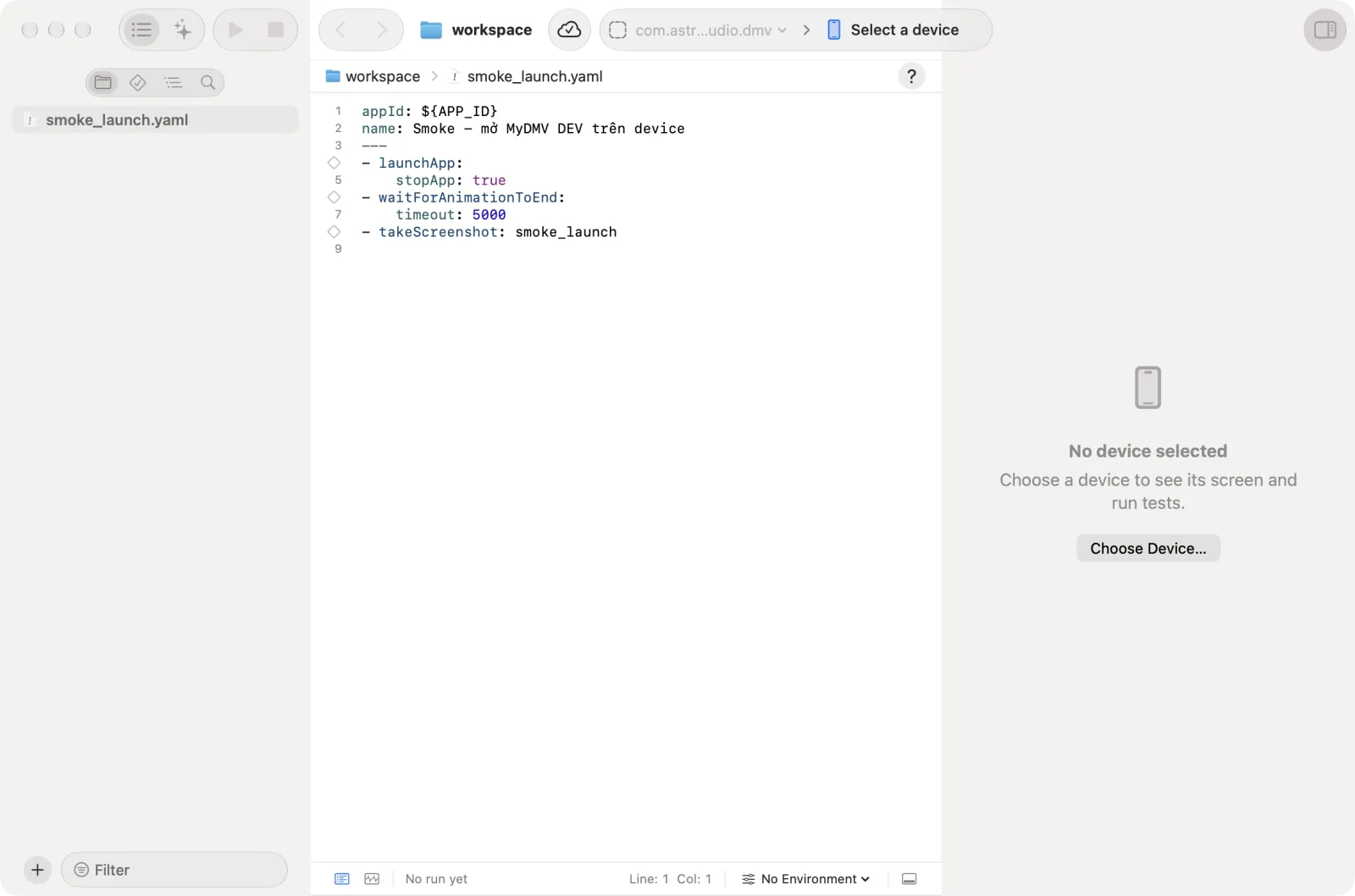
Read the flow. It launches the app picked in the toolbar (
appId: ${APP_ID}), starts withlaunchAppandclearState: true, and takes a screenshot. The steps that start with#are comments.Remove the
#in front of a commented step, such asassertVisible, and replace the example text with text the app shows.Pick the app in the app picker (it reads No App until one is chosen) and a device in the device picker.
Save with
Cmd+Sand click Run Test (Cmd+R).Watch the steps in the runner. A passed run shows green checks on the lines of the editor and in the runner.
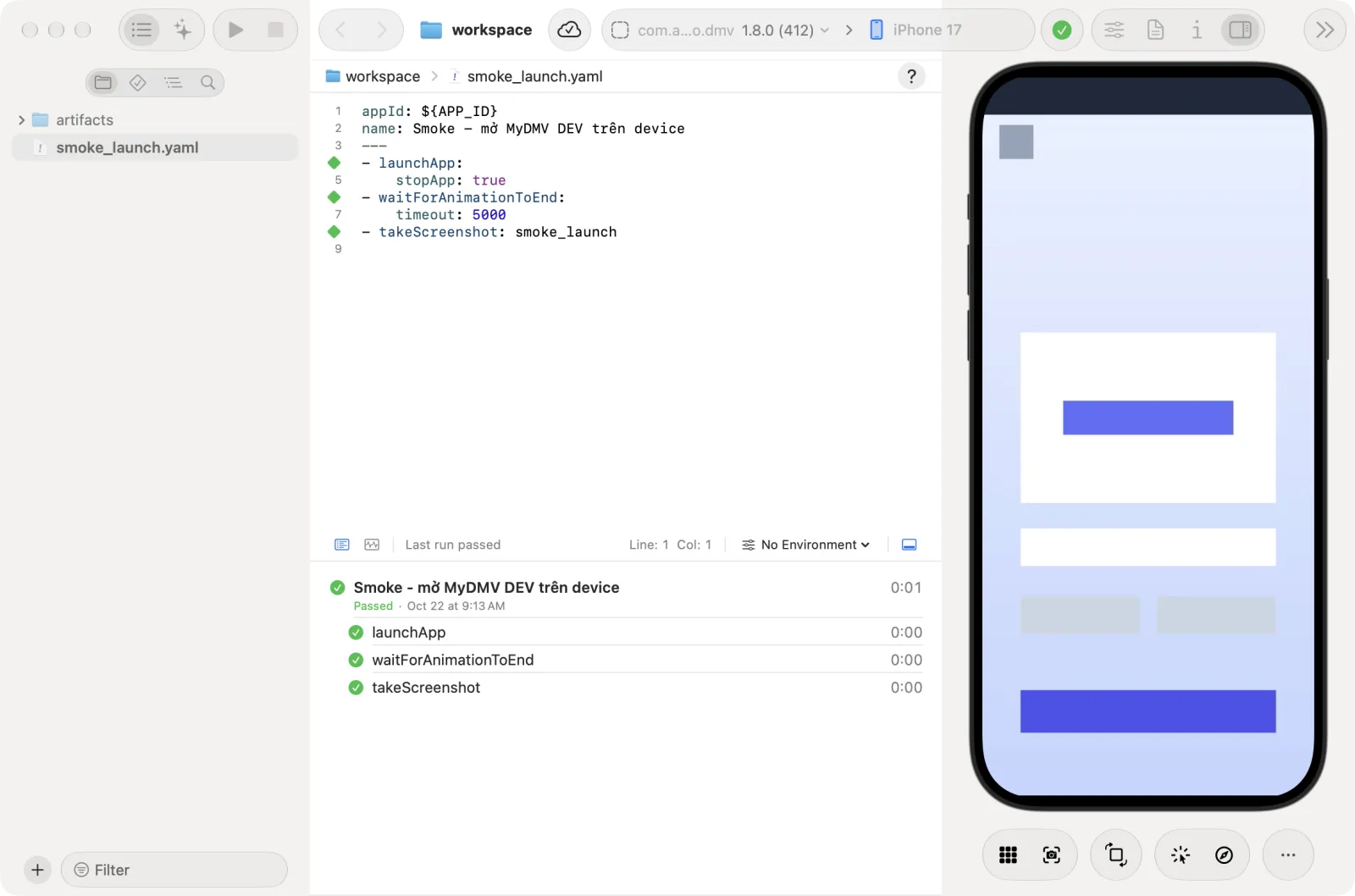
The sample is only written into a folder that has no .yaml file yet.
clearState on an iOS device
clearState: true uninstalls and reinstalls the app. On an iOS device this needs a team build in use. Without one, the run stops as Blocked with the code APP_FILE_REQUIRED. See Builds. On a simulator it works without extra setup.
More: Run flows.
Create a file with New File…
Open the New File sheet in any of these ways:
- Click the Add (+) button at the bottom of the Files navigator and choose New File….
- Right-click a folder, or an empty space in the Files navigator, and choose New File….
- Choose File > New File… (
Shift+Cmd+N).
The sheet title is Choose a template for your new file. Click a template tile, then click Next. Double-clicking a tile skips Next.
Template What it creates Mobile test A .yamlflowJavaScript file A .jsfileText file A file with the exact name you type Tracking Catalog A tracking spec. It is always created in tracking-specs/, whatever folder you chose.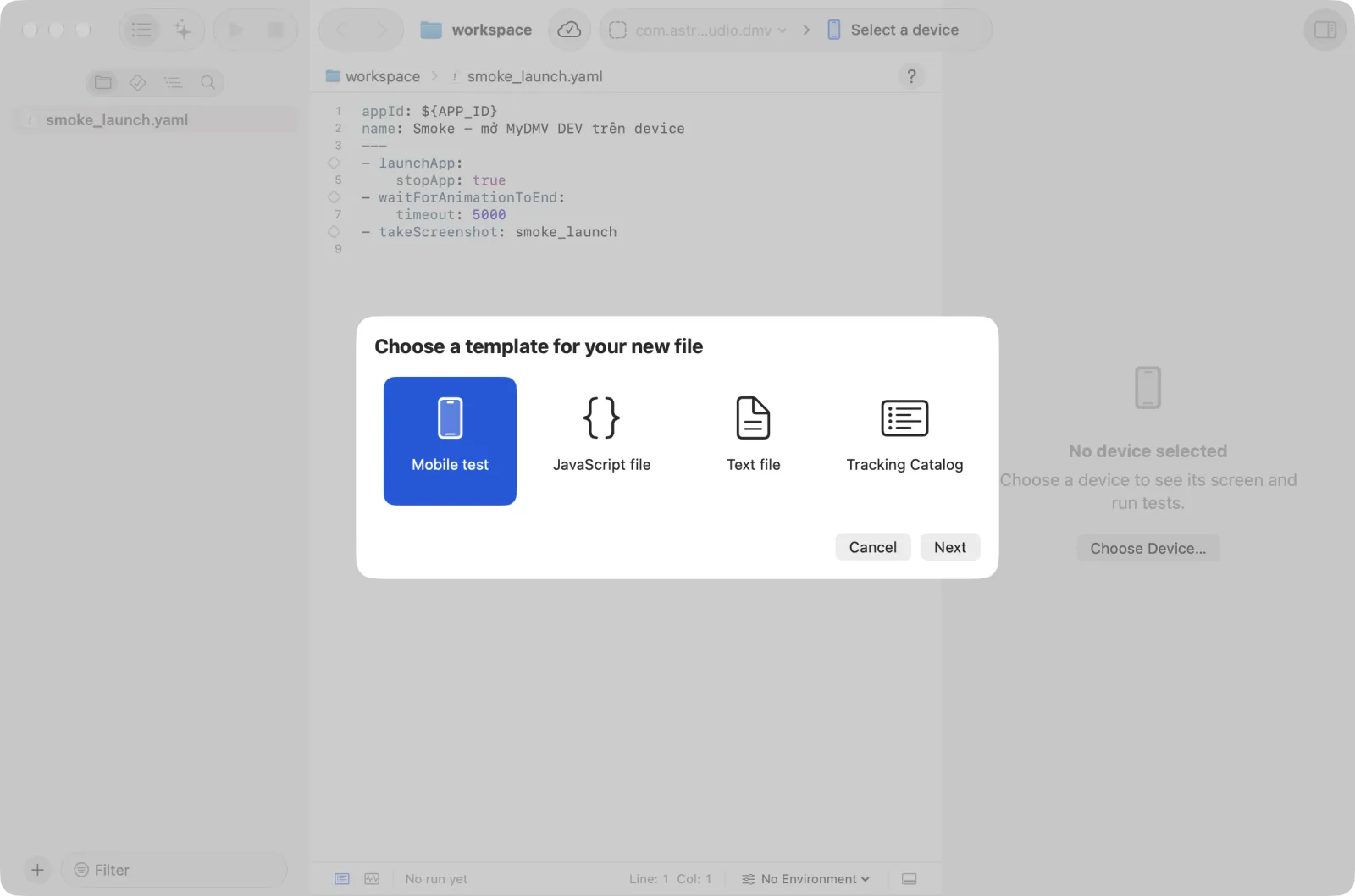
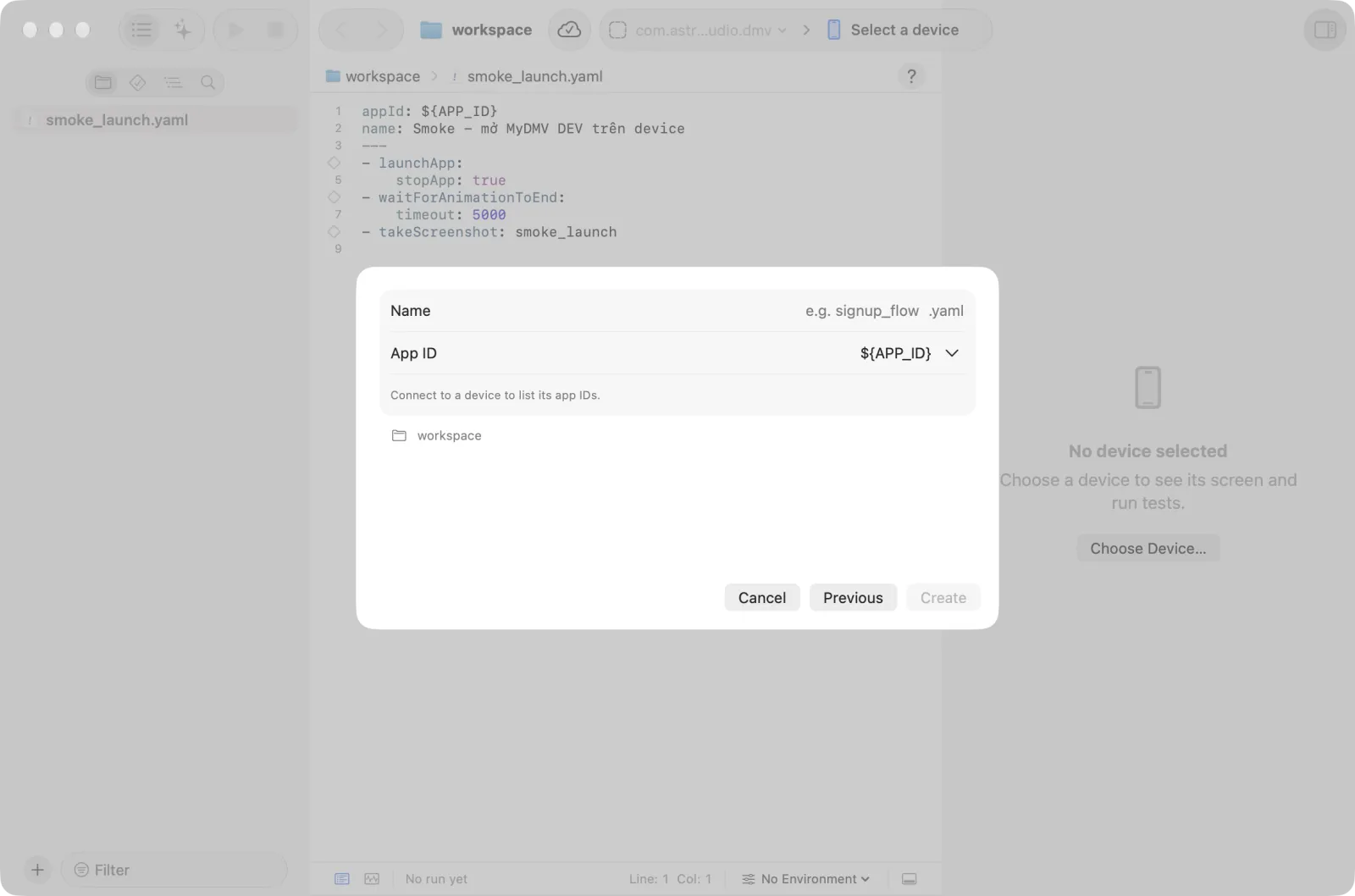
Enter a name. For Mobile test, also check the App ID. It starts as
${APP_ID}, the app picked in the toolbar. Click the arrow beside the field to use another value:- App Picked in the Toolbar (${APP_ID}) puts
${APP_ID}back. - Recently used lists App IDs used before.
- On connected device lists the apps installed on the connected device. It shows only when a device is connected.
The line at the bottom of the sheet shows the folder where the file will be created. Click Previous to go back to the templates.
- App Picked in the Toolbar (${APP_ID}) puts
Click Create. The file opens in the editor.
Write the steps. With Autosave on (the default), the file saves automatically after a short delay. Otherwise press
Cmd+S.
More: Run flows and Writing flows.
Add steps with the Inspector
Connect a device and open a flow in the editor.
Turn on Device > Inspect Elements (
Option+Cmd+I) and hover over the device screen. The line under the mirror shows the element under the pointer.Right-click the element you want. A menu of commands for that element opens.
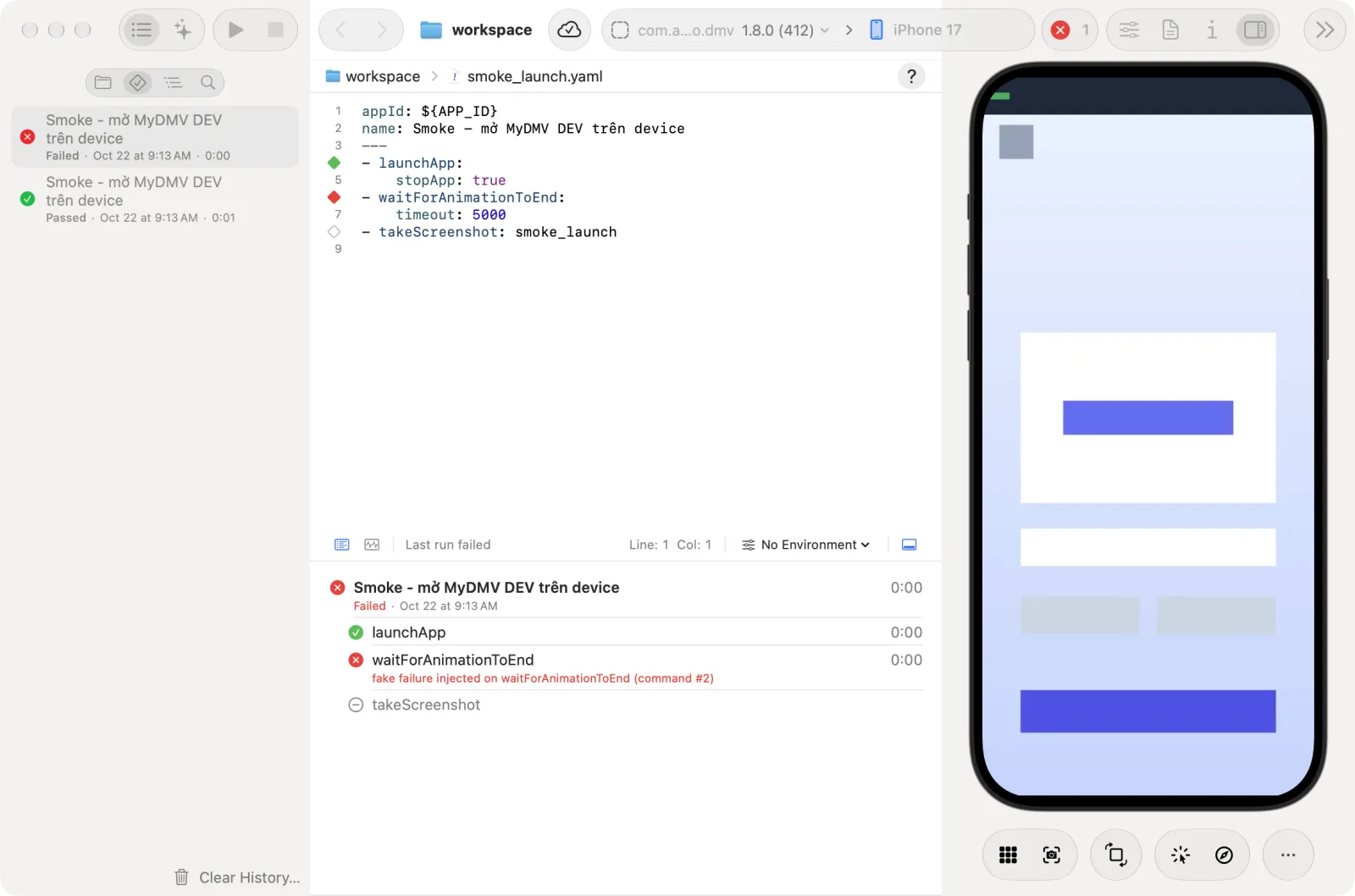
Choose Insert into Editor to add the step, or Insert & Run to add it and run it at once.
Both are disabled when no file is open in the editor. Insert & Run is also disabled when no device can run the step.
More: Inspector.
Ask the AI chat
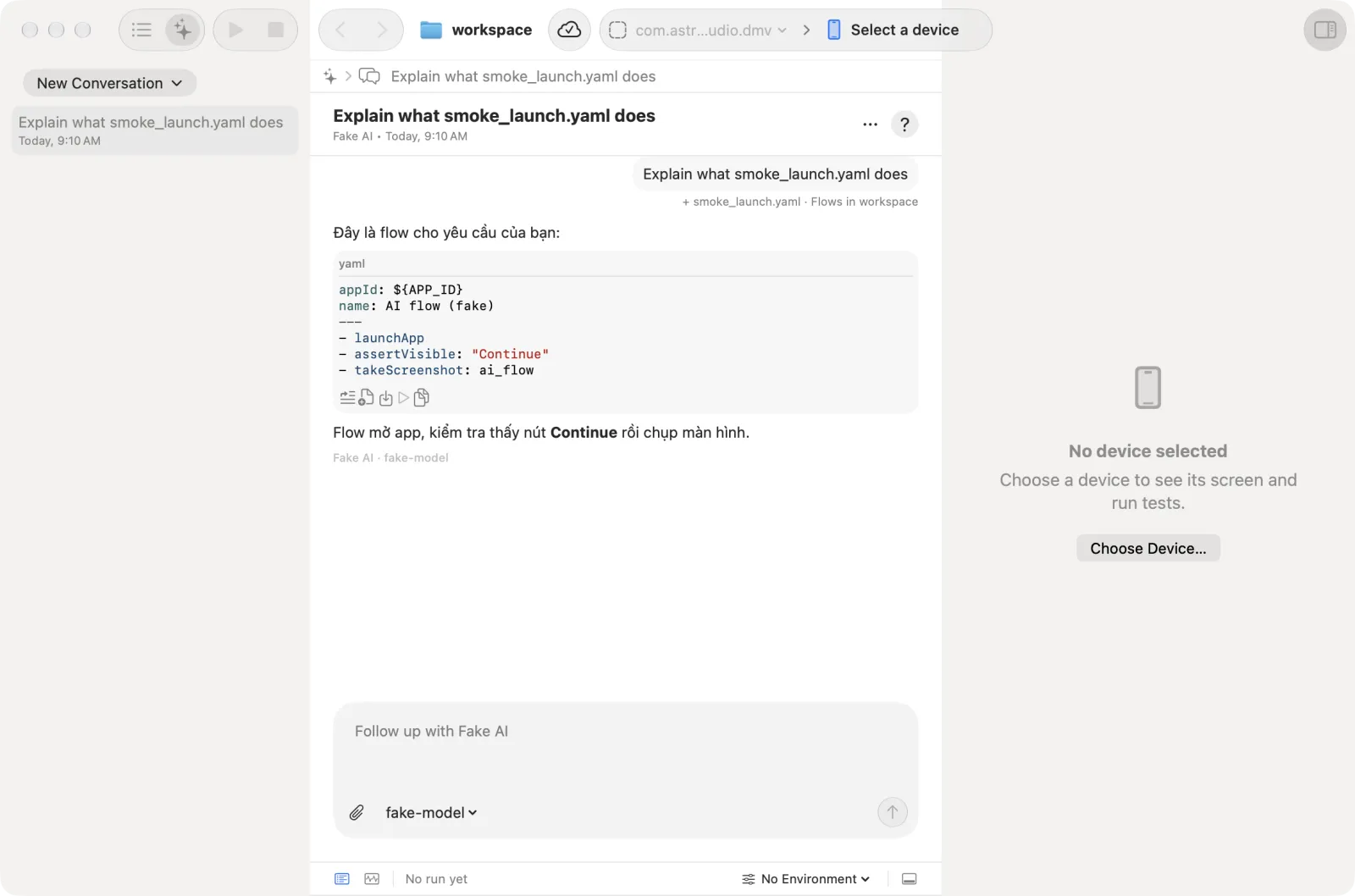
Switch the left sidebar to AI assistant with the switch at the top of the sidebar.
Click New Conversation and pick an AI from its menu. Only AIs that are installed and signed in can be picked.
Describe the flow in the text box, for example "open the app, sign in with test@example.com and check that the home screen is shown". Change the model in the model menu next to the text box. Press
Enterto send.When the reply has YAML, the code block shows whether it is valid and has icon buttons. Hover over a button to see its name:
- Try Run runs the flow on the device without saving it.
- Create New File saves it as a new file in the workspace.
- Insert into File adds it to the open flow.
- Apply to File compares it with the open flow and applies the accepted changes.
- Copy copies the YAML.
One AI CLI must be installed and signed in. See Set up an AI CLI.
More: AI assistant.
Let Explore find flows
Connect a device and choose Device > Explore the App… (
Shift+Cmd+E). The Explore app window opens.Choose the app, a persona (the kind of user the AI plays) and optionally a goal.
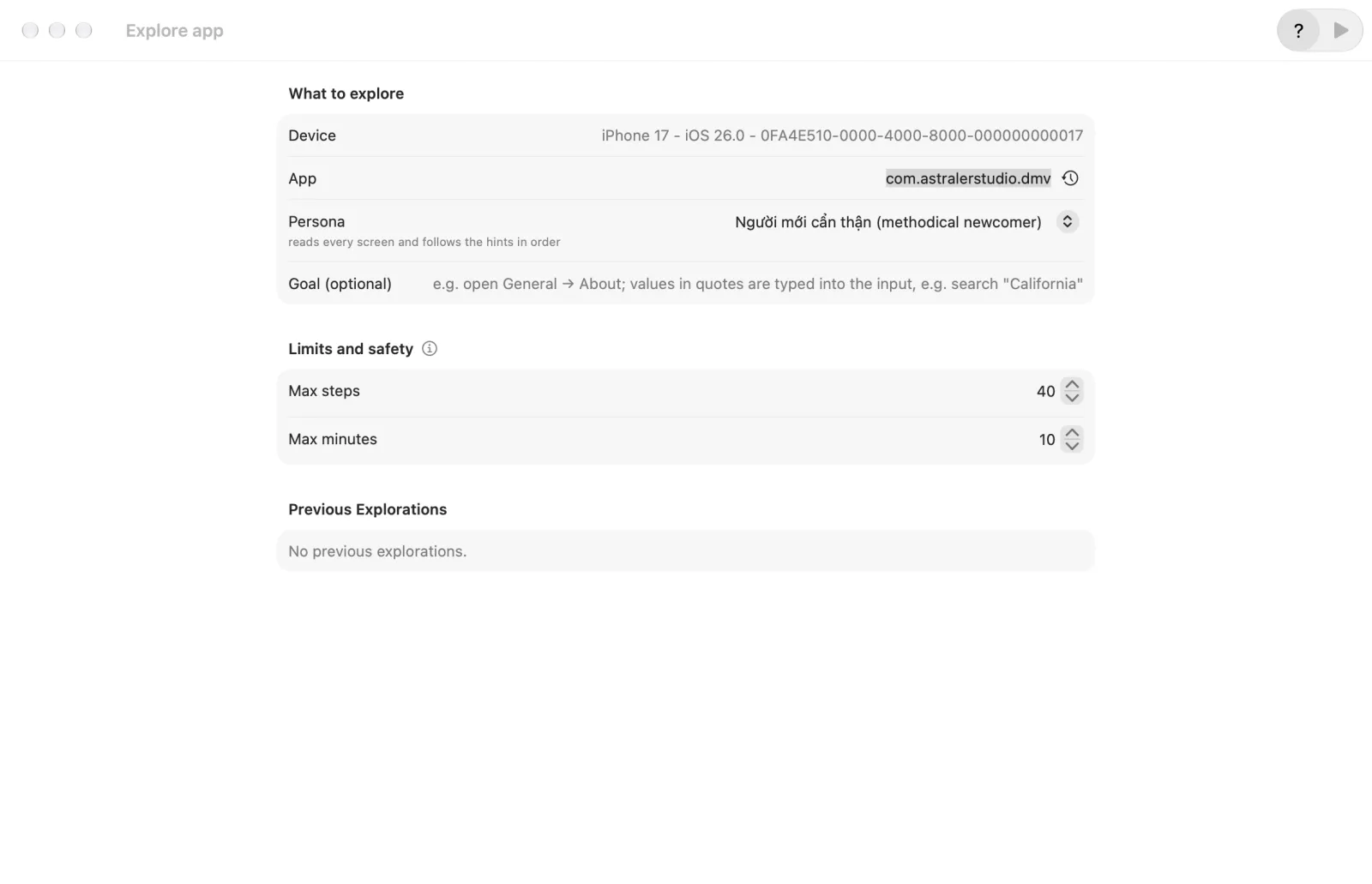
Click Start Exploring in the toolbar of the window and wait for the exploration to end.
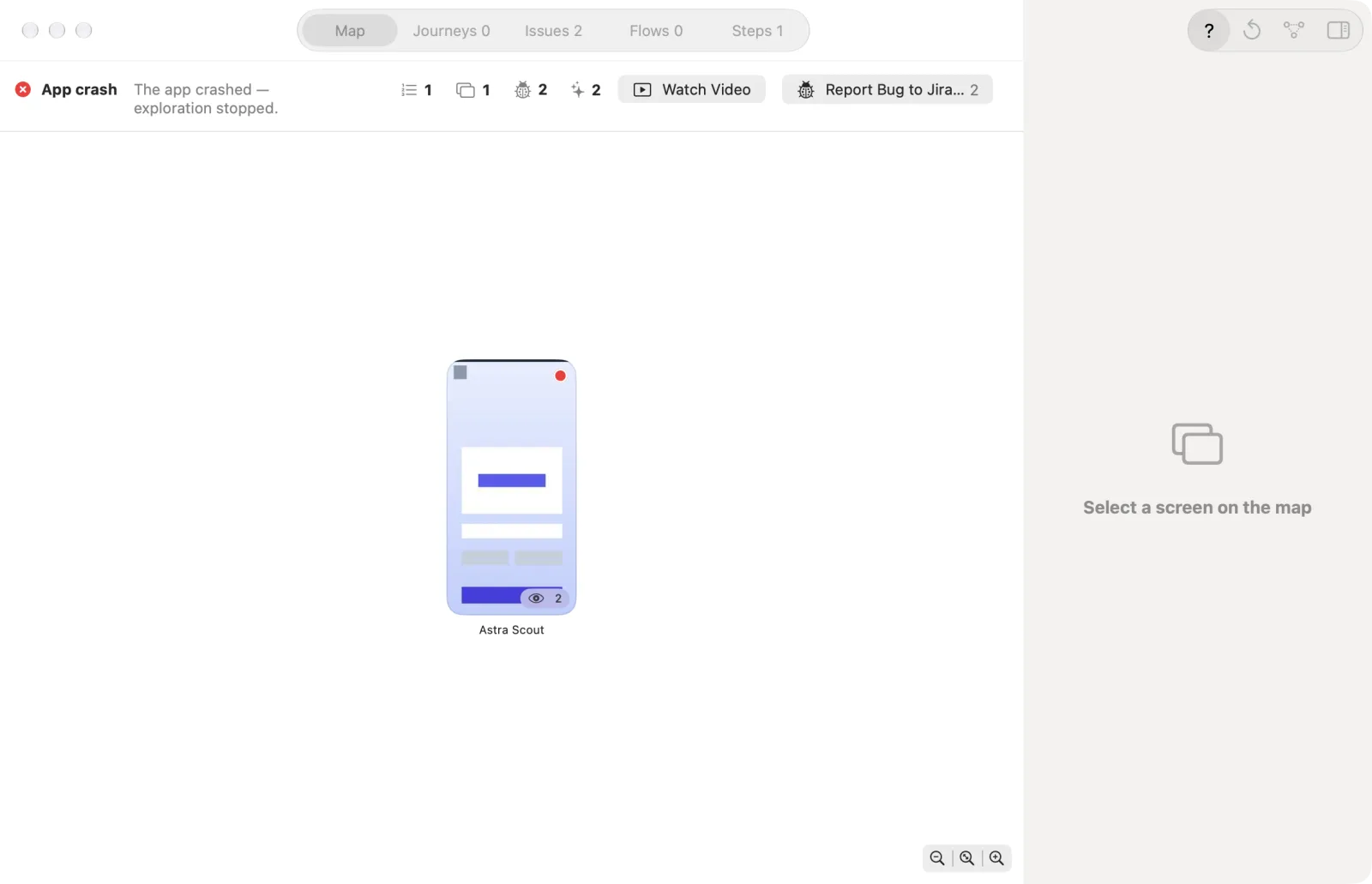
Open the Flows tab. It lists a suggested flow for each journey.
Tick the flows to keep and click Save N selected flows (N is the number of ticked flows). Nothing is saved unless ticked.
More: Explore app.
Write from a terminal
This way needs an AI CLI that runs in Terminal.
- Install the scout plugin into the AI CLI (Claude Code, Codex or Gemini CLI) and run
/scout:setup. - Keep Astra Scout running with a device connected.
- Ask the CLI to write a flow, for example "write a flow that signs in and checks the home screen". It uses the plugin's
write-flowskill. - The skill reads real text and ids from the screen, validates the flow, asks before overwriting a file, saves it and tries it.
More: The scout plugin.
Copy from Examples and recipes
- Open Examples and find the situation needed.
- Copy the YAML from the page.
- Create a file with New File… and paste it, or paste it into a flow that is already open.
- Change the
appIdand the texts to match the app, then run it.
More: Examples overview.
After you have a flow
- Run it and read the result: Run flows.
- Check the analytics events your app sends: Tracking: where to start. In the editor, right-click an action line and choose Add Event Check… to add the event check there.
- A line that calls another flow with
runFloworrunScriptopens that file withCmd-click, or from the Open file name item of the line-number menu.