
Explore app
Let the AI explore your app like a user and report what it finds.
Explore app lets the AI try the app like a real user and report what it saw: the screens, bugs and suggested flows. Testers and QA use it to find bugs or create flows without knowing in advance what to test.
At each step, Astra Scout reads the screen and builds a list of safe actions (tap, fill in, scroll, go back). The AI picks one with a reason, and Astra Scout runs it.
This is one of several ways to create a flow. See Create a flow.
Start an exploration
Before you start, connect an iOS or Android device. Exploration runs in its own Explore app window.
- Connect a device in the main window.
- Choose Device > Explore the App… (
Shift+Cmd+E), or click the compass button under the device mirror (Explore…). Both are disabled until a device is connected. The Explore app window opens with the form.
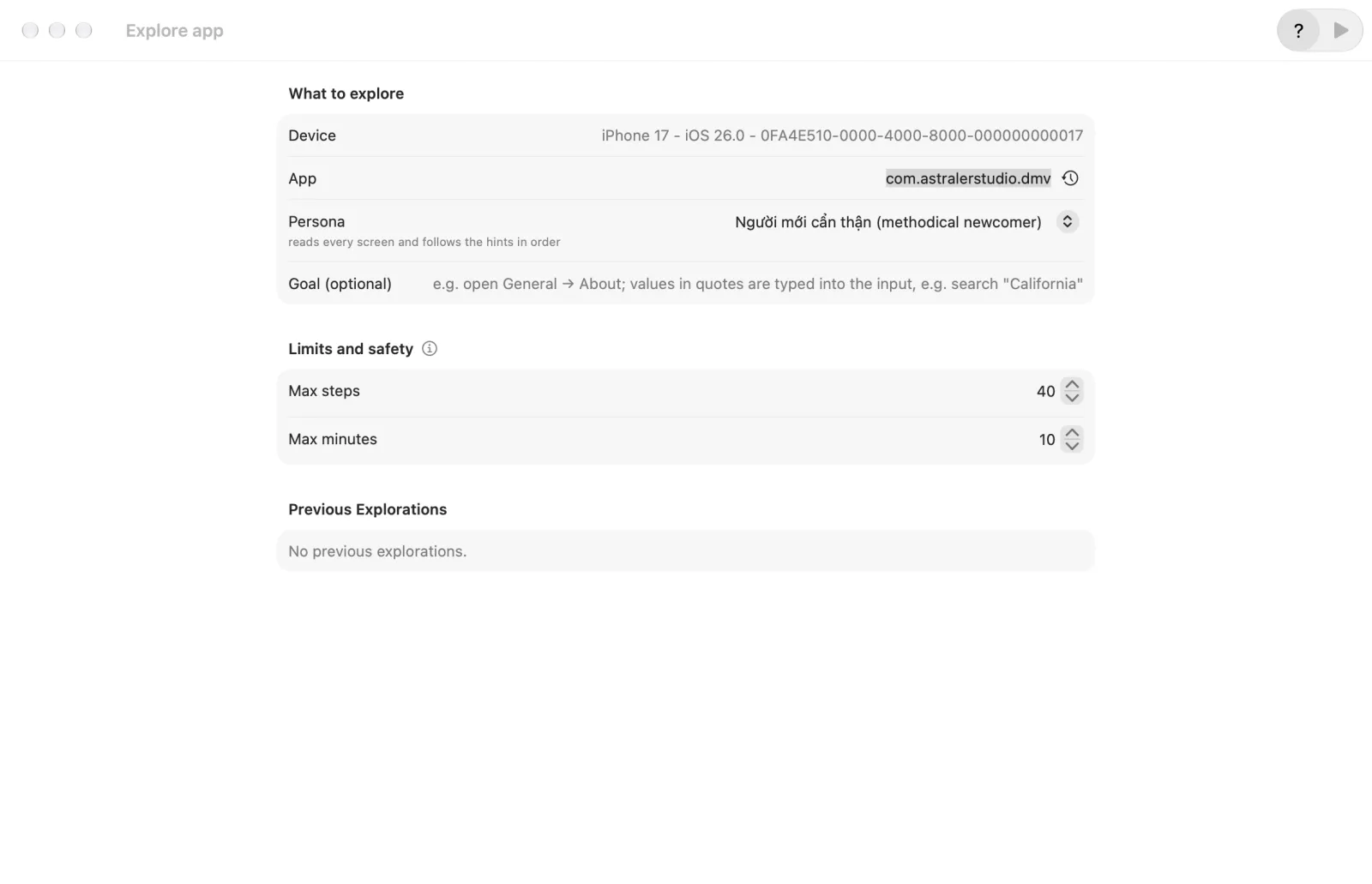
- Under What to explore, fill in:
| Field | Meaning |
|---|---|
| Device | The connected device (read-only). It reads "not connected" when there is none. |
| App | The app to explore, as an appId (the bundle id on iOS). It starts as the app picked in the toolbar, or the app explored last. The clock button (Recently used) lists earlier apps. |
| Persona | Who the AI acts as. A line under the picker describes the behavior. See the table below. |
| Goal (optional) | What to reach, for example "open General → About". Values in quotes are typed into inputs, for example search "California". |
- Under Limits and safety, set Max steps (default 40, from 1 to 200) and Max minutes (default 10, from 1 to 60). The info button next to the title lists the safety rules.
- Click Start Exploring in the toolbar (or press Return). It is disabled until a device is connected and the App field is not empty.
The window shows Previous Explorations under the form: one row per earlier exploration with the app, the persona, how long ago, the outcome, and "N screens · N issues". Click a row to open its result. A past result that cannot be read shows "This exploration could not be loaded." with Start a New Exploration.
Personas
The names always show the Vietnamese name and the English one in brackets, whatever the app language.
| Persona | Behavior |
|---|---|
| Người mới cẩn thận (methodical newcomer) | Reads every screen and follows the hints in order. |
| Người chơi tốc độ (speedrunner) | Takes the shortest path to the goal, skips every optional screen, taps the first plausible button. |
| Quỷ phá rối (chaos gremlin) | Does the unexpected: goes back often, taps things out of order, fills fields then leaves. |
| Người vội (overloaded manager) | Wants one task done in seconds, skims, uses search. |
| Người lo quyền riêng tư (privacy-paranoid) | Declines tracking and permissions, opts out, looks for privacy settings. |
| Người khám phá tính năng (feature explorer) | Opens every tab, menu and setting once. |
The methodical newcomer is the default.
While it runs
The window shows a progress strip: a small picture of the current screen, "Step 3/40 · persona", the counts of screens, issues and AI calls, a progress bar, the screen title, the action and the AI's reason. Under it the map grows as screens are found. Click Stop in the toolbar to end it early.
What the AI can do
The AI picks from a list that Astra Scout builds: tap an element, fill in test data (such as test@example.com), scroll, go back, wait or finish. Astra Scout runs the action itself.
Safety
Purchase buttons and paywalls are offered to the AI labelled "(purchase – sandbox)", so only explore on test devices. Password fields and card fields are never typed into and appear in the Excluded segment of the Steps tab with labels such as "excluded (password)". The one exception is the sandbox password on the iOS system purchase sheet: Astra Scout types it from the variable SANDBOX_PASSWORD of the environment picked in the runner bar (see Environments and variables). Without it, the exploration stops as Tester needed.
The exploration is recorded on video. The AI can also check a new screen for visual defects. It does this at most once per screen and at most 3 times per exploration. If the budget of AI calls is short, the result header says how many extra checks were skipped.
Exploration stops when steps, time or AI calls run out, when there is no progress (same screen and action three times), when the app crashes, when you click Stop, when an error occurs, or when the AI says it is done. The result header shows the reason, for example "AI finished", "Step limit reached", "Time limit reached", "No progress", "App crash", "AI call limit reached" or "Stopped".
Results
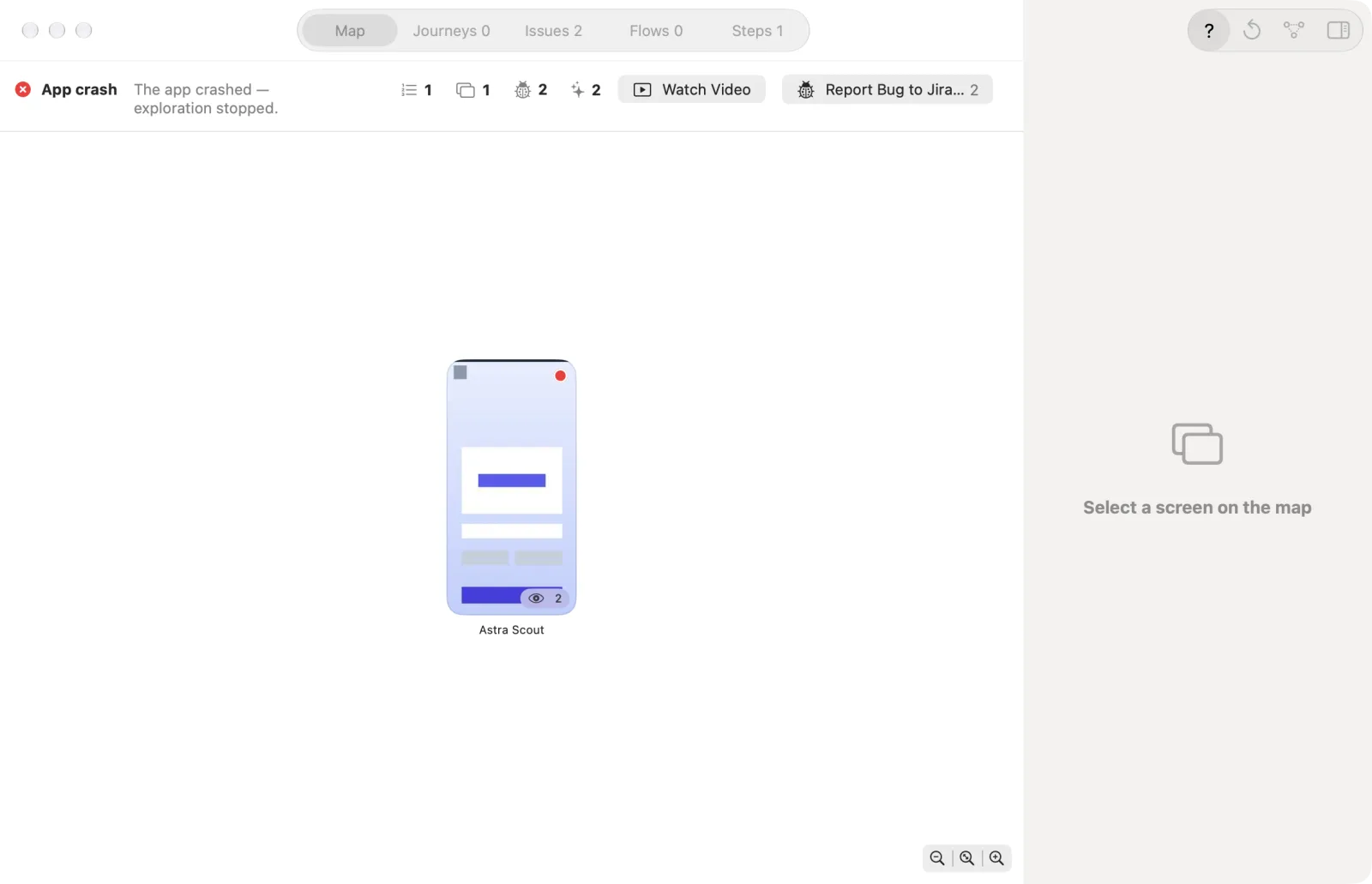
When the exploration ends, the toolbar shows a picker with the result tabs. Results are saved and open again under Previous Explorations. The tabs carry counts:
- Map: the screens it found and how often it visited each.
- Journeys N: the paths it took. A journey is a chain of screens the AI went through to do one task.
- Issues N: findings, split into functional issues and warnings, with their severity.
- Flows N: a suggested Maestro flow for each journey.
- Steps N: every step with the screen, action, AI reason and error.
Above the tabs, the header shows the reason it stopped with a pass or fail icon, the counts Steps, Screens, Issues and AI Calls, Watch Video, and Report Bug to Jira… with the issue count. Links to Jira issues you already created appear next to it. Click Start a New Exploration in the toolbar to clear the result and go back to the form.
Read the map
- Open the Map tab.
- Click a screen. The inspector on the right shows its screenshot, its identifier, how many times it was visited, the step where it was first seen, how it was reached, the actions from there, the journeys that pass through it and the issues found on it. A purchase screen is marked. With nothing selected the inspector reads Select a screen on the map. Show or hide it with the Inspector button in the toolbar.
- The map draws each screen's first arrival. Turn on All Transitions in the toolbar to draw every transition between screens.
- Zoom with the buttons at the bottom right of the map,
Cmd+-,Cmd+0(Zoom to Fit) andCmd++, or pinch on the trackpad.
Journeys, issues, flows and steps
- Journeys: each row has the journey, a Goal reached mark when it reached the goal, and its actions. Click Show on Map to highlight it on the map. Click the journey's name at the top left of the map to clear the highlight.
- Issues: each row shows the level (1 to 5), the issue type, the description and the screen. Click a row to see its screenshot, expected and actual behavior and its steps in the inspector, with Report Bug to Jira… for that issue.
- Flows: each suggested flow shows its name, its file name and Valid or Invalid. An invalid flow shows "Cannot save: …" and cannot be ticked. Click a flow to read its YAML in the inspector.
- Steps: when something was left out, a segment control shows Steps and Excluded N. Excluded lists the kind (such as "excluded (password)", "excluded (purchase)" or "excluded (system)"), the text, the reason and the screen.
Save the flows you want
- Open the Flows tab.
- Tick the flows to keep. Nothing is saved unless ticked.
- Click Save N selected flows. The flows are written to the workspace and appear in the Files navigator. A line next to the button then reads "Saved: …" with the file names. If a file name already exists, a free one is used.
It is disabled when no flow is ticked or no workspace is open.
Issues and severity
Each finding has an issue type, a level from 1 (minor) to 5 (blocks the user), the screen, expected and actual behavior, steps and a screenshot. The issue types are Crash, Stuck on a screen, Tap not responding, UI defect, Error dialog and Action failed.
| Group | Examples | Fails the exploration? |
|---|---|---|
| Functional issues | Crash, error dialog, a UI defect the AI judges to block the user | Yes |
| Warnings (UI or experience) | Cosmetic defects, stuck on a screen, tap not responding, action failed | No |
Report a bug
- Open a finding in the Issues tab and click Report Bug to Jira… in the inspector. Or click Report Bug to Jira… in the result header for all findings. Or choose Device > Report Bug to Jira… (
Shift+Cmd+B) in the main window. - The Report to Jira sheet opens. Review it and send.
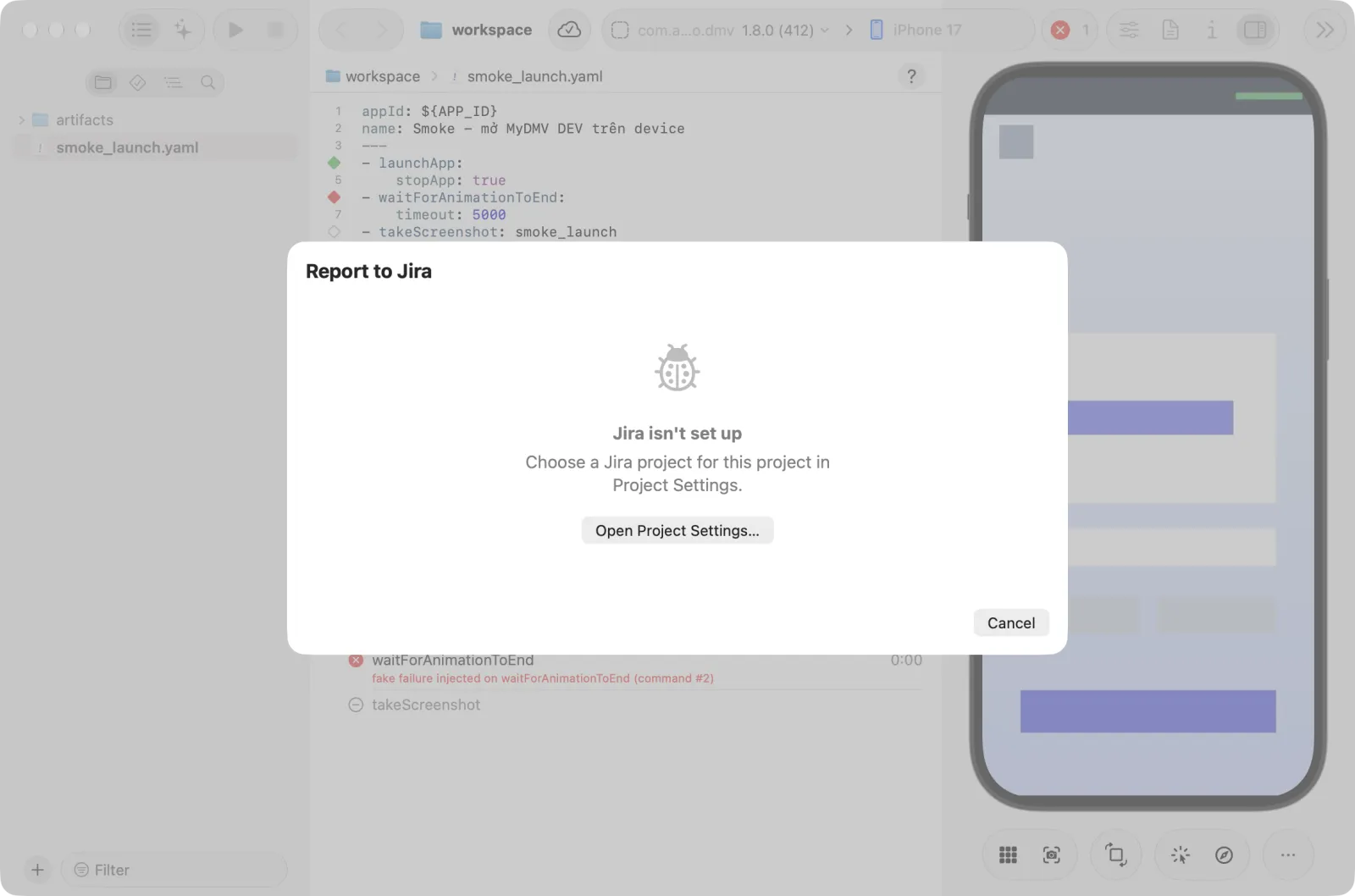
See Jira.
Purchases
Purchase buttons and paywalls are offered to the AI like any other control, labelled "(purchase – sandbox)". Run Explore on test devices only. On a password dialog, or after a purchase tap on an iOS device, the exploration can stop in the Tester needed state. The AI cannot continue by itself and needs a person. The header reads "A tester must continue on the device" with the reason. Continue on the device, then start a new exploration if you want to go further.
From a terminal
An AI CLI (Claude Code, Codex, Gemini CLI) with the scout plugin installed can run an exploration instead of clicking in the app. It uses the MCP tools explore_app and get_explore (the plugin's explore-app skill). Suggested flows are only returned, and saving needs save_flow after the user agrees. See The scout plugin.