
Environments and variables
Run the same flow against different accounts, builds, or servers using environments.
An environment is a named set of variables and tags applied to a run. Use environments to run one flow against different accounts, builds or servers without editing the YAML, for example with a test account and an admin account.
A variable is a name = value pair, for example PASSWORD = abc123. The flow calls the variable by name, and each environment gives it a different value.
Manage environments
Create an environment
Open the Environments sheet. Use either of these:
- Choose Run > Manage Environments….
- At the right of the runner bar, open the environment menu and choose Manage Environments….
The menu reads No Environment until you pick one. It is disabled while a test is running.
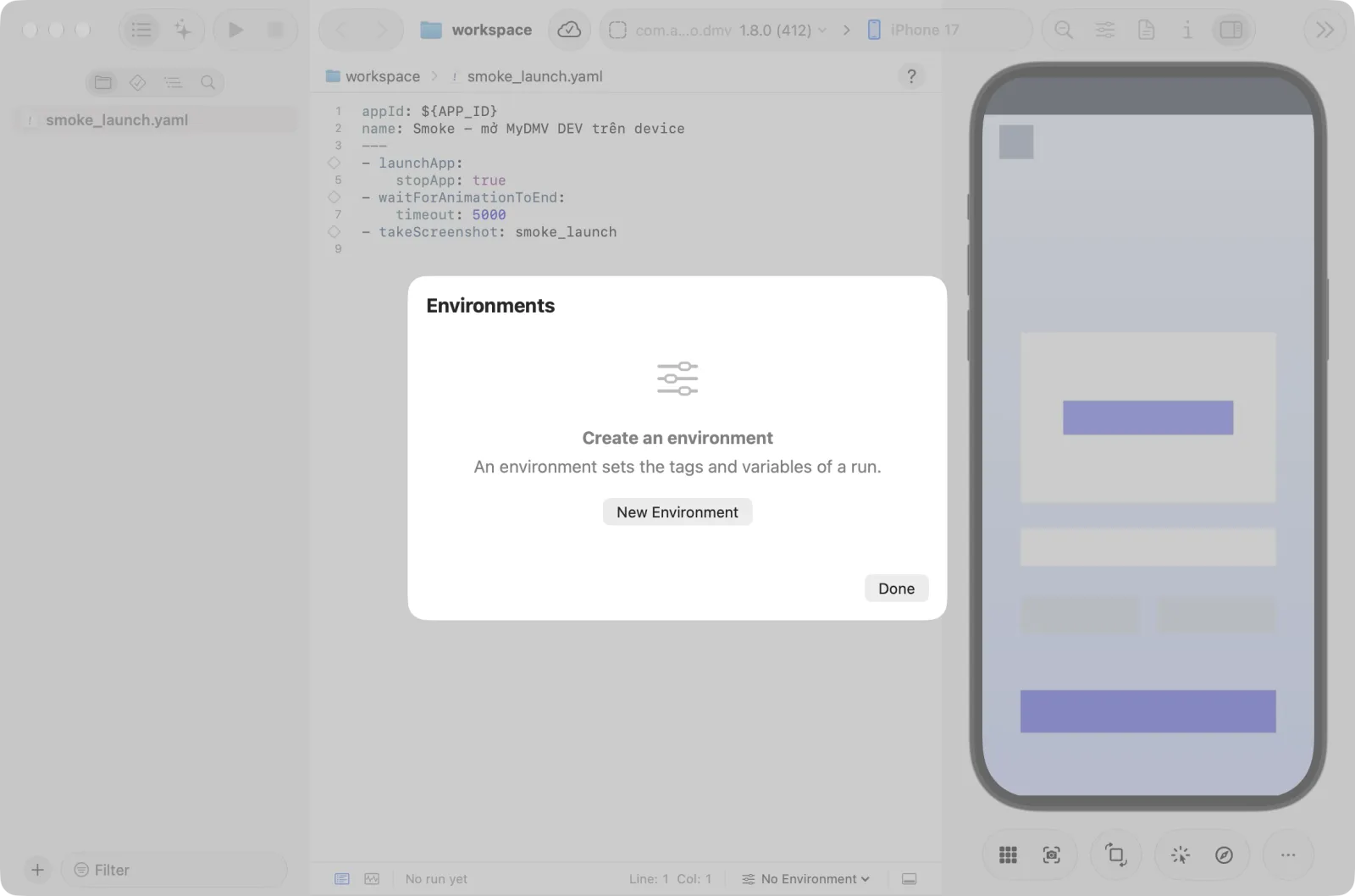
If there is no environment yet, the sheet reads Create an environment with a New Environment button. Click it. When you already have some, click the + button (Create Environment) in the sheet header instead.
- Fill in the fields on the right:
- Name is required.
- Include tags and Exclude tags take comma-separated tags. They are optional. See Tags below.
- Under Environment variables, click Add Variable. Type the name in Key and the text in Value. Add one row per variable. Click the trash button (Remove Variable) at the end of a row to delete it.
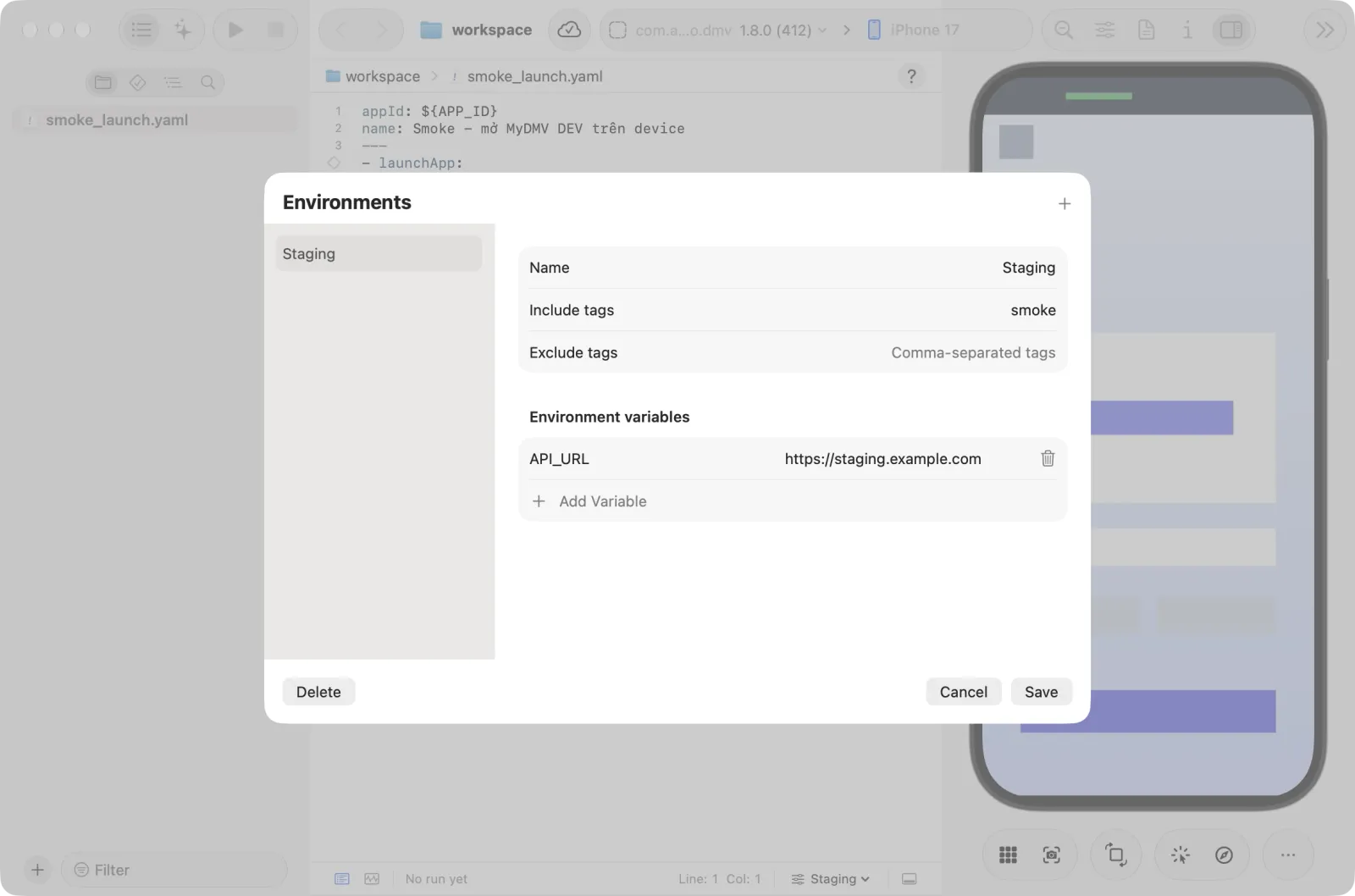
- Click Create. The sheet closes by itself.
Edit or delete an environment
- Open the Environments sheet.
- Click an environment in the list on the left. Its fields open on the right.
- Change what you need, then click Save. The sheet closes. Cancel drops your changes and keeps the sheet open.
- To remove it, click Delete. A dialog asks Delete environment? and says the action cannot be undone. Confirm with Delete. The sheet stays open.
- Done shows only when no environment is open for editing. It closes the sheet.
Pick the environment for a run
- Open the environment menu at the right of the runner bar.
- Choose None or one of your environments.
Astra Scout remembers the choice the next time the app opens. If you delete the picked environment, the choice goes back to None.
The picked environment applies to Run Test, Run All Tests and Insert & Run from the inspector. Explore app also uses it. You cannot switch environments while a test is running.
Use the variables in a flow
Reference a variable with ${NAME}:
- inputText: ${PASSWORD}Pick the environment before you click Run Test or Run All Tests. A flow that uses ${PASSWORD} needs a value for PASSWORD, for example from the picked environment.
Special variable names
APP_ID: for a flow that starts withappId: ${APP_ID}, Astra Scout sets this to the app picked in the toolbar's app picker, when that app's platform matches the device. If the environment definesAPP_ID, its value wins.SANDBOX_PASSWORD: used only by Explore app. When the AI meets the App Store sandbox password prompt on an iOS device, it types this variable's value. Without it, the exploration stops as Tester needed.
Tags
A tag is a label on a flow, in the flow's header (the tags: line), for example smoke or login. Include tags and Exclude tags choose which flows run when you click Run All Tests: with include tags set, only flows with those tags run, and flows with an exclude tag are skipped. They do not change Run Test on a single file. Tags in a workspace's own configuration add to the include tags.
Masked values
Astra Scout masks typed values and variables:
- Values from environment variables are replaced with
***in anything sent to Jira. The same goes for text typed withinputText,setClipboardandpasteText, and for any key whose name contains password, secret, token, apikey or credential. - After a step types a value taken from an environment variable, later AI steps in the same device session do not send screenshots to the AI. They send only the element tree with the typed value masked. This lasts until a step relaunches, stops or clears the app, or the device session ends.
See Jira and AI assistant.