
Troubleshooting
Diagnose and fix installation, device connection, and run problems.
Fixes for an app error, a failed install or a device that will not connect. Each section is one error message and its fix.
Start with the Setup Check. It finds most problems and shows the fix for each. See Settings.
- Choose Help > Setup Check…. The Check Setup sheet opens and fills in as the checks finish.
- Look for rows with a red or orange icon. A required item says "(required)". Each row explains the problem and the fix, and some rows have a button that opens the matching Settings pane.
- Fix the item, then click Check Again.
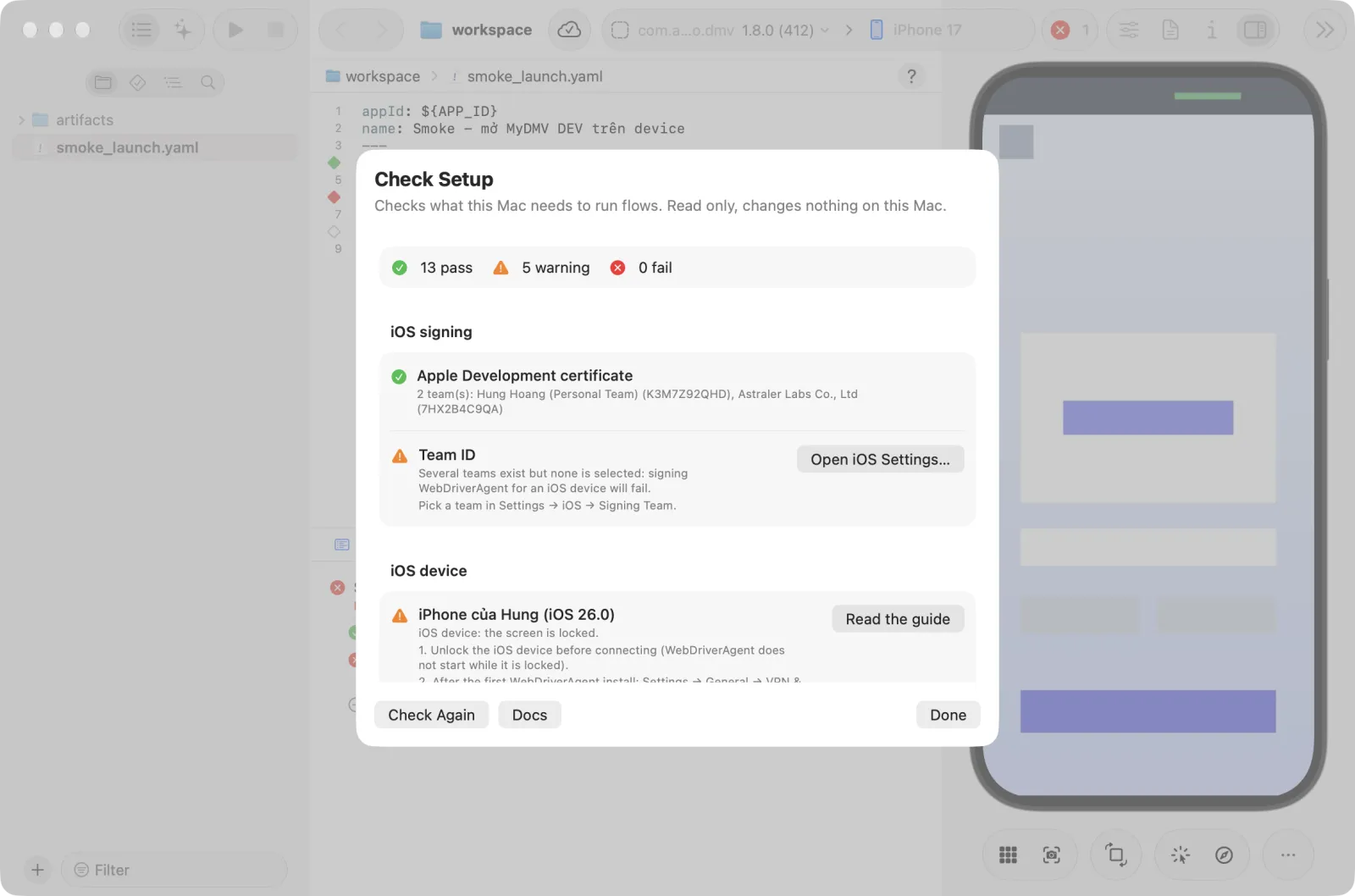
If the problem remains, send the team a screenshot of Check Setup, the server log, and the build.log file named in the error message. Open the server log with Help > Show Server Log. It is ~/Library/Logs/Astra Scout/server.log and starts empty every time the app starts.
Installing and opening the app
macOS says the app cannot be opened or is damaged
Astra Scout builds are signed and notarized, so macOS opens them after one "downloaded from the Internet" question. This message means the copy did not come from the team's download link, for example a local development build passed around. Download the DMG again from the link in Installation.
"You have not agreed to the Xcode license agreements"
sudo xcodebuild -license accept
sudo xcodebuild -runFirstLaunch
"Unable to start Astra Scout"
The window shows Unable to start Astra Scout, a message, and the buttons Try Again and Show Server Log. The local server that runs devices and flows did not start, or it stopped later.
- Read the message. Typical ones:
- "Another Astra Scout server already answers on port N". Another copy of the app, or a server started by hand, is running. They share one data folder and cannot run together. Quit the other one.
- "The Astra Scout server stopped (exit code N)", followed by the last lines of the log.
- "The Astra Scout server did not respond in time", followed by the last lines of the log.
- "The Astra Scout server stopped responding". The server was running and went away.
- "No free local port for the Astra Scout server".
- Click Show Server Log to open
server.log. The same file opens with Help > Show Server Log. - Fix the cause, then click Try Again.
If a dialog says Astra Scout is already running instead, another Astra Scout server already answers on the port. Quit it and open the app again.
Opening Astra Scout a second time does not start a second copy. It brings the first window to the front. One copy of the app runs per data folder.
iOS device
Signing for "WebDriverAgentRunner" requires a development team
To control an iOS device, Astra Scout must sign WebDriverAgent (WDA, a small app that runs inside the iOS device) with an Apple Developer team. The team is identified by its Team ID, a 10-character code. This error means the app does not know which team to use. The connect panel shows the error, the path of build.log, and an Open iOS Settings… button.
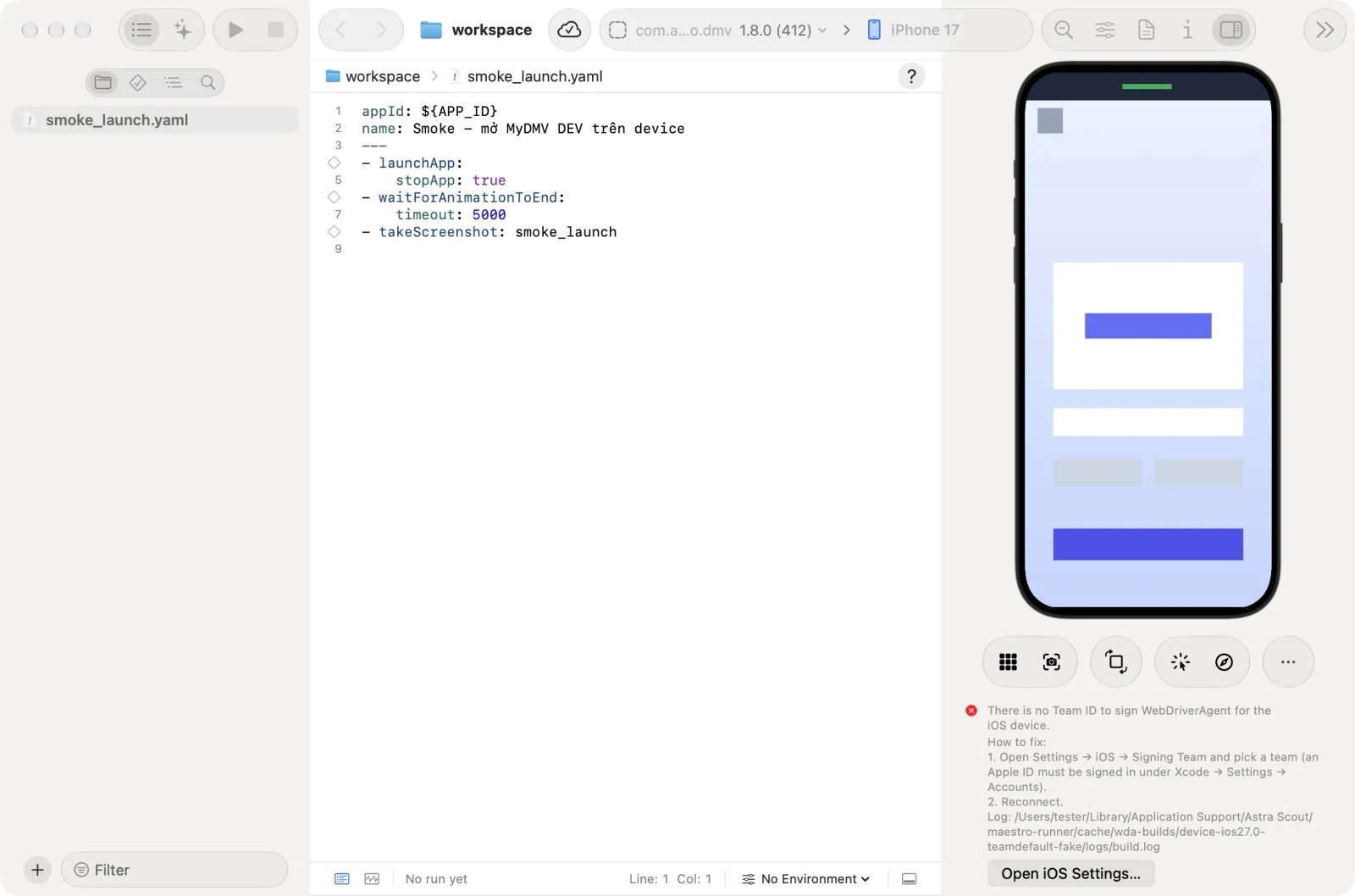
Sign in to your Apple ID in Xcode and create an Apple Development certificate. See Devices.
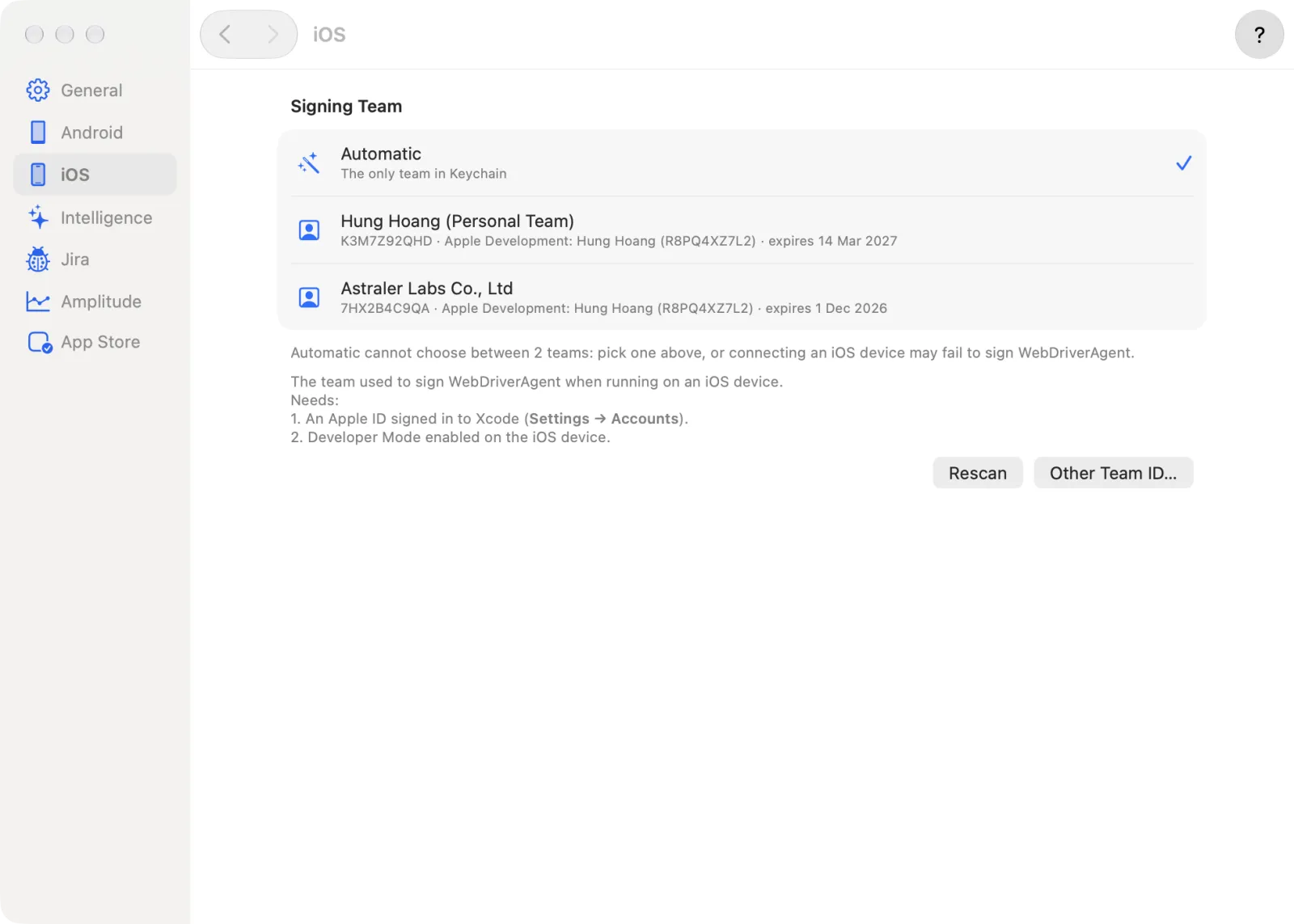
Click Open iOS Settings…, or choose Astra Scout > Settings… and click iOS. In Signing Team, click a team row. Automatic uses the only team in Keychain.
If the team is not listed, click Rescan, or click Other Team ID…, type the Team ID in the popover and click Save. The line "In use: …" shows the Team ID the next connection uses.
Reconnect the iOS device (click Reconnect in the connect panel). Restarting the app is not needed, and the failed build is not reused.
The error message prints the exact path of build.log. For a DMG install it is under ~/Library/Application Support/Astra Scout/maestro-runner/cache/wda-builds/…/logs/build.log. See also Choose a team in the app.
No profiles for 'com.facebook.WebDriverAgentRunner.xctrunner' were found or No Account for Team
Xcode could not create a provisioning profile, which lets an app run on the iOS device. The connect panel explains the problem in the app's language and lists the steps. Check that:
- The Apple ID for that team is signed in under Xcode > Settings > Accounts (sign in again if it expired).
- The iOS device is plugged in and open in Xcode > Window > Devices and Simulators.
- The Team ID in Settings > iOS is the team that has the certificate.
- "Failed to register bundle identifier" is the same kind of problem: choose another team in Settings > iOS.
The iOS device says the developer is not trusted
On the iOS device: Settings > General > VPN & Device Management > Apple Development: … > Trust, then connect again.
Developer Mode disabled
Turn on Settings > Privacy & Security > Developer Mode on the iOS device and restart it.
The iOS device connection hangs or WDA does not start
- The iOS device may be locked. Unlock it and try again.
- Unplug and replug the cable, unlock it, and check in Xcode > Window > Devices and Simulators that it is not still "Preparing".
- Over Wi-Fi, allow System Settings > Privacy & Security > Local Network > Astra Scout, or plug in the cable.
"iOS device screen is locked — unlock the iOS device and try again"
The iOS device locked itself and has a passcode, so Astra Scout cannot unlock it. Unlock it and run again. Set Auto-Lock to Never while testing. Runs blocked this way have the code DEVICE_LOCKED and are never treated as app bugs. See When the iOS device locks itself.
The iOS device mirror shows an error
The mirror uses CoreDevice's media stream (Xcode 27 and iOS 27). Unlock the iOS device and check that it is trusted. A locked or unreachable iOS device starts mirroring by itself once it answers; an iOS device without the media stream cannot be mirrored, but flows still run. See Devices.
All devices
"Blocked: the driver is not responding"
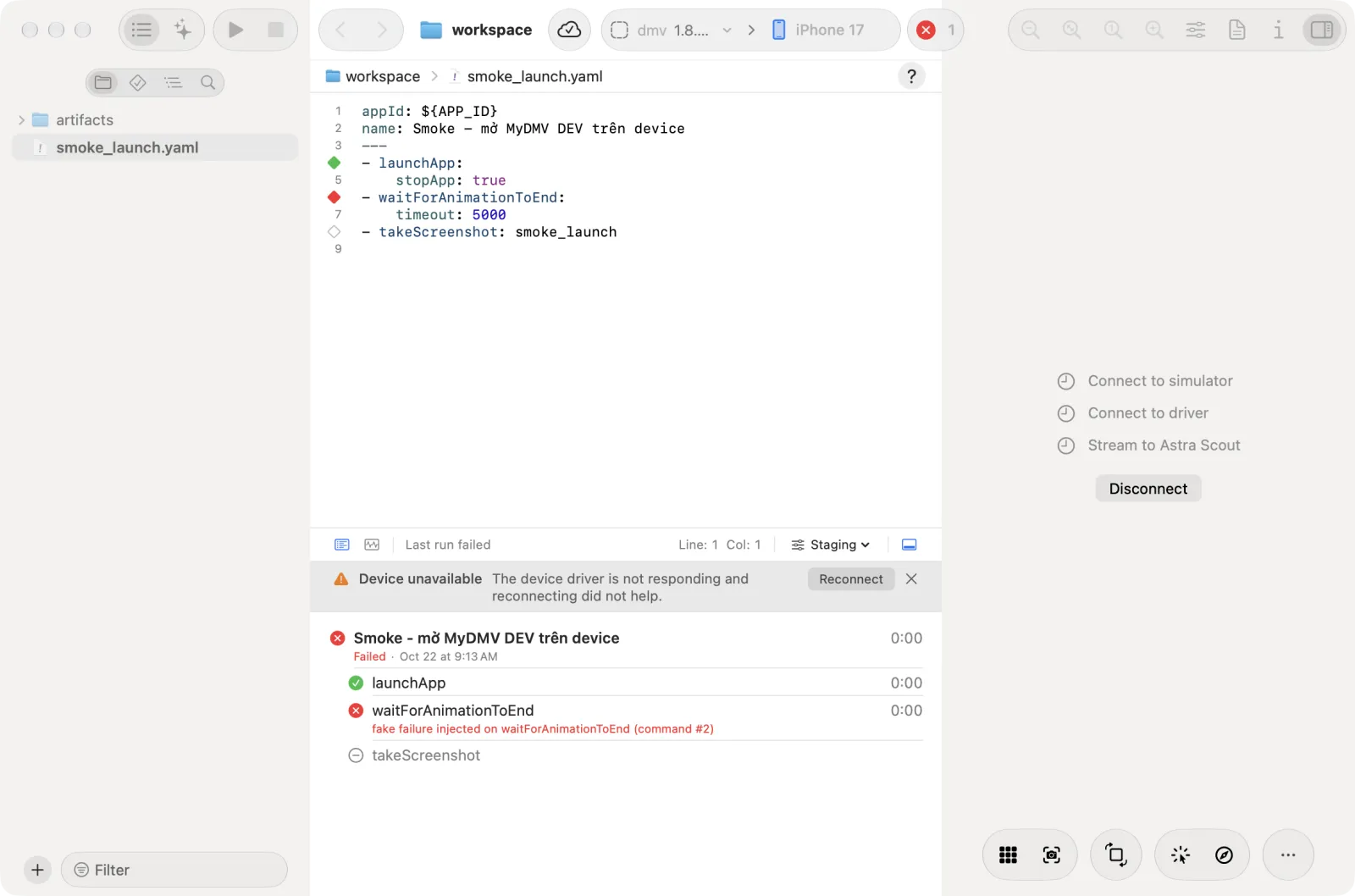
Astra Scout checks the driver (WDA on iOS, the DeviceLab driver on Android) before each run and every 15 seconds while a device is connected. If it does not answer, the device shows Reconnecting driver and the driver restarts once. If that fails, the run notice reads Device unavailable ("The device driver is not responding and reconnecting did not help."), and runs do not start.
- Click Reconnect in the notice or in the device panel.
- If it fails again, find the cause. Usually WDA was shut down (Xcode or the simulator restarted, or another tool uses the same simulator). Close the other tool or use a different simulator.
See Driver health and the verdicts.
The first iOS connection takes a long time
The first time, maestro-runner builds WebDriverAgent (WDA, a small app on the device that performs taps), so the first connection takes longer than later ones. Later connections reuse the build.
Android
Device unauthorized
Accept Allow USB debugging on the device. If the dialog does not appear, turn USB debugging off and on, choose Revoke USB debugging authorizations, then plug the cable in again. adb devices must show device.
Android SDK not found
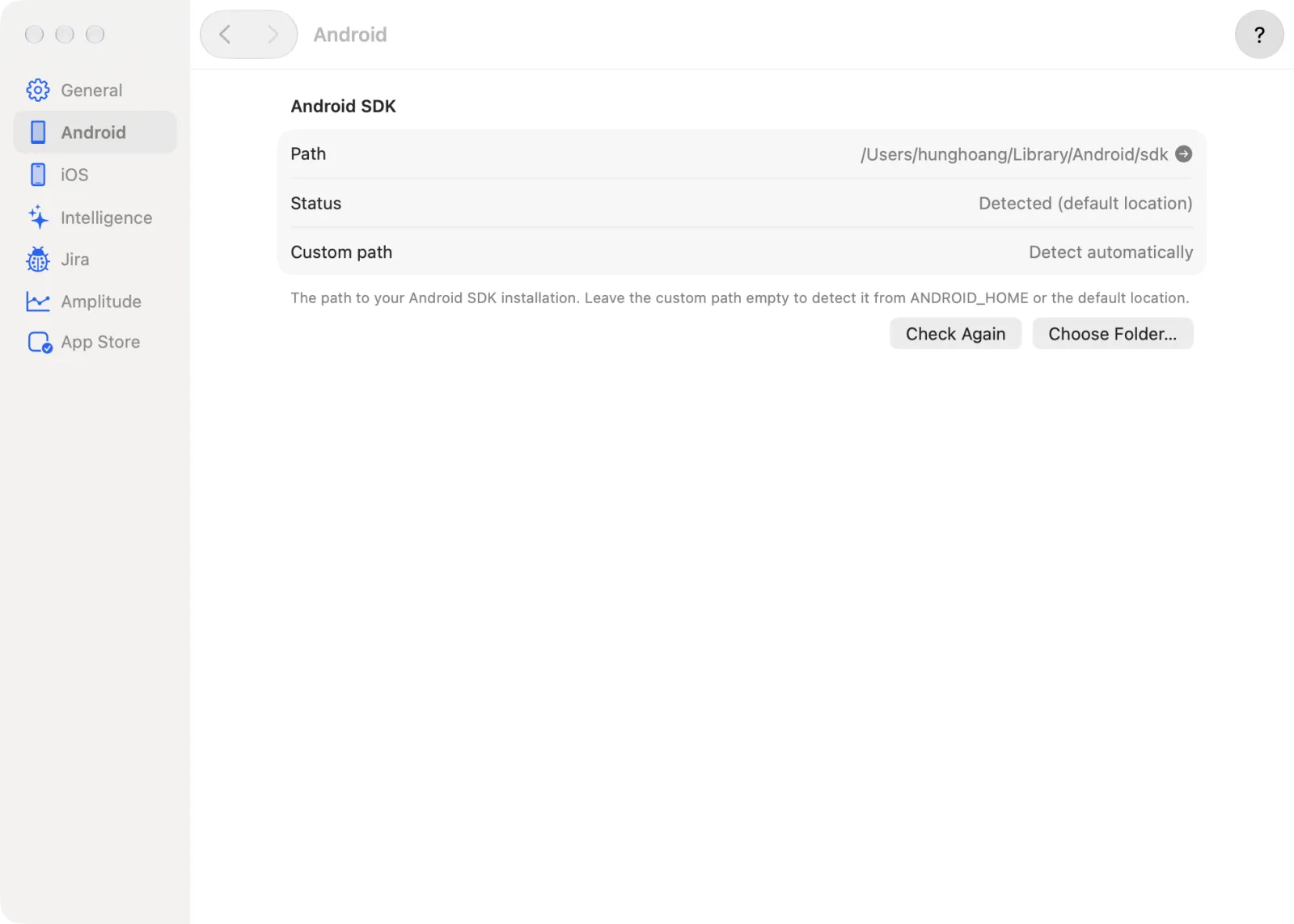
- Choose Astra Scout > Settings… and click Android.
- In Android SDK, read Status. It says "Not found" when no SDK is detected.
- Click Choose Folder… and pick the SDK folder (by default
~/Library/Android/sdk), or type it in Custom path. "Path verified" confirms a good path. Leave Custom path empty to detect the SDK fromANDROID_HOMEor the default location. - If the SDK is installed while Settings is open, click Check Again.
AI
AI says "Not signed in"
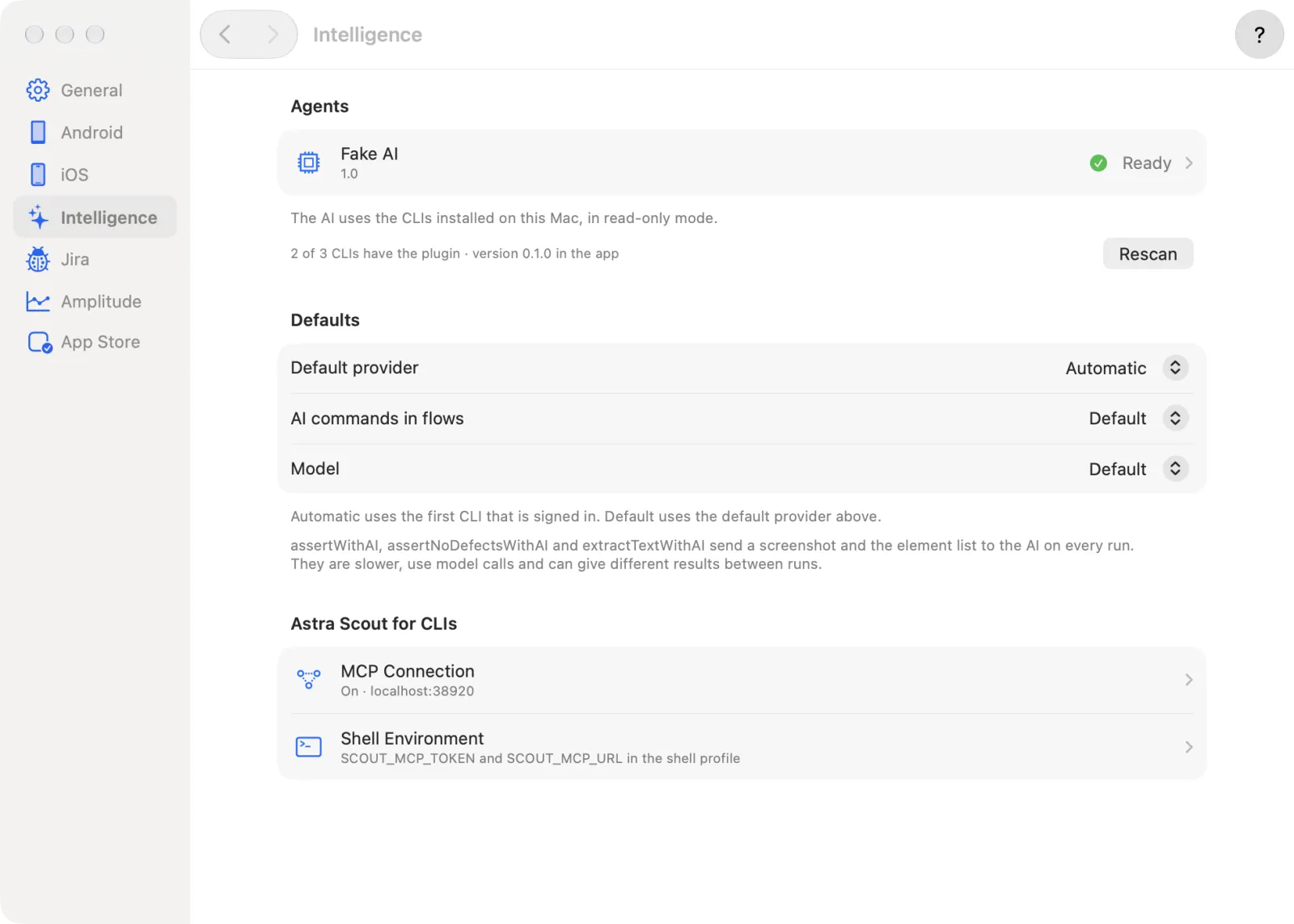
Run the CLI in Terminal and sign in. Then choose Astra Scout > Settings…, click Intelligence, and click Rescan under Agents. Reopening the app is not needed. The row changes to Ready.
"No AI available…" in an AI step
An AI step (assertWithAI, assertNoDefectsWithAI, extractTextWithAI) failed with "No AI available for the AI check: …". No AI CLI is usable. With optional: false the run is Blocked. By default the step is optional, so the run continues and shows a warning. Install and sign in to one, then click Rescan. See AI assistant.
The plugin cannot connect
Run /scout:setup in the CLI. It checks that Astra Scout is running, the URL, that MCP is enabled and the token. Then check:
- Settings > Intelligence > MCP Connection: Enable connection from CLIs (MCP) is on.
- Port 5050 is busy. The page shows "Not on the default port 5050". Free the port and reopen the app, or set
SCOUT_MCP_URL. See If Astra Scout is not on port 5050. - Every call is rejected (error 401) after Create a new token was clicked. The CLI still has the old token. Set
SCOUT_MCP_TOKENagain, or use Shell Environment > Add to Shell Profile, then restart the CLI. See The MCP token. - Activity from CLIs on the same page lists the latest calls and their result, which shows whether the CLI reached Astra Scout at all.
See The scout plugin.
Google sign-in
"… is not allowed to use Astra Scout"
The app says "… is not allowed to use Astra Scout. Ask an admin to add it, or sign in with another account." The team's sign-in list does not include the account. Ask the team owner to add the email under Thành viên, or its domain under Domain được đăng nhập, on the builds web page. See Members and Settings. Then sign in again, or sign in with another Google account.
The builds web page can also say "Email của tài khoản Google này chưa được xác minh." The email of the Google account is not verified. Verify it in the Google account, then sign in again.
Builds
The symptoms of the Builds window have a table of their own: Builds, troubleshooting. It covers "Sign in to see the team's builds", "No iOS builds yet", APP_FILE_REQUIRED and a disabled Install on. When the iOS device is not in the build's provisioning profile, see When the iOS device is not in the profile. For scout-build and Xcode uploads, see Share builds with testers, troubleshooting.
Team Sync
See Team Sync, troubleshooting for a missing Sync item, Not linked, Sync off, files under Files not synced and "The cloud has a newer revision". For a file changed on two Macs, see Conflicts. For a sync that paused a mass deletion, see Held deletions.
Network
Astra Scout runs flows on the Mac and has no telemetry. Sign-in, Builds and Team Sync use the team's cloud (see the FAQ). These are the only things that use the network, and each needs its own connection:
| What | When | Where it connects |
|---|---|---|
| The AI CLI | When the chat, AI commands, auto-fix or Explore are used | Its own provider, set by the CLI |
| Jira | Signing in and sending a bug report | auth.atlassian.com and api.atlassian.com |
| Amplitude | User lookup, taxonomy import and forwarding test events, with a project set up in Settings | amplitude.com and api2.amplitude.com (EU region: analytics.eu.amplitude.com and api.eu.amplitude.com) |
| App Store Connect | Sandbox testers, with an API key set up in Settings | api.appstoreconnect.apple.com |
| Team API | Signing in, Builds (the list, build downloads and new build notifications), uploads from the web page and scout-build, and Team Sync | astra-scout-api.hunghoang.workers.dev |
| Updates and downloads | The update check once a day in a release build and with Astra Scout > Check for Updates…, and downloading Astra Scout or the scout-build install script | pub-41fdab24ed354d9cbc36e595de529780.r2.dev |
Build files are downloaded through the team API, with a link that expires after 10 minutes, so the team's storage needs no address of its own. If a feature fails behind a firewall or proxy, allow the address in this table. To stop the daily update check, clear Automatically check for updates in Settings > General.