
Share builds with testers
Upload builds for the team with scout-build, an Xcode post-action, CI or the builds web page, register testers' iOS devices, and read the team's runs.
Developers upload builds to the team. Testers pick a build in Astra Scout and install it; see Builds. Developers do not need Astra Scout to upload. Owners manage members, tokens and tester iOS devices on the builds web page. The same projects tie a workspace of flows to the team: see Team Sync.
Roles
| Role | Can |
|---|---|
| Owner | Everything an editor can, plus manage members, upload tokens, tester UDIDs and projects |
| Editor | Upload builds, set the recommended build, delete builds and any run |
| Tester | See builds and install them, send their runs to the team, see every run and delete their own. Everyone else the access list allows to sign in is a tester. |
Before you start
- The builds web page: https://scout.astraler.com.
- A project for the app on that page. An owner creates it with Project mới… (see Settings): an id, a name, and optionally the iOS bundle id and Android package of the app. When the bundle id or package is set, every upload to the project must match it.
- Your Google account added as an editor or owner, or an upload token for the project.
The web page has only a Vietnamese interface: its labels appear below as written, with the English meaning the first time. Everyone sees the pages Builds and Runs. Editors also see Tester và device, and owners also see Cài đặt.
Upload from the web page
- Open the builds web page and click the Google sign-in button.
- Choose the project in the project menu at the top, then the tab iOS, iOS Simulator or Android.
- Drag an
.ipa,.apkor.zipanywhere on the page, or click Upload build. For a simulator build, use a.zipthat contains<name>.app. - The page reads the version, bundle id, profile and iOS device list from the file. Check Version and Build, and add Ghi chú (notes) for the testers.
- Leave Đặt làm bản đề xuất (make it the recommended build) selected to recommend the build, then click Upload.
The more-actions button at the end of a build row opens a menu:
| Item | Does |
|---|---|
| Sửa ghi chú… | Edits the notes. See Edit notes. |
| Đặt làm đề xuất | Makes this the recommended build of its kind. It reads Đang là đề xuất and is disabled when the build already is. |
| Tải .ipa | Downloads the file. The label ends in .apk or .zip for the other kinds. |
| Xoá… | Deletes the build after a confirmation. The file leaves storage and cannot be restored. |
Everyone can download. Editors and owners see the other items.
Storage stays bounded on its own: a project keeps the 20 newest builds of each kind. When a new build completes, the older ones are removed, except the recommended build and any build somebody is using (Scout reports the build it installs). Deleting by hand works at any time.
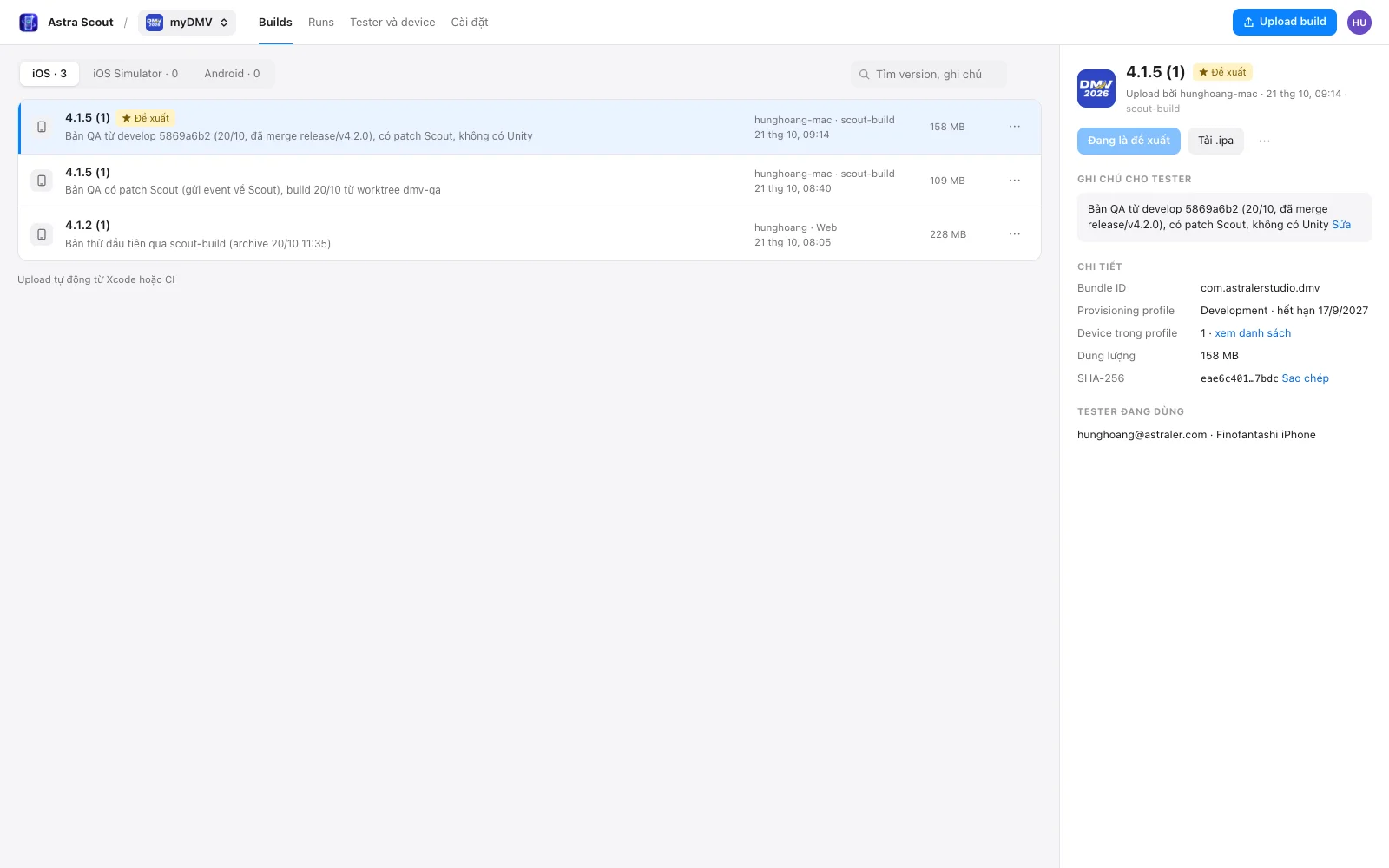
Search
The search field above the list (Tìm version, ghi chú, search version and notes) filters the builds of the open tab by version, build number and notes as you type. When nothing matches, the list says Không có build khớp “…” (no build matches).
Build details
Click a build to open its details on the right. On a narrow screen the details cover the list, and ← Danh sách (back to the list) closes them. The panel shows:
- The version and build number with the badges, and the line "Upload bởi" (uploaded by) with the name, the date and the source: Web, scout-build, CI, Xcode or Astra Scout.
- The app's icon, read from the uploaded file (
.ipa,.apkor simulator.zip) by the web page orscout-build. The project menu shows the icon of the newest build. A build uploaded before this was added keeps the plain glyph. - The buttons ★ Đặt làm đề xuất, Tải .ipa and the more-actions menu.
- Ghi chú cho tester (notes for testers).
- Chi tiết: Bundle ID, Dung lượng (size) and SHA-256 with Sao chép (copy). An iOS build also shows Provisioning profile (its type and expiry date) and Device trong profile (the number of iOS devices in the profile, with xem danh sách to show their UDIDs, or Mọi device when the profile has no list).
- Tester đang dùng (testers using it): the email and device name of each person whose Astra Scout reports this build in use. "Chưa ai báo đang dùng bản này." means nobody does.
Badges on a build:
| Badge | Meaning |
|---|---|
| New | Uploaded in the last 24 hours, or since your last visit |
| ★ Đề xuất | The recommended build of its kind |
| Profile hết hạn sau N ngày | An iOS build whose provisioning profile expires in 14 days or less |
| Profile hết hạn | The provisioning profile has expired. Build again with a renewed profile and upload it. |
Edit notes
Editors and owners change the notes of an uploaded build. Choose Sửa ghi chú… in the menu of the row or the panel, or click Sửa beside the notes. Type up to 5000 characters and click Lưu. Huỷ keeps the old notes. A build without notes shows "Không có ghi chú".
Runs
The page Runs lists the runs that Astra Scout sent to the team for the project in the project menu: see Team runs. The newest run is first. Each row shows the result, the flow with the failed step, the device, the build, who ran it, and the column Lúc chạy (ran at) with the run time below it. Tải thêm (load more) shows the next page.
- The buttons Tất cả (all), Passed, Failed, Blocked, Unsure and Incomplete filter by result, with the count of each.
- Lọc theo flow (filter by flow) finds runs by the flow name.
- Lọc theo device (filter by device) and Lọc theo người chạy (filter by person) narrow the list.
Click a row for the panel Chi tiết lượt chạy (run detail): Chi tiết with Flow, Bước lỗi (failed step), Thiết bị (device), Bản build (build) and Bắt đầu (started), then Jira, the Report with one line per step, Ảnh (screenshots), Video, which plays on the page, and File. A failed run shows the screenshot Lúc lỗi (at the failure) first under Ảnh: the device screen right when the step failed. The link #/runs/<id> opens that run; the cloud mark of a run in Astra Scout opens the same link.
Under Jira, enter the issue key of the bug, such as ABC-123, and click Lưu (save). A run with a Jira key is kept past the limit of 300 runs or 60 days. Reporting a bug from Astra Scout fills it in.
To delete, open the more-actions button next to the flow name and choose Xoá… (delete). The run goes away with its files and video for the whole team. Testers delete their own runs. Owners and editors delete any run.
Upload with scout-build
scout-build uploads builds from a terminal, CI or Xcode. Install it:
curl -fsSL https://pub-41fdab24ed354d9cbc36e595de529780.r2.dev/scout-build/install.sh | shThe script puts scout-build in ~/.local/bin (set SCOUT_BUILD_DIR to change it), checks its SHA-256 and needs no sudo. Linux CI runners use the same command. scout-build version prints scout-build and its version.
Sign in
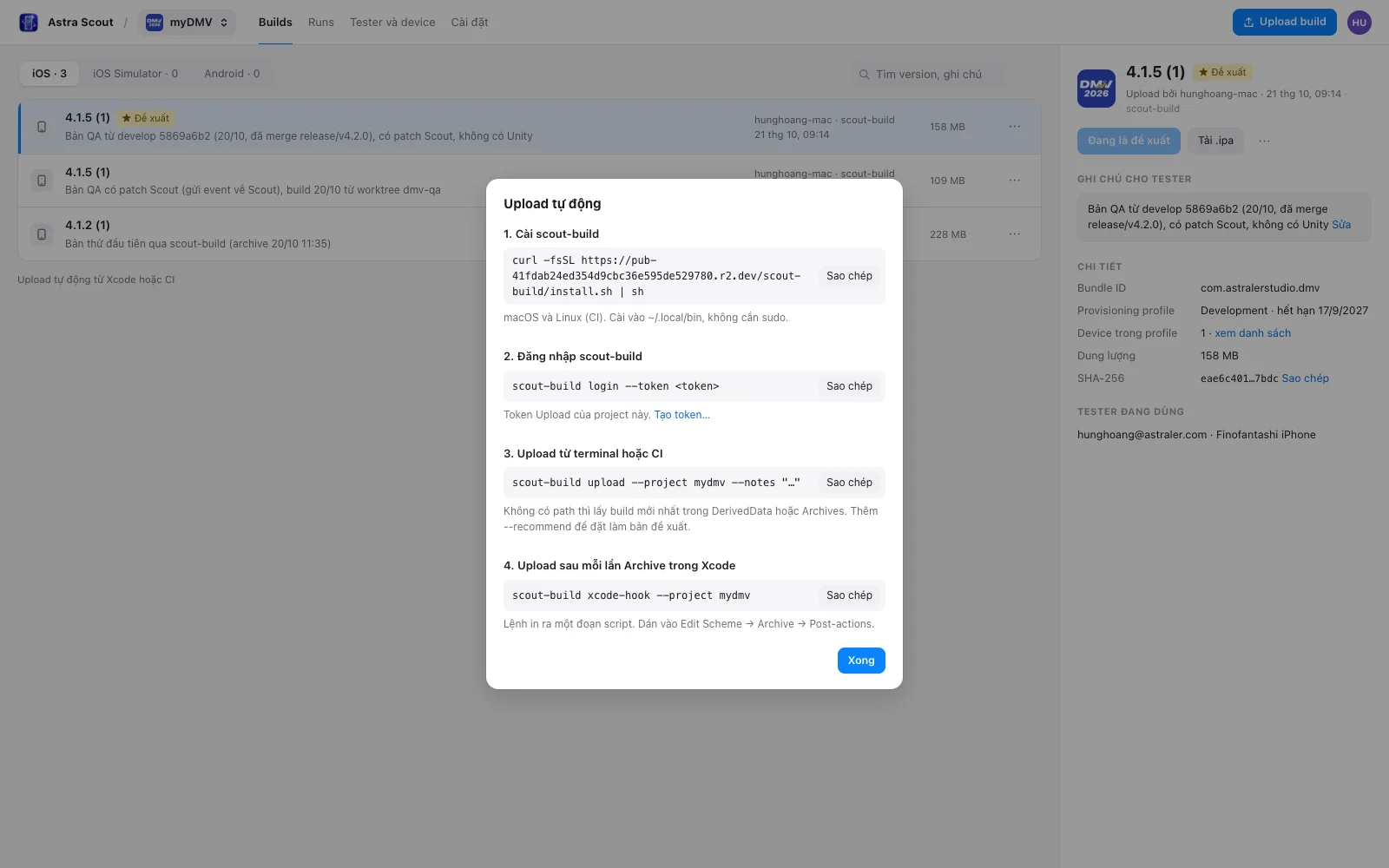
An owner creates an upload token on the page Tester và device. In the card Token, click Tạo token…, keep Loại (type) at Upload cho một project, choose the Project, enter Tên (name) and click Tạo. The page shows the token (sst_…) once, with the matching login command: "Token chỉ hiện một lần. Sao chép ngay." The dialog Upload tự động, opened from Upload tự động từ Xcode hoặc CI under the build list, shows the install, login, upload and xcode-hook commands, with a link Tạo token… for owners.
scout-build login --token sst_…login checks the token and saves it in ~/.config/scout-build/config.json. An upload token uploads to one project and reads nothing else.
Upload
scout-build upload --project <id> --notes "Fix paywall" --recommend path/to/App.ipa| Option | Use |
|---|---|
--project <id> | The project id. Required. |
path | An .ipa, .app, .xcarchive or .apk. Without a path, scout-build uploads the newest matching build in Xcode's DerivedData and Archives. An Android build always needs a path. |
--kind ios-device|ios-sim|android | The kind of build. Inferred from the file by default. |
--notes "…" | Notes shown with the build |
--recommend | Make this the recommended build of its kind |
--source cli|ci|xcode | Where the upload comes from. Default cli. |
--quiet | No progress output |
scout-build packs an .app itself: a device .app becomes an .ipa, and a simulator .app becomes a .zip. For an .xcarchive it uploads the first .app in Products/Applications. An .ipa must be a device build. Upload a simulator build as the .app.
Without a path, scout-build reads the iOS bundle id of the project from the team API and picks the newest build of that app in DerivedData and Archives. --kind limits the choice to a device or a simulator build. The project needs an iOS bundle id for this.
The command prints uploaded <project> <kind> <version> (<build>) when it finishes. Testers see the build in the Builds window, and get a notification within 5 minutes.
Upload from CI
Set the address and token as environment variables instead of running login:
export SCOUT_API_URL=<url>
export SCOUT_UPLOAD_TOKEN=sst_…
scout-build upload --project <id> --source ci --recommend App.ipa
Order of precedence: the --api and --token options, then SCOUT_API_URL and SCOUT_UPLOAD_TOKEN, then the file saved by login.
Upload after every Xcode build
- Run
scout-build loginonce. Xcode does not pass your shell environment to the script. - Run
scout-build xcode-hook --project <id>. Add--buildfor the Build action; the default is Archive. - In Xcode, choose Product > Scheme > Edit Scheme, select Archive (or Build), then Post-actions.
- Click +, choose New Run Script Action, and set Provide build settings from to the app target.
- Paste the script that
xcode-hookprinted.
The script contains the path of the scout-build binary that printed it. The log is ~/Library/Logs/scout-build.log. When an upload fails, a notification reads "Upload failed. See ~/Library/Logs/scout-build.log".
Register testers' iOS devices
A development or Ad Hoc build installs only on iOS devices in its provisioning profile. When a tester sends a UDID from Astra Scout, the owner registers it and the developer builds again.
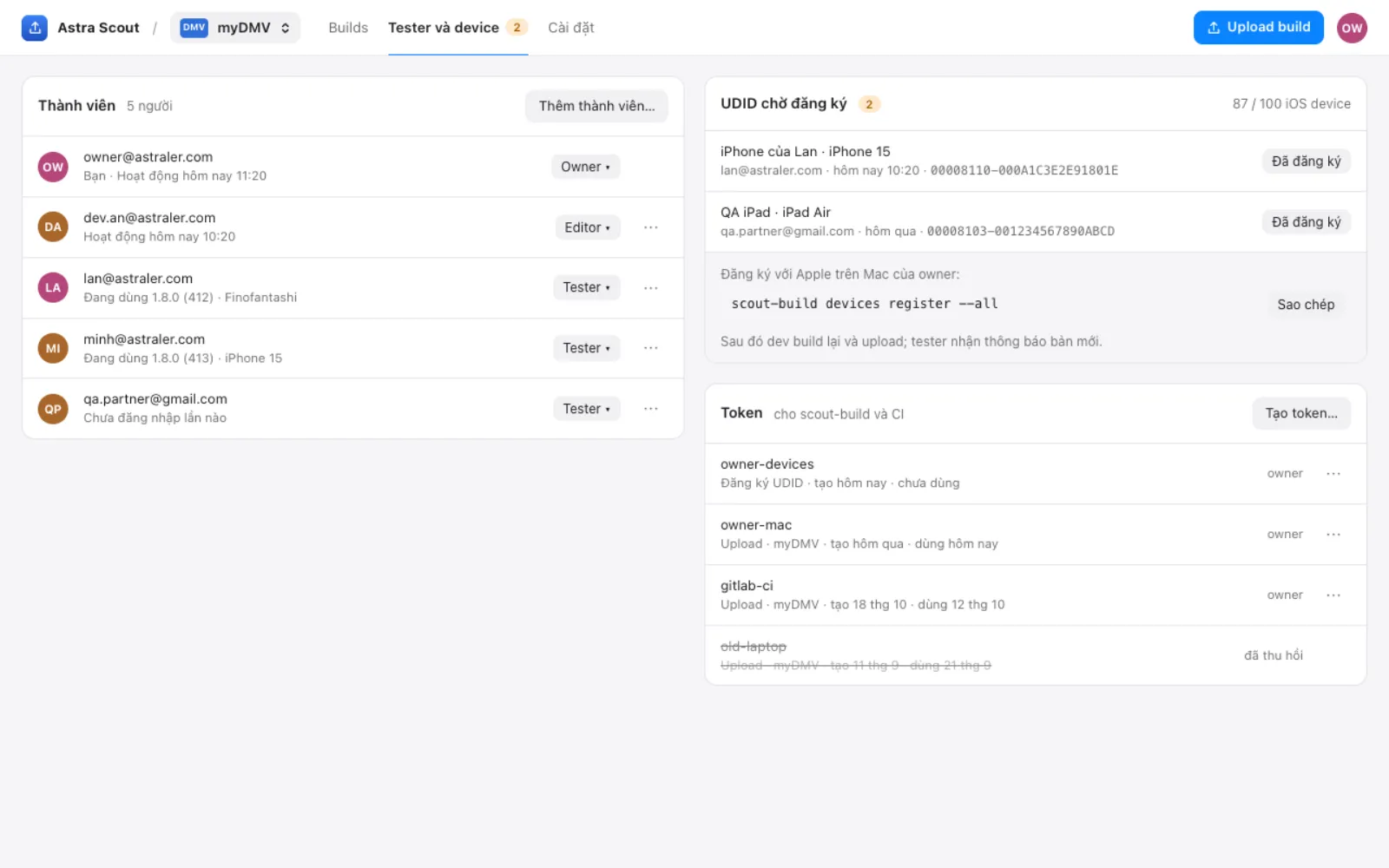
In the web page, open UDID chờ đăng ký. It lists the name, email and UDID of each iOS device waiting.
scout-build devices listprints the same list.Create a devices token. In the card Token on Tester và device, click Tạo token…, choose Loại Đăng ký UDID, enter Tên and click Tạo. Log in on the owner's Mac:
bashscout-build login --token sst_…Give
scout-buildan App Store Connect API key with the Admin or App Manager role. Use the options--asc-key-id,--asc-issuer-idand--asc-key(the.p8file), or the environment variablesASC_KEY_ID,ASC_ISSUER_IDandASC_KEY_PATH. Without an issuer id,scout-buildtreats the key as an individual key.Register the iOS devices:
bashscout-build devices register --allPass one or more UDIDs instead of
--allto register only those.--dry-runshows what would be registered and changes nothing.Rebuild the app. With automatic signing, Xcode adds the iOS device to the Development profile. An Ad Hoc profile must be regenerated.
Upload the new build. The tester gets the notification and installs it.
An owner who registered an iOS device in App Store Connect by hand clicks Đã đăng ký on its row to take it off the list.
The key stays on the owner's Mac; the web page never receives it. Apple allows 100 iOS devices per membership year and cannot remove a device, so devices register always requires --all or explicit UDIDs.
After each devices register, and after devices list run with the App Store Connect key, scout-build sends the number of registered iOS devices to the web page. Owners and editors see it on the UDID chờ đăng ký card, for example "87 / 100 iOS device".
Members
Owners manage the people on the page Tester và device, in the card Thành viên (members). Click Thêm thành viên…, enter Email, choose Vai trò (role: Tester, Editor or Owner) and click Thêm. The email is also added to the sign-in list. Anyone else who can sign in is a tester.
Each row shows the person, what they last used ("Đang dùng" with the version and device) or when they were last active. Change a role with the role button of the row. To remove a person, open the more-actions button of the row, choose Xoá khỏi team… and confirm with Xoá. This removes them from the members and from the sign-in list. When their domain is still allowed, they sign in again as a tester. The last owner cannot be changed or removed.
Tokens
The card Token on Tester và device lists every token with its type (Upload · project or Đăng ký UDID), when it was created and when it was last used ("chưa dùng" when never). To revoke one, open the more-actions button of its row, choose Thu hồi… (revoke) and confirm with Thu hồi. A scout-build or CI job that uses the token is refused from then on. The row stays in the list as "đã thu hồi". Only owners create and revoke tokens.
Settings
Owners see the page Cài đặt (settings):
- Project: rename the project and change iOS bundle ID and Android package, then click Lưu (save). Huỷ reverts the fields. The project id shown beside the title cannot change.
- Domain được đăng nhập (domains that can sign in): enter a domain such as
astraler.comin Domain and click Thêm domain. Every email of that domain can sign in. Xoá… removes a domain; its users can no longer sign in unless their email is a member. Without a domain, only the emails added one by one can sign in. The sign-in list cannot be emptied. - Project mới: click Project mới…, which is also in the project menu at the top. Enter Id (a-z, 0-9, -), Tên and, if you want them, iOS bundle ID (tuỳ chọn) and Android package (tuỳ chọn), then click Tạo project. The id is what
--projecttakes.
Sign out
Click the avatar at the top right. The menu shows your email and role, and Đăng xuất (sign out). When the session ends by itself, the page says "Phiên đăng nhập đã hết hạn, đăng nhập lại."
Troubleshooting
| Symptom | Fix |
|---|---|
| "no API address or token" | Run scout-build login, or set SCOUT_API_URL and SCOUT_UPLOAD_TOKEN. |
| "an Android build needs a path to the .apk" | Pass the path of the .apk. |
project <id> has no iOS bundle id; pass the path of the build | Pass the path, or ask an owner to set the bundle id on the project. |
| An Xcode upload does not appear | Read ~/Library/Logs/scout-build.log. |
| "App Store Connect key missing" | Pass --asc-key-id and --asc-key, or set ASC_KEY_ID and ASC_KEY_PATH. |
| "a simulator build cannot be an .ipa: upload the .app directory instead" | Pass the .app of the simulator build. |
no device build of <bundle id> found in Xcode's DerivedData or Archives; build it, or pass the path | Build the app in Xcode, or pass the path. |