
Settings
Configure autosave, language, Android, Signing Team, Intelligence, Jira, Amplitude and App Store Connect, set the Project Settings, and run the Setup check.
Settings configure Android, the signing team for an iOS device, an AI CLI, Jira, Amplitude and App Store Connect. The start of each section says when it is needed.
Open Settings with Cmd+, or Astra Scout > Settings…. The window has a sidebar of panes: General, Android, iOS, Intelligence, Jira, Amplitude and App Store. The App Store pane is titled App Store Connect.
- Changes apply as you make them, except where a Save button is shown.
- The Back and Forward buttons in the toolbar walk through the panes you visited. Inside a page opened from a pane, Back returns to the pane first.
- The "?" button at the right of the toolbar opens the section of this page for the pane. The Jira pane has no such button.
General
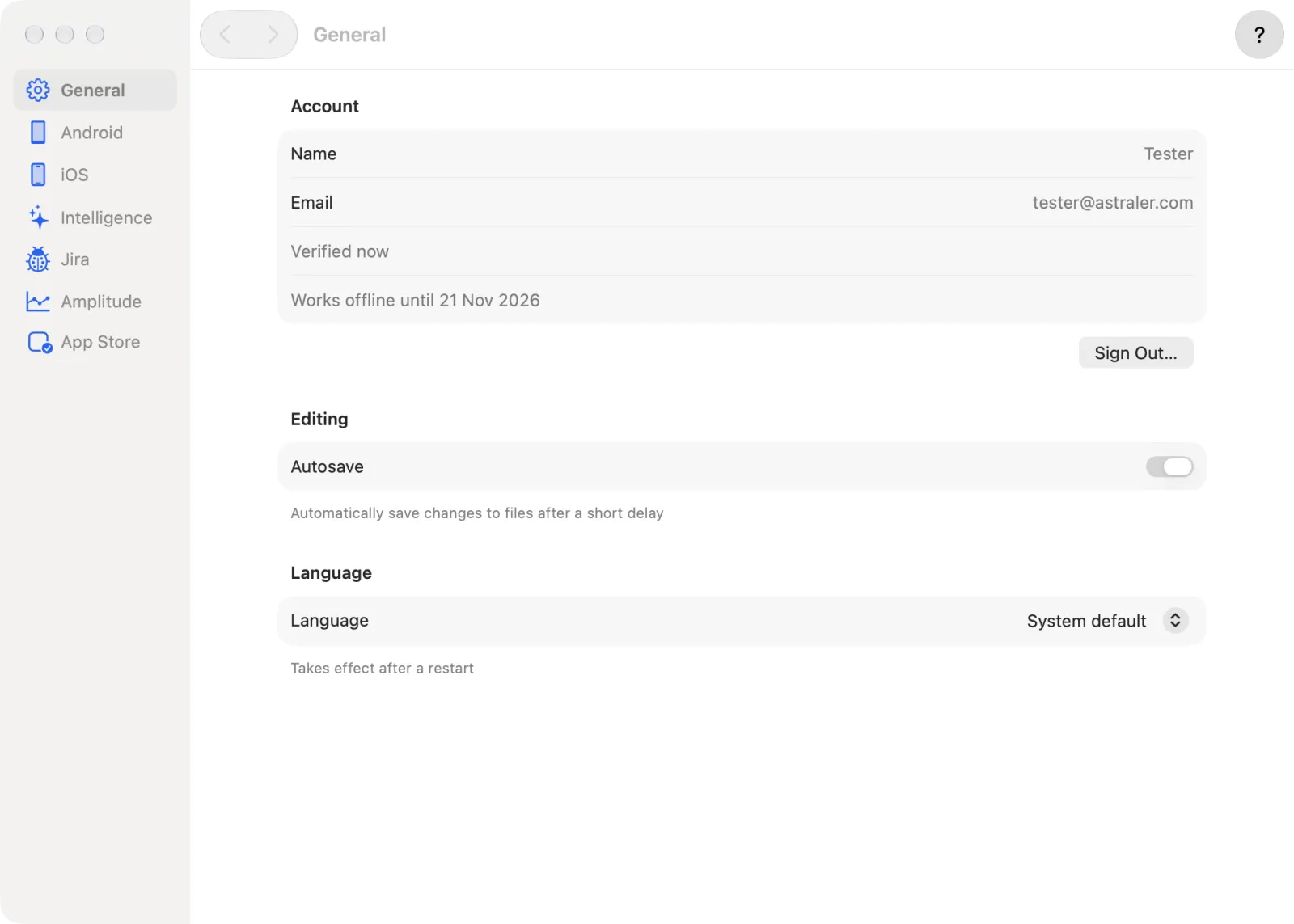
Open Settings > General.
Under Editing, turn Autosave on or off. It saves changes to files after a short delay.
Under Language, choose System default, English or Tiếng Việt. It takes effect after a restart. When a different language is picked, a Restart Now button appears. Click it to quit and reopen Astra Scout.
The Updates section shows only in builds that can update themselves. It has Automatically check for updates, the running Version and Check for Updates… (also in the Astra Scout menu). Astra Scout checks once a day and asks before installing a new version. See Updating.
The Account section (shown only when the app requires sign-in) shows the signed-in Google account (name, email, last verification). Click Sign Out… to sign out; using the app again needs a new Google sign-in.
Astra Scout follows the macOS appearance (Light or Dark) and has no theme setting.
Android
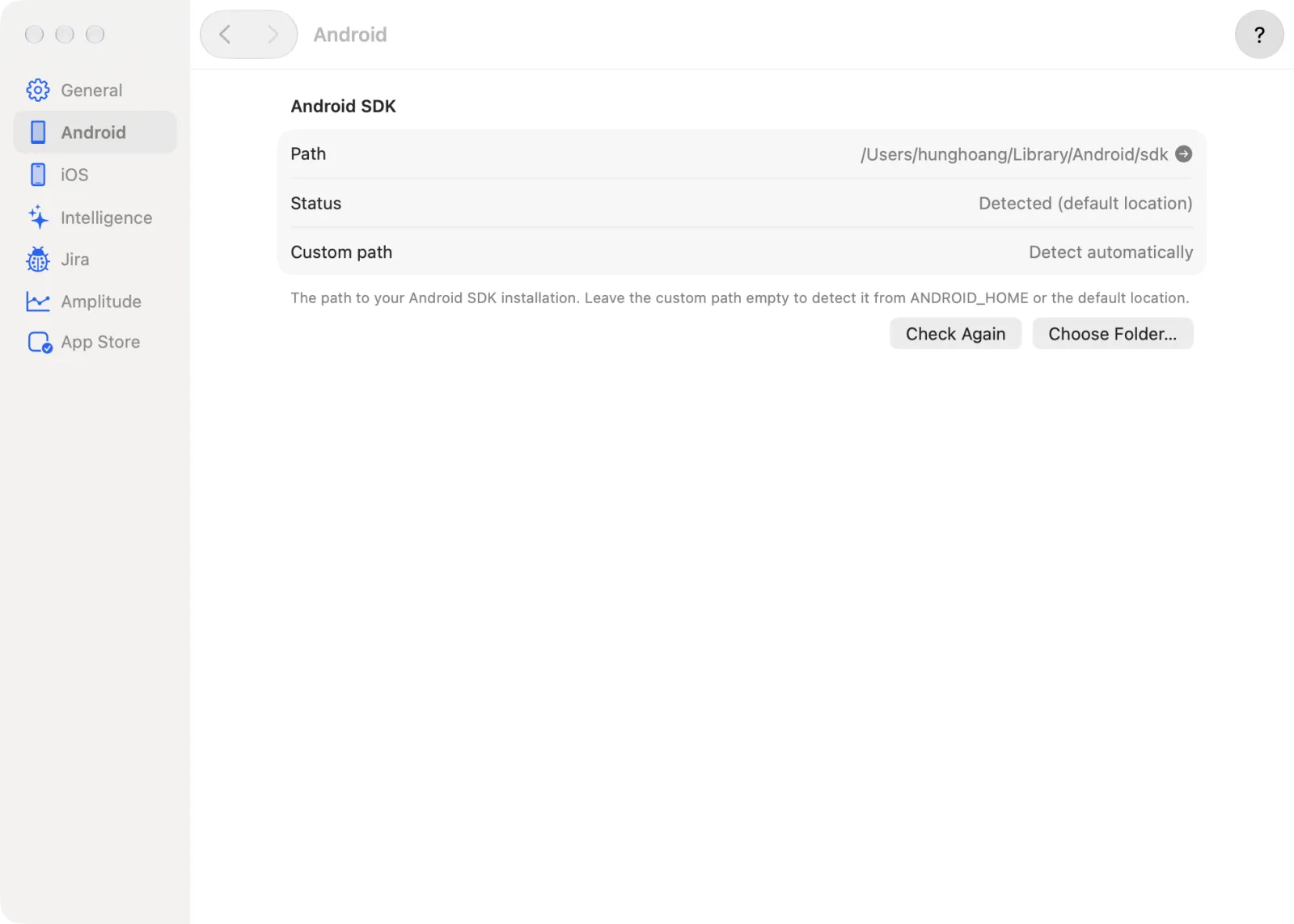
Needed for testing on Android. Astra Scout uses the Android SDK (installed with Android Studio) to talk to emulators and Android phones. The Android SDK section tells it where the SDK is. The app usually finds the SDK itself.
- Open Settings > Android.
- Read Path and Status. Path shows the SDK that is in use. Status reads "Detected (…)" with where it was found, "Set in Settings" when a path was chosen, or "Not found".
- If the SDK is not found, or another one is wanted, type a path into Custom path, or click Choose Folder… and pick the SDK folder. Leave Custom path empty to detect it automatically.
- When the path is good, Path verified appears. Otherwise a message asks whether the path is correct.
- If the SDK is installed while Settings is open, click Check Again.
With an empty custom path, Astra Scout looks in this order: the ANDROID_HOME environment variable, ANDROID_SDK_ROOT, then the default folder ~/Library/Android/sdk.
iOS
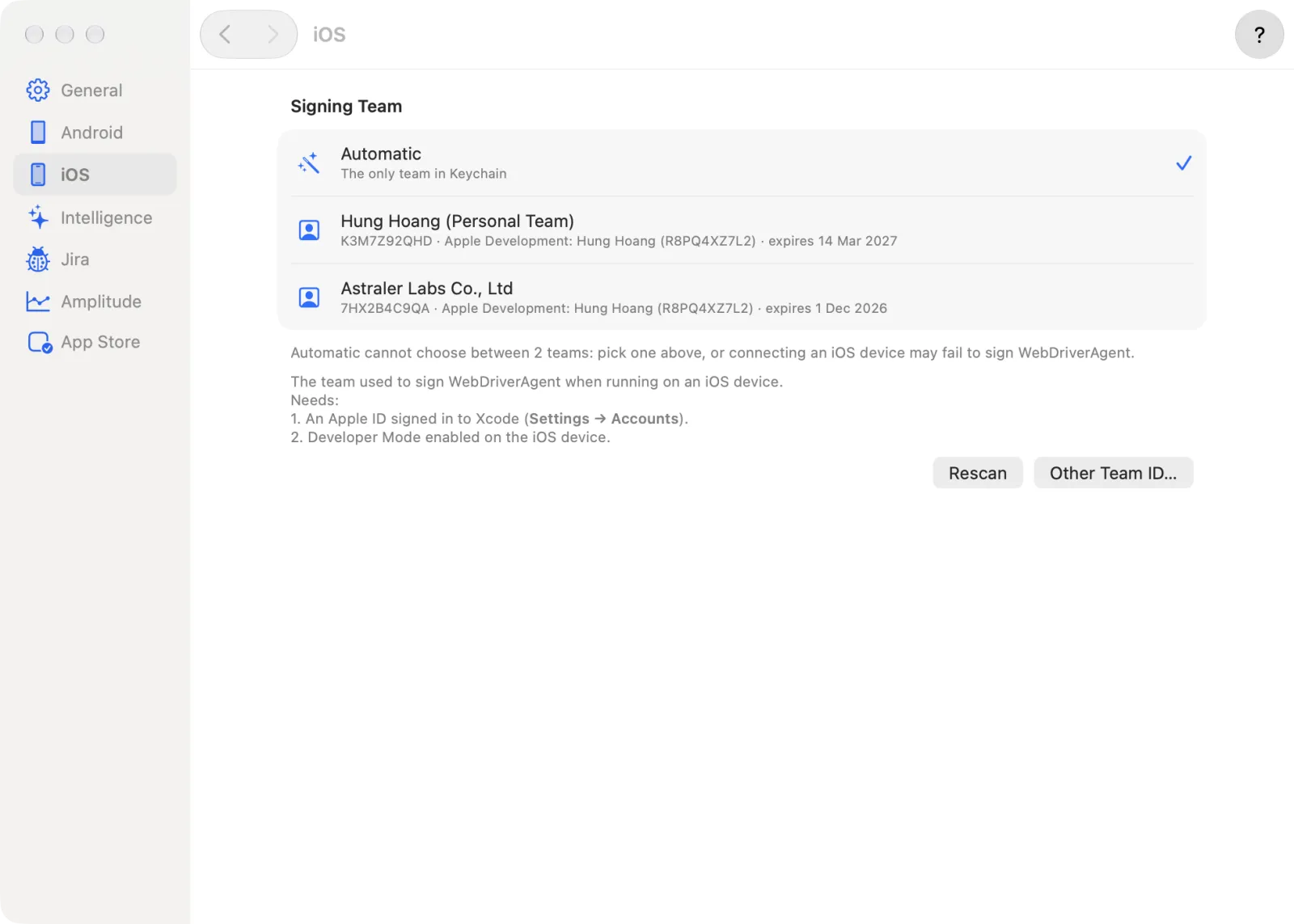
Needed for testing on an iOS device; the iOS Simulator does not need it. To control an iOS device, Astra Scout must sign WebDriverAgent (WDA), a small app that runs inside the iOS device, with an Apple Developer team. The Signing Team section chooses that team, identified by its Team ID, a 10-character code. It requires an Apple ID signed in to Xcode (Xcode > Settings > Accounts) and Developer Mode on the iOS device.
- Open Settings > iOS.
- Pick a row:
- Automatic uses the only team in Keychain.
- One row per Apple Development team found in Keychain, with its Team ID, certificate and expiry.
- To use a team that is not listed, click Other Team ID…, type the 10-character Team ID (for example
ABCDE12345) and click Save. The Team ID is the code on developer.apple.com > Membership details (the app reads it from the certificate), not the code in the certificate name. - If no team is listed, sign in to Xcode, create an Apple Development certificate, then click Rescan.
- The line under the list reads "In use: …" with where the team came from: chosen in Settings, or auto-detected as the only team in Keychain. When the server runs from the command line,
--team-idorMAESTRO_TEAM_IDalso sets the team.
The build that clearState uses is chosen in Window > Builds, not here. See Builds.
Intelligence
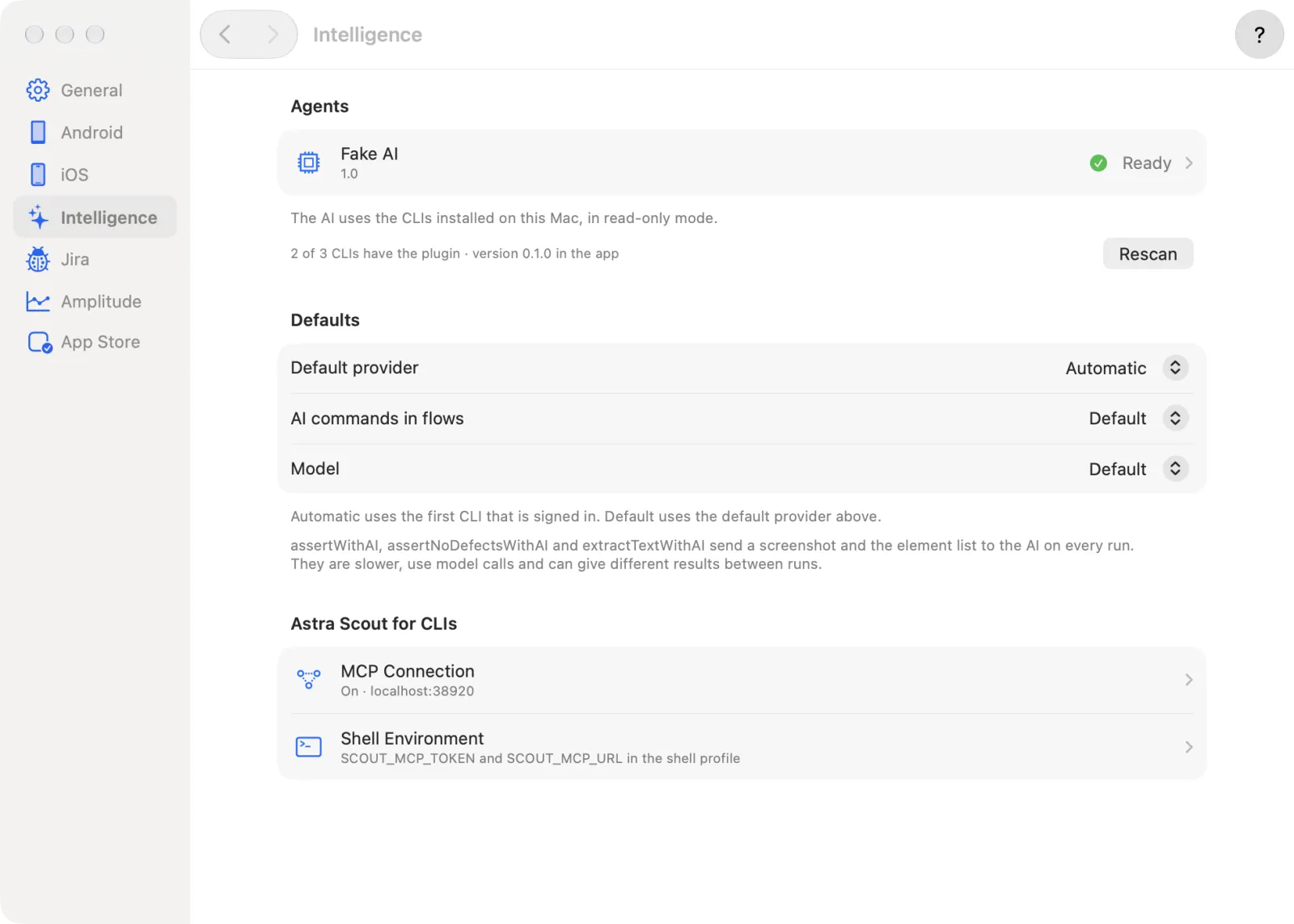
Needed for the AI features (chat, Explore app, autofix, AI commands in flows). An AI CLI is an AI tool that runs in Terminal (Claude Code, Codex, Gemini CLI); Astra Scout uses the installed CLI instead of its own AI. The pane has three sections.
- Agents lists the AI CLIs found on this Mac (Claude Code, Codex, Gemini CLI) with their status: Ready, Not signed in or Not installed. Click Rescan after installing or signing in to a CLI. A line shows how many CLIs have the plugin.
- Defaults has three menus: Default provider (Automatic uses the first CLI that is signed in), AI commands in flows (which CLI runs
assertWithAI,assertNoDefectsWithAIandextractTextWithAI; Default uses the default provider) and Model. See AI assistant. - Astra Scout for CLIs holds MCP Connection and Shell Environment.
The app does not embed a terminal. It shows the exact command to run, with Copy and Run buttons, and nothing runs until Run is pressed.
Set up one CLI
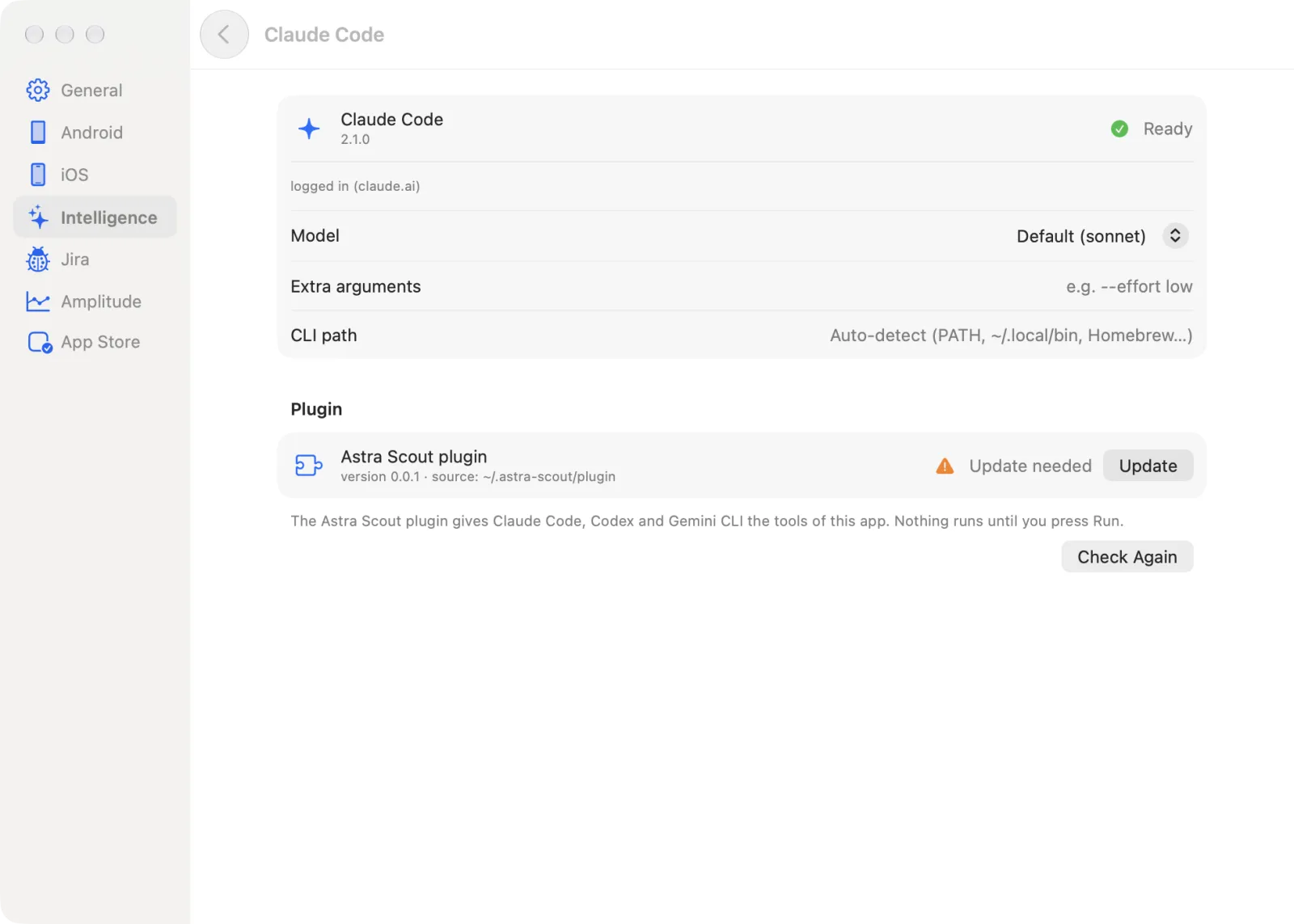
- Open Settings > Intelligence and click a CLI in Agents, for example Claude Code.
- Set Model (the CLI default unless one is chosen), Extra arguments (for example
--effort lowfor Claude Code) and CLI path (empty finds the CLI automatically). - In the Plugin section, read the state of Astra Scout plugin: No CLI, CLI not signed in, Not installed, Update needed or Installed.
- Click Install (or Update). A section named "Install for Claude Code" appears with the command.
- Read the command, then click Run. A log shows the output, and the status reads Working…, Finished or an exit status. Stop ends it. Copy copies the command to run it yourself.
- Click Check Again to read the plugin state again.
See The scout plugin.
MCP Connection
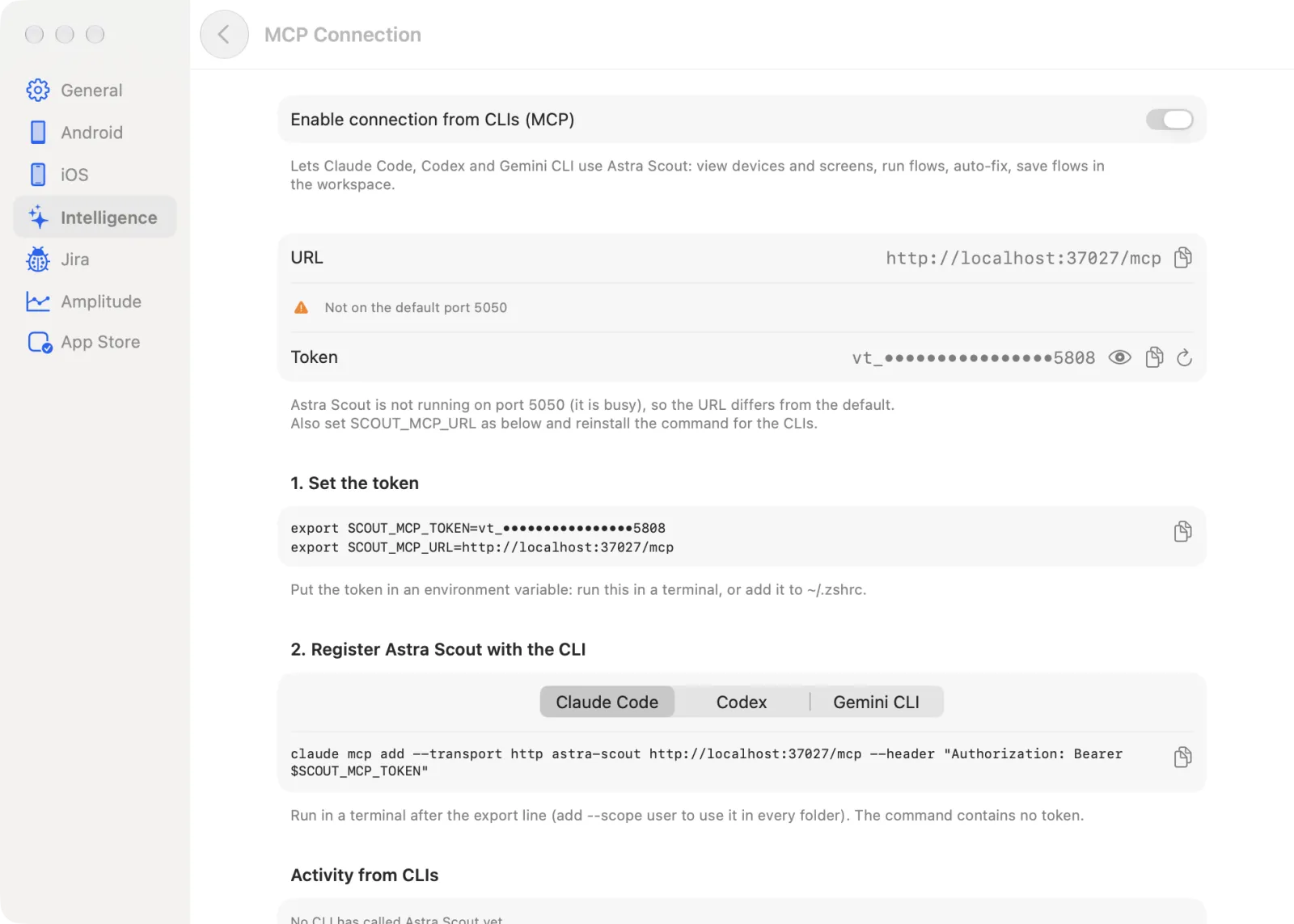
MCP Connection lets an AI CLI control Astra Scout, for example run flows, through MCP, a standard way for AI tools to call features of another app. The Token is the password of that connection, so only the CLI can use it. Its row in the pane reads "On · host:port", "Off" or "Not available".
- Open Settings > Intelligence > MCP Connection.
- Turn on Enable connection from CLIs (MCP).
- Read the URL and copy it with Copy URL. If Astra Scout is not on the default port 5050, a warning says so.
- The Token is masked. Use Show token or Hide token, Copy token, and Create a new token. Creating a new token asks Regenerate the MCP token?. Confirm with Create New Token. Every CLI using the old token is rejected until the new one is set.
- Follow 1. Set the token: copy the export line and run it in a terminal or add it to
~/.zshrc. - Follow 2. Register Astra Scout with the CLI: pick the CLI in the picker, copy the command and run it in a terminal. The command contains no token.
- While MCP is on, Activity from CLIs lists the latest calls from the CLIs, each with OK, Awaiting confirmation, Too many requests or Error. It reads "No CLI has called Astra Scout yet." until one does.
See The scout plugin.
Shell Environment
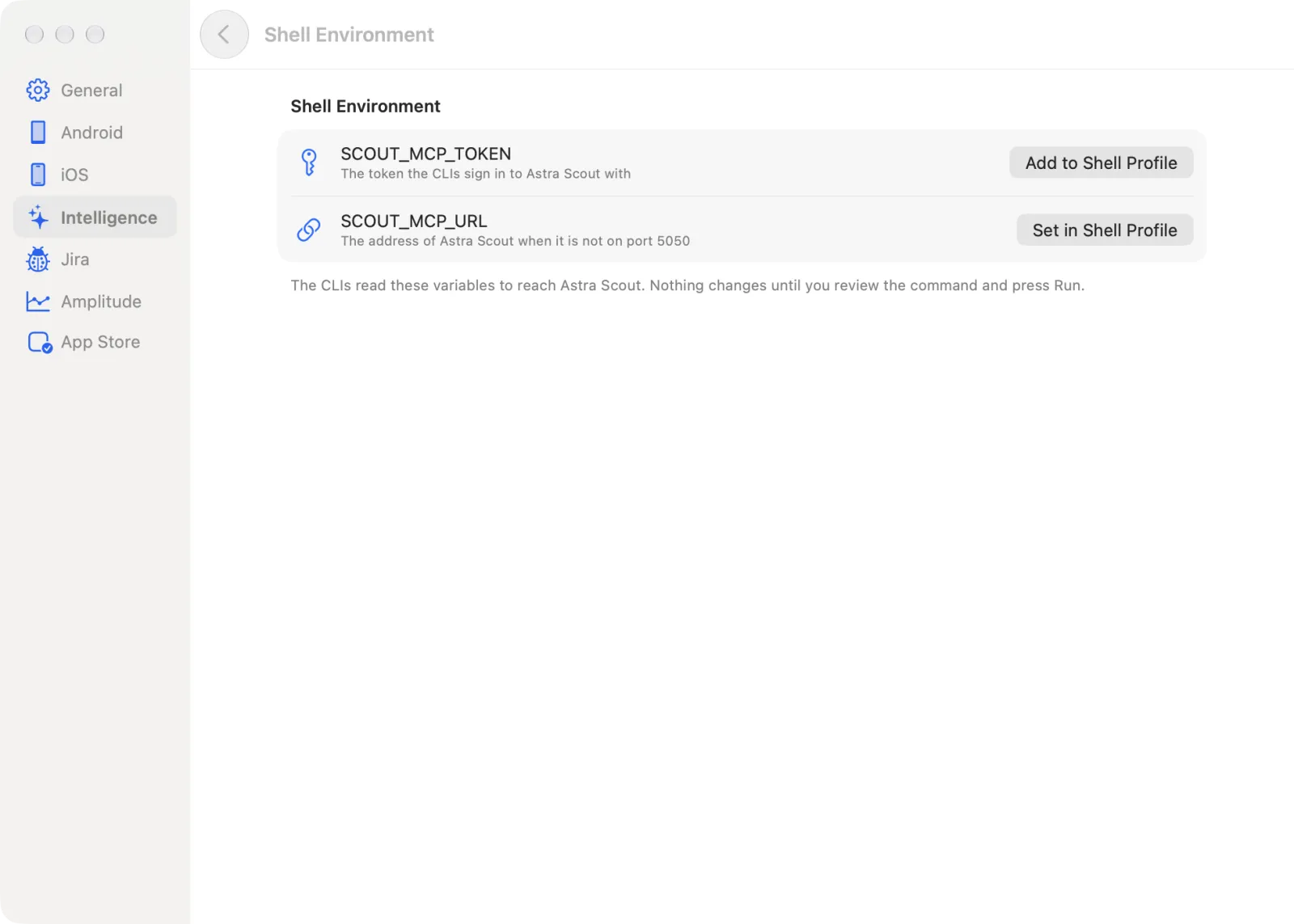
Shell Environment saves the token (and the address, when needed) into the shell profile (the file Terminal reads each time it opens, such as ~/.zshrc) so the CLI can read them by itself. The two variables are SCOUT_MCP_TOKEN and SCOUT_MCP_URL.
- Open Settings > Intelligence > Shell Environment.
- Click Add to Shell Profile on the
SCOUT_MCP_TOKENrow. It is disabled while MCP is not available. ASCOUT_MCP_URLrow with Set in Shell Profile appears only when Astra Scout is not on port 5050. - A section shows the command and the line it adds to the profile file, replacing any earlier line for the same variable.
- Click Run. Nothing changes until then.
Jira
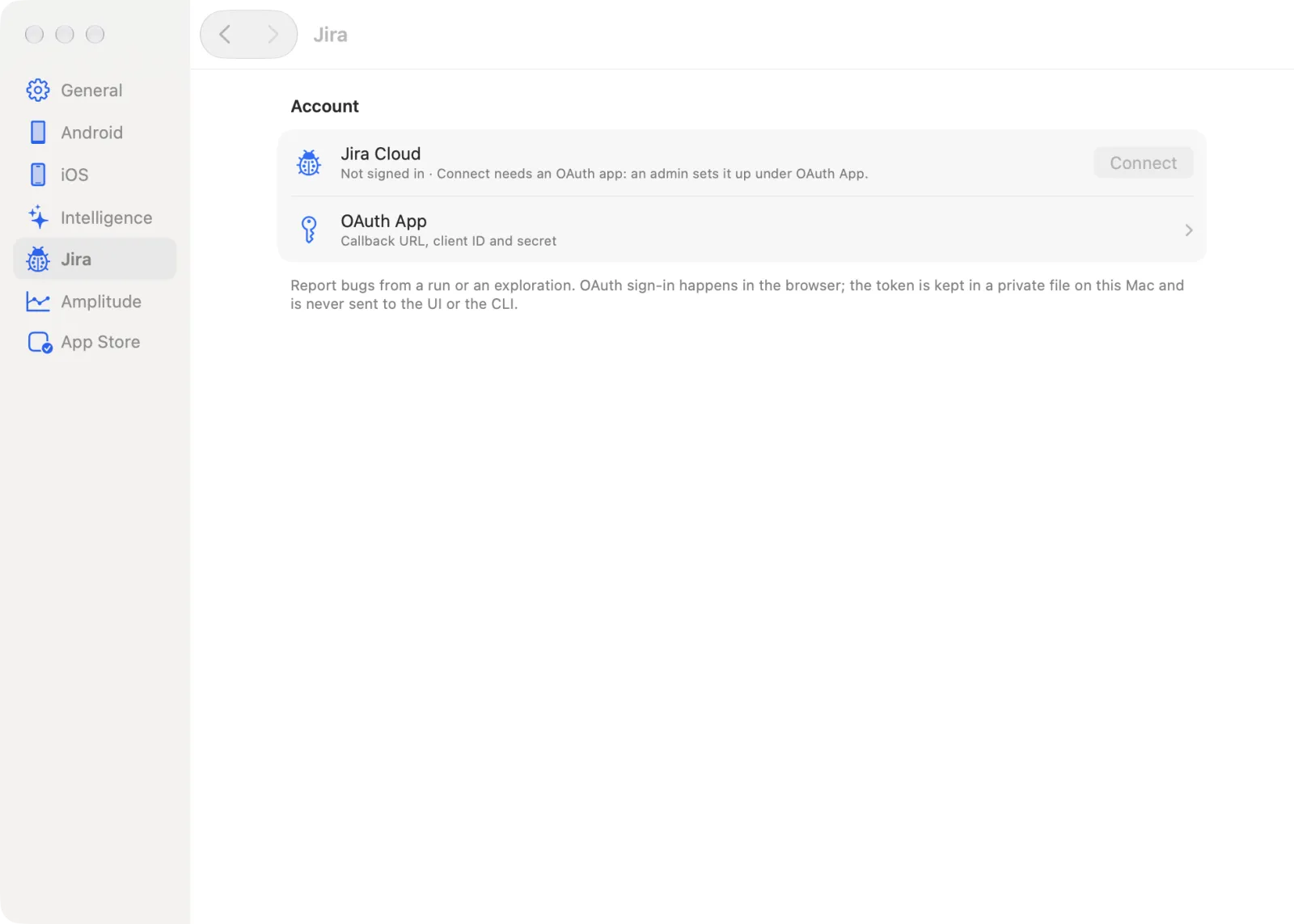
Needed for reporting bugs to Jira from a run. The Jira pane holds the sign-in only. The project, issue type, labels and the other report options are in Project Settings. See Jira.
- Open Settings > Jira. Under Account, the Jira Cloud row shows whether Jira is signed in.
- Click Connect. Sign in to Jira Cloud in the browser. Meanwhile the row reads "Waiting for sign-in in the browser…". Cancel stops waiting.
- Connect is disabled until an admin sets the OAuth App. The OAuth App registers Astra Scout with Atlassian so that Jira allows the sign-in. The Jira admin sets it for the whole team; testers do not. The admin opens the OAuth App row. It has the Callback URL to register (with Copy URL), the Client ID and the Client secret (type it and click Save). Open Admin Guide opens the Jira page. The row is hidden when both values come from environment variables.
- Once connected, click Disconnect to sign out. A Project Settings… button opens the project's report options.
If the stored credentials cannot be read, the row says so and asks you to reconnect.
Amplitude
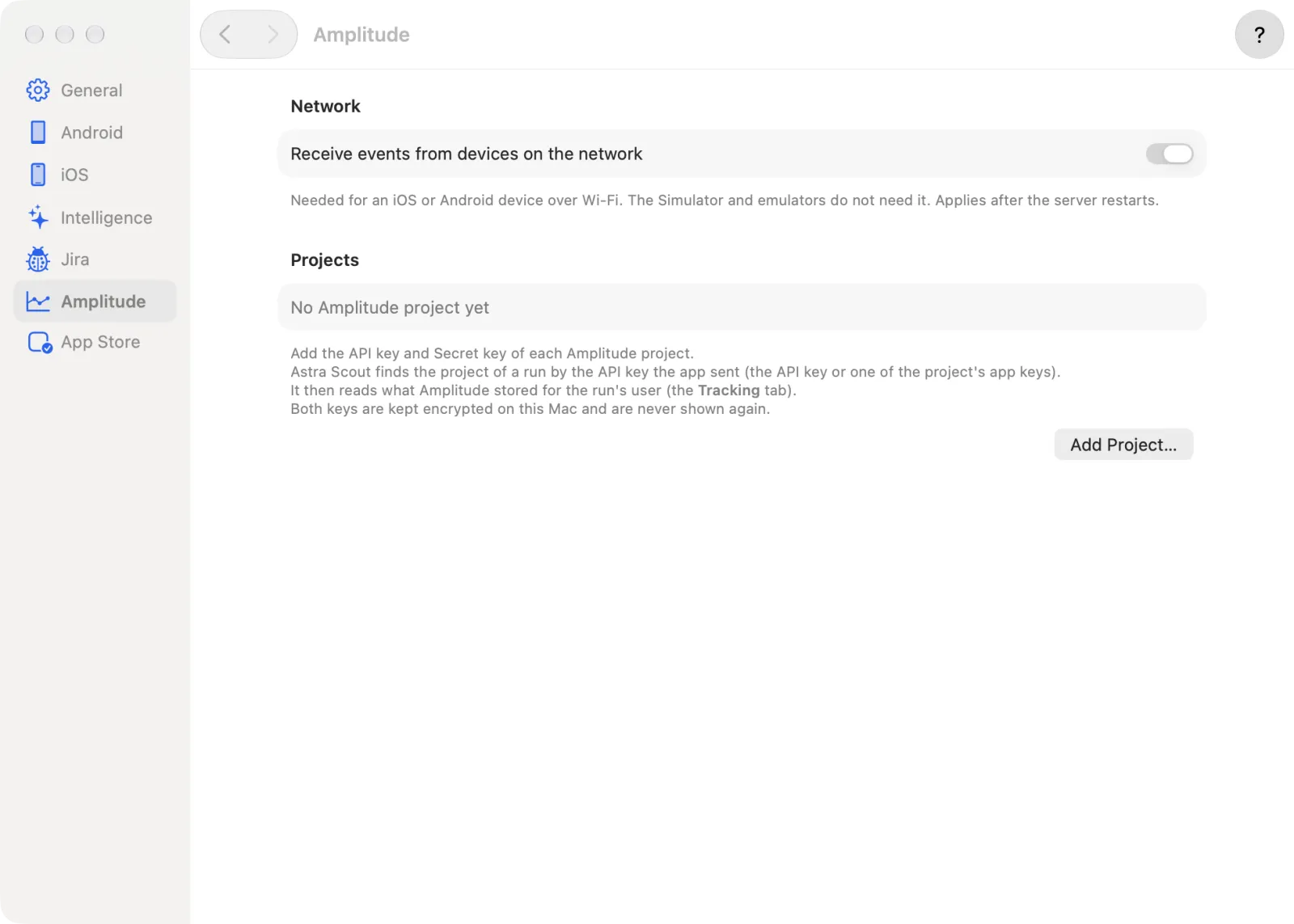
Needed for checking tracking: Astra Scout compares the analytics events the app sends with a list of expected events. This pane declares the Amplitude project (where the events are stored) so Astra Scout can read them back and compare. See Tracking.
Network
The switch Receive events from devices on the network is at the top, under Network. When the app under test sends analytics events, Astra Scout receives them on port 5051. This switch lets other devices on the Wi-Fi send events to that port. It is on by default, so an iOS device or Android reaches Astra Scout without setup. Turn it off on a public network. The Simulator and emulators do not need it. It applies after the server restarts: click Restart Server Now when it appears.
Add a project
- Open Settings > Amplitude. Under Projects, click Add Project…. The Amplitude Project sheet opens.
- Type a Name, the API key and the Secret key of the Amplitude project that runs are read back from. A new project needs both keys.
- Leave Region on Auto, or choose US or EU.
- Optional: fill in Amplitude project ID. When Amplitude has reported a project ID for the runs, a button offers it.
- Optional: turn on Forward events to Amplitude. It sends captured events on to Amplitude, so turn it on for Staging only. Turning it on asks you to confirm.
- Optional: under App keys, type a key in New app key and click + (Add App Key). Use this when app builds send a different API key. To remove a key, select its row and click − (Remove App Key).
- Click Save.
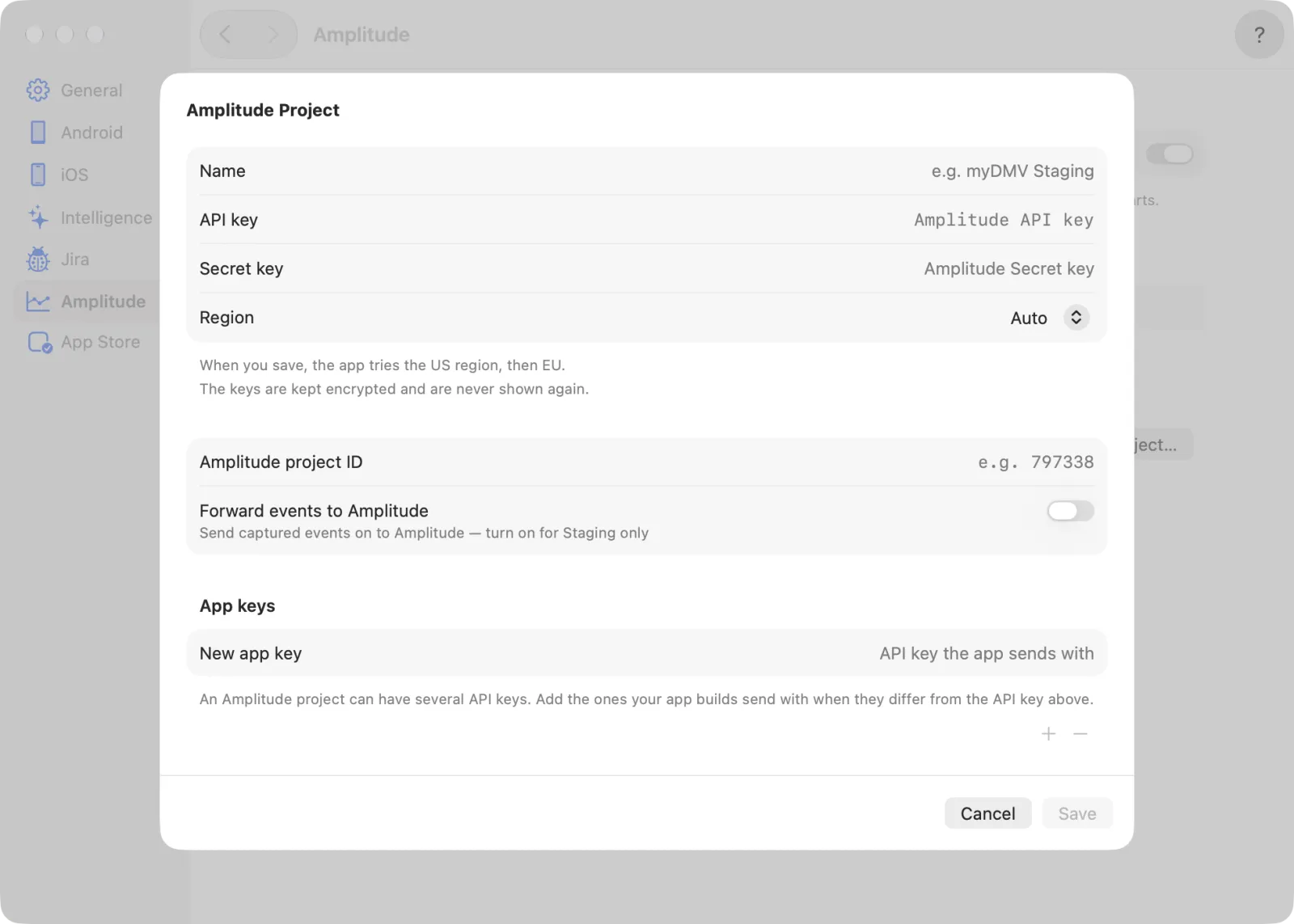
Both keys are kept encrypted on this Mac and are never shown again. When editing a project, leave Secret key empty to keep it.
Region Auto
With Region on Auto, Astra Scout tries the US region first, then EU, and keeps the one where the keys work. This happens when you test the connection. After you save a new project, or change its keys or region, Astra Scout runs that test. Test Connection runs it again. The result reads Connected · US or Connected · EU, or an error message. Until a region is found, requests go to US.
Manage a project
Each project in the list shows its name, region and the last four characters of its keys. It has:
- Forward events to Amplitude (a switch).
- Test Connection.
- Edit…, which opens the sheet as Edit Amplitude Project.
- A trash button (Delete Project). It asks first, and removes the project and its keys from this Mac.
The pane says "Amplitude keys must be entered again" when stored keys can no longer be opened. Add the projects again. See Tracking.
App Store
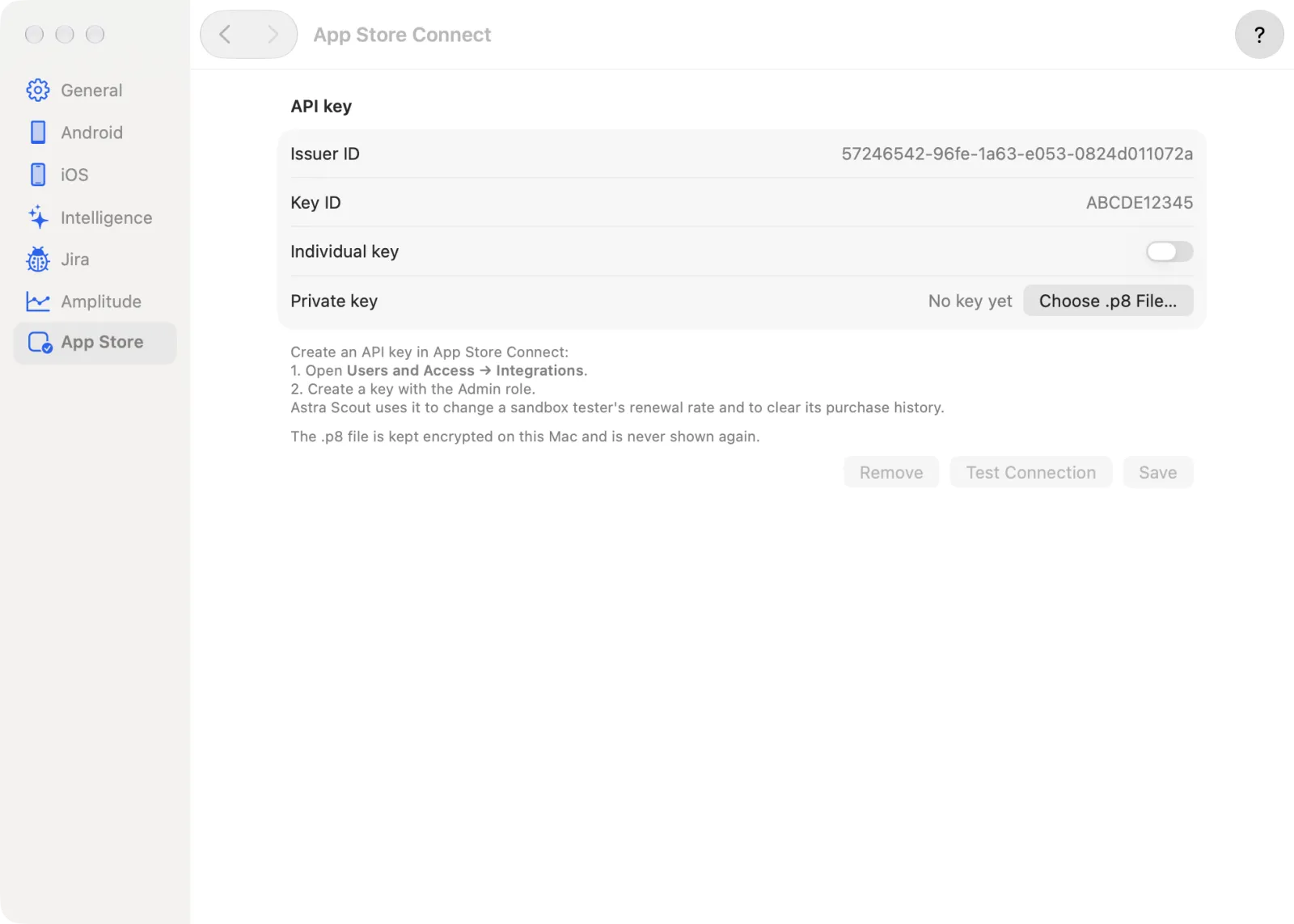
Needed for testing purchases. A sandbox tester is an Apple account made for test purchases that cost no money. The pane is titled App Store Connect. It lets Astra Scout change a sandbox tester's subscription renewal rate and clear its purchase history, through an API key you create in App Store Connect. See Sandbox testers.
Add the API key
- In App Store Connect, open Users and Access > Integrations and create a key with the Admin role. Download the
.p8file. - In Astra Scout, open Settings > App Store. Under API key, type the Issuer ID and the Key ID. For an individual key, turn on Individual key and the Issuer ID field goes away.
- Click Choose .p8 File… and pick the file. The row reads "Key chosen: … Press Save."
- Click Save. The row then reads Key saved.
- Click Test Connection. The result reads "Connected" with the number of sandbox testers.
The .p8 file is kept encrypted on this Mac and is never shown again. Remove deletes the key from this Mac after a confirmation. If the stored key cannot be opened any more, choose the .p8 file again.
Choose a sandbox tester
- Once the key is saved, a Sandbox tester section appears. Pick a tester in Sandbox tester. If the list is empty, create one in App Store Connect under Users and Access > Sandbox.
- Pick Subscription renewal rate: every 3 minutes, every 5 minutes (Apple's default), every 15 minutes, every 30 minutes or every hour. A line below says how long a 6-month subscription lasts at that rate.
- Apple may take up to an hour to apply a new renewal rate.
Project Settings
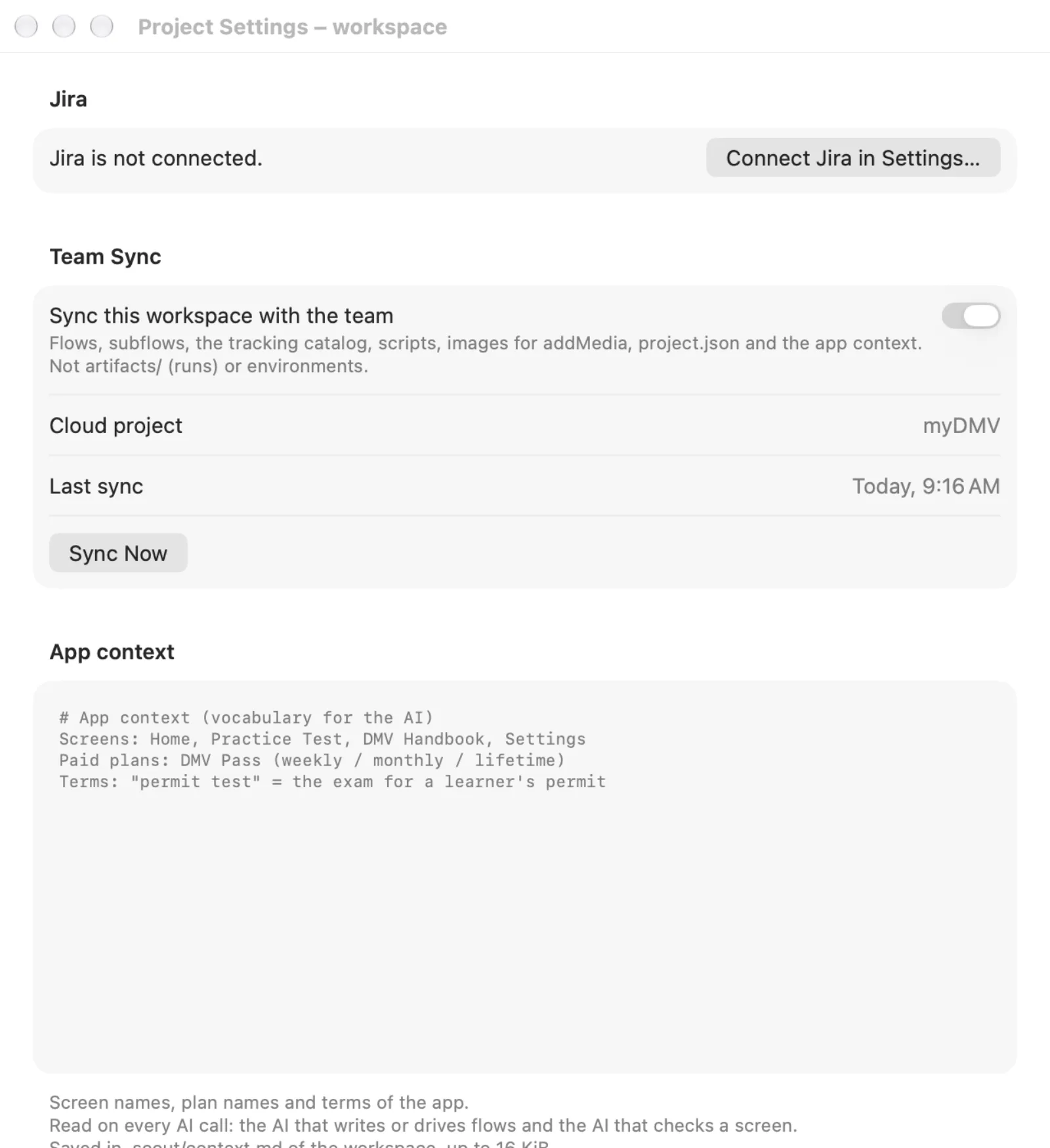
Project Settings give a team that shares one workspace the same bug report destination and app description. They belong to the open workspace, not to the app. The window is saved with the workspace (in its .scout folder), so everyone who opens the project shares them. Changes apply at once, except App context, which has a Save button.
- Open a workspace.
- Choose File > Project Settings… (
Option+Cmd+,). Without a workspace, the window reads "Open a workspace to change its settings."
The window has these sections:
- Report Destination (Jira): Site (when you have more than one), Project, Issue type, Default labels, Components, Bug language, and Set Priority from finding severity (level 5 is the project's highest priority, 1 the lowest). The Atlassian sign-in stays in Settings > Jira. If Jira is not connected, the section shows Connect Jira in Settings….
- Crashes, shown once Jira is connected and a project is chosen: Auto-send crashes creates a Jira issue when the app crashes, unless a duplicate exists. Max issues per hour is 1 to 20 (default 3). It can be changed only while auto-send is off, and auto-send is off again after a restart. See Jira.
- App context: a description of the app in words so the AI understands it, with screen names, plan names and terms of the app, up to 16 KiB. A counter shows "N KB of 16 KB" (N is the typed size). Type the text and click Save. The AI reads it on every call. See AI assistant.
Setup check
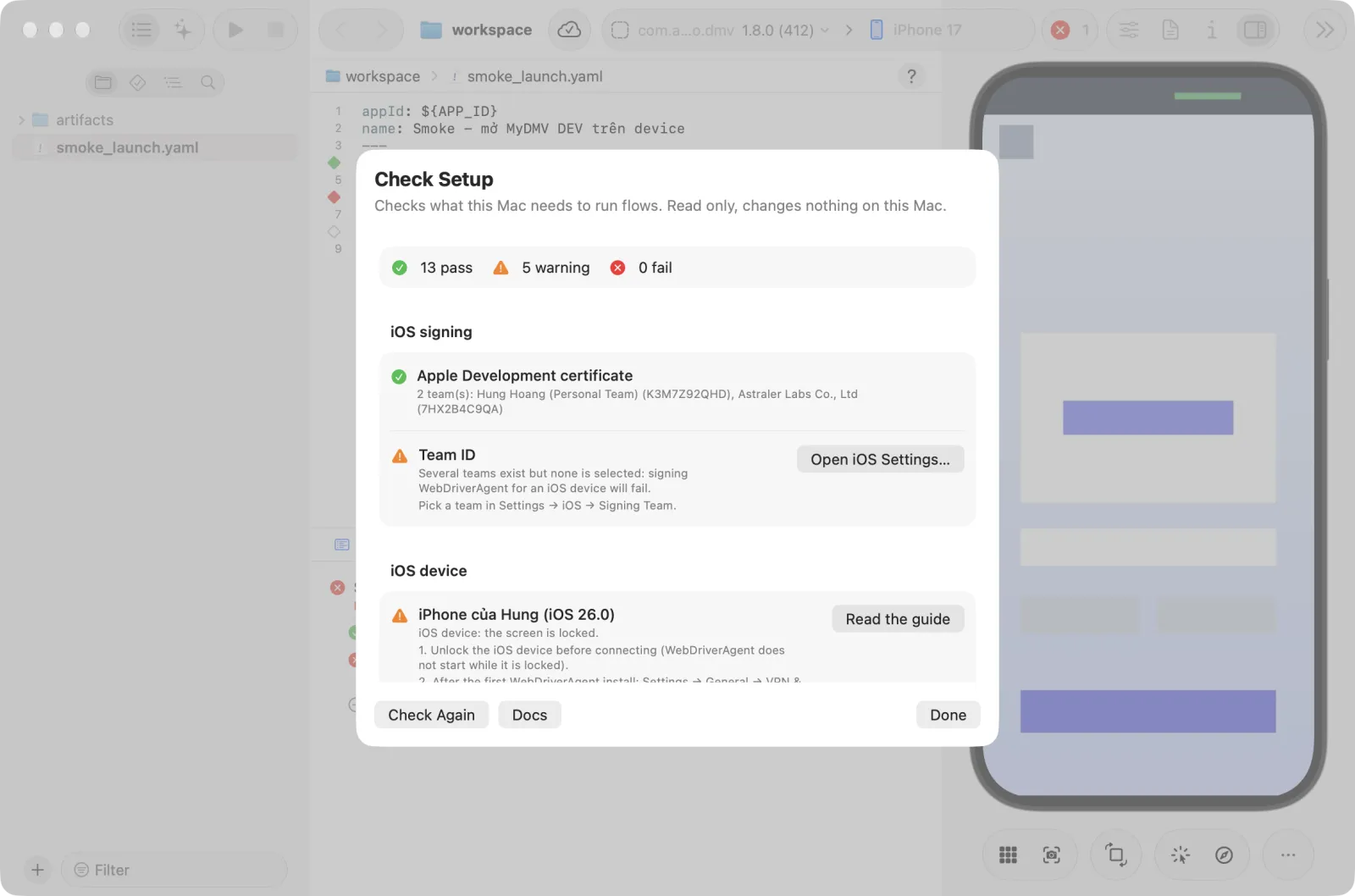
Help > Setup Check… opens a sheet named Check Setup that inspects the Mac and says how to fix each item. The checks are read-only and change nothing.
- Choose Help > Setup Check…. The sheet fills in as the checks finish.
- Read the summary: it shows the counts "N pass", "N warning" and "N fail" with icons.
- Read each group. A row that is not OK explains the problem and how to fix it, and says "(required)" when it is a required item. Some rows have a button that opens the matching Settings pane or the guide.
- Fix an item, then click Check Again.
- Click Docs to open the documentation. Click Done to close the sheet.
| Group | What it checks |
|---|---|
| Xcode | Xcode is present and xcode-select points to it, the version, the license and first launch, Command Line Tools, and an iOS runtime for simctl. These items are required. |
| iOS signing | An Apple Development certificate in the Keychain, the Team ID in use, and a warning for a Personal Team (7-day profile). |
| iOS device | For each plugged-in iOS device: trusts the Mac, Developer Mode, locked or unlocked, Developer Disk Image, the Auto-Lock reminder, and Direct iOS device control (HID). |
| Mirror & video | Two helper tools, both optional: xcuiax (reads the simulator's element tree faster) and ffmpeg (only used to trim video clips in bug reports). |
| Android | The SDK and adb, an AVD, and USB debugging allowed on the device. |
| AI | A CLI is installed and signed in. |
| macOS permissions | Local Network (iOS device over Wi-Fi). |
The app also runs this check in the background the first time it starts. If something required is missing, it opens the sheet with "This Mac is not set up enough to run flows".