
Tracking catalog
Keep one catalog of events, properties and rules per app: edit it as a list, import it from your taxonomy sheet, see what flows check.
The catalog lists the events an app is allowed to send, for example "Paywall Viewed", with their properties and allowed values. After every run, Astra Scout compares the events the app sent with the catalog and reports pass, warn or fail. QA leads, analysts and developers manage the catalog. Testers who only run flows do not need it.
Each app has one catalog file in the workspace, for example tracking-specs/mydmv.yaml. It holds the rules every run is checked against: which events exist, their properties and allowed values, and the general rules. What a single flow expects is not here: it lives in the flow, in assertEvents steps. See Tracking.
Ways to fill the catalog
- Import… from your taxonomy sheet.
- + → New Event… to enter events by hand.
- + → Amplitude SDK Events… for the events the Amplitude SDK sends itself.
- Add to catalog for events the app sent.
- The sample catalog a new workspace starts with:
tracking-specs/sample.yaml. - Ask the AI: the
edit-tracking-specskill of the scout plugin, see From a terminal or plugin.
Not sure where to start? See Tracking: where to start.
Create a catalog
Choose File → New File… (⇧⌘N). The sheet "Choose a template for your new file" opens.
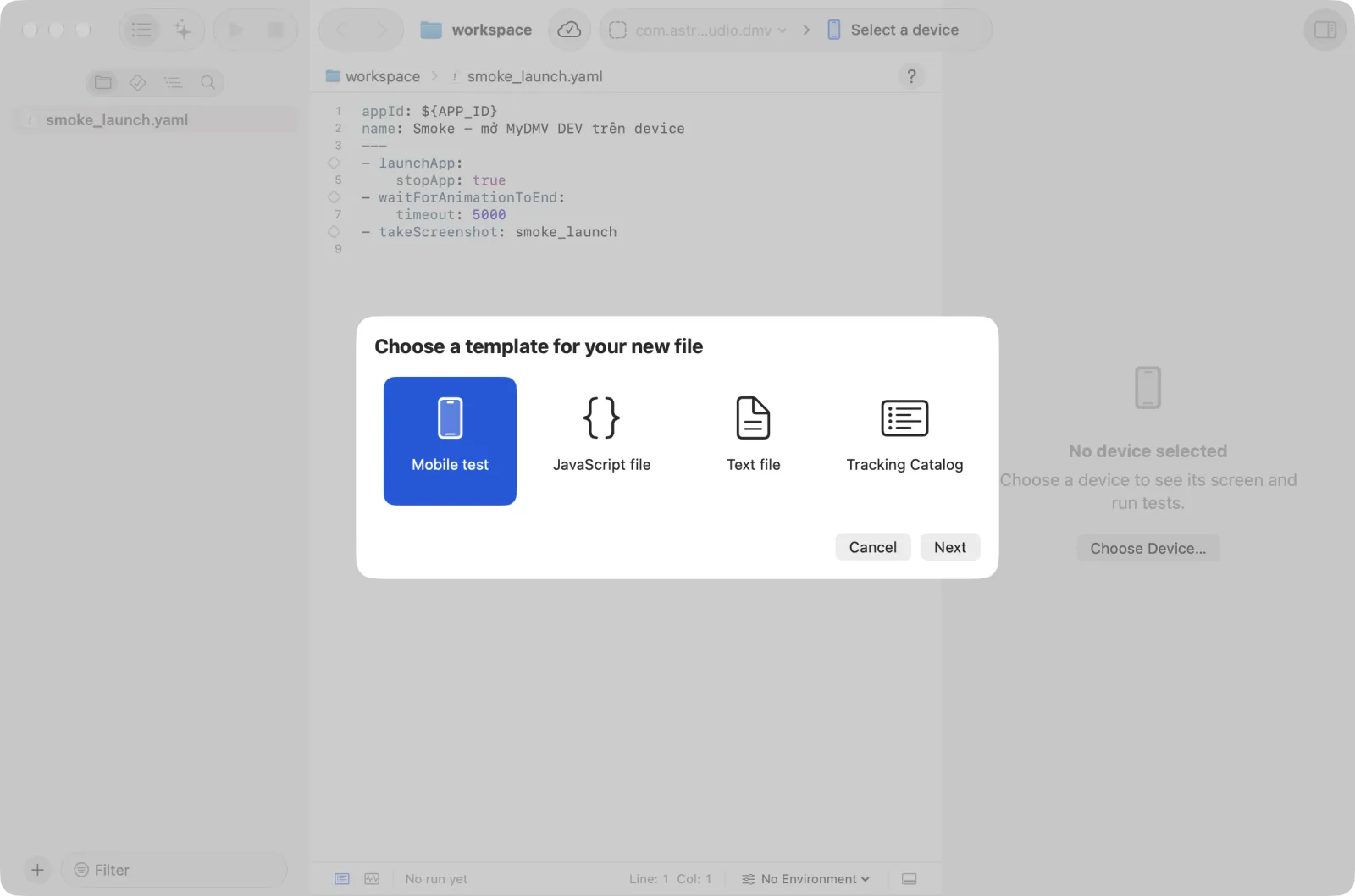
Click the Tracking Catalog tile, then Next.
Type the name in the Name field. Use the app's name, for example
mydmv. The line under the field shows the folder: a catalog always goes totracking-specs/in the workspace, whatever folder you had selected.Click Create. Scout writes
tracking-specs/<name>.yamlwith no events yet and opens it as a catalog.Fill it: Import… from your taxonomy sheet, or the + button under the list.
Catalog or YAML
Open a file under tracking-specs/. The jump bar has a segmented control labelled Open As with two choices:
| View | Use it for |
|---|---|
| Catalog | Edit events, user properties, enums and rules without writing YAML |
| YAML | Edit the text directly, or anything the catalog view does not cover |
Import… sits beside the control; it is off while the YAML has an error. Scout remembers the choice for each file. The YAML stays the source of truth: the catalog view changes only the lines you touch, so comments and blank lines survive.
A YAML error
The catalog view shows a banner with the error and its line. Click Open YAML at line N, fix it, and switch back.
The catalog view
Vocabulary used in this view:
- Event: a tracking event, for example "Paywall Viewed".
- Property: information that comes with an event, for example
paywall id. - User property: information attached to the user, not to one event.
- Enum: a named list of allowed values (for example
car,cdl,motorcycle) that several properties share. - General rule: a rule that does not belong to one event.
The list is on the left, the detail of the selected item on the right. The bar at the bottom sums up the file, for example "spec valid · 34 events · 21 enums · used in 3 flows".
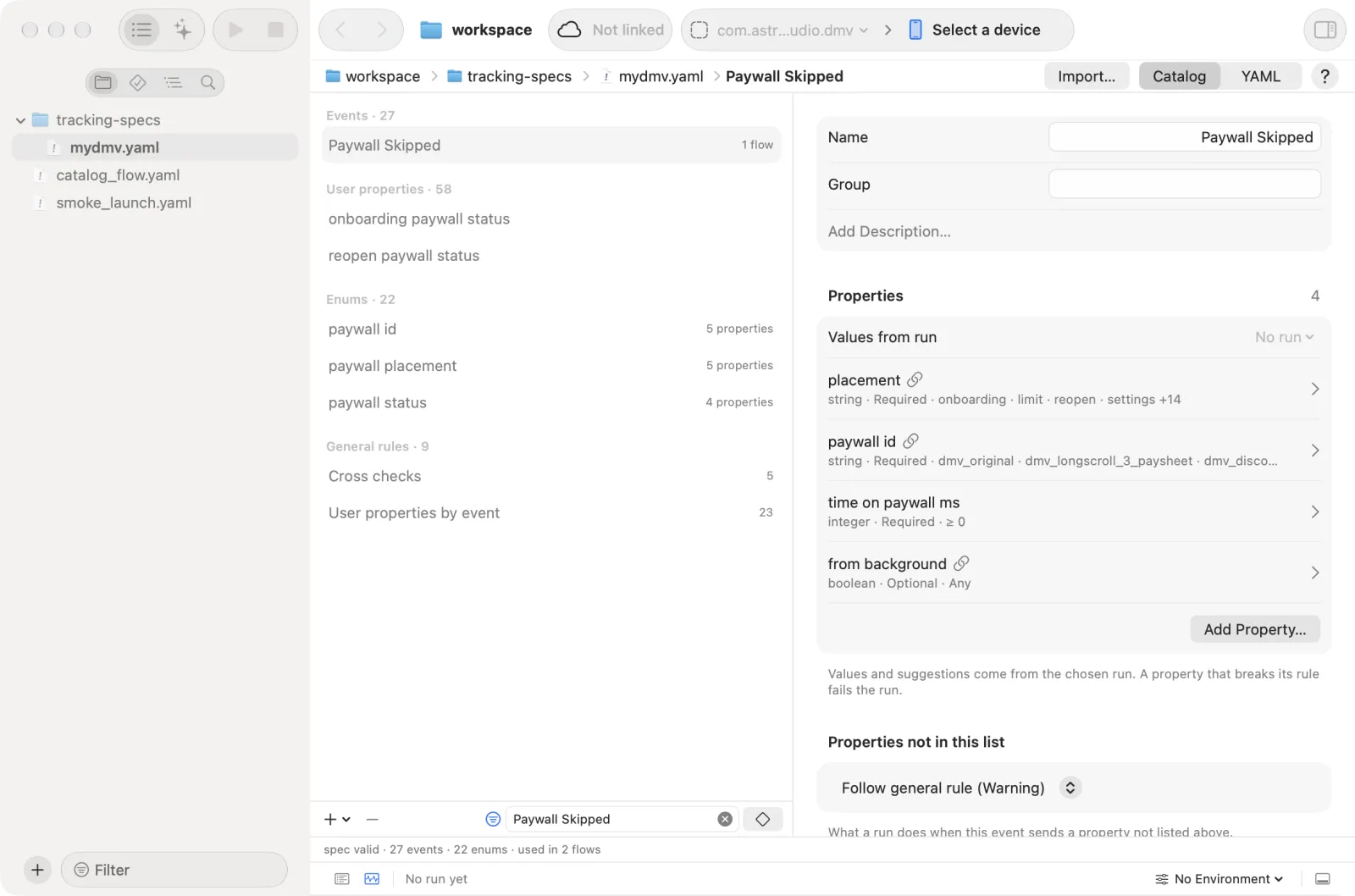
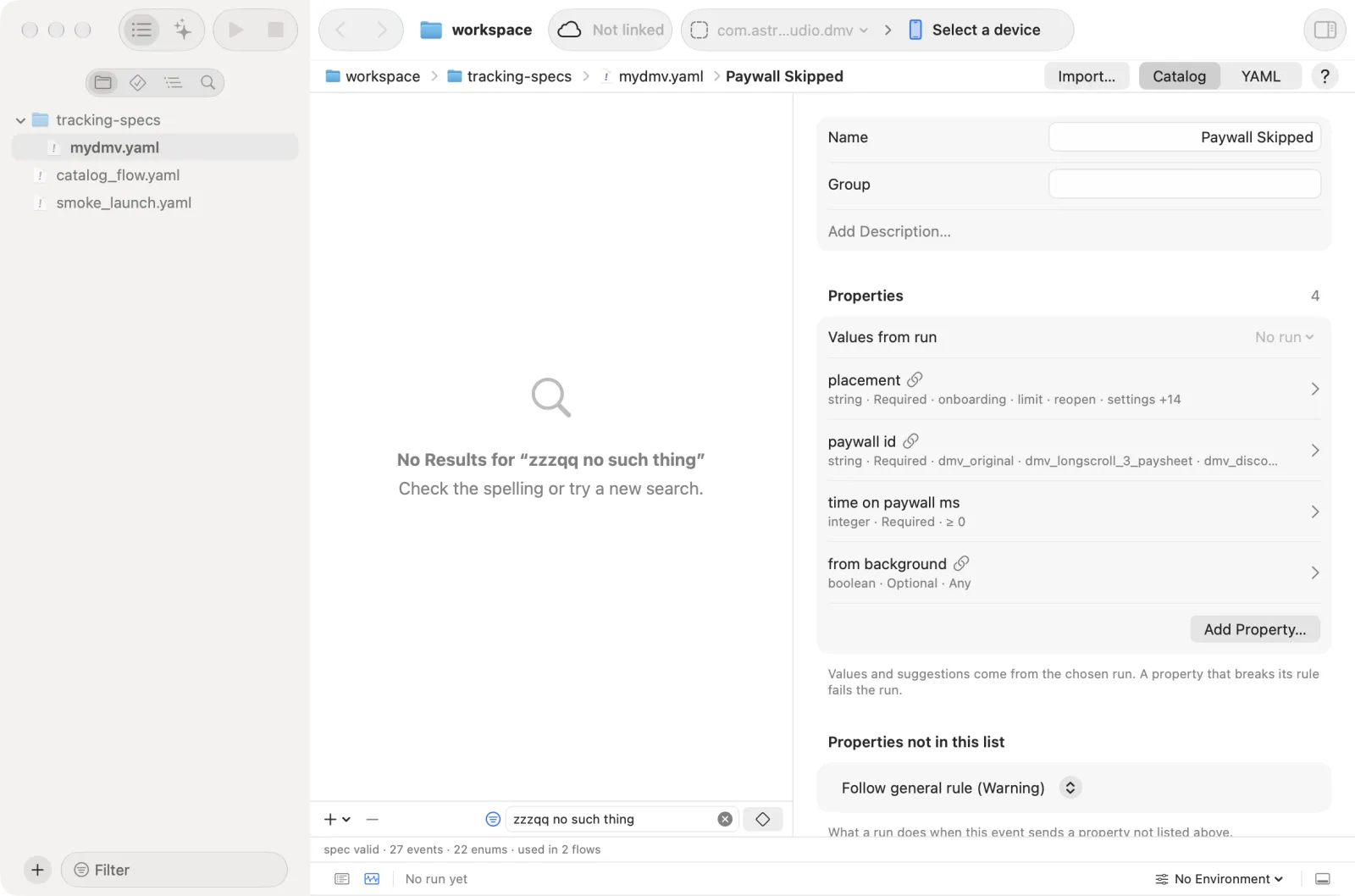
- The Filter field in the bar under the list filters by event, property, enum or value. When nothing matches, the list shows the "no results" view.
- Sections. The list has four sections: Events, User properties, Enums and General rules.
- Groups. When events have a Group (from the taxonomy sheet's category, such as Onboarding or Paywall), Events folds them by group, in the order of the catalog, with No Group last; a group row reads "Onboarding · 5". A catalog without groups lists its events flat.
- Icons. Events of the Amplitude SDK show a blue A in place of their "[Amplitude] " prefix ("[Amplitude] Application Opened" reads "Application Opened"), and Amplitude Experiment events a purple flask; the same icons as the Tracking stream.
- Full name. Hover a row for the full name, which is also the name in the file and the one the search finds.
- Add and remove. The + menu has New Event…, Amplitude SDK Events…, New User Property…, New Enum… and, under General rule, the rule templates. − removes the selected one after a confirmation. An enum that properties still use cannot be removed; the message names them.
- Remove an event that flows check. Scout warns "This event is checked in N places in flows", and still removes it if you confirm.
Add an event by hand
- Click + under the list and choose New Event….
- A small popover asks for the Event name. Type the name your team reads (the Display name) and click Add (or press Return).
- The new event opens in the form. Fill Group and the description if you want them.
- Click Add Property… under Properties, type the property's name and click Add. Repeat for each property the event sends. Then click the chevron at the end of a property's row to set its Type, Required and allowed values. See Allowed values.
New User Property… and New Enum… work the same way and ask for a User property name or an Enum name.
Events
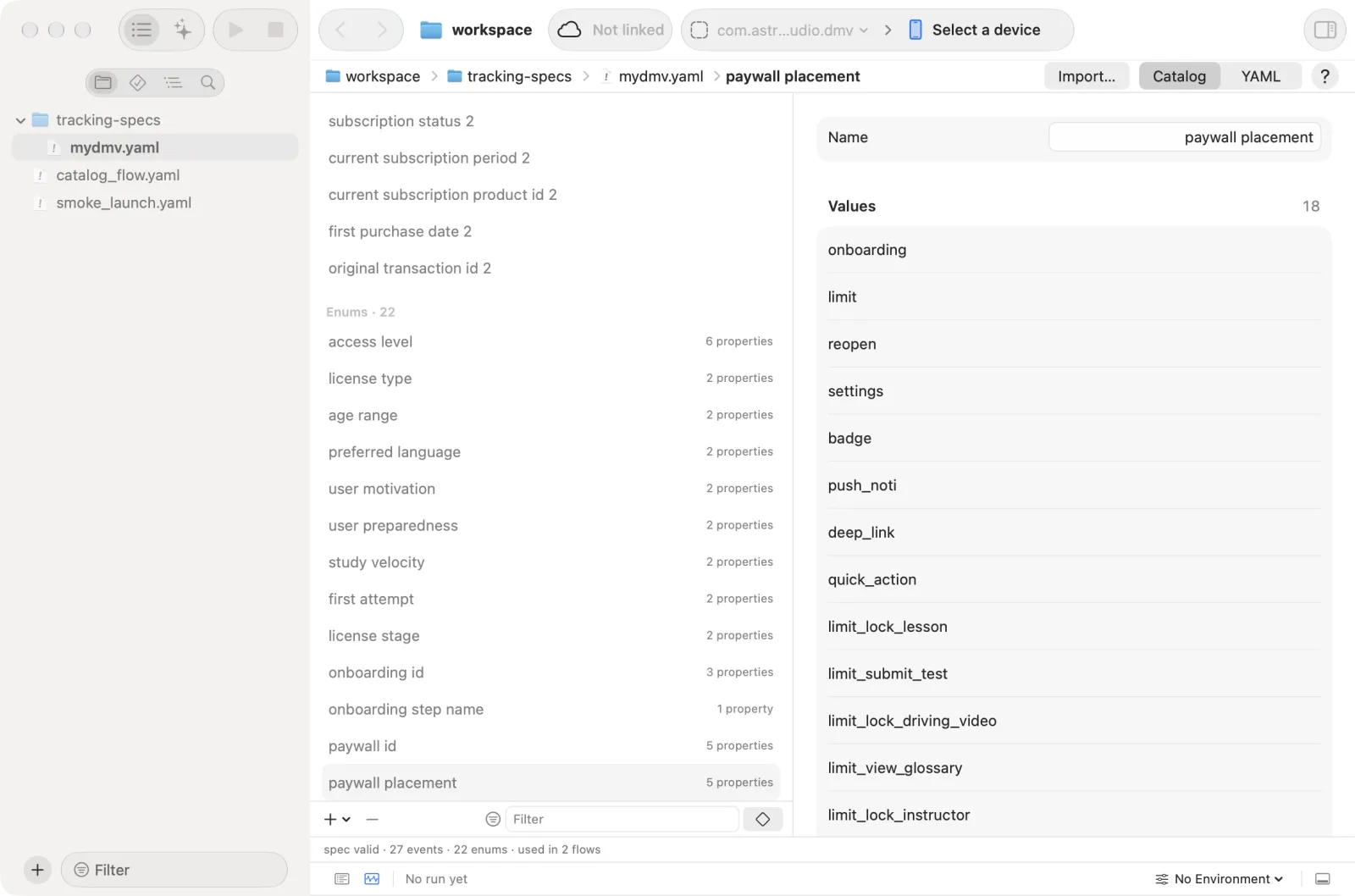
An event is one form, from top to bottom:
| Part | Meaning |
|---|---|
| Title row | The event name, renamed in place. Scout renames the event everywhere it appears in the catalog (rules, cross checks, login event) and asks first, with the number of places. It does not rename events inside flow files. A grey capsule "Not seen in any run yet" shows under the name field when a run exists that never saw the event |
| Group | Where the event sits in the team's taxonomy (group:). The taxonomy import fills it from the sheet's category. Type a name, or pick one other events use from the menu beside it; clear it to remove the group. It only sorts the catalog list and filters the Tracking window, and is never checked |
| Description | Add Description… shows while it is empty |
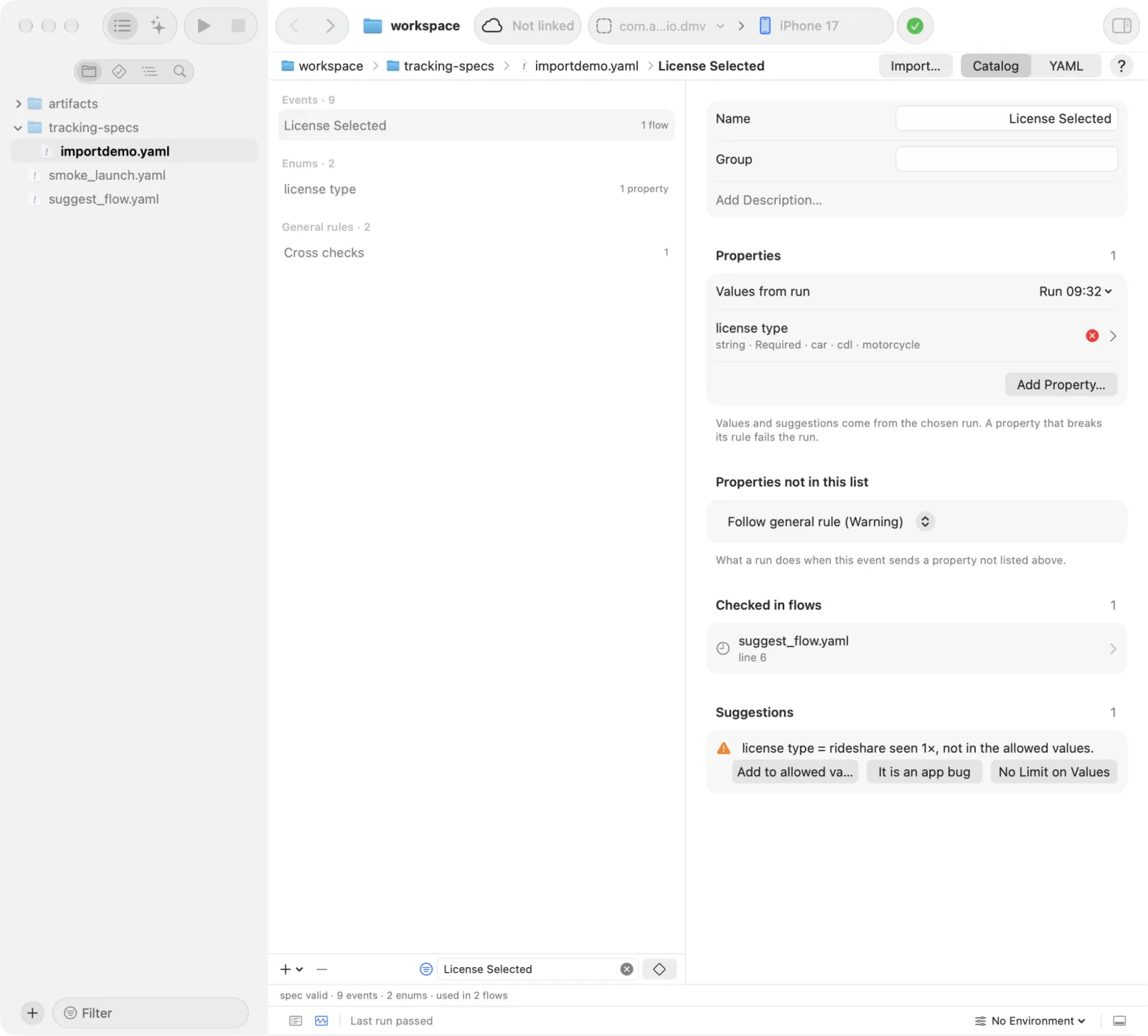
| Properties | Values from run at the top picks the run the event is compared with; the values and suggestions come from it. Then one row per property: its name, "type · Required" or "type · Optional", and on the right the allowed values in words ("Any" when nothing is checked, a pattern in monospace, "≥ N" for a number). A status icon marks a property the last run broke. The chevron (Edit) opens the property. Add Property… is under the list. The footnote says a property that breaks its rule fails the run |
| Properties not in this list | What a run does when the app sends a property the event does not list: Follow general rule (Warning), Ignore, Warning or Error |
| Checked in flows and Forbidden in the flow header | Where flows check or forbid this event, see below. Hidden when empty |
| Suggestions | What the latest run showed, see below. Shown only when there is something to suggest |
The form has no list of rules for the event. The general rules that name it are under General rules.
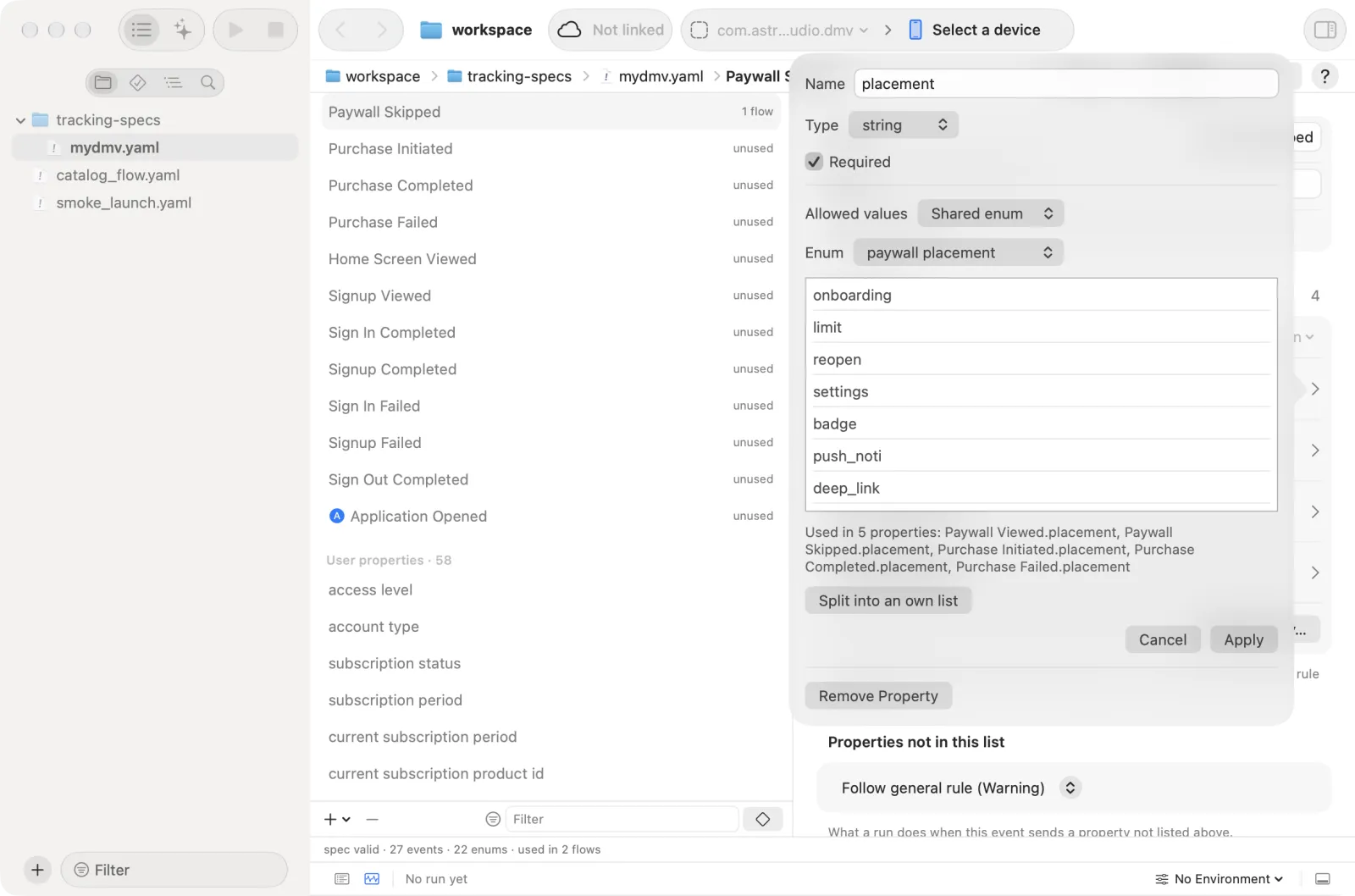
Click the chevron of a property to edit it in a popover: its name, Type, Required, the allowed values, and Remove Property. A property shared by several events (a YAML anchor) shows a link icon; when you edit it, an alert "This shared rule is used by …" asks Edit all N events or Edit only <event> (make a separate copy).
Allowed values
In the popover of a property, the allowed-values editor picks how its value is checked:
| Mode | Checks that the value |
|---|---|
| Shared enum | is in a named list from Enums. Pick the list from a menu; editing the values changes every property that uses it ("Used in N properties") |
| Own list | is in a list that only this property has. New enum from this list turns it into a shared enum |
| Regex | matches a pattern. A bad pattern is flagged |
| Number ≥ | is a number at least this big |
| Anything | any value passes |
Split into an own list copies a shared enum's values into this property, so you can change them without touching the others.
To change how a property is checked:
- In the event's Properties list, click the chevron at the end of the property's row. A popover opens.
- Change the name, Type or Required if needed.
- Under the allowed values, pick the mode from the table above and fill it.
- Click outside the popover to close it. Remove Property in the same popover deletes the property.
Suggestions from a run
With a run captured, the event form gets a Suggestions section (with a count) listing what the run showed. Values from run at the top of Properties picks which run.
| Suggestion | Action |
|---|---|
| New value of an enum property | Add to allowed values, or It is an app bug to dismiss it. For a property whose enum the team has not confirmed (one the import guessed), No Limit on Values drops the list: the property takes any value |
| Property the event does not list | Add, or fix the app |
| Required property missing | Fix the app, or make the property optional |
User properties and enums
- User properties and Enums use the same form style as events. User properties have a Type, Allowed values (the same editor as events), When wrong (Default (general rule), Warning, Error; Ignore is listed only for a property that is already set to ignore) and Needs team confirmation.
- Enums list their values: add, change or remove one, or paste several lines for several values. Needs team confirmation keeps a value list the team has not agreed on yet at warning level. Used in shows the properties that use the enum. A list that differs per platform shows "Per platform: edit in the YAML", with Open YAML. When it has no values for the run's platform, the value is not checked and the run shows the warning
enum_platform_missing.
Checked in flows
Every event with flow checks shows Checked in flows with the number of places: each file:line where a flow's assertEvents names it, with the values written there. Click a row to open the flow at that line. Forbidden in the flow header lists flows that name the event in tracking.forbid. Both sections are hidden when empty.
General rules
General rules hold what is not tied to one event. Each rule reads as a sentence with its severity, for example:
- Same paywall id, placement in Paywall Viewed and Paywall Skipped · error
- If Purchase Completed has is trial = true then Home Screen Viewed has access level = trial · warning · needs confirmation
- step number of Onboarding Step Viewed counts up from 1, +1 each time
- Application Opened must not appear · error
- lesson_id is a wrong name, the right one is lesson id
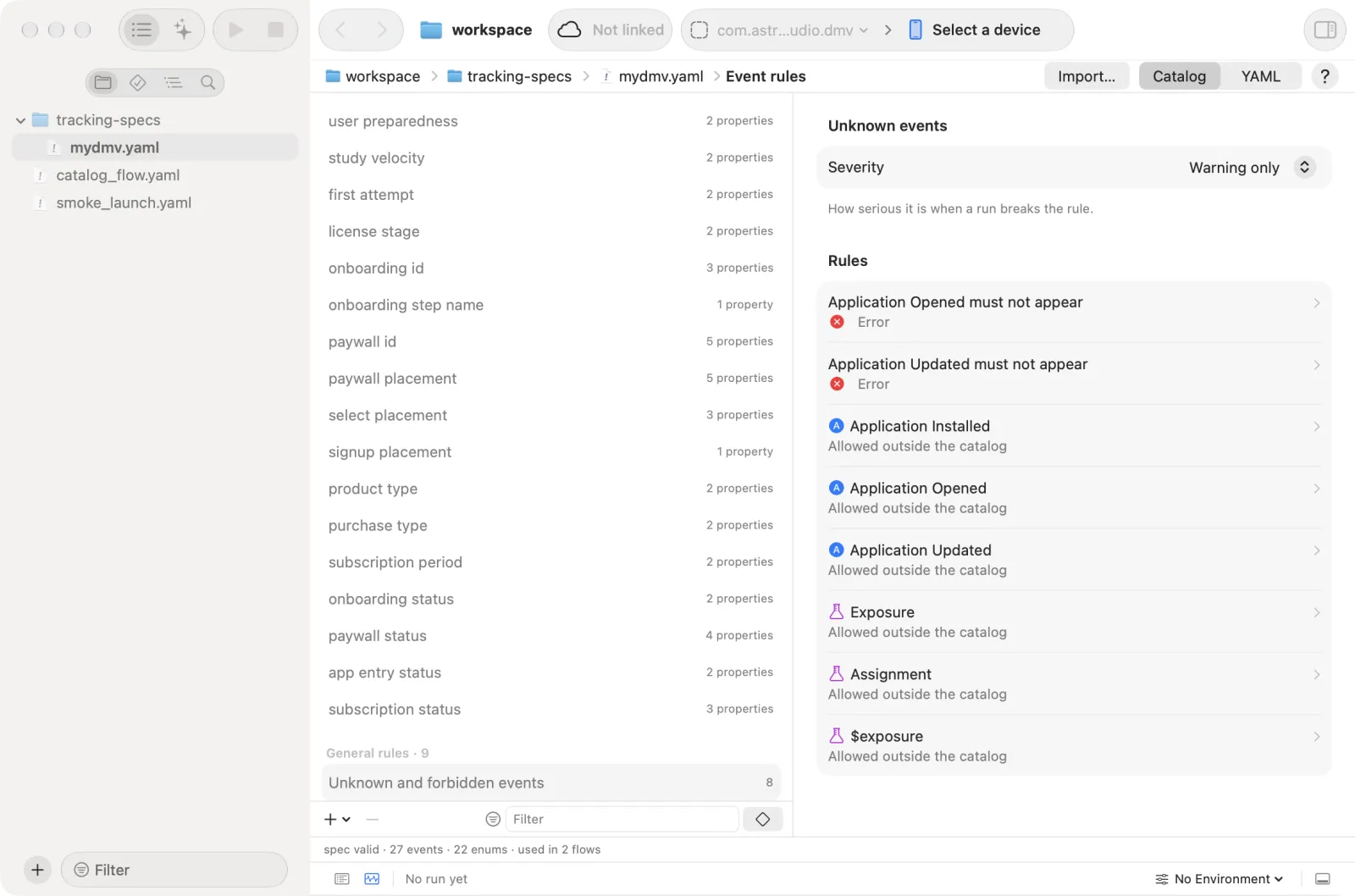
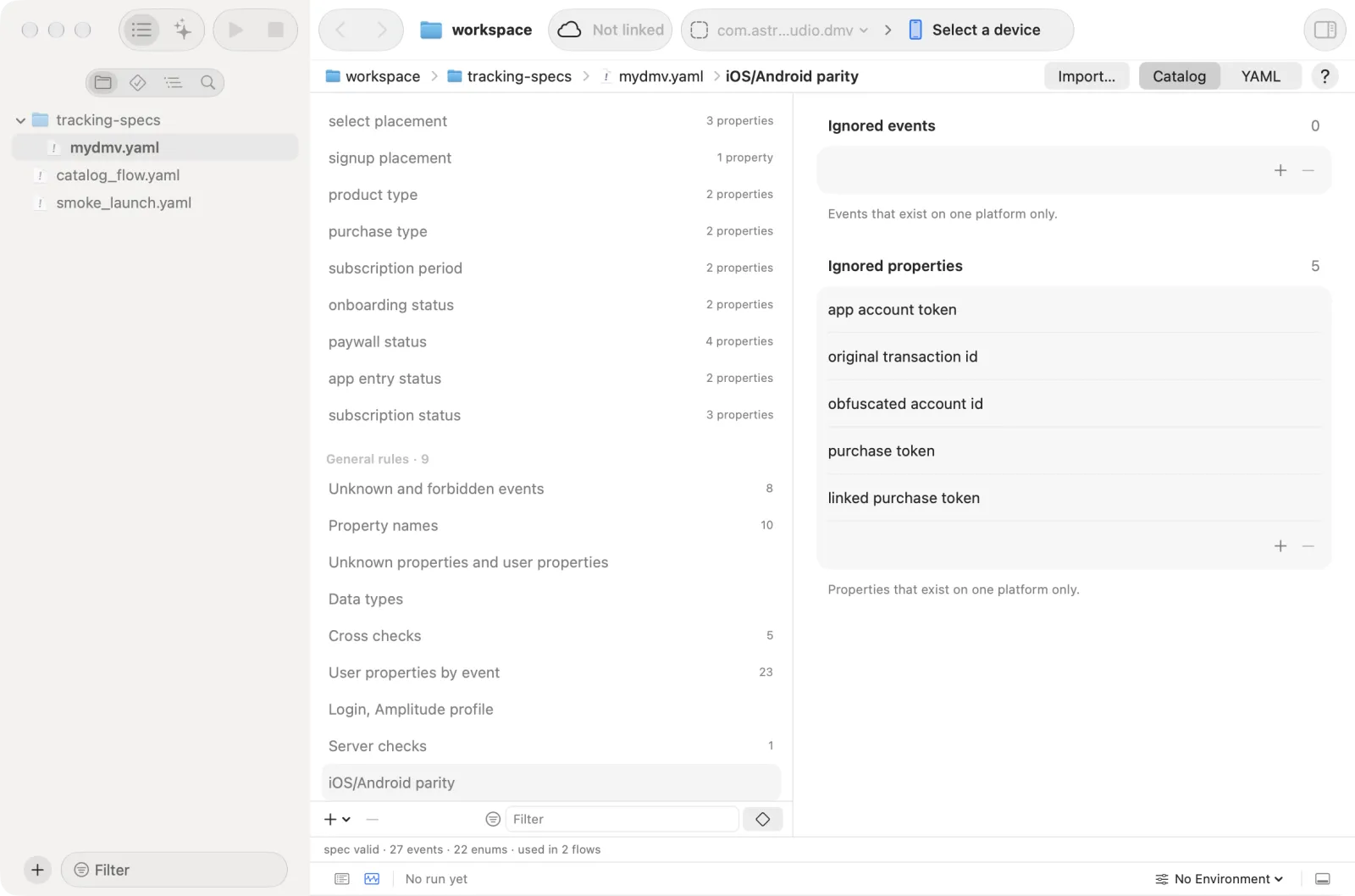
General rules are split into groups. Cross checks compare values across several events, for example "paywall id must be the same in Paywall Viewed and Paywall Skipped". The groups are Unknown and forbidden events, Property names, Unknown properties and user properties, Data types, Cross checks, User properties by event, Login, Amplitude profile, Server checks and iOS/Android parity. The last four are described in Tracking.
Add a rule
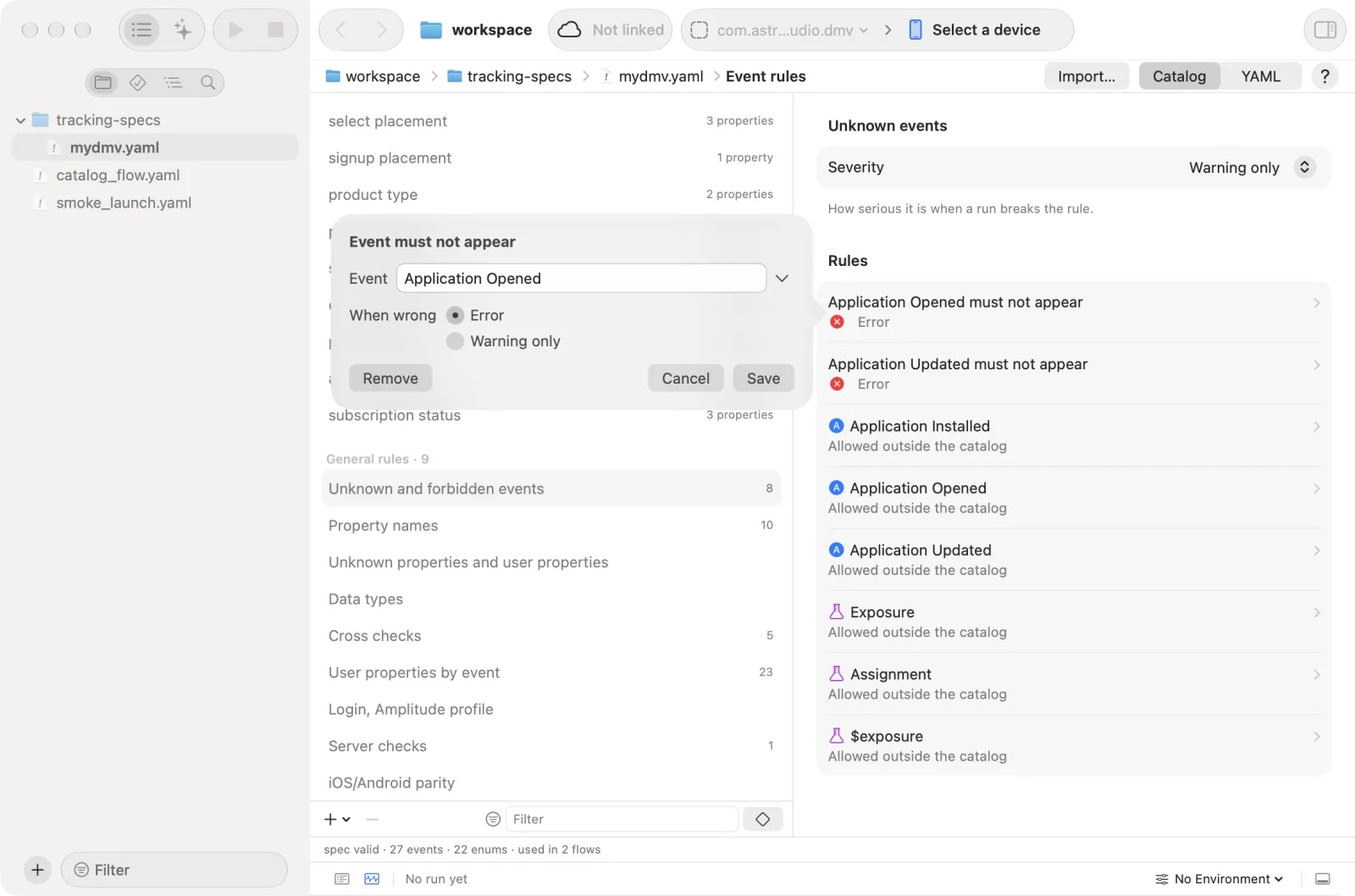
- Click + under the list and pick a template under General rule. The rule popover opens under the button. You never type a rule: every choice comes from the catalog.
- Fill the pickers. Each picker is a Pick a name menu that lists the events and properties of the catalog.
- Set When wrong and, if the team has not agreed on the rule, Needs team confirmation.
- Click Save. It stays locked, with the reason shown, until every field is filled.
| Template | Writes |
|---|---|
| Same value across events | The listed properties must have the same value in all the listed events |
| If … then … | If an event has a property value, another event must have a property value |
| Counts up each time | A numeric property goes up by a step on every event, from a start value |
| Event must not appear | The event is never allowed |
| Allow event outside the catalog | An event that is not in the catalog is accepted, with no warning |
| Common wrong property name | Names a wrong spelling and the right one |
When wrong is Error or Warning only. Click an existing rule's sentence to edit it in the same popover, or Remove it.
Try on the run at 14:02 runs the draft against the newest run before you save and tells you what would pass or fail. It is hidden when there is no run.
Severities
| Severity | Effect |
|---|---|
| Error | The check fails and the run fails |
| Warning | Recorded in the report, the run does not fail |
| Ignore | Not checked |
A rule marked Needs team confirmation runs as a warning until someone clears the mark.
Events the catalog lacks
An event the app sends that the catalog does not list follows Unknown events in the general rules (warning by default). The list shows them under App sends, catalog lacks · N, with how often and in which run.
- Find the event under App sends, catalog lacks · N.
- Click the plus button at the end of its row (its tooltip is Add to catalog). Scout creates the event from what the app sent.
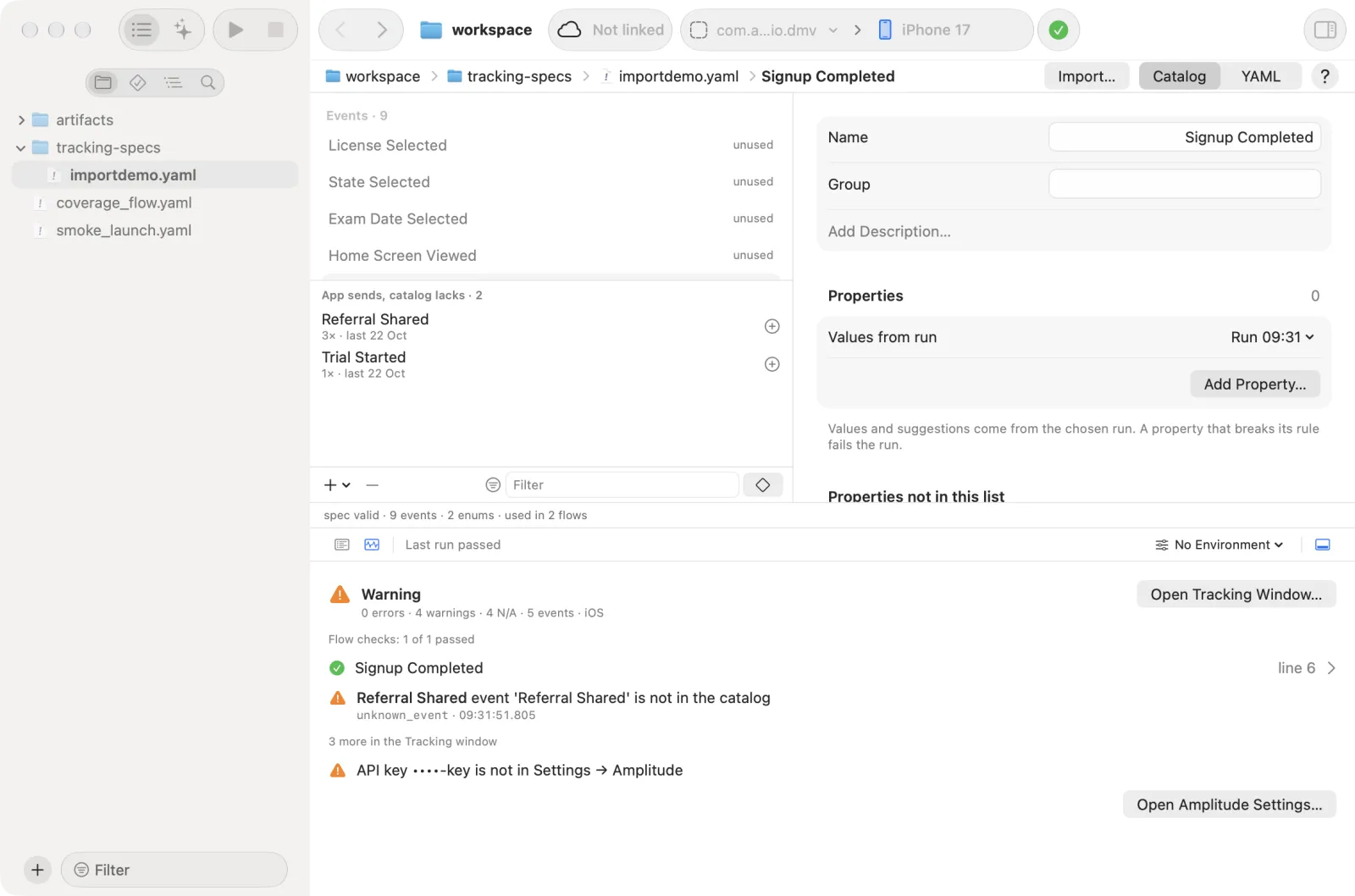
The other way round: turn on Not checked by any flow, the ◇ button at the end of the Filter field. It leaves only the events no flow checks. The button is off until Scout has loaded where flows use the events.
A flow check that names an unknown event offers the same fix from the flow: see Quick fixes.
Amplitude SDK events
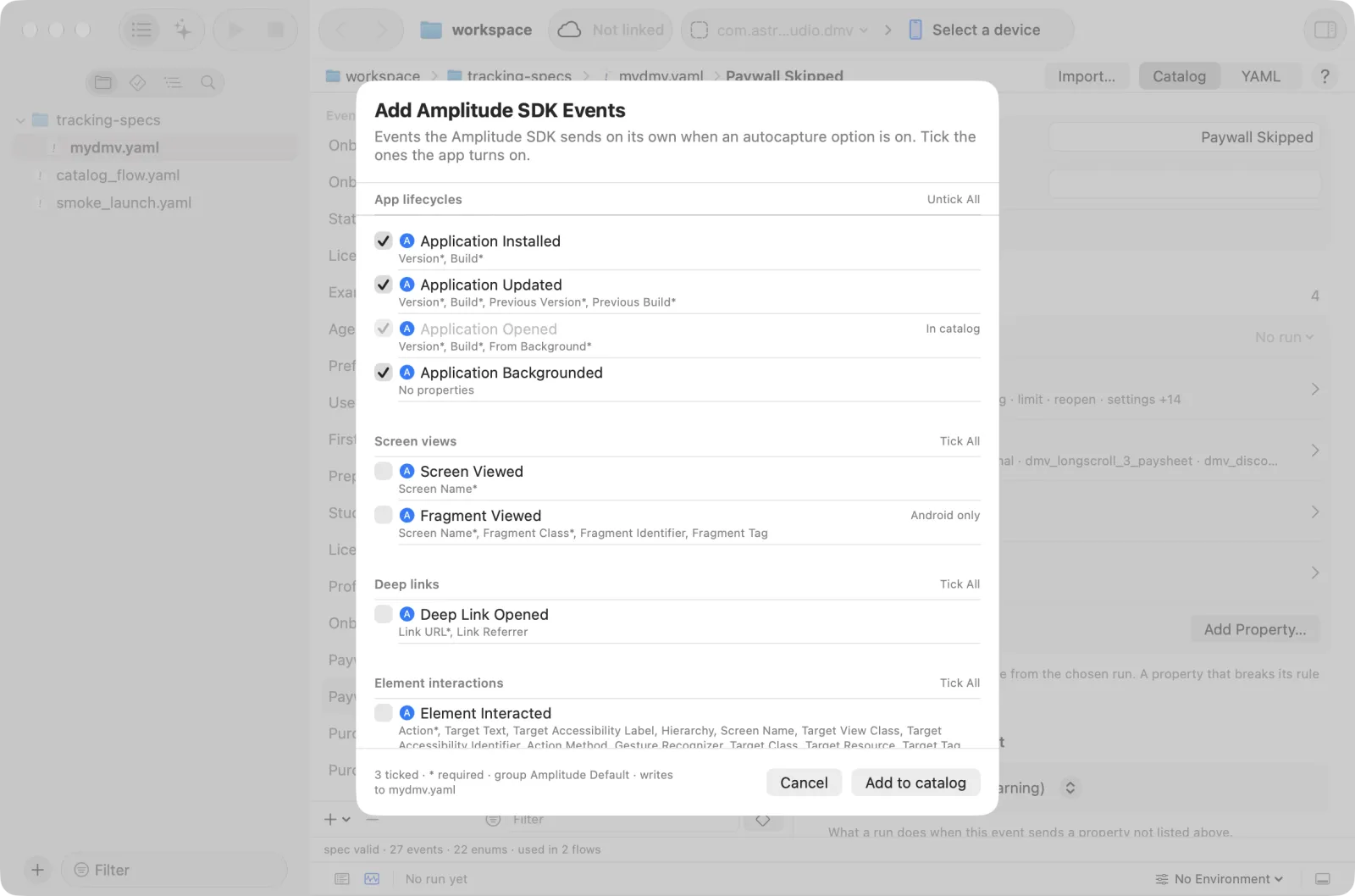
When an autocapture option is on, the Amplitude SDK sends some events itself: [Amplitude] Application Opened, [Amplitude] Screen Viewed, [Amplitude] Element Interacted and so on. A run ignores those the catalog does not list; once listed, they are checked like any event.
- Click + under the list and choose Amplitude SDK Events…. The sheet "Add Amplitude SDK Events" opens. It lists the events by autocapture option (App lifecycles, Screen views, Deep links, Element interactions, Frustration interactions, Network tracking), each with the properties the SDK sends (* marks a required one).
- Tick the events the app turns on. Tick All in an option's header ticks the whole option (it reads Untick All once everything is ticked). An event the SDK sends on one platform only shows a label such as "Android only" (Fragment Viewed is one). An event the catalog already has shows In catalog and cannot be ticked.
- Read the line at the bottom: "N ticked · * required · group X · writes to <file>". X is the group the events go into: the one your other
[Amplitude] …events use, else "Amplitude Default". You can change it later in the event's Group field. - Click Add to catalog. Each event comes in under the SDK's names with typed properties. The events whose properties differ by platform and SDK version (element interactions, rage and dead clicks, network requests) also get Properties not in this list: Ignore.
Import your taxonomy
If the team keeps the event plan in a spreadsheet, Scout fills the catalog from it. The sheet is the taxonomy.
- Download the sheet as .xlsx, or each tab as .csv or .tsv. (Also read:
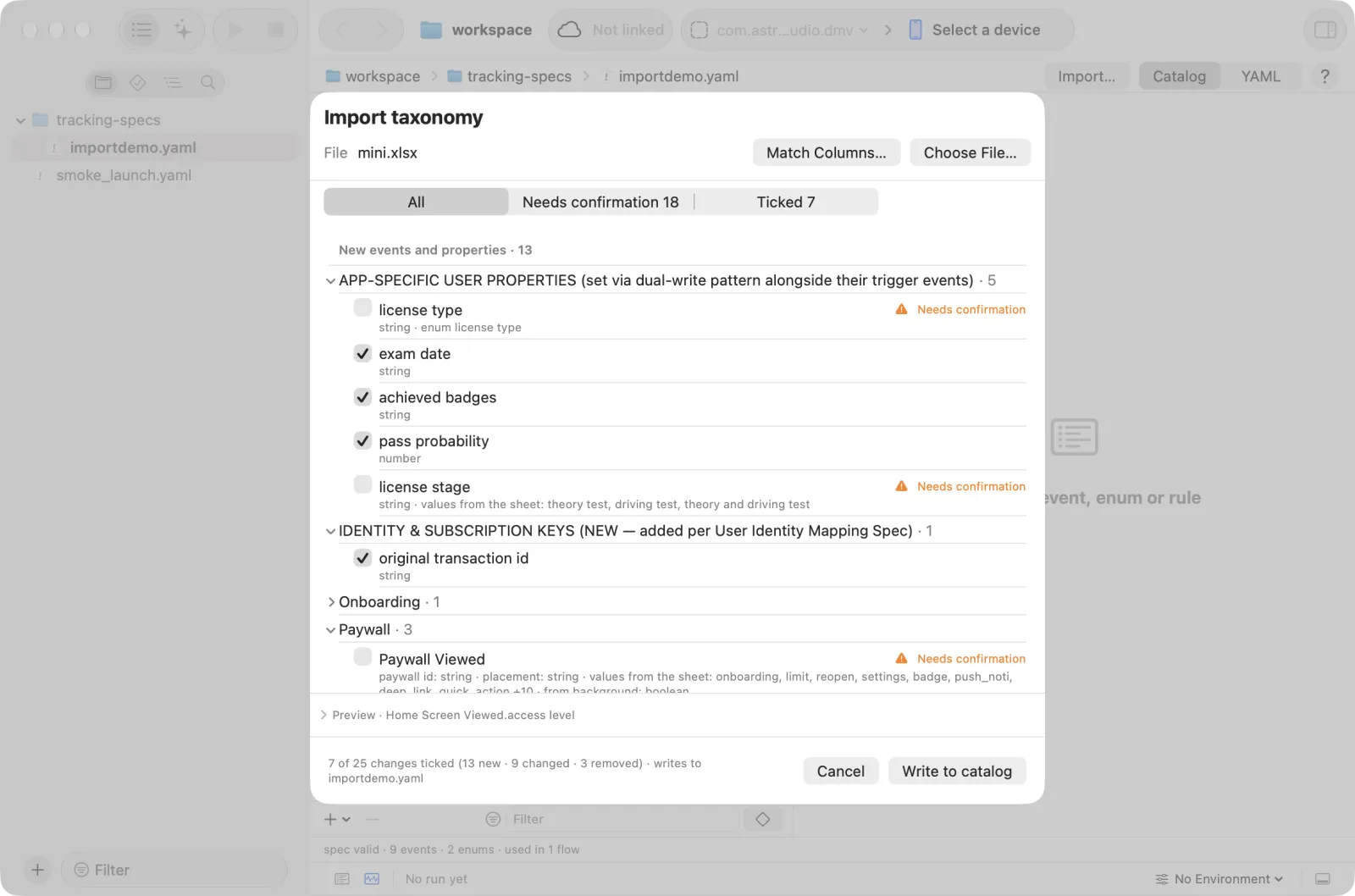
.xlsmand.txt. Old.xls,.ods,.numbersand links to a Google Sheet are not read.) - In the catalog view, click Import… in the jump bar. The "Import taxonomy" sheet opens, empty: "Choose a taxonomy file".
- Click Choose File… and pick the file. For csv or tsv you can pick the tabs together. If you have projects in Settings → Amplitude, pick a project in Values from Amplitude first, or leave it as it is (see below).
- Wait while Scout reads the file. If it shows "No changes.", the catalog already matches the file. If it lists problems instead, fix the sheet and choose the file again, or click Match Columns… when your sheet names its columns differently (see Other column names).
- Review the list, untick what you do not want, and read the line at the bottom: "N of M changes ticked (X new · Y changed · Z removed) · writes to <file>". A warning about the file sits on one line above the list; click it to see them all. Needs confirmation above the list shows only the rows to check; click a row to read what to check and what ticking writes.
- Click Write to catalog.
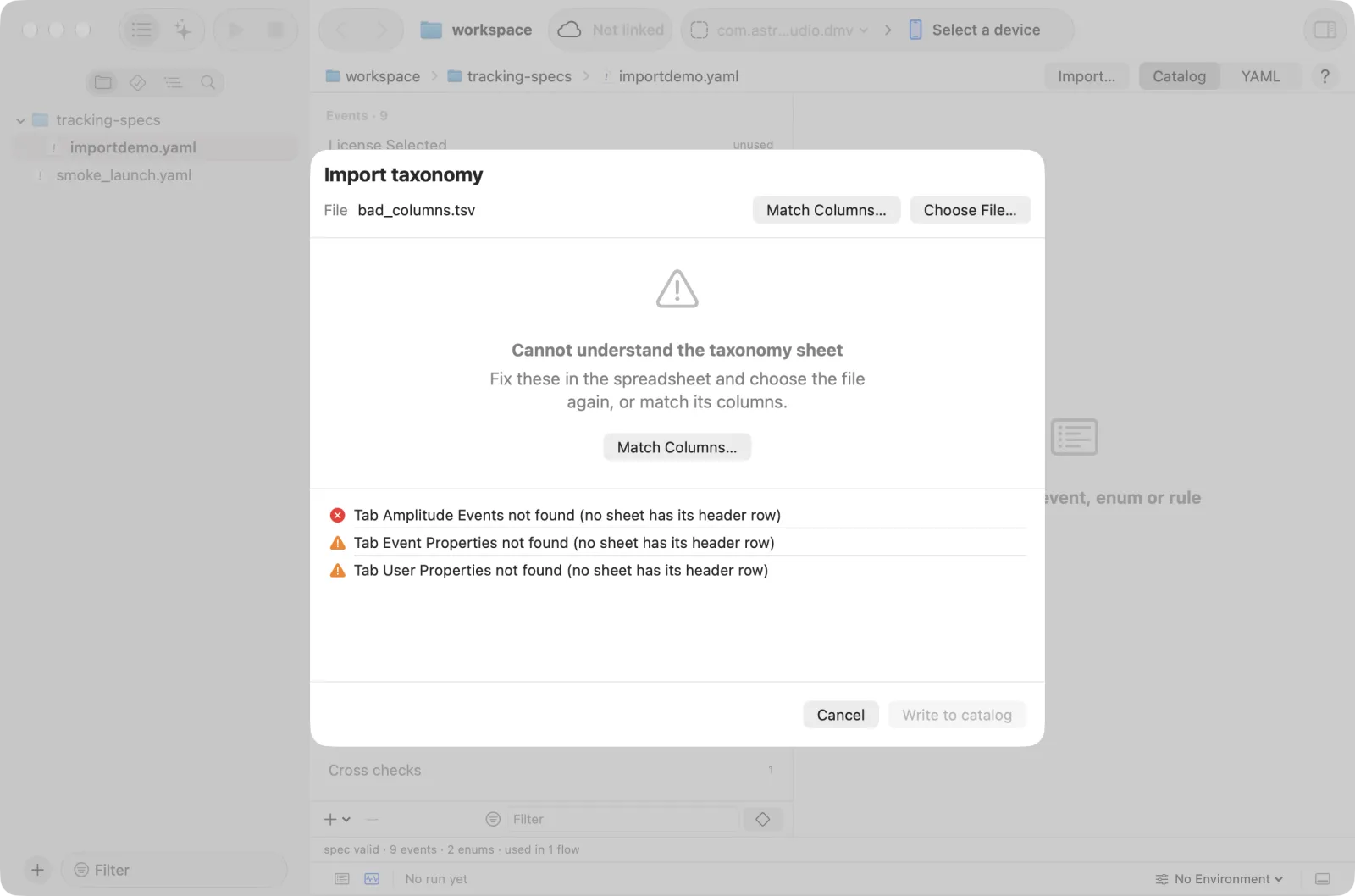
What Scout reads
Scout finds each tab by its column headers, not by the tab name:
| Tab | Needs columns |
|---|---|
| Events | Event Name (Display) and Event Properties |
| Event properties | Property Name, Data Type, Used By Events |
| User properties | Property Name, Data Type, and Set By Events or Source |
Other column names
Common other names of a column are read too, so a sheet does not have to follow the template word for word:
| Column | Also read as |
|---|---|
Event Name (Display) | Event Name, Event, Event Display Name, Display Name |
Event Properties | Properties, Event Props |
Property Name | Property, Property Key, Prop Name |
Data Type | Type, Datatype, Value Type, Property Type |
Used By Events | Used In Events, Used By |
Set By Events | Set By |
Sample Values | Sample Value, Examples, Example Values, Allowed Values, Values |
Description | Desc, Definition |
Event Category | Category, Group |
A bare Name or Events is not read as any of them: Name could mean an event or a property, and Events the events that use a property or the ones that set it.
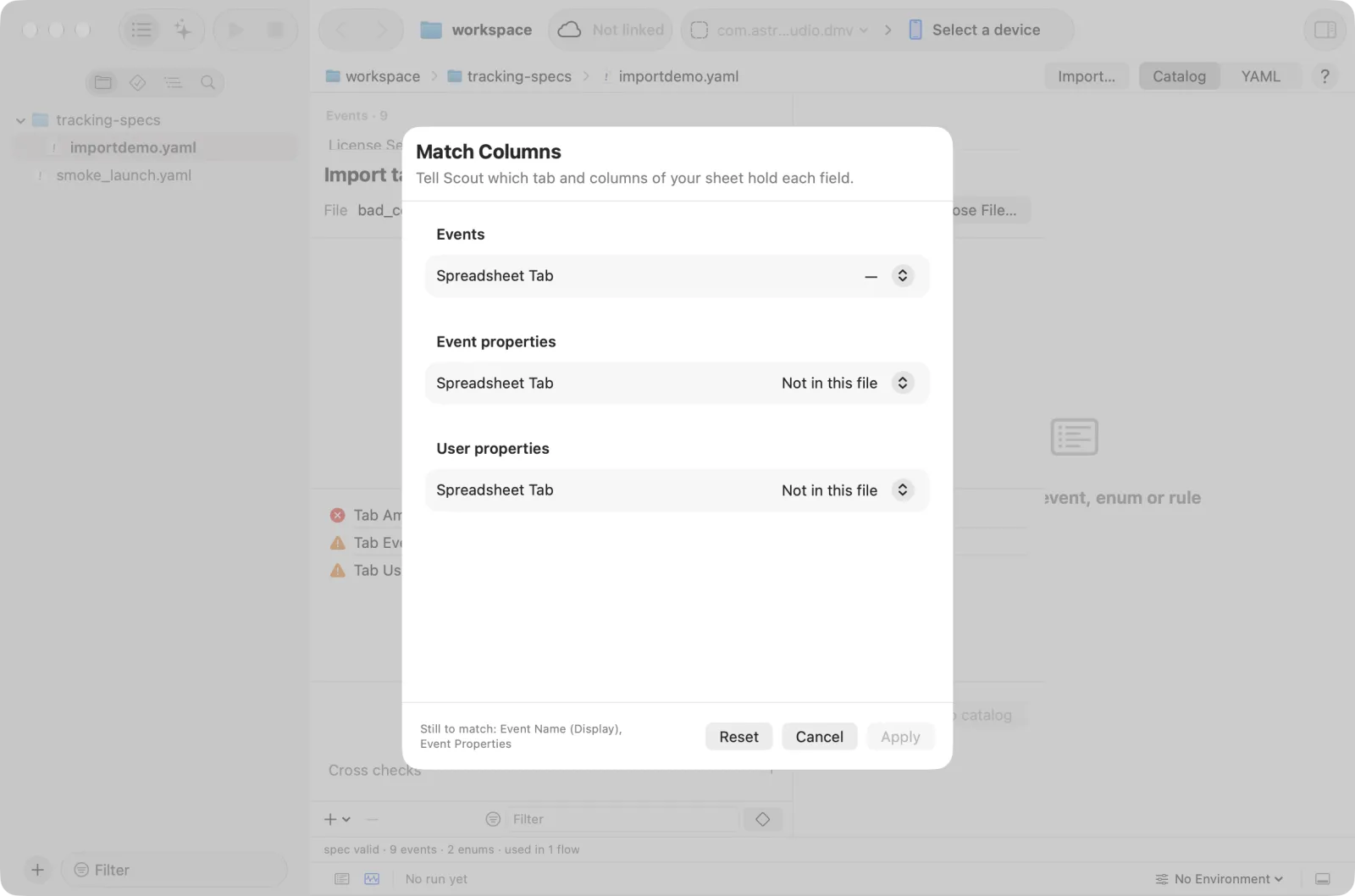
When your sheet uses other names still, match them by hand:
- Click Match Columns…, next to Choose File… or under the problems.
- For Events, pick the Spreadsheet Tab that lists the events, then the column of each field. Fields marked
*are required; Apply stays off until they are matched. - Do the same for Event properties and User properties, or leave them on Not in this file.
- Click Apply. Scout reads the file again with these columns.
Scout keeps the match for this catalog and uses it every time you import into it; "· columns matched by hand" beside the file name says so. Reset goes back to finding the columns by their names.
Each event takes its category as its group:: the cell in an Event Category (or Category) column, or in the unheaded column where the group heading rows sit (such as "Onboarding" beside each event under ONBOARDING). An event with an empty category cell takes the heading row above it. Importing again moves an event whose category changed, and leaves the group alone when the sheet gives none.
A string property whose Sample Values read like a fixed list (car, cdl, motorcycle) gets an enum of those values, marked as needing confirmation. If the Sample Values are only examples (ids, names, places, short codes), the property is imported as a plain string, with no allowed values.
Technical details: when Sample Values are only examples
The samples are only examples when the property names an id, a name or a place (the last word of its name is id, ids, name, token, url, email, city, country, carrier, code, number, key, uuid, title, text, message, path or version), when a value looks like an id (three digits or more, such as lesson_001), or when every value is a short code (CA, TX, USD, EUR): such a property is imported as a plain string, with no allowed values.
Values from Amplitude. When Settings → Amplitude has projects with a Secret key, the sheet has a Values from Amplitude menu under the file row. Its choices are Off and each project. Scout picks the one project that has Forward off, if there is exactly one; with none or several it starts on Off. It remembers your choice per catalog. With a project picked, each enum guessed from Sample Values is checked against the values that project stored in the last 30 days:
| Amplitude saw | The import |
|---|---|
| More than 20 values | Writes no enum: "no limit on the values" |
| Only values of the list | Writes the enum without needs confirmation, and the item can be ticked as it is |
| Values the list lacks | Keeps the sheet's list, names the others ("Amplitude also saw CDL, auto"), needs confirmation: they may be new values or the app sending wrong ones |
| Nothing, or it could not be read | Keeps the sheet's guess, needs confirmation |
The values never become the list themselves, so a value the app sends by mistake is not allowed by the import. Reading the values of a big sheet can take a couple of minutes (Scout stops asking Amplitude after about 150 seconds and asks the rest again the next time). The answers are kept for 6 hours. Write to catalog never asks Amplitude: it writes what the preview showed, so a preview older than 6 hours must be opened again (choose the file again).
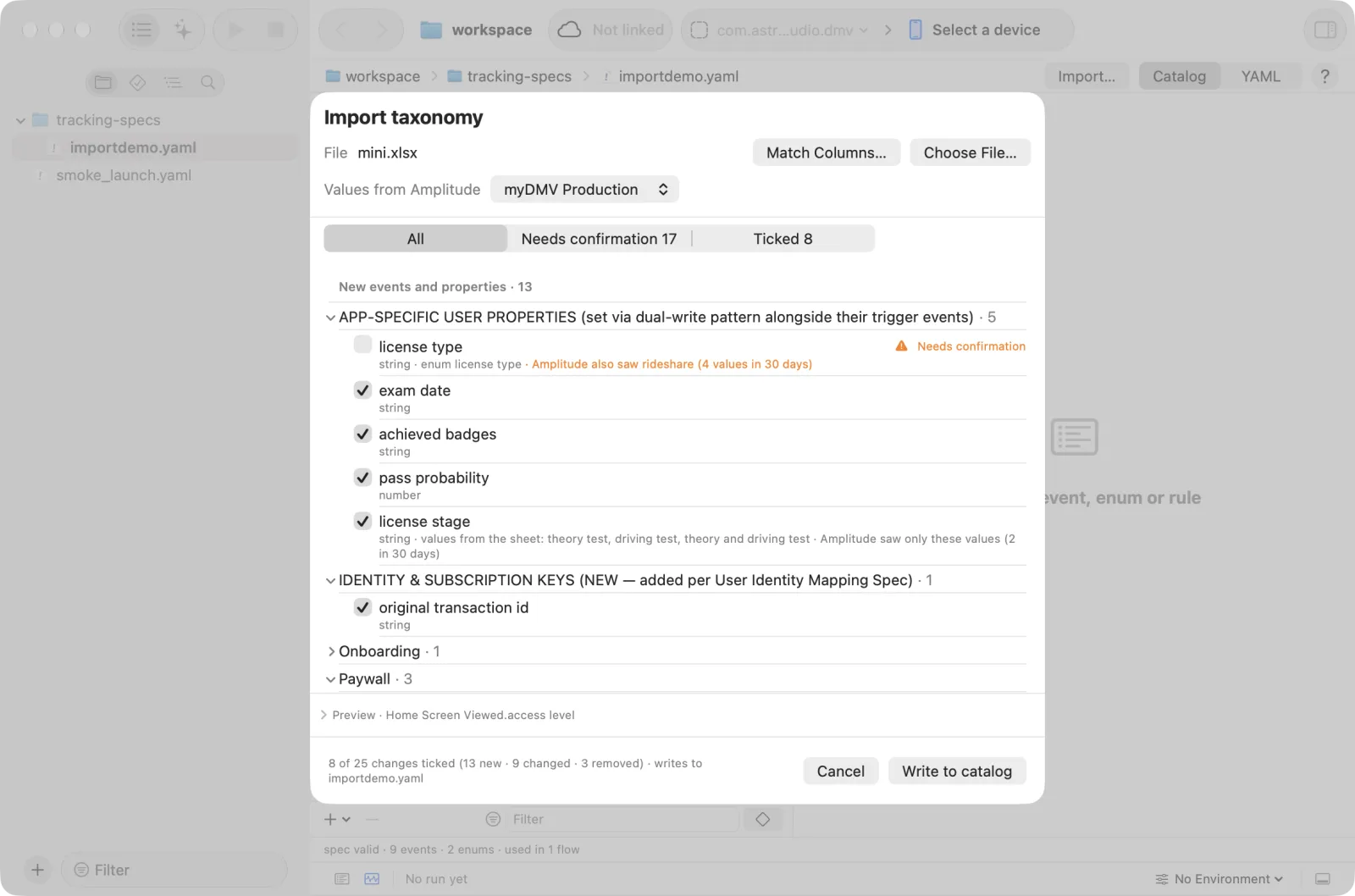
Each row becomes one event named by Event Name (Display); a row with no Display name is left out and listed under the problems with its row number. Importing again matches events by that name.
Group title rows are skipped. A missing Events tab or column is reported in a list of problems; fix the sheet and choose the file again. A missing property tab only means that part is not compared.
Struck-through text in an .xlsx counts as removed by the team. A struck line of a list cell is left out, and a row whose name is struck is skipped, so its event shows under Removed from the sheet. A property struck in an event's Event Properties cell is offered for removal from that event in the catalog, as a change that needs confirmation (its rule goes with it; a rule other events share is left for you to edit). A property that is only missing from the sheet is kept. The problem list says how many struck items each tab left out. .csv and .tsv files carry no formatting, so use the .xlsx for this.
What the sheet shows
| Section | Contains |
|---|---|
| New events and properties | In the sheet, not in the catalog |
| Changed events and properties | In both, but different: a new property, or a different type |
| Removed from the sheet | In the catalog, no longer in the sheet |
| Skipped | Events sent by the backend (check them with server checks) and user properties Amplitude sets. They have no tick box. This section is collapsed until you open it |
The events the Amplitude SDK sends itself (Source "Amplitude SDK", such as Application Opened) are imported under the name the SDK sends, [Amplitude] Application Opened, so a run checks their properties. The sheet's build, version and from background become the SDK's [Amplitude] Build, [Amplitude] Version and [Amplitude] From Background; the app's own properties keep their names.
When the sheet gives categories, each section is split by category (Onboarding, Paywall…), each folding on its own, with No Group last; a removed event sits under its group in the catalog. Click a row to see the lines it will write under Preview. Show N more lists the rest of a long list.
What is pre-ticked
| Item | Ticked | Why |
|---|---|---|
| Plain new or changed items | Yes | Safe to take as is |
| Items that need confirmation | No | The sheet gives enum values only as samples, a type is empty, a property has several definitions, or a name appears twice. The row shows the reason in orange and, under it, what to check and what ticking writes. Tick them once the team agrees. A repeated name writes nothing when ticked: remove the repeat in the sheet. Values taken from samples are saved as an enum marked Needs team confirmation |
| Removed events nothing uses | Yes | The catalog follows the sheet |
| Removed events that a flow checks or a rule names | No | Removing them would break a flow or a rule. The row says where they are used |
A new property is written as required, except one the sheet marks iOS-only or Android-only. The import never overwrites what you added by hand: regex, severity, required, not_empty, minimum, confirmed enums and comments stay. Allowed values that the sheet adds to an existing enum are added; none are removed.
Writing and changing files
- The server writes the catalog, so
⌘Zdoes not undo it. Fix it in the YAML view if needed. - If the catalog file changed while the sheet was open, Scout reads it again and re-checks the sheet. Your ticks stay on the items that did not change; an item whose content changed becomes unticked so you can look at it again.
Technical details
The next two parts are for developers who write YAML directly or use scripts and the plugin.
Engine rules worth knowing
- One definition per event. The same event name twice under
events:is a YAML error, and the catalog does not open until one is removed. - Strict
global_rules. An unknown key underglobal_rulesis a parse error, so a misspelled rule is never ignored silently. A property whoseenum_refnames an enum that does not exist is also an error. language_independent_values. Addlanguage_independent_values: { severity: error }underglobal_rulesto catch translated values. A string value of a property with an enum, outside that enum and with non-ASCII letters (for example车forcar), fails at that severity. This holds even for a confirmed enum.- Cross checks have a severity.
same_value,increasing_sequenceandimpliestakeseverity(errororwarn; the default iserror, andneeds_confirmationlowers it to a warning). Asame_valuegroup that listsPaywall Viewedstarts over at eachPaywall Viewed. - No scenarios. A catalog with
scenarios,shared_cross_checks,flow_idorglobal_rules.unexpected_eventsis rejected. UseassertEventsin flows andglobal_rules.unknown_events. - No
ingested. An event with aningestedkey does not load; the error names its line. Remove the key.
spec_version: 2
global_rules:
  unknown_events:
    severity: warn
    allowed: ["[Amplitude] Application Installed", "$exposure"]
  language_independent_values:
    severity: error
cross_checks:
  - { rule: same_value, properties: [paywall id, placement], across: [Paywall Viewed, Paywall Skipped] }
  - { rule: increasing_sequence, event: Onboarding Step Viewed, property: step number, start: 1, step: 1 }
  - rule: implies
    needs_confirmation: true
    if:   { event: Purchase Completed, property: is trial, equals: true }
    then: { event: Home Screen Viewed, property: access level, equals: trial }
An enum and a property that uses it:
enums:
  license type:
    values: [car, cdl, motorcycle]
events:
  License Selected:
    properties:
      license type: { type: string, required: true, enum_ref: license type }
From a terminal or plugin
An AI CLI with the scout plugin, and scripts, use the same operations over HTTP on the Studio server:
| Route | Does |
|---|---|
GET /api/tracking/spec?workspacePath=…&path=… | Returns the YAML, its hash and the model the catalog view uses |
POST /api/tracking/spec/edit | Applies set, insert, remove, move or rename ops on a path. baseHash must match the file, or the answer is 409; an invalid op or resulting catalog returns 422 |
POST /api/tracking/spec/suggest | Returns suggestions from a run, without writing the file |
POST /api/tracking/spec/try | Applies ops in memory and returns the checks of a run that change, without writing the file |
POST /api/tracking/spec/rename-event | Renames an event and all its references in one edit |
POST /api/tracking/spec/rename-enum | Renames an enum and all its references in one edit |
GET /api/tracking/spec/usages | Returns where flows check each event |
GET /api/tracking/coverage | Returns events no flow checks, and events the app sent that the catalog lacks |
POST /api/tracking/import/preview, /import/apply | Preview and write a taxonomy import |
The request and response fields are listed in flows/mydmv/tracking-specs/README.md in the repository.