
Inspector
Turn elements on the device screen into Astra Scout commands without typing selectors.
The inspector lets you click a button, a line of text or an input field on the device screen (together called an element) and have Astra Scout write the matching step into your flow. Testers use it to add steps without typing YAML.
Every step needs to say which element it acts on. That description is the selector, for example "the element with the text General" or "the element with the id login_button". The inspector picks a selector and you can change it. The inspector works on the connected device in the device column.
This is one of several ways to create a flow. See Create a flow.
Generate a command from an element
Connect a device first. An open flow file in the editor is only needed for Insert into Editor and Insert & Run.
- Connect a device (see Devices) and open a flow file in the editor.
- Turn on Device > Inspect Elements (
Option+Cmd+I). Or click the inspect button under the device mirror. The button and the menu item are one switch. Both are disabled while no device is connected. - Move the pointer over the device screen. The element under the pointer is outlined, and a line under the mirror shows its label, its
id:and its size. Until you point at something, that line reads "Hover an element on the screen. Click to pick it, right-click for its commands." - Click an element to pick it, or right-click it. The right-click opens a menu with a YAML preview of the most common commands:
tapOn,assertVisibleandscrollUntilVisible.
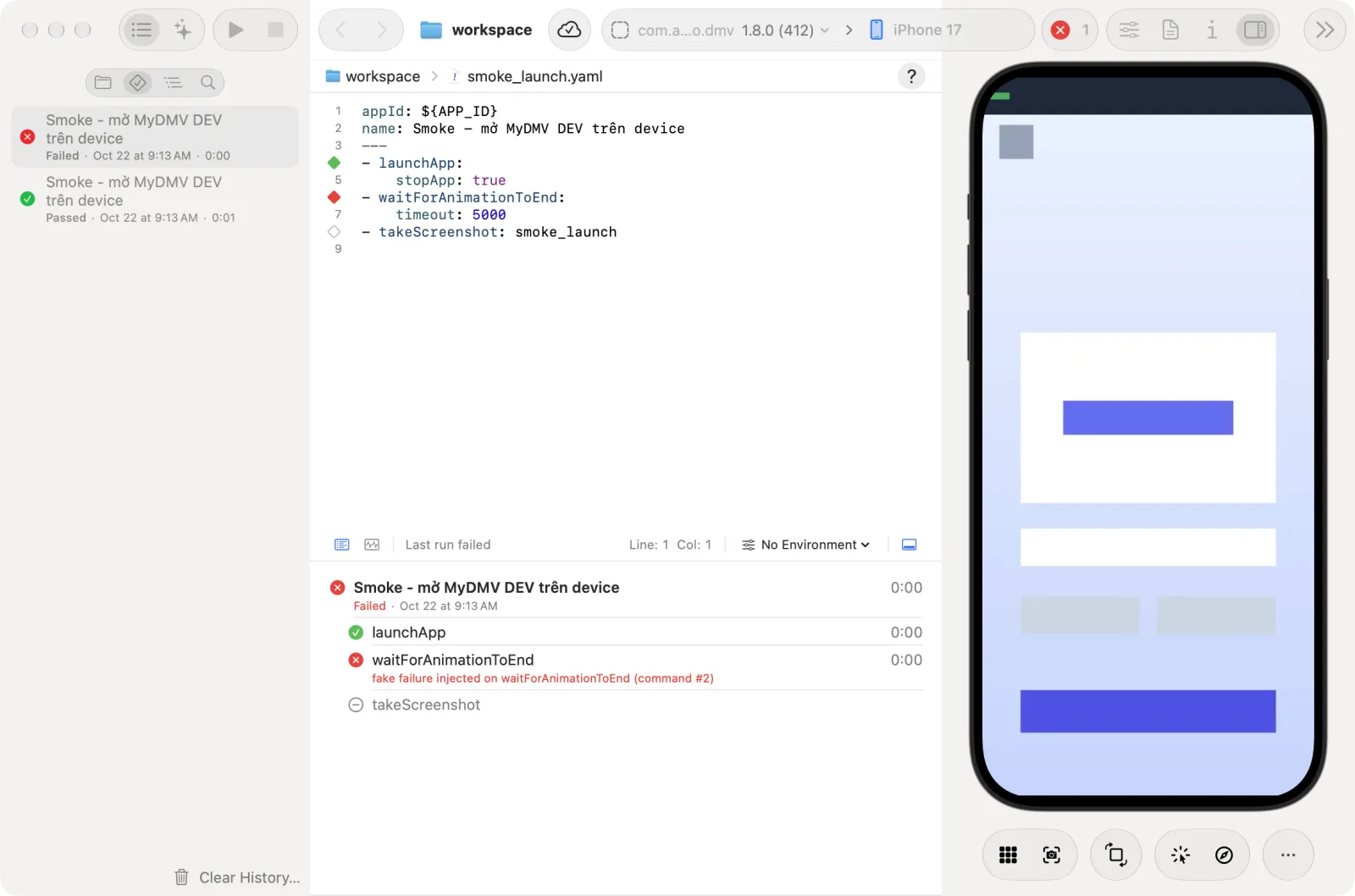
- Point at one command in the menu. Its submenu has three actions:
| Action | Result |
|---|---|
| Insert into Editor | Adds the command at the cursor of the open file. |
| Insert & Run | Adds the command to the open file and runs it on the device. |
| Copy | Copies the YAML to the clipboard. |
Insert into Editor and Insert & Run are disabled when the open tab is not a text file. The menu also has Copy Selector, which copies only the selector.
While Inspect Elements is on, clicks on the mirror pick elements and do not touch the device. Turn it off to tap and swipe again.
Choose a different selector
- Right-click the element.
- Open Change Selector. It lists every way to target the element. A check mark shows the selector in use.
- Pick one. The menu opens again with the previews updated.
Options are grouped as Element (the element itself) and Element Stack (targets the element through its relation to another one, for example childOf: "inside that other element"). Selector types include text, id, point on the screen (percentage or pixels), dimensions and index (the position when several elements look alike).
More commands
- Selector Commands lists commands that take a selector:
assertVisible,assertNotVisible,tapOn,doubleTapOn,longPressOn,scrollUntilVisible,extendedWaitUntilandcopyTextFrom. - All Commands groups the whole command catalog by category: Navigation, Assertions, Text, Timing & Sequences, Screenshots & Recordings, App State, Phone Settings and External Resources. All (Alphabetical) lists them in one sorted list.
Each command in these lists has the same three actions as above.
Commands that cannot run on your device
In the editor's suggestions, commands that the connected platform does not support are struck through. See Supported platforms.
Element Hierarchy
The element hierarchy shows the elements of the current screen as a tree.
- Connect a device.
- Choose Device > Element Hierarchy (
Option+Cmd+E). The navigator shows the tree. Its root row reads "Screen" with the number of elements. - Click a row to pick the element. With Inspect Elements on, hovering a row outlines the element on the device screen, and hovering an element on the device scrolls the tree to its row.
- Click the refresh button at the bottom of the navigator ("Capture the screen again") to read the screen again after it changes.
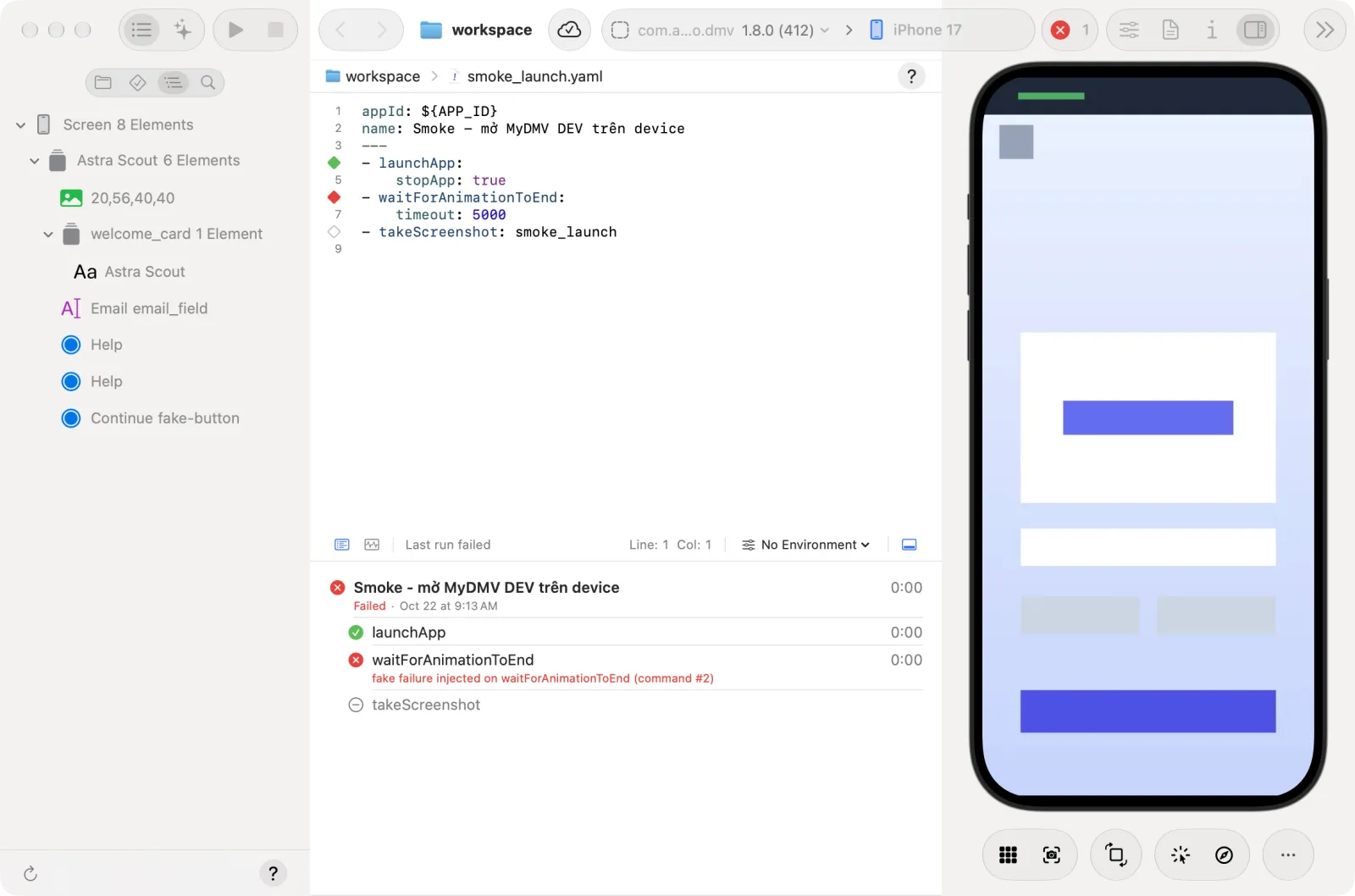
Without a device, the navigator reads "No screen loaded". The right-click command menu is on the device mirror, not on the tree, and it needs Inspect Elements to be on. The "?" button at the bottom of the navigator opens this page.
Slow inspector on an iOS device?
When the iOS device is locked, Astra Scout shows "The iOS device screen is locked" under the mirror. Unlock the iOS device to use the inspector, and set Auto-Lock to Never while testing. See Devices.