
The scout plugin
Drive Astra Scout from Claude Code, Codex CLI, or Gemini CLI through MCP to run, write, and fix flows.
The scout plugin lets an AI CLI (Claude Code, OpenAI Codex CLI or Gemini CLI) drive Astra Scout while it runs on the Mac. From a terminal, testers and developers run flows, write flows from a description, fix failing flows, explore the app as a user, check tracking and diagnose the setup. For the chat panel in the app, see AI assistant.
The plugin sets up MCP (Model Context Protocol) for the CLI. It adds skills, which are ready-made instructions for the AI about one job such as running a flow, and a few commands such as /scout:setup.
The plugin contains only skills, commands and MCP configuration. It has no binary, no session-start hook and no scripts that run on the machine. Astra Scout does all device work.
Quick start
- Install the plugin into the CLI with the button in the app: see Install with buttons.
- Give the CLI the token, a local password, also with a button in the app. See The MCP token.
- Open a new terminal, restart the CLI and run
/scout:setup. It reports whether the setup is right.
This is one of several ways to create a flow. See Create a flow.
Skills
| Skill | Use it to |
|---|---|
run-flow | Run a flow from a file or pasted YAML and see per-command results, video and crashes |
write-flow | Write a new flow from a description, read real text and ids from the screen, validate, save (asks before overwriting) and try it |
fix-flow | Run Astra Scout's auto-fix loop on a failing flow, review the diff and save only if approved |
explore-app | Explore the app as a persona and get a Markdown report with suggested flows |
check-tracking | Run a flow, then check its Amplitude events against the catalog named in the flow header (tracking-specs/<app>.yaml) and its assertEvents steps, and explain failing or N/A rules |
device-setup | Use Setup check to find and fix Xcode, Team ID, Developer Mode, Android SDK and AI CLI problems |
edit-tracking-spec | Edit a tracking catalog: suggest edits from the events a run sent (dry run first), rename an event everywhere, import a taxonomy sheet with a preview |
triage-run | Triage a finished run: read its report, look at device crash reports, search the docs for the error, then suggest fix-flow or report-bug |
report-bug | Report the bugs of a failed run or an exploration to Jira, sending only what is approved in Astra Scout |
test-purchase | Prepare in-app purchase testing: list sandbox testers, change the renewal rate, clear purchase history after approval |
manage-workspace | Manage environments and variables, flow tags, the app context file, and rename or duplicate flow files |
Commands: /scout:setup checks that Astra Scout is running, the MCP URL is right, MCP is enabled and the token is set, and shows install steps for each CLI. /scout:doctor runs the setup check. Codex has no /scout:… commands, so ask it to "run scout setup" or type $ to choose a skill.
MCP tools
The skills above call the tools, so none need to be remembered. This list is for reference. Astra Scout offers 55 tools through MCP. The "Changes something?" column says whether a tool only reads or does something. report_bug and clear_purchase_history always wait for the tester to confirm in Astra Scout. list_environments hides variable values (they may hold passwords).
Devices & apps
| Tool | What it does | Changes something? |
|---|---|---|
list_devices | List the devices Astra Scout sees | Read-only |
connect_device | Connect to a device (boots a simulator or emulator if needed) | Action |
disconnect_device | Disconnect the connected device | Action |
boot_device | Boot a simulator or emulator without connecting | Action |
shutdown_device | Shut down a running simulator or emulator | Action |
get_screen | Read the screen: elements with text and ids, optionally a screenshot | Read-only |
list_apps | List the apps installed on a device | Read-only |
list_builds | List the team's builds of the app under test, with the one in use | Read-only |
list_team_runs | List the runs the team uploaded to the cloud, newest first, with their outcome and files | Read-only |
get_team_run | Read one team run: its files with signed URLs and its report | Read-only |
install_app | Select and install a team build on a device, like Use This Build | Action |
uninstall_app | Uninstall an app and delete its data (test devices only) | Action |
list_device_reports | List crash and log reports stored on an iOS device | Read-only |
read_device_report | Read one of those reports, with secrets and typed text masked | Read-only |
Flows & runs
| Tool | What it does | Changes something? |
|---|---|---|
run_flow | Run a flow from a file or YAML in the background | Action |
get_run | Status of a run: each command, crash summary and video | Read-only |
stop_run | Stop a run or an auto-fix | Action |
run_command | Run one Maestro command right now | Action |
list_flows | List the flow files of a workspace | Read-only |
read_flow | Read a flow file | Read-only |
save_flow | Save a flow file after validating it (never overwrites unless the user agrees) | Action |
validate_flow | Check a flow without running it | Read-only |
autofix_flow | Fix a failing flow in a loop of run, AI fix, run (nothing is written) | Action |
get_autofix | Status of an auto-fix: rounds, diffs and the final YAML | Read-only |
list_runs | List recent finished runs | Read-only |
get_run_report | Full report of a finished run | Read-only |
Workspace
| Tool | What it does | Changes something? |
|---|---|---|
list_environments | List environments with their tags and variables (values are hidden) | Read-only |
save_environment | Create or update an environment | Action |
list_tags | List the tags used by flows and which flows have each | Read-only |
get_app_context | Read the app context file the AI uses | Read-only |
set_app_context | Replace the app context file | Action |
rename_flow | Rename or move a flow file (never replaces a file) | Action |
duplicate_flow | Copy a flow file (never replaces a file) | Action |
get_sync_status | Team Sync state of the workspace: conflicts, files waiting to be pushed, files not synced | Read-only |
sync_workspace | Sync the workspace with the team now and return the state. It never settles a conflict: the person does that in Astra Scout. See Team Sync | Action |
Tracking
| Tool | What it does | Changes something? |
|---|---|---|
check_tracking | Check the events a run sent against a catalog: pass, fail, warn or N/A per rule | Read-only |
compare_tracking_runs | Compare the events of an iOS run and an Android run of the same flow | Read-only |
amplitude_user_lookup | Read the user properties and latest events Amplitude stored for a run's user | Read-only |
list_amplitude_projects | List the Amplitude projects set up in Settings (keys are never shown) | Read-only |
list_tracking_specs | List the tracking catalogs | Read-only |
read_tracking_spec | Read one catalog as YAML and as parsed events and rules | Read-only |
edit_tracking_spec | Edit a catalog and keep its comments (dry run first) | Action |
suggest_tracking_spec | Suggest catalog edits from the events runs sent (writes nothing) | Read-only |
get_unassigned_events | Events of a run that no assertEvents step takes yet | Read-only |
get_tracking_coverage | Catalog events no flow checks, and events sent that the catalog lacks | Read-only |
import_taxonomy | Import a taxonomy sheet (.xlsx, .csv, .tsv) into a catalog, with a preview | Action |
Explore & bugs
| Tool | What it does | Changes something? |
|---|---|---|
explore_app | Explore the app as a persona in the background | Action |
get_explore | Status of an exploration: steps, screens and issues | Read-only |
list_explores | List past and running explorations | Read-only |
get_explore_screenshot | One screen of an exploration as a picture | Read-only |
report_bug | Report bugs from a run or an exploration to Jira | Action, waits for confirmation |
App Store sandbox
| Tool | What it does | Changes something? |
|---|---|---|
list_sandbox_testers | List the App Store Connect sandbox testers | Read-only |
set_sandbox_renewal_rate | Change how fast a tester's subscription renews | Action |
clear_purchase_history | Clear a tester's purchase history on Apple's servers | Action, waits for confirmation |
Setup & docs
| Tool | What it does | Changes something? |
|---|---|---|
doctor | Check Xcode, simulators, Android SDK, signing and AI CLIs | Read-only |
get_ios_signing | Show the Team ID and signing state for iOS devices | Read-only |
search_docs | Search the documentation bundled with the app | Read-only |
Install with buttons (recommended)
The buttons install the plugin into a CLI without typing a command. Each command can be read before it runs.
The app bundles the plugin and copies it to ~/.astra-scout/plugin each time it starts. The buttons install from that copy.
Choose Astra Scout > Settings… (
Cmd+,) and click Intelligence in the sidebar. Under Agents, each CLI has a row with its status. Under the list, a line reads "N of M CLIs have the plugin · version V in the app" (V is the plugin version bundled with the app). If a CLI was installed or signed in after the app started, click Rescan.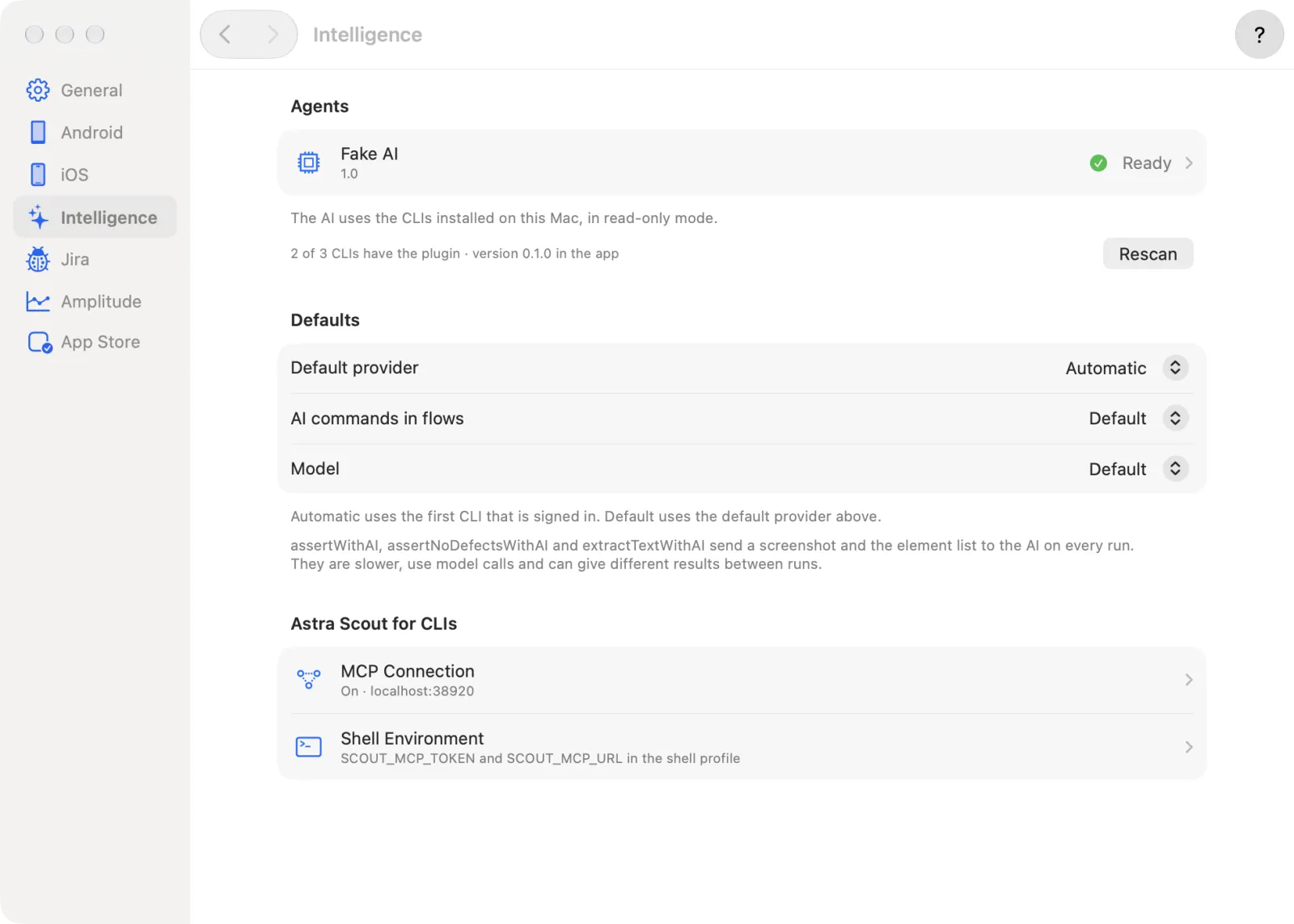
Click the row of a CLI, for example Claude Code. In the Plugin section, the row Astra Scout plugin shows one status: No CLI, CLI not signed in, Not installed, Update needed or Installed. A hint under it says what is missing, for example "Install Claude Code, then press Check Again."
Click Install (or Update) on that row. A section named Install for Claude Code (or Update for Claude Code) appears below with the exact command. Nothing has run yet.
Read the command, then click Run. A log shows the output, and the status reads Working…, then Finished or "Exit status N". Stop ends it. Copy puts the command on the clipboard to run it in another terminal instead. When the command ends, the plugin status is checked again.
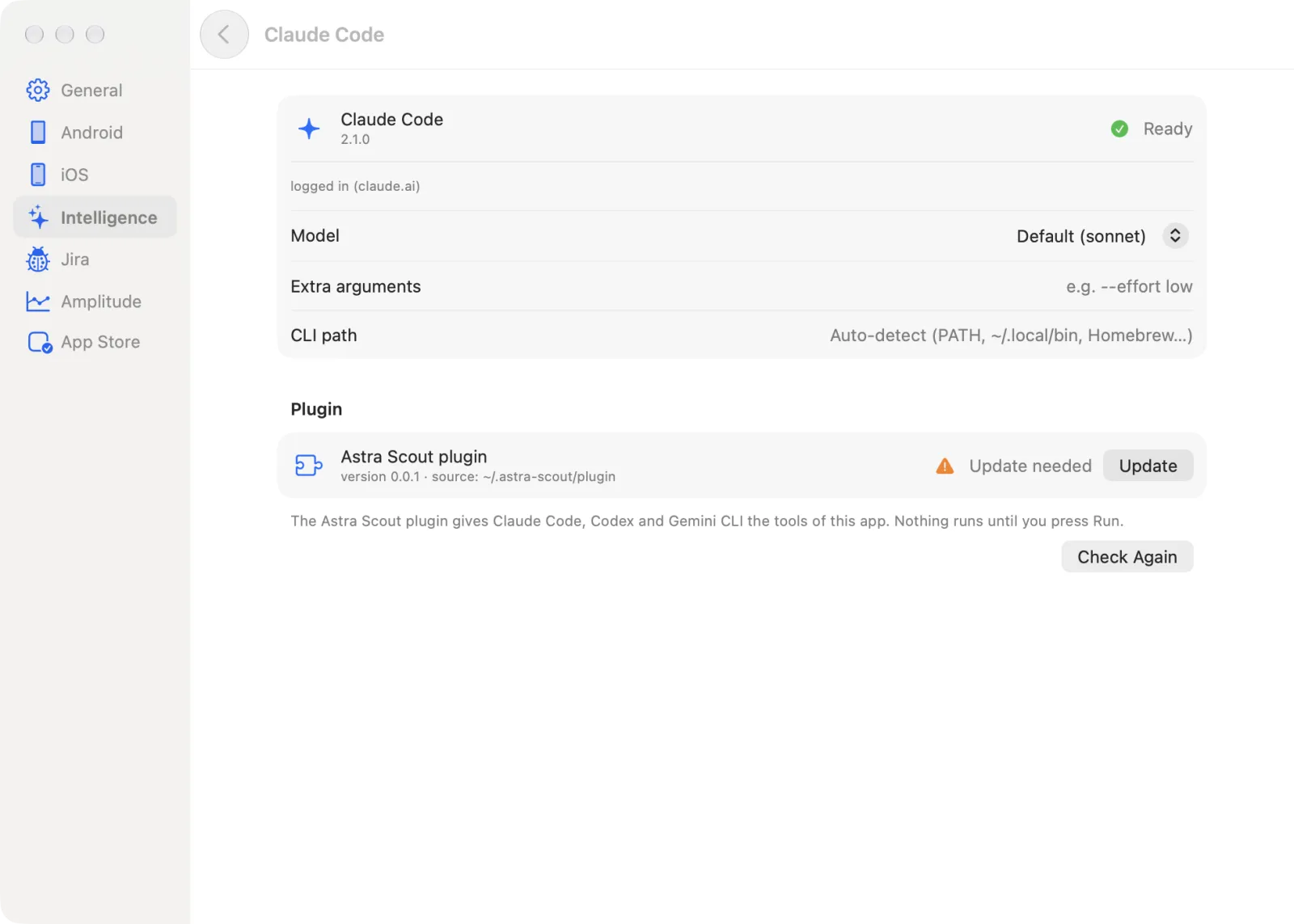
Click Check Again in the Plugin section if the status does not change. The row should read Installed.
Go back to Intelligence and open Shell Environment (under Astra Scout for CLIs). On the
SCOUT_MCP_TOKENrow, click Add to Shell Profile. The button is disabled while MCP is not available.The section Add SCOUT_MCP_TOKEN to the shell shows the command and the line it will add, for example "Adds this line to ~/.zshrc, replacing any earlier line for the same variable:". The file depends on the login shell:
~/.zshrcfor zsh,~/.bash_profilefor bash,~/.config/fish/conf.d/astra-scout-token.fishfor fish. The line reads the token from Astra Scout'smcp-tokenfile, so the token itself is not written, a new token needs no edit, and running it twice does not add a second line. Click Run.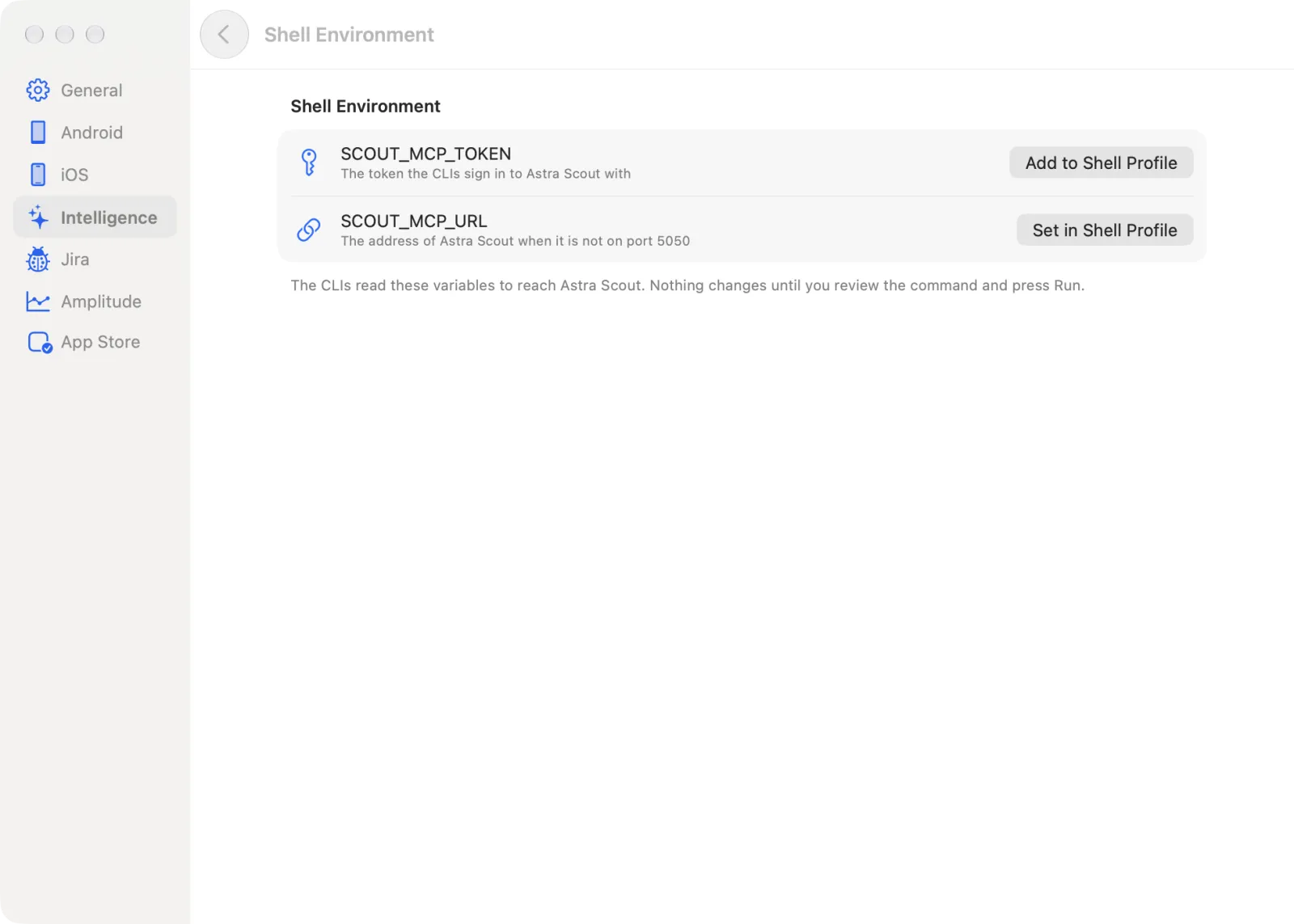
If Astra Scout is not on port 5050, a second row
SCOUT_MCP_URLappears with Set in Shell Profile. Do the same for it.Open a new terminal, restart the CLI and run
/scout:setup.
The app has no embedded terminal. Every command can be copied and run in any terminal.
Install by hand
Use this way only when the buttons cannot be used. A marketplace in the commands is a local source of plugins that the CLI reads. If the app has started once, the plugin is in ~/.astra-scout/plugin. Use that path. Otherwise use the plugin/ folder of the repository. These are the commands the buttons run.
| CLI | Install | Update |
|---|---|---|
| Claude Code | claude plugin marketplace add ~/.astra-scout/plugin && claude plugin install scout@astra-scout | claude plugin marketplace add ~/.astra-scout/plugin && claude plugin marketplace update astra-scout && claude plugin update scout@astra-scout |
| Codex | codex plugin marketplace remove astra-scout >/dev/null 2>&1; codex plugin marketplace add ~/.astra-scout/plugin && codex plugin add scout@astra-scout | Same as install |
| Gemini CLI | gemini extensions install ~/.astra-scout/plugin | gemini extensions update scout |
For Codex, the first part removes an older astra-scout marketplace so that Codex accepts the new source. It is harmless when there is none.
Check the connection: in Claude Code, /mcp should show plugin:scout:astra-scout connected. In Codex, codex mcp list. In Gemini CLI, gemini mcp list.
Use only one way to connect. An astra-scout MCP server added by hand must be removed so tools are not listed twice.
The MCP token
The token is a local password the plugin uses to sign in to Astra Scout, so only programs the user allows can drive the app. Settings shows it.
Choose Astra Scout > Settings…, click Intelligence, then MCP Connection. Its row reads "On · localhost:5050" (or "Off").
Check that Enable connection from CLIs (MCP) is on. It is on unless it was turned off.
Next to URL, click Copy URL to copy it. The default is
http://localhost:5050/mcp. If Astra Scout is on another port, the warning "Not on the default port 5050" shows (see below).Token is masked. Click the eye (Show token or Hide token) to reveal it, or click Copy token. The token is created on first run and stored in the file
mcp-tokenin the data folder (~/Library/Application Support/Astra Scout/data/mcp-tokenfor the native app). Point at the token to see its path.To give the token to the CLIs, use Shell Environment (see above). Or do it by hand: put it in an environment variable, because the plugin only reads it from there.
bashecho "export SCOUT_MCP_TOKEN='<token>'" >> ~/.zshrc exec zshThe block 1. Set the token on the same page shows the
exportline, with a copy button.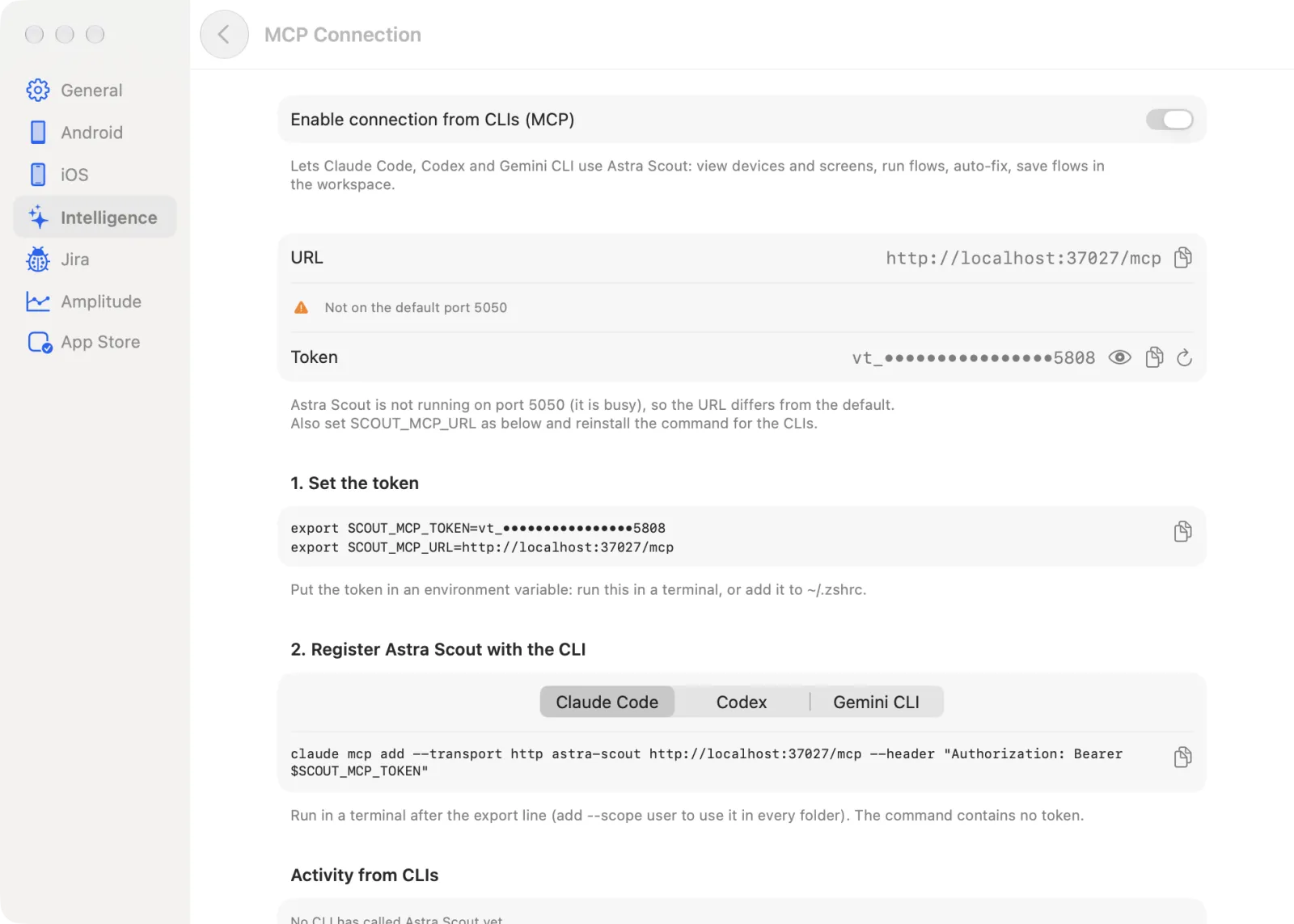
To replace the token, click the circular arrow (Create a new token). A dialog asks Regenerate the MCP token?. Click Create New Token. Every CLI using the old token is rejected (401) at once. If the variable was set with a copied token, set it again. If Add to Shell Profile was used, restart the CLI.
The block 2. Register Astra Scout with the CLI shows a command for Claude Code, Codex or Gemini CLI (pick it in the picker). It replaces the plugin and does not add to it. Use one or the other.
If Astra Scout is not on port 5050
The app falls back to another port when 5050 is busy and writes the real URL to ~/.astra-scout/mcp.json. The simplest fix is to free port 5050 and reopen the app. Otherwise point the CLI at the new URL:
| CLI | How |
|---|---|
| Claude Code, Gemini CLI | export SCOUT_MCP_URL='http://localhost:<PORT>/mcp', then restart the CLI. Or use Set in Shell Profile on the SCOUT_MCP_URL row. |
| Codex | codex mcp add astra-scout --url http://localhost:<PORT>/mcp --bearer-token-env-var SCOUT_MCP_TOKEN |
Any other CLI that supports MCP over streamable HTTP can use a server named astra-scout at that URL with the header Authorization: Bearer ${SCOUT_MCP_TOKEN}.
What you can ask
- "List the devices, then run
flows/samples/settings_smoke.yamlon an iOS device simulator" - "Write a flow: open Settings, go to General, check that About is visible. Save it in samples/"
- "
mydmv/smoke_launch.yamlfails. Auto-fix it for up to 3 rounds and show me the diff before saving" - "Explore the onboarding as a newcomer, 25 steps, and write a report"
- "Run
mydmv/onboarding_paywall_skip.yaml, then check tracking" (the flow header namesmydmv/tracking-specs/mydmv.yaml) - "The iOS device will not connect and says it requires a development team. Please check."
Safety
run_flow,run_command,autofix_flowandexplore_apprun right away on test devices, without a confirmation. Two tools need approval,report_bugandclear_purchase_history.- When a CLI calls one of those two, Astra Scout shows a native dialog Allow this request from the CLI? and brings the app to the front. The dialog lists the request, including the tool and which CLI sent it. Click Allow to go on or Cancel to decline. Esc and Return also choose Cancel. If nobody answers within 10 minutes, the request counts as declined. Requests come one at a time, oldest first. No tool lets a CLI confirm for itself.
- There is no tool to delete files or run shell commands.
save_flowdoes not overwrite without agreement, and all paths stay inside the workspace. One run per device at a time. - The skills pre-allow the read-only tools in Claude Code. Tools that write or act on a device (
save_flow,run_flow,run_command,autofix_flow, connecting a device) follow the CLI's normal permission prompts. - Every MCP call is logged. While MCP is on, Settings > Intelligence > MCP Connection ends with Activity from CLIs: the latest 20 calls, each with the time, the CLI, the tool, a short summary and a result: OK, Awaiting confirmation (the CLI is waiting for an answer to the dialog above), Too many requests or Error. It reads "No CLI has called Astra Scout yet." until a CLI calls.
- The token is a local secret. Do not paste it into a chat or commit it.
- Reporting a bug to Jira is outbound, so
report_bugalways needs confirmation in the app. See Jira.
Related
- AI assistant for the in-app chat
- Settings for every control of the Intelligence pane
- Explore app and Tracking