
Team Sync
Share a workspace with the team: flows, subflows and tracking specs sync through the cloud, with conflicts, History and Clone Team Workspace. Runs go to the team too.
Team Sync keeps the same workspace on every teammate's Mac. A flow saved on one Mac appears on the others, and a file edited on two Macs at once is settled in Astra Scout, not overwritten. The runs of a linked workspace go to the team as well: see Team runs.
Before you start
- You are signed in to Astra Scout with your Google account. See Builds.
- The workspace is linked to a project of the team. See Link a workspace to a project.
- The toolbar has the Sync item. If you do not see it, ask the team manager for the team's build of Astra Scout (the one with Team Sync).
What syncs
| Syncs | Does not sync |
|---|---|
Flows (.yaml) and subflows/ | artifacts/ (run results; runs go up on their own, see Team runs) |
tracking-specs/ | Environments |
Scripts (.js) | The tracking catalog in a parent folder of the workspace |
Media for addMedia of at most 5 MB | Files over 5 MB |
.scout/project.json and .scout/context.md |
Files that cannot sync are listed under Files not synced in the panel that opens from the Sync button on the toolbar and in Project Settings, with the reason, for example Over 5 MB.
Link a workspace to a project
A workspace belongs to the project whose app it tests. Astra Scout compares the app id in .scout/project.json with the iOS bundle id and Android package of the team's projects.
- An owner, the person who manages the team on the builds web page, adds the project with the bundle id or package of the app. See Share builds with testers.
- Open the workspace. The first sync links it and uploads its files to the team.
The toolbar item reads Not linked until the app has a project. If you see this, ask the owner to add the workspace's app to a project on the web page. Project Settings says the same. If the app of the workspace changes to one that is not in the linked project, sync stops.
The toolbar item
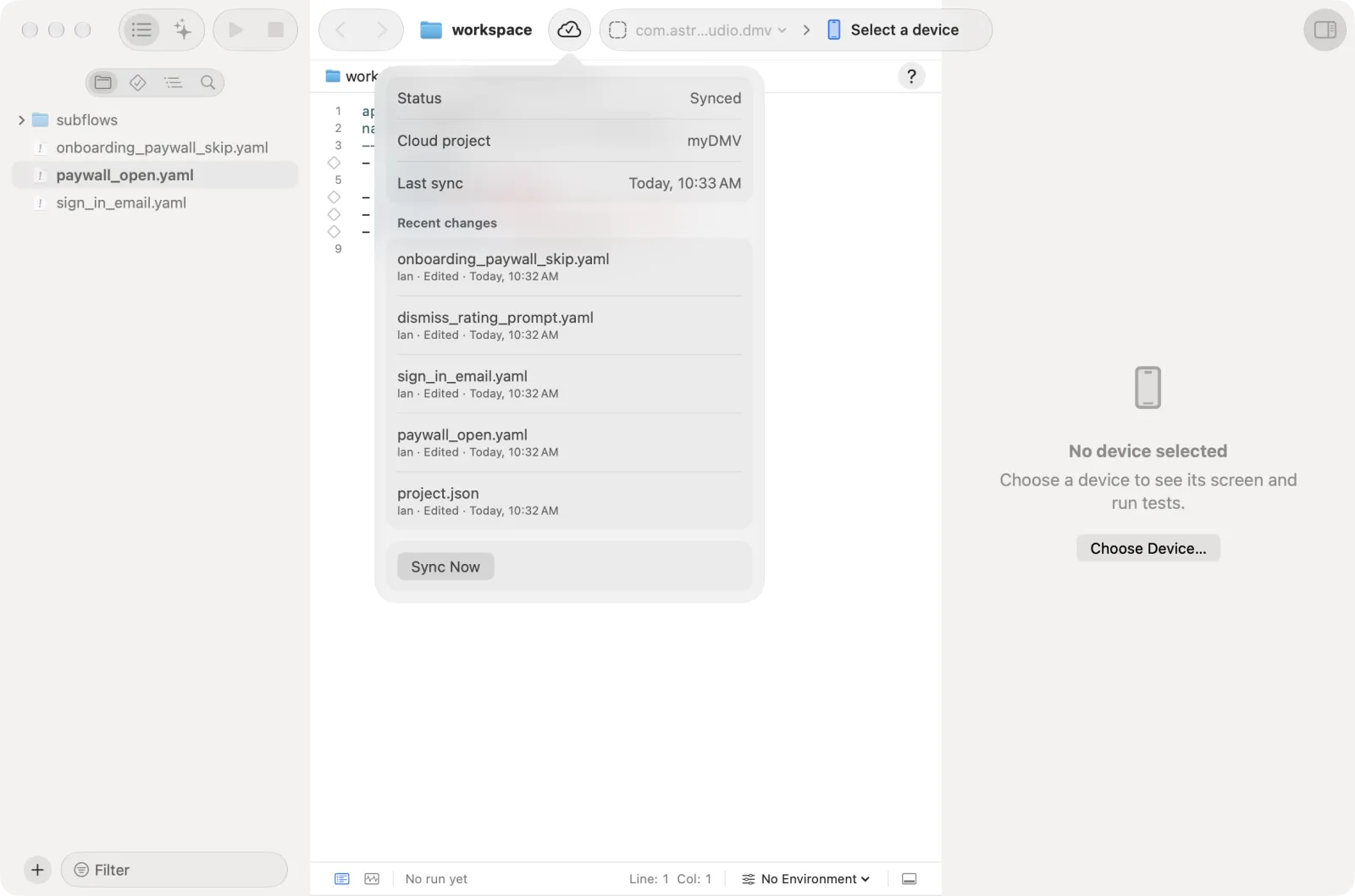
The cloud item after the project item shows the state. Click it for the Sync panel with Status, Cloud project, Last sync, Recent changes and Sync Now.
| State | Meaning |
|---|---|
| Cloud with a check mark | Synced |
| Syncing | A sync is running |
| Offline | The team cloud cannot be reached. See Offline |
| N conflicts | Files changed on both sides. See Conflicts |
| Deletions held | Sync paused a mass deletion. See Held deletions |
| Not linked | The app of the workspace has no project yet |
| Sync off | Sync is switched off for this workspace |
Sync runs by itself after you save a file, when Astra Scout becomes active, when a workspace opens and again by itself after a while. Sync Now runs it at once. Recent changes lists the five files the team changed last, newest first. Each file is one line with its latest change: who, what and when. While there are conflicts or held deletions, the Sync panel shows those instead.
In the Files navigator a file with a conflict shows a warning mark, and a file waiting to be uploaded shows a dot.
Switch sync off or on
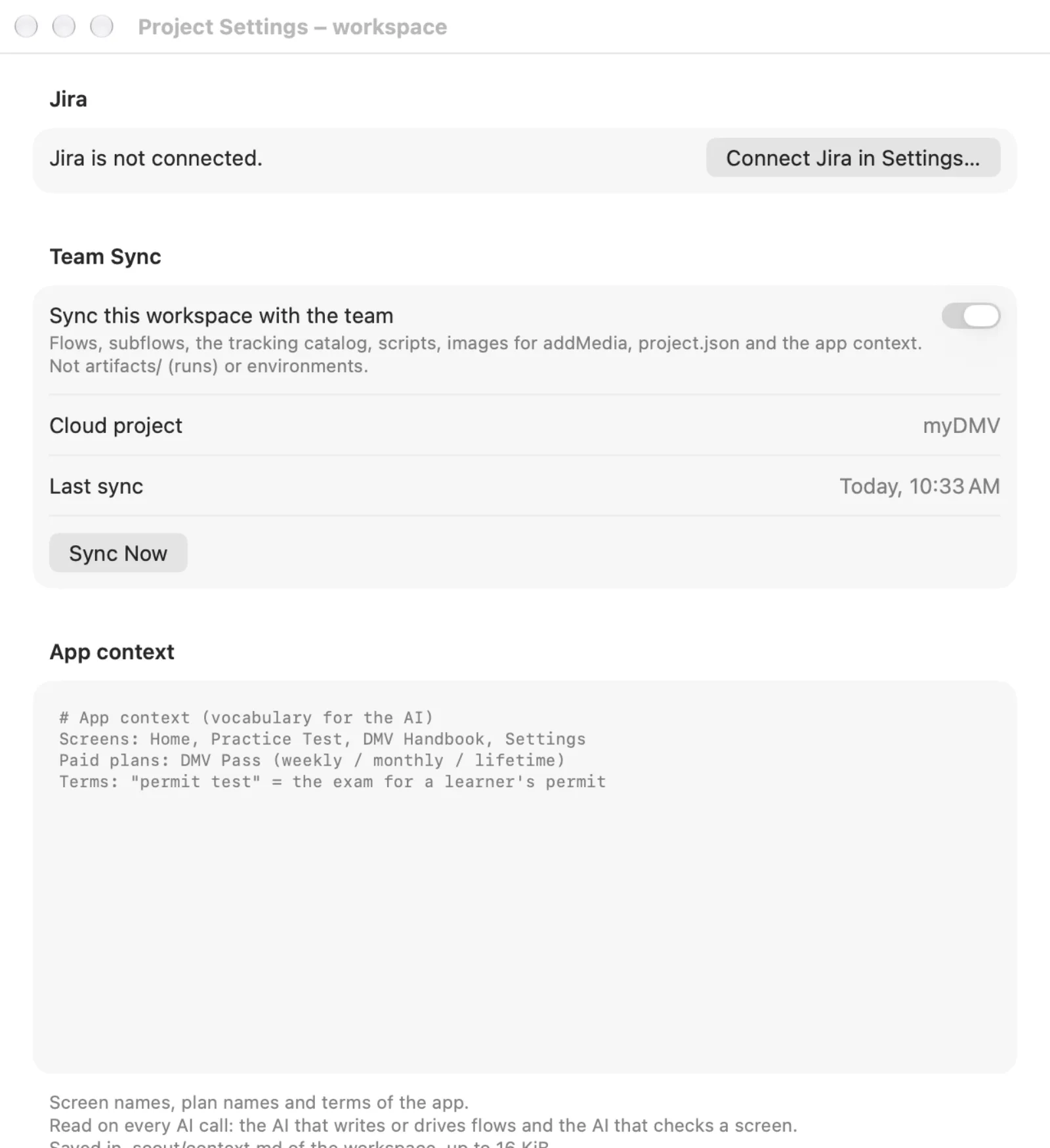
- Choose File > Project Settings… (
Option+Cmd+,). - In Team Sync, switch Sync this workspace with the team off or on.
The section also shows the Cloud project, the Last sync, Sync Now and the Files not synced.
Conflicts
A conflict is a file that changed on this Mac and in the cloud since the last sync. The other files keep syncing. Click Resolve Conflicts… in the Sync panel, or right-click the file in the Files navigator and choose Resolve Conflict….
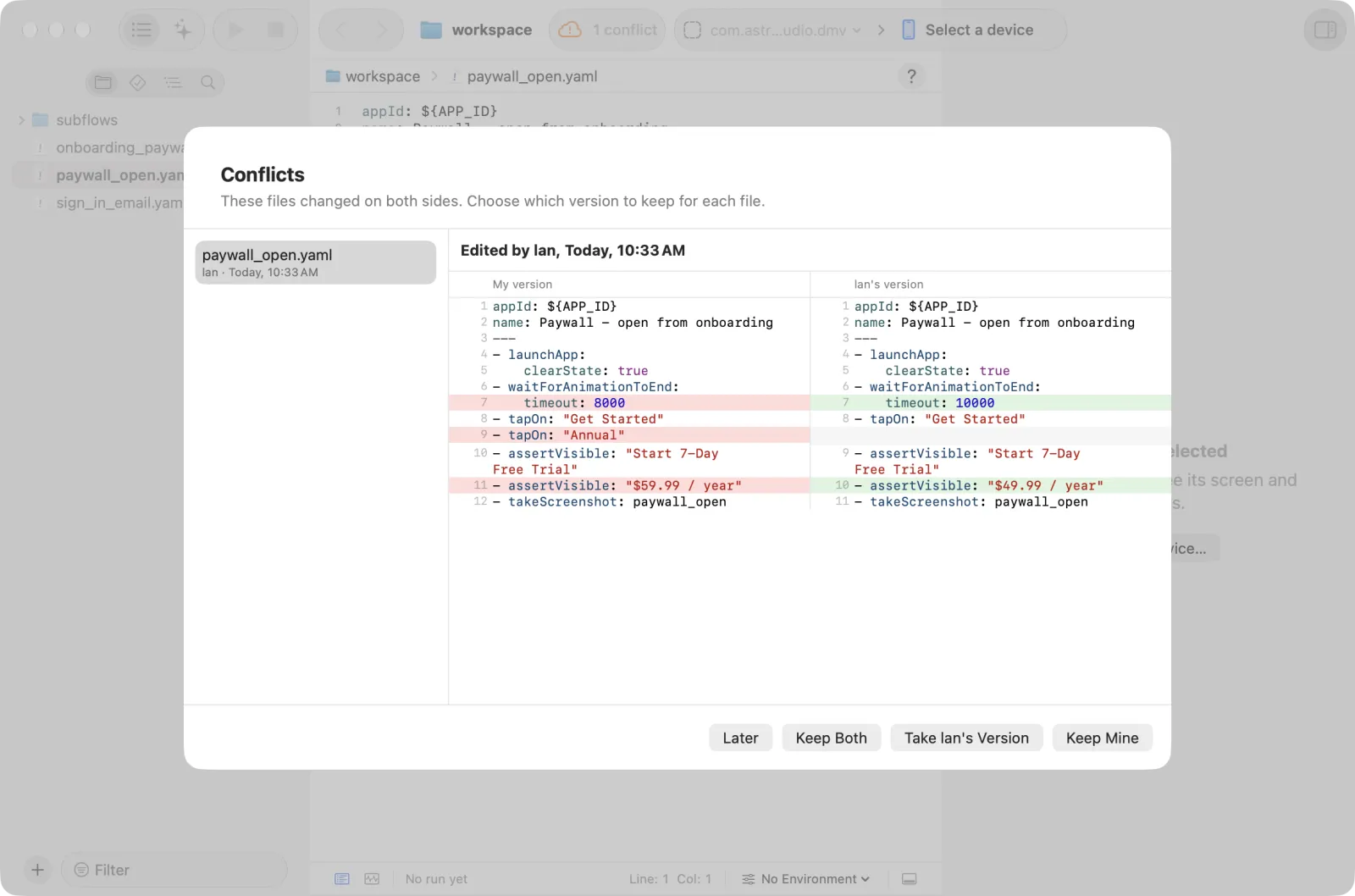
The sheet lists the files on the left. On the right My version is beside the teammate's version, with "Edited by" and the name. Every save to the team creates a new revision, a numbered version of the file. Choose one of three buttons for each file:
| Button | Result |
|---|---|
| Keep Mine | Your text is saved to the team as the new revision |
| Take Their Version (with the teammate's name, for example Take Lan's Version) | The file on this Mac becomes the teammate's text |
| Keep Both | Your text stays in the file, and the teammate's text is saved as a new file named name (author).yaml. A workspace run runs both flows. |
Keep Both is not offered for every file. When one side deleted the file and the other edited it, the sheet says who deleted it and offers Delete and Keep File. Later closes the sheet and leaves the conflict.
If the cloud receives another revision while the sheet is open, Astra Scout asks you to look at the file again before it applies your choice.
AI assistants that write through the scout plugin leave conflicts to you: no tool settles one, and save_flow and edit_tracking_spec warn when the file is in a conflict.
History and Restore
Every save that reaches the cloud is a revision.
- Right-click a file in the Files navigator and choose Show History….
- Select a revision. The sheet shows how it differs from the file now, with the author and the time.
- Open This Revision opens a read-only copy in TextEdit (other kinds of file are shown in Finder). Restore This Revision asks "Restore revision?"; click Restore.
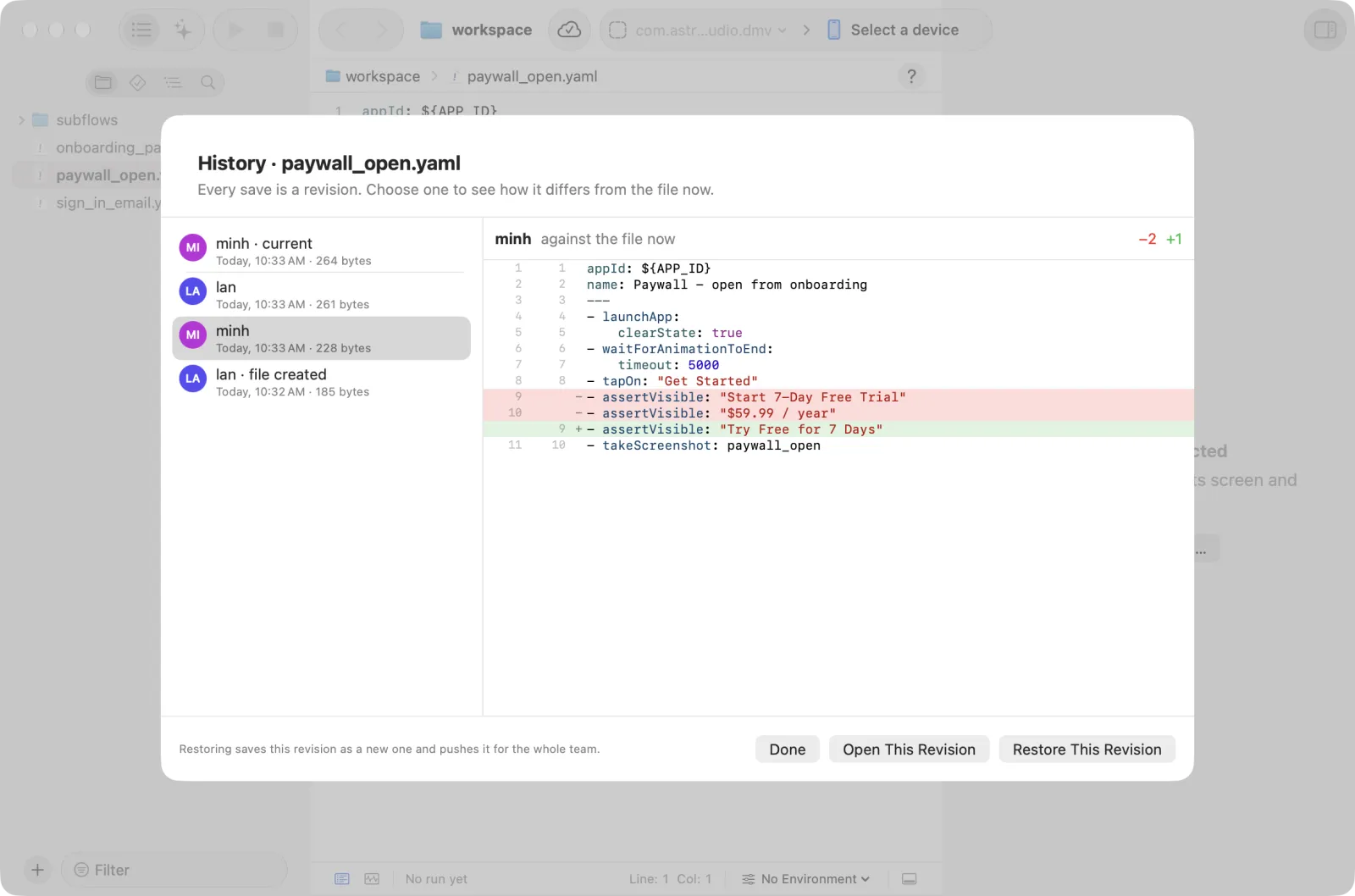
Restoring writes the revision to the file on this Mac and saves it to the team as a new revision for the whole team. The earlier revisions stay in History. When the file no longer exists on this Mac, the revision is compared with an empty file.
Deleted files
When a teammate deletes a file, Astra Scout moves your copy to the Trash on the next sync. You can put it back from the Trash, or restore it from History.
Held deletions
When a sync would delete more than 5 files and more than half of the workspace's files in the cloud, as when a folder was emptied or replaced, Astra Scout holds the deletions. The state reads Deletions held, and the Sync panel lists the held files.
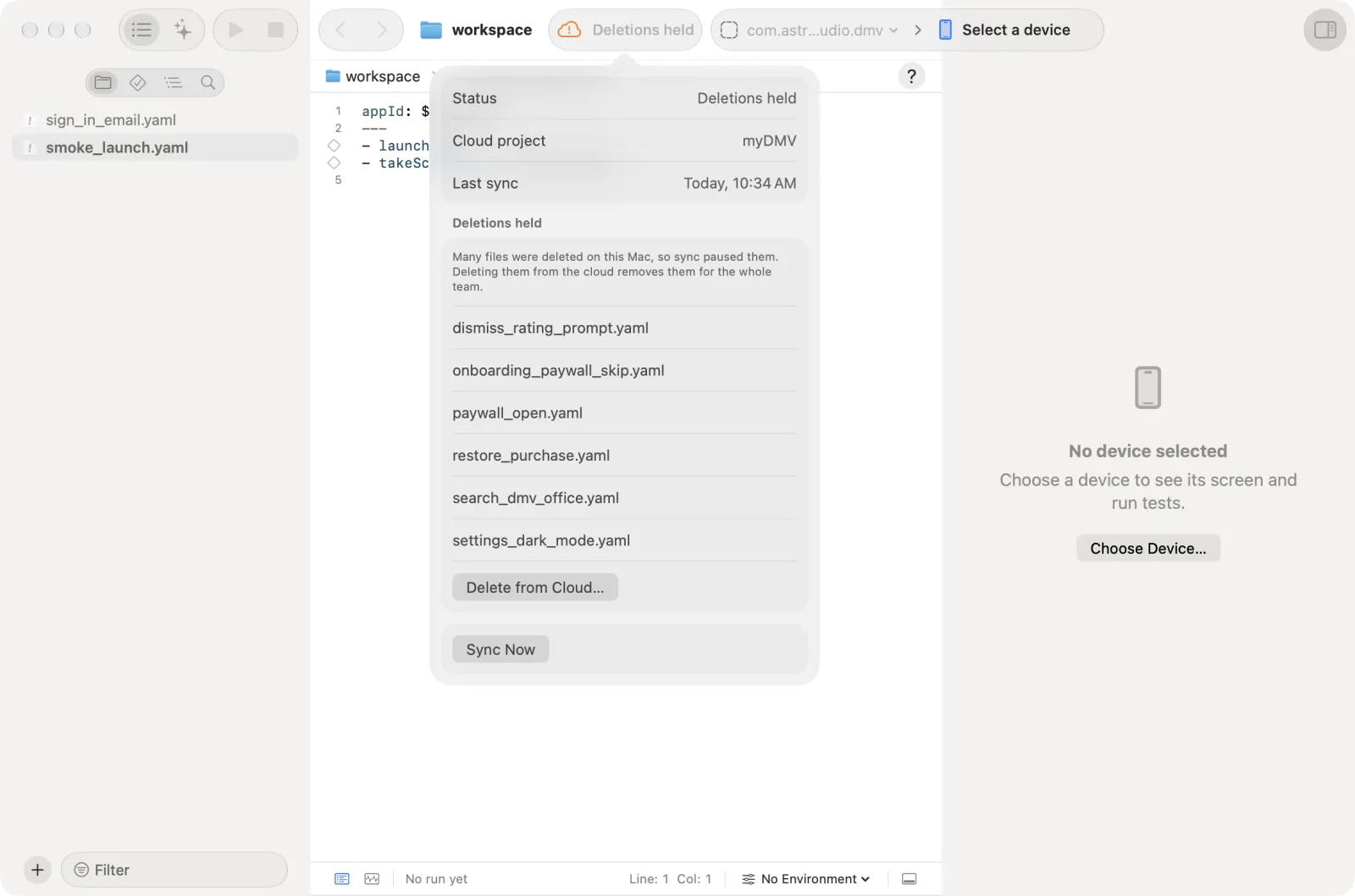
- Click Delete from Cloud… in the Sync panel.
- Read "Delete these files from the cloud?" and confirm. The team's copies are deleted, and teammates lose the files on their next sync.
If the files were deleted by mistake, put them back from the Trash instead.
Clone Team Workspace
A new teammate downloads the team's workspace into an empty folder.
- On the Welcome to Astra Scout window, click Clone Team Workspace….
- Select the Cloud project.
- Under Save in, click Choose Folder… and choose an empty folder.
- Click Clone.
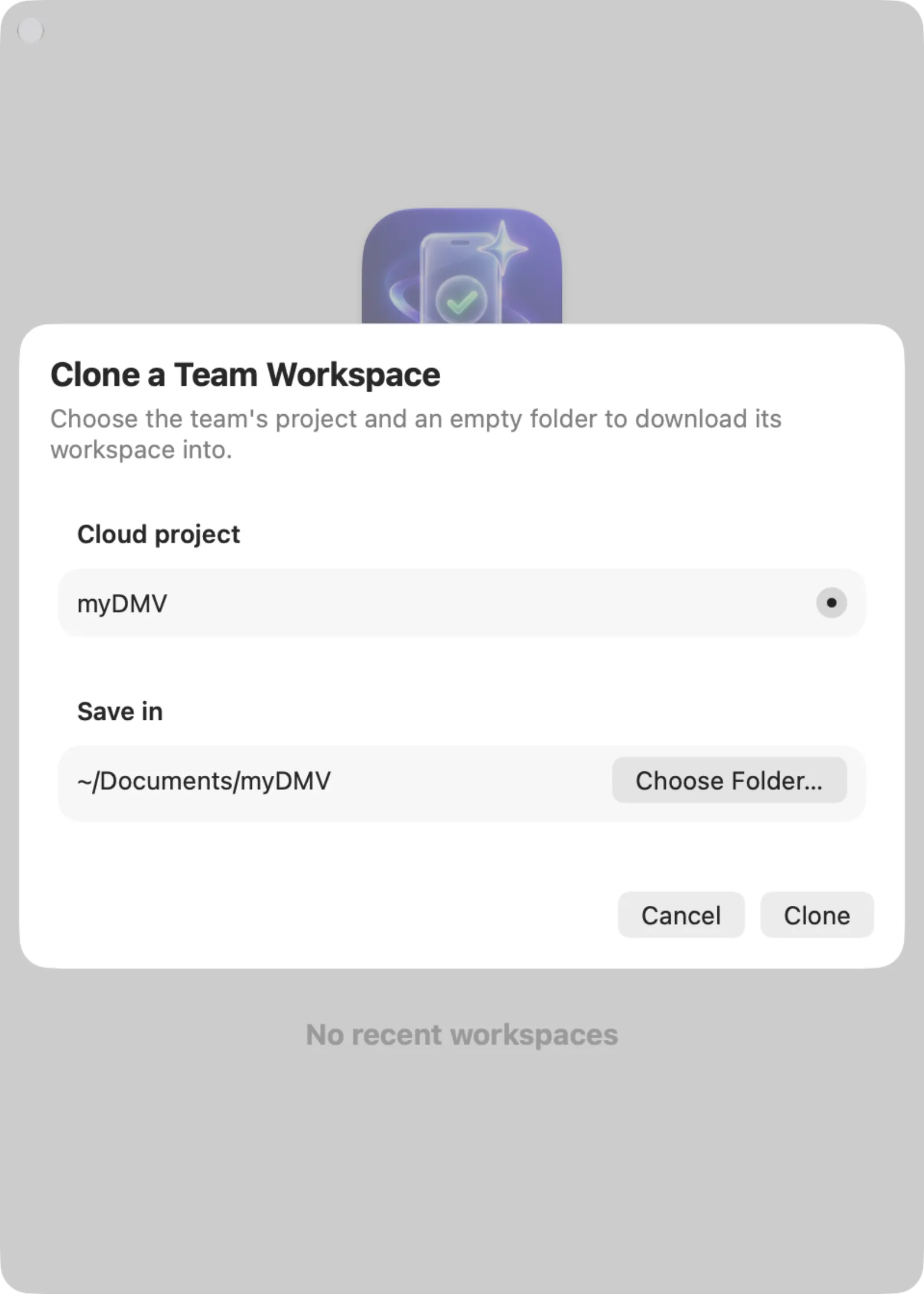
The workspace opens when the download ends. The folder must be empty.
Team runs
Every run of a flow in a linked workspace goes to the team. A teammate sees what failed on your iOS device, with the report, the screenshots and the video, without asking for the artifacts/ folder. The AI assistant reads the same runs with list_team_runs and get_team_run: see Plugin.
What goes up
| Run | Files |
|---|---|
| Passed | The report: flow, result, steps, device, build, who ran it and when |
| Failed, blocked, unsure or incomplete | The report, the flow file, the crash log, the tracking log, the images of takeScreenshot steps and the whole video. A recording over 16 MB is re-encoded first (at most 1280 px tall) when ffmpeg is installed on the Mac |
Values from an environment are replaced in the flow file before it goes up. The video is the screen as it was: a value typed into a field that shows it, such as a password or a card number, is in the video. Use a test account, and never type a real password or card number while a flow runs in a linked workspace. Only members of the team see it.
A run with more than 25 MB of files besides the video, or a video over 200 MB, stays on this Mac. Its cloud mark says so.
The Runs navigator
In a linked workspace the Test Runs navigator has two scopes above the list.
- Mine: the runs of this Mac, as in Read the results. Each run has a cloud mark at the right: a spinner while it goes up, a cloud with a check mark once the team has it, and a warning when the upload failed. Click the check mark to open the run on the web page, or the warning to try again.
- Team: the runs of every member, newest first. Type in Filter by flow, or use the filter button for the result, the device kind and the person.
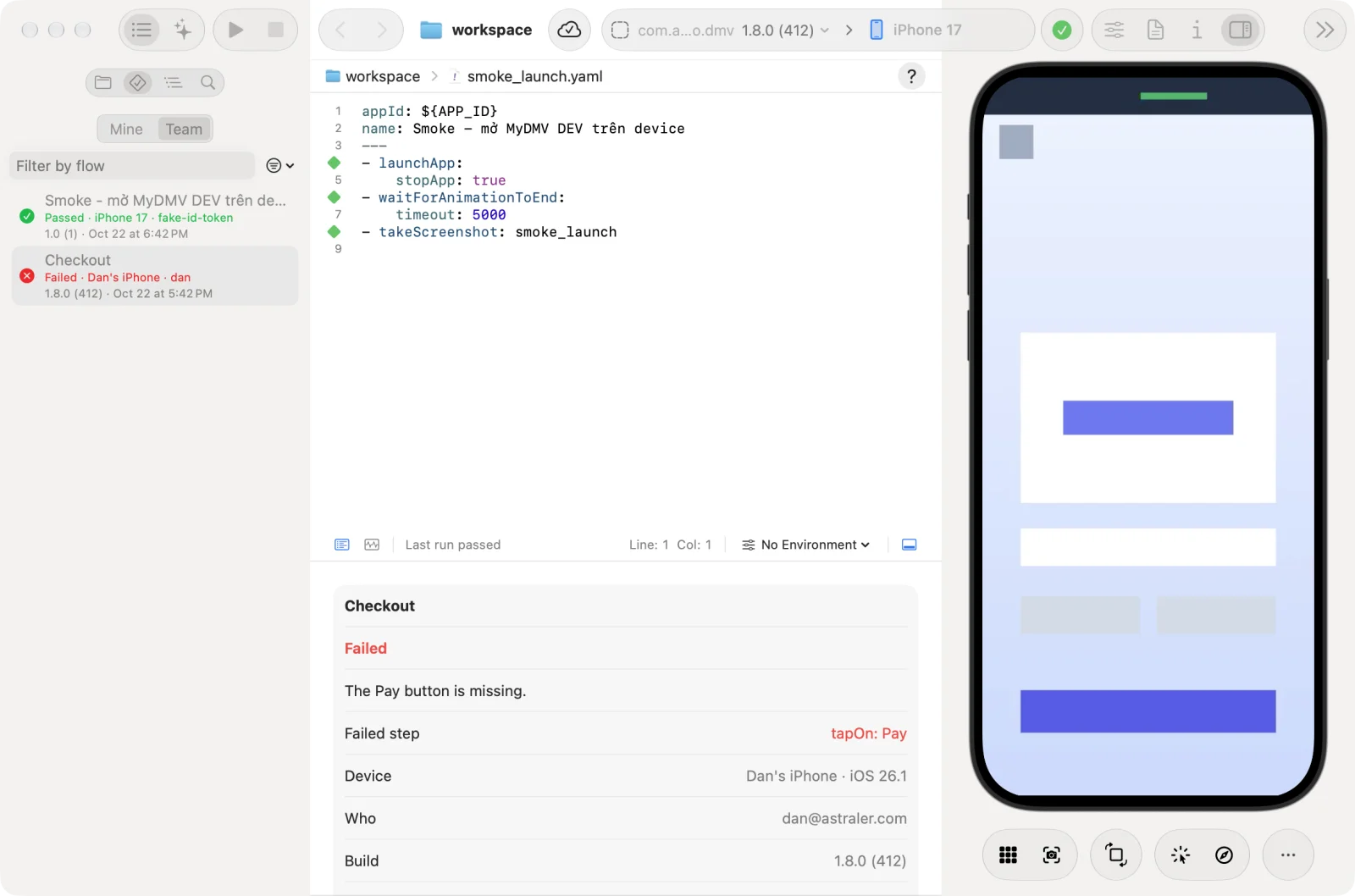
Click a team run. The pane under the editor shows its result and the reason, Failed step, Device, Who, Build, one row per step, and Files: the report, the flow, the crash and tracking logs, and the screenshots. Open Video downloads the video of a failed run and opens it in the default player. The download is kept on this Mac.
Delete… removes the run, its files and its video for the whole team. A tester deletes their own runs. Owners and editors delete any run.
Switch upload off or on
- Choose File > Project Settings… (
Option+Cmd+,). - In Team Runs, switch Upload runs to the team off or on.
Uploads run in the background after each run. Offline, the runs wait on this Mac and go up when the connection is back. A run that the team refuses, for example after you lose access to the project, is dropped and its cloud mark shows the warning.
How long the team keeps runs
The team keeps the newest 300 runs of a project, and no run older than 60 days. A run that a Jira issue points to stays: when you report a bug to Jira from a run, the issue links to the team run and the run is tagged with the issue key.
Offline
Without a connection the item reads Offline. Saves are kept on this Mac, and the files wait to be uploaded. They are uploaded on the next sync after the connection is back. A file that a teammate changed in the meantime and you changed too becomes a conflict.
Limits
- Renaming a flow does not update the
runFlowpaths of other flows that call it. Search the workspace and fix them. - The values under
env:in a flow are in the file, so every teammate sees them. Keep passwords in environments, which do not sync. - A file over 5 MB does not sync.
Troubleshooting
| Symptom | Fix |
|---|---|
| The toolbar has no Sync item | Sign in to Astra Scout. If it is still missing, ask the team manager for the team's build of Astra Scout (the one with Team Sync). |
| The Test Runs navigator has no Mine / Team scopes | The workspace is not linked. See Link a workspace to a project. |
| A run shows the warning cloud mark | Click it to retry. Hover it for the reason: too large, or the project refused it. While the team cloud cannot be reached, the run keeps the spinner and goes up later. |
| Not linked | Ask an owner to add the app of the workspace to a project on the builds web page. |
| Sync off | Switch on Sync this workspace with the team in Project Settings. |
| A file stays under Files not synced | Read the reason. Reduce a file over 5 MB, or rename a file that differs from another only in upper and lower case. |
| "The cloud has a newer revision" when you choose in the conflict sheet | Look at the file again and choose again. |