
AI assistant
Use an AI CLI already on your Mac to write, explain, and fix flows inside Astra Scout.
The AI assistant is a chat panel in Astra Scout. A tester describes what to test, and the AI writes a flow as YAML. It also explains and fixes existing flows, so testers do not write YAML by hand.
Astra Scout does not bundle an AI. It uses an AI CLI: the command-line program of an AI vendor (Claude Code, OpenAI Codex or Gemini CLI) installed and signed in on the Mac. The AI is read-only and never edits files. Astra Scout inserts flows into files and runs them.
This is one of several ways to create a flow. See Create a flow.
Set up an AI CLI
Install one of these:
| CLI | Install | Sign in |
|---|---|---|
| Claude Code | Follow the Claude Code docs, for example npm i -g @anthropic-ai/claude-code | Run claude, type /login |
| OpenAI Codex | npm i -g @openai/codex or Homebrew | codex login |
| Gemini CLI | npm i -g @google/gemini-cli or brew install gemini-cli | Run gemini and sign in |
- Install one CLI from the table and sign in, as the last column says.
- In Astra Scout, choose Astra Scout > Settings… (
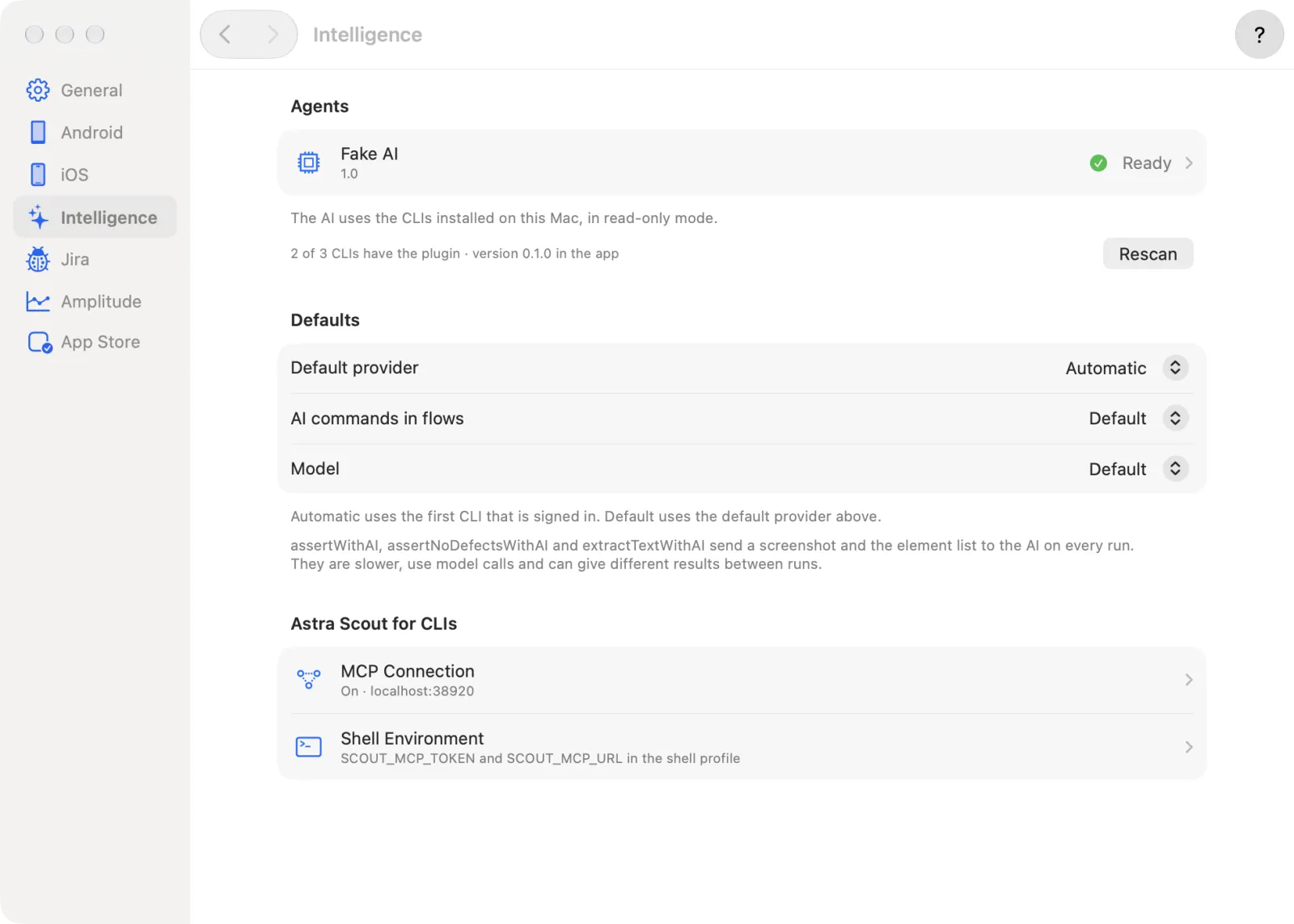
Cmd+,), then click Intelligence in the sidebar. - Look at the Agents section. Each CLI has a row with its status: Ready, Not signed in or Not installed. A CLI that is not installed shows its install hint under its name.
- Click Rescan under the list. The app looks again for the programs installed on the Mac (the shell's PATH), so reopening it is not needed. The CLI now shows Ready.
To change a default:
- Under Defaults, Default provider picks the CLI the chat uses when none is chosen. Automatic is the first CLI that is signed in.
- AI commands in flows and Model set the provider and model for the AI commands in flows (see AI commands in flows). Default there means the default provider above.
- To change one CLI, click its row under Agents. Its page has Model, Extra arguments (for example
--effort lowfor Claude Code) and CLI path (empty means auto-detect). Changes apply at once.
Install the Astra Scout plugin in a CLI
The plugin drives Astra Scout from a terminal with an AI CLI (see Terminal AI). It sets up MCP, the channel an AI CLI uses to call Astra Scout's features. The chat in the app does not need the plugin.
- In Settings > Intelligence, click the CLI row.
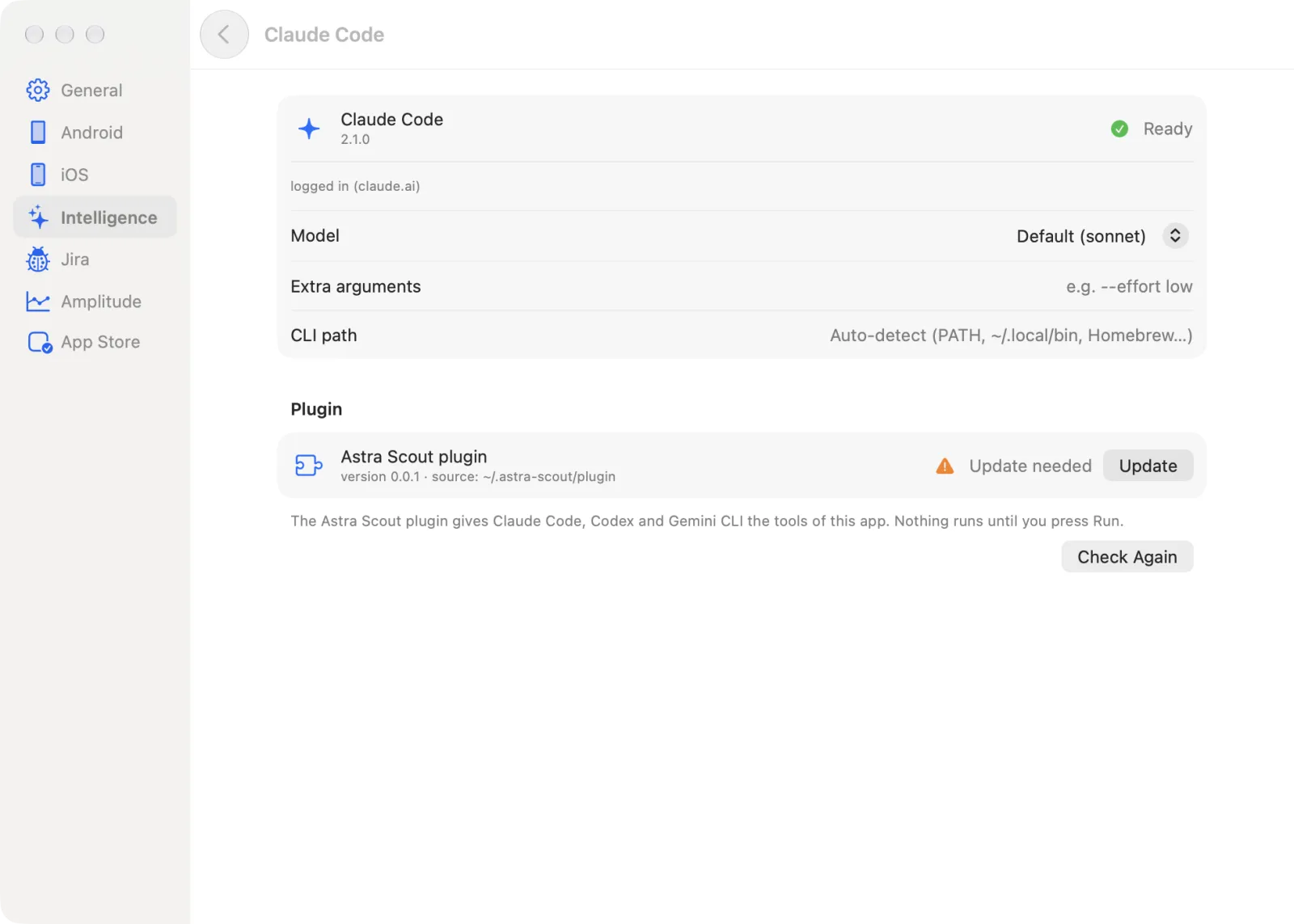
- In the Plugin section, the Astra Scout plugin row shows Installed, Not installed, Update needed, CLI not signed in or No CLI.
- Click Install (or Update). A command appears. Nothing runs until the command is read and Run is clicked.
- Click Check Again when it finishes. The row should read Installed. The line under the Agents list tells how many CLIs have the plugin.
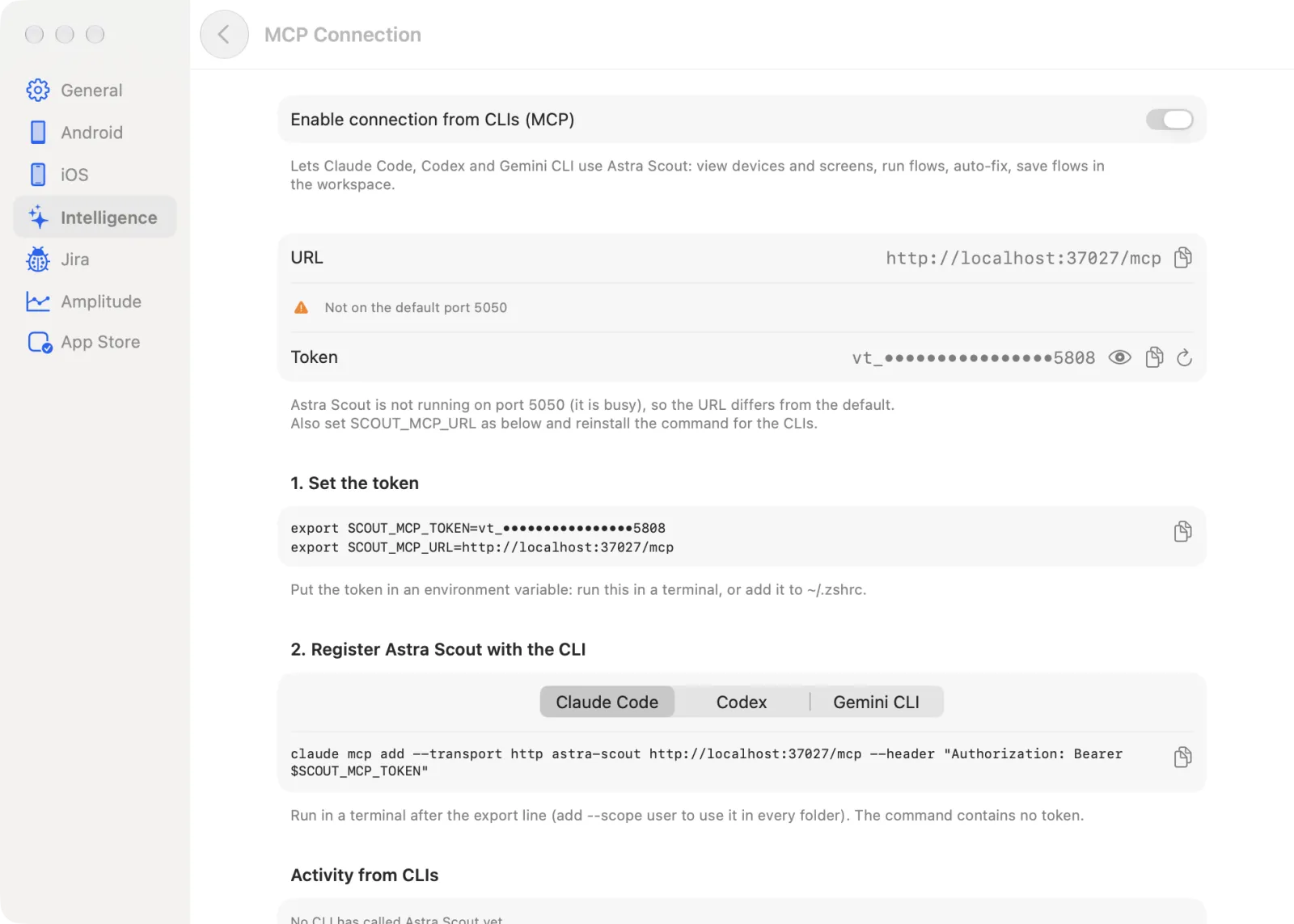
The Astra Scout for CLIs section on the same pane has two more pages: MCP Connection (the switch that turns the MCP channel on or off, plus the URL and token that the CLIs use to connect; the token is a local password) and Shell Environment (writes SCOUT_MCP_TOKEN and SCOUT_MCP_URL to the shell profile so the CLI finds this channel by itself, again only after Run is clicked). Details in The scout plugin.
Chat panel
Open the chat and send a message
- At the top of the left sidebar, click the sparkles icon in the switch (its tooltip is "Show the navigators or the AI assistant"). The sidebar now lists the conversations, and the open conversation takes the editor's place.
- Click New Conversation at the top of the list. The menu also lists each installed CLI; choose one to start a conversation with it.
- Under the message box, click the paperclip button (its label is Context (N), where N is how many items are on) to choose what the AI sees. See Choose the context.
- Click the model name next to it to pick the AI and the Model for this conversation. Default uses the settings from Settings > Intelligence.
- Type the request. Press Return to send, Shift+Return for a new line, or click the round send button (
Cmd+Returnalso sends). While the AI answers, the button becomes Stop.
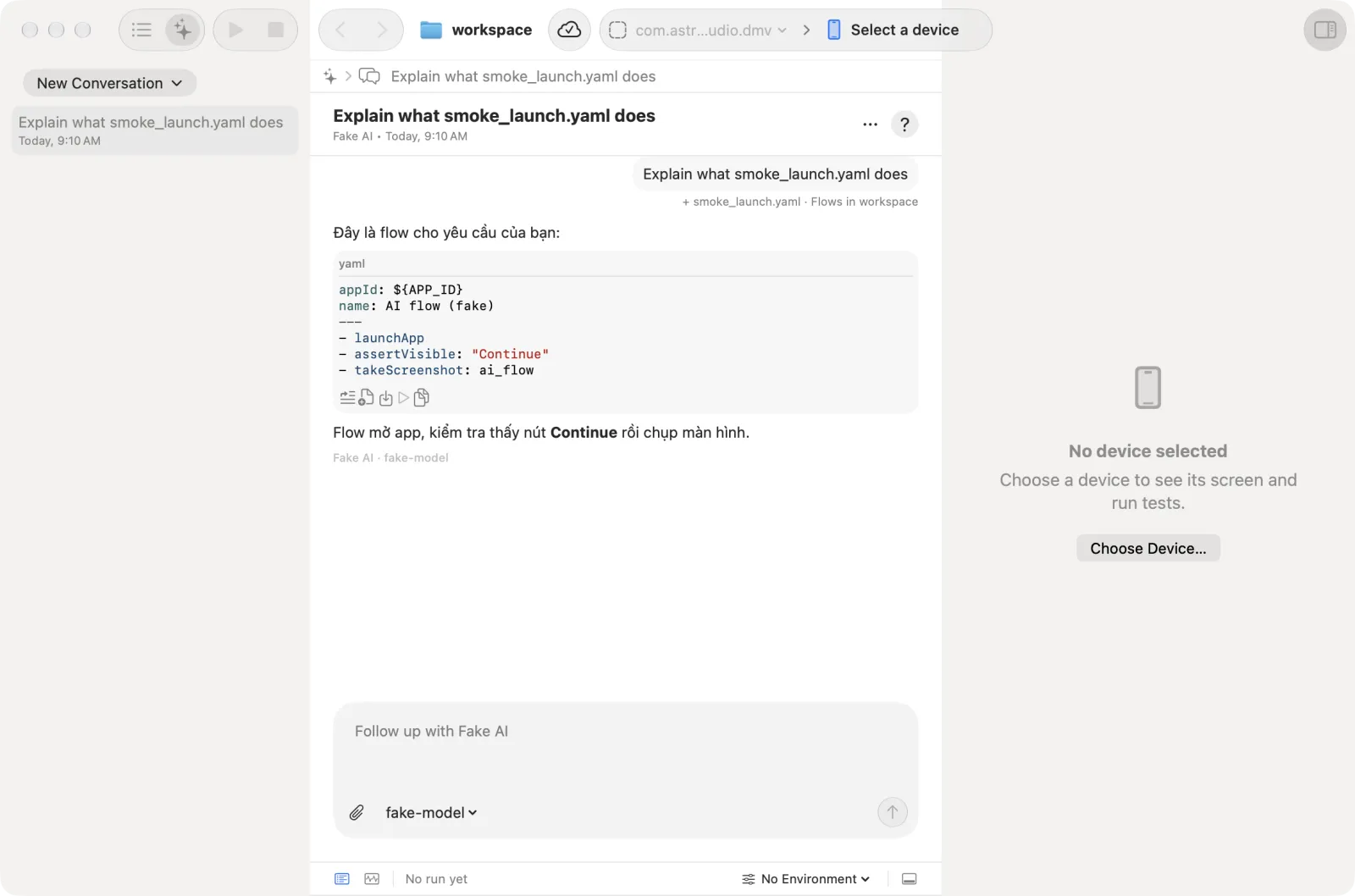
An empty conversation offers example prompts above the box; click one to fill it in. More examples:
- "Write a flow that opens the app, signs in with the email test@example.com and checks that the home screen is shown"
- "Explain what the open flow does"
- "Add a screenshot step after every button tap"
To remove a conversation, right-click it in the list and choose Delete Conversation, or use the ... menu in the conversation header.
If no CLI is usable, the conversation shows "No AI CLI is usable…" with a Rescan button. Set one up first (see above).
Choose the context
The AI only knows what is sent with the message. The Context menu (the paperclip button) has five switches that choose what is sent:
| Item | What the AI receives |
|---|---|
| File: … (or Current file) | The open flow file. Off when no file is open. |
| Selection | The lines selected in the editor |
| Device screen | The element list (elements: buttons, fields, text) of the screen of the connected device. Off when no device is connected. |
| Last run: … (or Latest run) | The result and error of the latest run. Off when there is none. |
| Flows in workspace | A few flows of the workspace as a style reference |
The items sent with a message are listed under it in the conversation.
Use the YAML the AI writes
When the reply contains YAML, a small row of icon buttons sits under the code block. Hover a button to see its name. A line above it says Valid flow, Valid commands or "Invalid YAML: …". Astra Scout validates the YAML and rejects commands the connected platform cannot run.
| Button | What it does |
|---|---|
| Insert into File | Adds the YAML to the open flow. Disabled until a flow file is open. |
| Create New File | Saves the YAML as a new file in the workspace. Only for a complete flow (with appId). |
| Apply to File | Compares with the open file and applies the changes accepted. Only for a complete flow. |
| Try Run | Runs it on the device without saving a file. Disabled until a device is connected. |
| Copy | Copies the YAML |
What the AI can look up
With Claude Code as the provider, the AI looks at data in Astra Scout by itself while it answers, so nothing needs pasting. It can see: the devices and their screen, past runs and their reports, crash reports of an iOS device, explorations, tracking catalogs and coverage, environments (variable values stay hidden), tags, the app context, sandbox testers and these docs. Each lookup shows as a line above the answer; click it to see what came back.
The AI can only read. It never runs a flow, connects a device, saves a file or sends anything to Jira or Apple: it proposes changes as YAML, and the user applies them with the buttons above.
This needs the switch Settings > Intelligence > MCP Connection > Enable connection from CLIs (MCP) to be on. When it is off, the chat says so under the answer. OpenAI Codex and Gemini CLI answer from the attached context only.
Auto-fix until it passes
Use auto-fix when a flow has just failed and the AI should try to fix it. Auto-fix runs the flow, asks the AI for a fix, applies it to a draft and runs again. Each pass is one round, and the number of rounds is limited.
Before you start: a workspace is open, a device is connected and nothing is running. Auto-Fix… is disabled otherwise.
- Run the flow so it fails. See Run flows.
- In the runner, click the failed flow's row to open its detail.
- Click Auto-Fix…. (Fix with AI, next to it, instead starts a chat about the failure and fills in the request.)
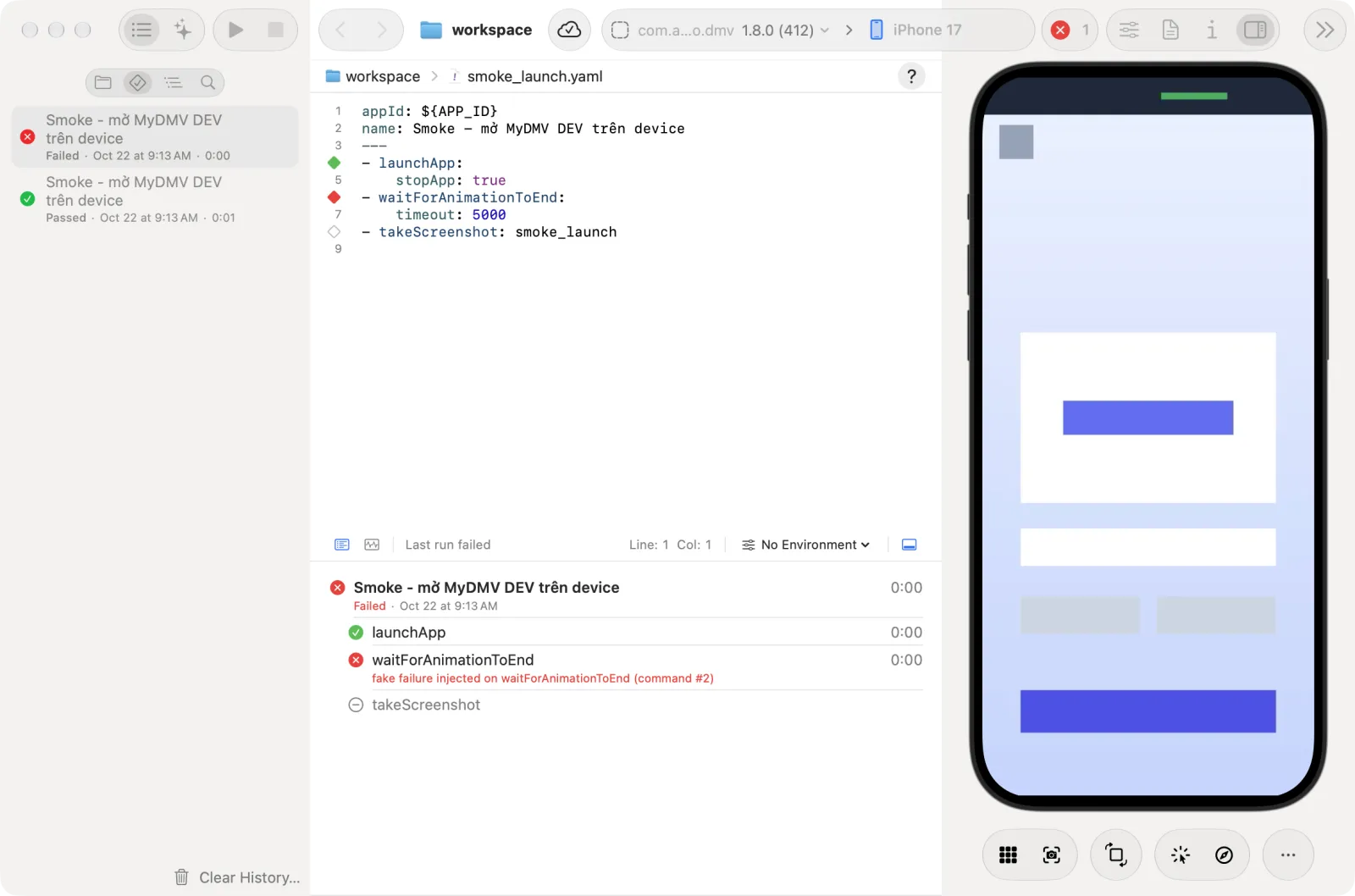
- The sidebar switches to the AI assistant and the Auto-fix until it passes card appears in the conversation. It uses the AI and model chosen in the chat and the environment selected in the toolbar. The card shows one Round N of 3 entry per round, and Stop ends it.
- Turn on Apply to the file when it passes to write the file automatically. Leave it off to review the result first.
- When it ends, click Review and Apply… to check the diff before the file is written, Create New File to keep the fix as a new file, or View Last Video to watch the last round. Hover the icons to see their names.
What each round records: the failing step and error, the AI's reason, the YAML diff, and screenshots from before and after.
The app runs up to 3 rounds.
Auto-fix stops without a pass in these cases:
- It stops early (Incomplete) when the same step fails the same way two rounds in a row, when the AI proposes a version that already ran, or when the AI proposes no change.
- It stops with Failed when the app crashes in two runs in a row.
- It stops immediately (Blocked) when the device or driver fails.
Steps that look like a purchase run like any other step, so use test devices only. See Purchase testing.
AI commands in flows
These three commands let the AI look at the screen to check it or read text. Use them when a normal selector (such as assertVisible) cannot do the check. They are AI commands of Maestro, the tool flows are based on. Astra Scout runs them with the configured AI, with no Maestro Cloud.
| Command | Syntax | Result |
|---|---|---|
assertWithAI | - assertWithAI: "The screen has a Sign in button" | True or false with a reason |
assertNoDefectsWithAI | - assertNoDefectsWithAI | False when it sees clipped or overlapping text, a blank screen or a broken layout |
extractTextWithAI | - extractTextWithAI: "CAPTCHA code" | Saves the text it reads into ${aiOutput} (or the variable set in the command) |
To choose which AI runs them, open Settings > Intelligence, and under Defaults set AI commands in flows (provider) and Model.
Things to know:
- Each step captures the screen and element list and sends one AI request. This costs a model call, and the AI may answer differently between runs.
- Like Maestro, they default to
optional: true: a failed step is red but the flow continues. Addoptional: falseto stop the flow. Each step waits up to 60 seconds (change withtimeout:in milliseconds). - The step's result panel records the verdict, the question, the raw answer, the model and the screenshot path.
- For
assertWithAIandassertNoDefectsWithAIwithoptional: false, if the AI'sconfidenceis below 0.6, the run's verdict is Unsure, not Passed. With the defaultoptional: truethe run still passes and shows a warning.assertNoDefectsWithAIwithout a screenshot is also Unsure, because Astra Scout never concludes there are no UI defects from the element tree alone.
No screenshots after typing a secret
To protect passwords, when a step types a value taken from an environment variable (such as inputText: ${PASSWORD}) or the screen has a filled-in password field, later AI steps in the same device session send no screenshots. Only the element tree is sent, with password and typed values replaced by ***. This lasts until the app is reopened (launchApp, stopApp, killApp or clearState) or the device reconnects. Put assertNoDefectsWithAI before the step that types a password.
App context
App context is a short note that tells the AI about the app: screen names, paid plans, terms. It is limited to 16 KiB. Every AI call reads it: chat, write and fix flows, auto-fix, AI commands, and exploration. It is saved per workspace.
- Open a workspace, then choose File > Project Settings… (
Option+Cmd+,). - Scroll to the App context section and type in the box. When it is empty, the box shows an example.
- Watch the size line under the box ("N KB of 16 KB"). Over the limit it turns red and Save is disabled.
- Click Save. The note "App context saved" appears. Saving an empty box removes the file.
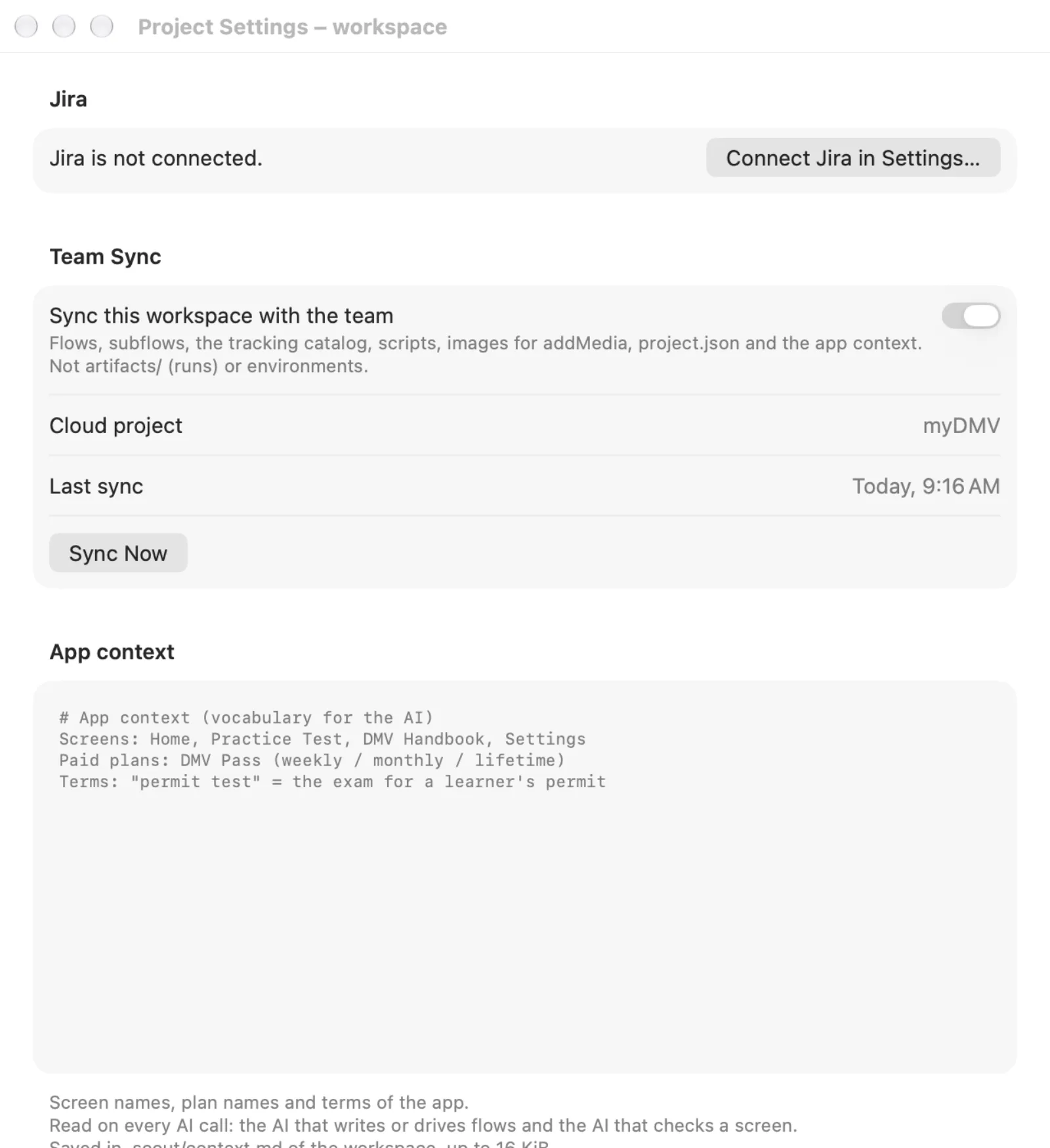
Example:
# App context (vocabulary for the AI)
Screens: Home, Practice Test, DMV Handbook, Settings
Paid plans: DMV Pass (weekly / monthly / lifetime)
Terms: "permit test" = the exam for a learner's permit
Terminal AI
Claude Code, Codex and Gemini CLI can also drive Astra Scout. See The scout plugin.
Technical details
- Instead of an AI CLI, the server can start with the
ANTHROPIC_API_KEYenvironment variable set; Anthropic API then appears as a provider. - Auto-fix: the app runs up to 3 rounds. An AI CLI that calls the
autofix_flowtool can ask for up to 5. - AI commands: the AI that judges is separate from the AI that acts, and only receives the assertion or query, the screen and the app context. Text on screen is sent as untrusted data, and the prompt tells the AI to ignore any instructions shown on the screen. Screenshots are kept for 24 hours in a private folder under the temp directory.
- App context is stored in
.scout/context.mdin the workspace. Only the running workspace's file is read. If.scoutorcontext.mdis a symlink, device or FIFO, it is refused.