
What is Astra Scout?
Learn what Astra Scout is and what it can do.
Astra Scout is a macOS app for testing mobile apps (iPhone, iPad, Android) without writing code. Testers and developers write the test steps, run them, and watch the app on a device follow them.
The docs use four terms:
- A flow is one test, saved in a
.yamlfile. Each line is a step, for example "open the app", "tap General", "check that About is visible". - A workspace is the folder on the Mac that holds the flows.
- A device is where the app runs: the iOS Simulator (a virtual iOS device on the Mac), an Android emulator, or an iOS device or Android phone.
- A run is one execution of a flow on a device. A run ends with a verdict: Passed or Failed, or one of a few others. See Verdicts.
Astra Scout puts a flow editor next to a live mirror of the device. Everything runs on the Mac.
- Write and run tests in one place. Edit flows, run them, and click an element on the device screen to generate a step.
- Test on the iOS Simulator, Android and iOS devices.
- Use AI and bug reporting, both optional. The AI CLI already installed (Claude Code, Codex or Gemini CLI) writes and fixes flows, or tries the app and suggests flows. Bugs go to Jira from a run.
- Check tracking. Astra Scout checks that the app sends the right analytics events (Amplitude) while a flow runs.
- Test purchases in the App Store Connect sandbox. These are test purchases with no real money.
- Run locally. There is no cloud and no telemetry. Sign-in with the company Google account tells the app that the user is allowed to use it. Beyond that, Astra Scout only reaches the network for things you set up. See How it works.
Here is a simple flow. It opens the iOS Settings app and checks one screen:
appId: com.apple.Preferences
name: Settings smoke
---
- launchApp:
    stopApp: true
- tapOn: "General"
- assertVisible: "About"
The appId line names the app the flow runs on; com.apple.Preferences is the Settings app. The lines after --- are the steps.
Technical details
Flows use the YAML format and command syntax of Maestro, plus Astra Scout's own assertEvents and tracking header. Astra Scout runs them with its own fork of maestro-runner.
A tour of the window
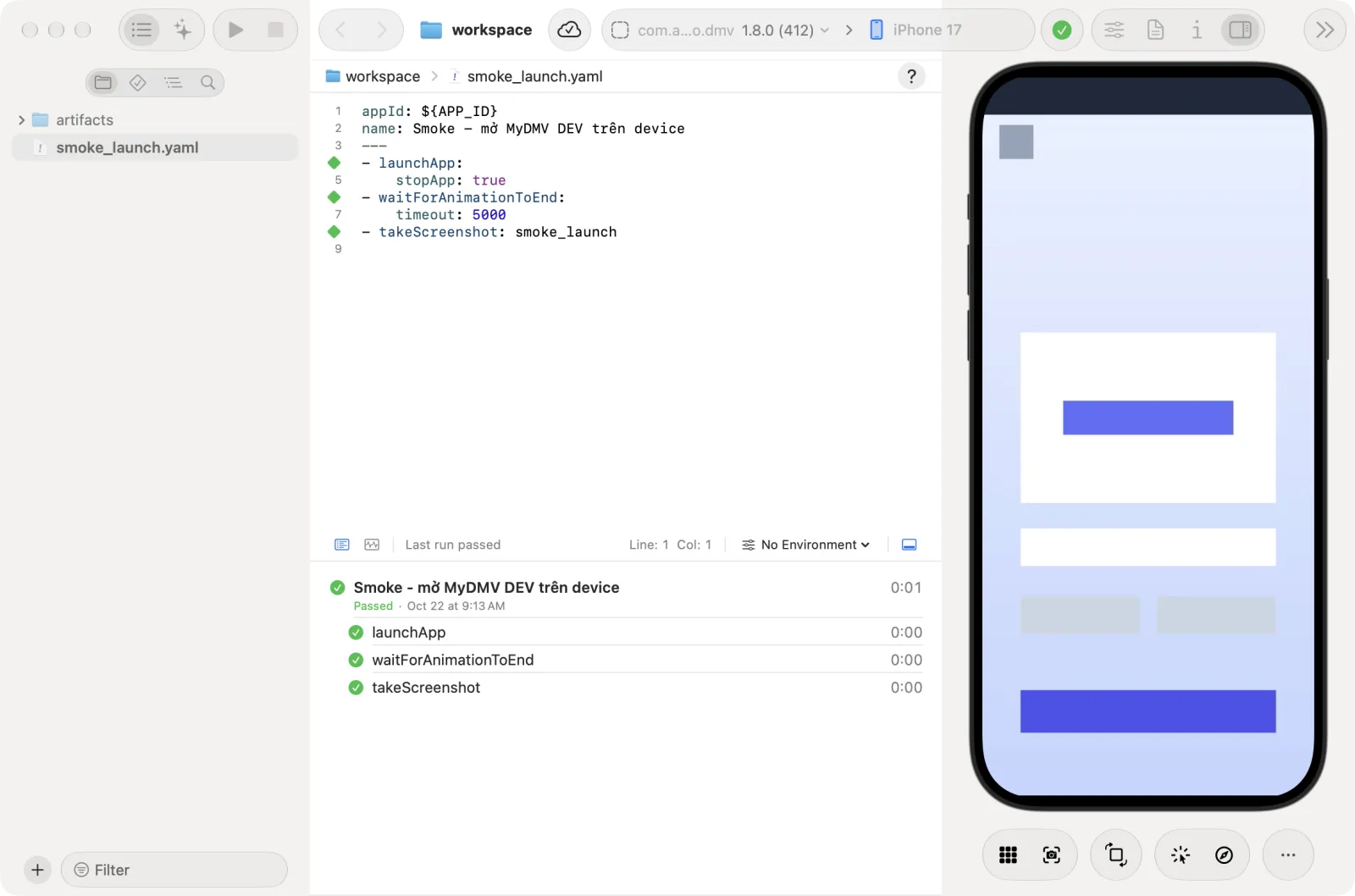
- The left sidebar has two modes, switched at its top: Navigators and AI assistant. In Navigators, an icon bar picks one of four navigators: Files, Test Runs, Element Hierarchy and Find.
- The editor in the middle holds the flow. The runner is below it and lists each step as it runs.
- The right column, the inspector, mirrors the device. Show or hide it with View → Show Inspector or Hide Inspector (Opt+Cmd+0).
- In the toolbar, the app picker (the app under test) and the device picker sit side by side in the middle. Run Test and Stop are next to the sidebar switch.
A Welcome to Astra Scout window stands in for the main window until you open a workspace.
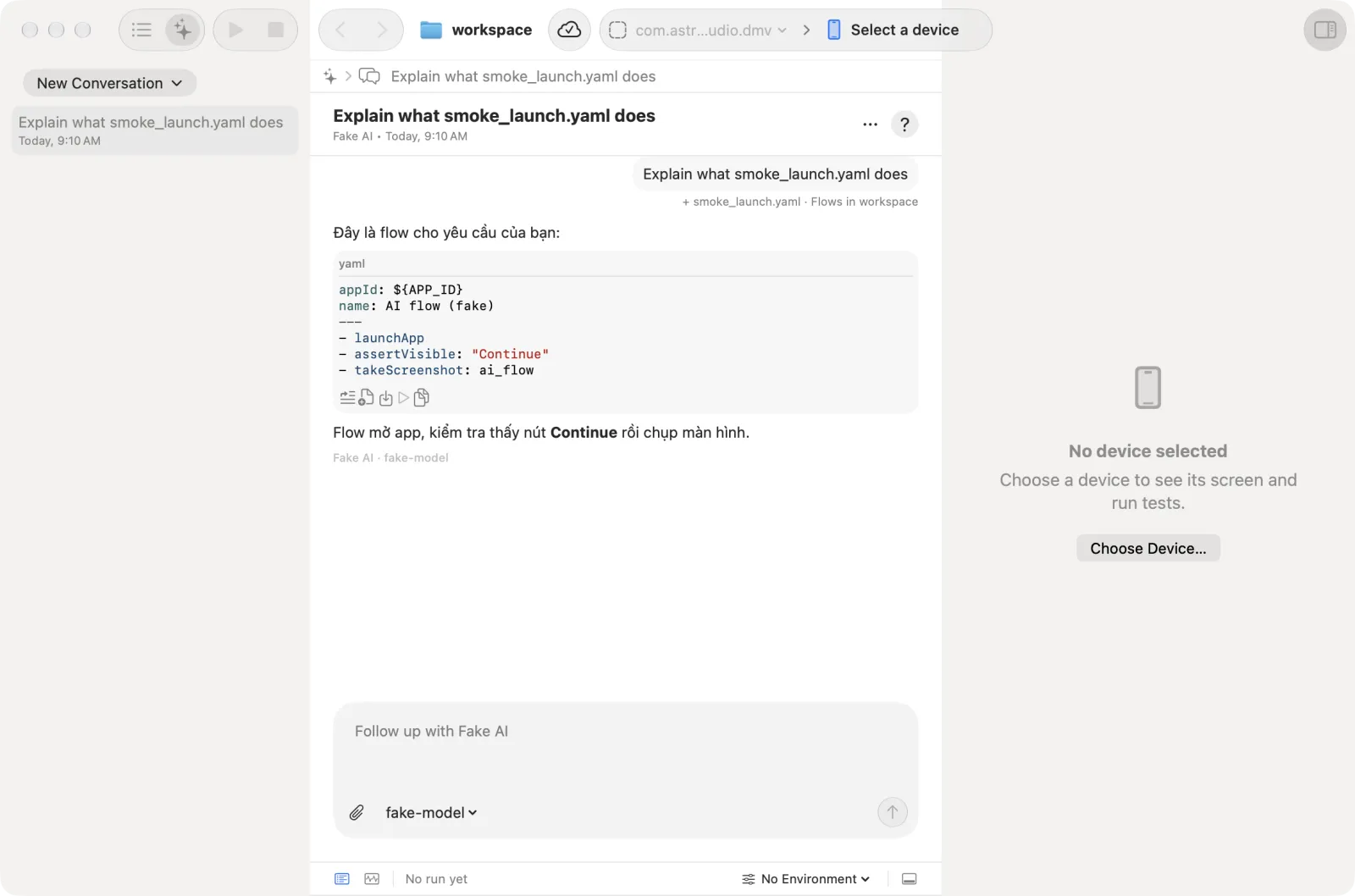
Other windows open from the menus: Tracking (Window menu, Shift+Cmd+T), Explore app (Device → Explore the App…, Shift+Cmd+E), Project Settings (File → Project Settings…, Opt+Cmd+,) and Settings. Device → Report Bug to Jira… (Shift+Cmd+B) opens a sheet.
What you can do with it
| Task | Where to read more |
|---|---|
| Open a folder of flows, edit them and run them on a device | Run flows |
| Click an element on the device screen to generate a command | Inspector |
| Connect a simulator, iOS device or Android device | Devices |
| Reuse variables and tags across runs | Environments and variables |
| Check Amplitude events while a flow runs | Tracking |
| Let the AI write, fix or explore | AI assistant, Explore app |
| Test purchases in a sandbox | Purchase testing |
| File bugs in Jira | Jira |
| Control Astra Scout from a terminal AI | The scout plugin |
Who it is for
Astra Scout is an internal tool for Astraler testers and developers. It targets macOS 14 or later.
Check that the Mac is ready
Open Help → Setup Check… in the app. It lists what is missing and how to fix it. See Installation.
Next steps
- Install the app.
- Follow the quickstart to run your first flow.
- Read how it works.