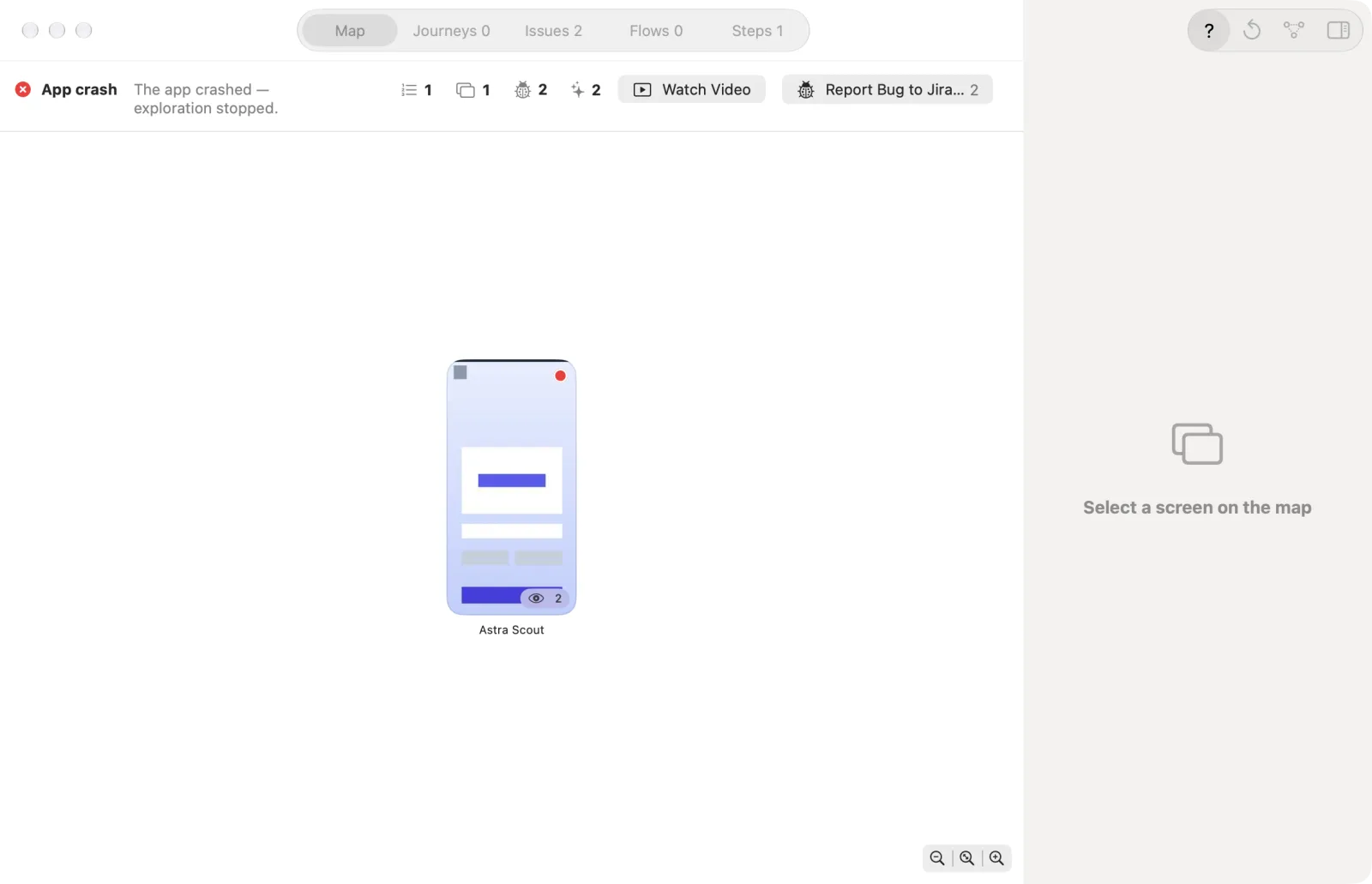
Purchase testing
Test purchase flows on a test device: what to prepare, and how purchase steps behave.
Testers and QA test an app's purchase flow (buying a subscription, a free trial) without paying real money. They check paywalls and payment screens.
Run the app on a test device (a simulator, or an iOS device or Android phone used only for testing) with a sandbox account. A sandbox is a test environment provided by Apple or Google: every transaction is fake and nothing is charged. Never use a real account or card.
Astra Scout does not block purchase steps. Purchase-like steps in flows, AI auto-fix, Explore app and the CLI (MCP) simply run, and no confirmation dialog stands in front of a purchase step. Run only on a test device prepared as described below. What does ask you first is sending something out of your Mac, for example a bug to Jira (Awaiting confirmation, see Jira) or clearing a sandbox purchase history (see Sandbox testers).
How purchase steps behave
In Explore app
Explore app always offers purchase buttons and paywalls to the AI, labelled "(purchase – sandbox)" in the Steps tab. The purchase sheet is the payment confirmation dialog drawn by the operating system, not by your app. What the AI can do on it depends on the type of device, which Astra Scout recognises by itself:
| Device | Store environment | What the AI can do on the system purchase sheet |
|---|---|---|
| iOS Simulator | StoreKit (Xcode's simulated store) | Press the controls of the StoreKit sheet |
| iOS device | iOS sandbox (Apple's test environment) | Read the system sheet and press its buttons. Type the sandbox password if SANDBOX_PASSWORD is set. |
| Android | Google Play license testing (test accounts of Google Play) | Press the controls of Google Play's sheet |
The AI never types card numbers or other passwords. The one exception is the sandbox password on the iOS purchase sheet of an iOS device, which the runner takes from the environment variable SANDBOX_PASSWORD. The AI only sees ${SANDBOX_PASSWORD}, never its value.
On an iOS device, Astra Scout can read the system purchase sheet, so the AI sees and presses the sheet's buttons. While the sheet is open, the list of elements the AI sees is the sheet's, not the app's. Buttons that could complete the purchase are labelled "(purchase – sandbox)"; the sheet's dismiss buttons are not.
When Explore app stops with Tester needed
Exploration stops with Tester needed when the AI cannot continue by itself and needs a person, in these cases. The reason is written next to the title in the result header.
- A system dialog covers the app and Astra Scout cannot read it.
- A system dialog that is not the store's covers the app.
- The App Store sandbox password prompt appears and the environment has no
SANDBOX_PASSWORD. Add it (see below) or type the password yourself. - A payment system password dialog appears outside the readable sheet. Astra Scout never types these.
- After a purchase tap on an iOS device, Astra Scout cannot confirm that the sheet went away. Its message says it "cannot see or confirm" the dialog. See the
ios_device_sandbox_subscribesample flow.
When it stops, the exploration ends (its verdict is Blocked, not a bug in the app). Finish the step on the iOS device yourself. It does not resume: start a new exploration if you want to go on.
In flows
A system sheet is a dialog drawn by iOS, such as the purchase confirmation sheet. When it covers the app on an iOS device, a tapOn, doubleTapOn, longPressOn, assertVisible or inputText step looks for its element on the sheet and acts there. Only text and id selectors (plus index) work on system sheets. A step whose element is not on the sheet fails with SYSTEM_OVERLAY (it means a system sheet is covering the app), and a required step blocks the run.
Environments
Each type of device needs its own setup before you test purchases:
| Environment | Setup |
|---|---|
iOS Simulator with a StoreKit Configuration (a .storekit file that simulates the store and its plans, so no Apple account is needed) | Add a .storekit file to the app's scheme and run the app from Xcode (Astra Scout cannot check this, so make sure of it yourself). Clear transactions between tests with Debug > StoreKit > Manage Transactions in Xcode. |
| iOS device with a Sandbox account (a test Apple account whose purchases cost nothing) | Create a Sandbox Tester in App Store Connect and turn on Allow Purchases & Renewals under Settings > Developer > Sandbox Apple Account on the iOS device. Connect by USB, keep it unlocked, with Focus or Do Not Disturb on. |
| Android with a License tester (a Google account allowed to make test purchases) | Add the device's Google account under Setup > License testing in Play Console, install the app from a test track, and use only test cards ("Test card, always approves"). |
An account that already purchased will not see the trial offer again. Clear its purchase history from Astra Scout (see Sandbox testers), in App Store Connect, or use another account.
Run a purchase flow on an iOS device
Do the iOS device setup first:
- Create a Sandbox Tester in App Store Connect (see Sandbox testers).
- On the iOS device, open Settings > Developer > Sandbox Apple Account and turn on Allow Purchases & Renewals. If it is off, iOS reports "Purchase Failed" after you tap Subscribe.
- On the iOS device, turn off Settings > Face ID & Passcode > iTunes & App Store, so payment no longer asks for Face ID or a passcode and the sheet just shows a Subscribe button.
- Use a sandbox account that has not bought the plan yet.
Then:
Do not write the password in the flow. Store it in an environment, which holds variables such as
SANDBOX_PASSWORD. Choose Run > Manage Environments… (or open the environment menu in the toolbar and choose Manage Environments…).Click New Environment (or the + at the top). Type a name. Under Environment variables, click Add Variable, type
SANDBOX_PASSWORDas the key and the sandbox account's password as the value, then click Create. The value is shown as plain text in this sheet. Click Done.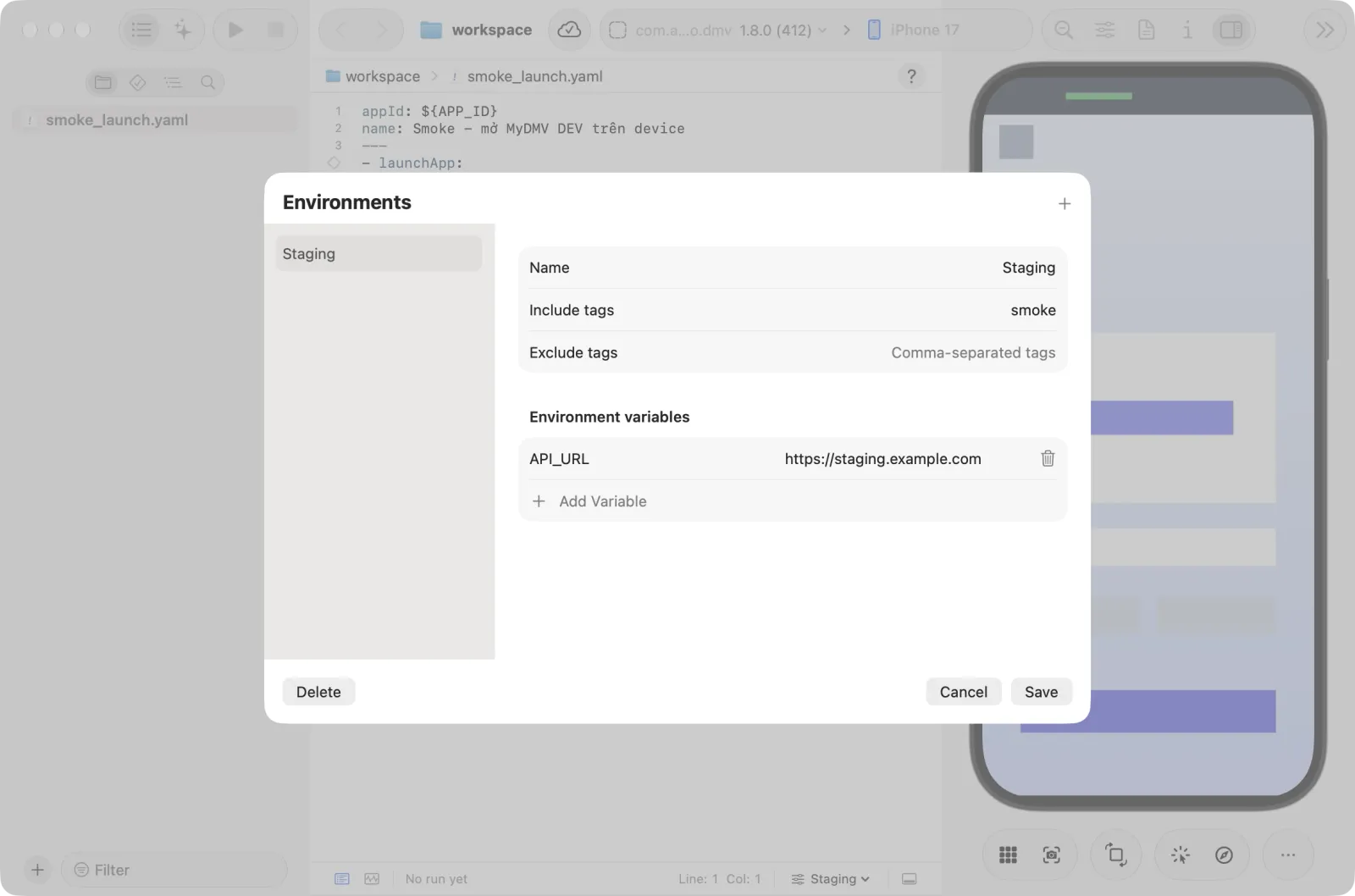
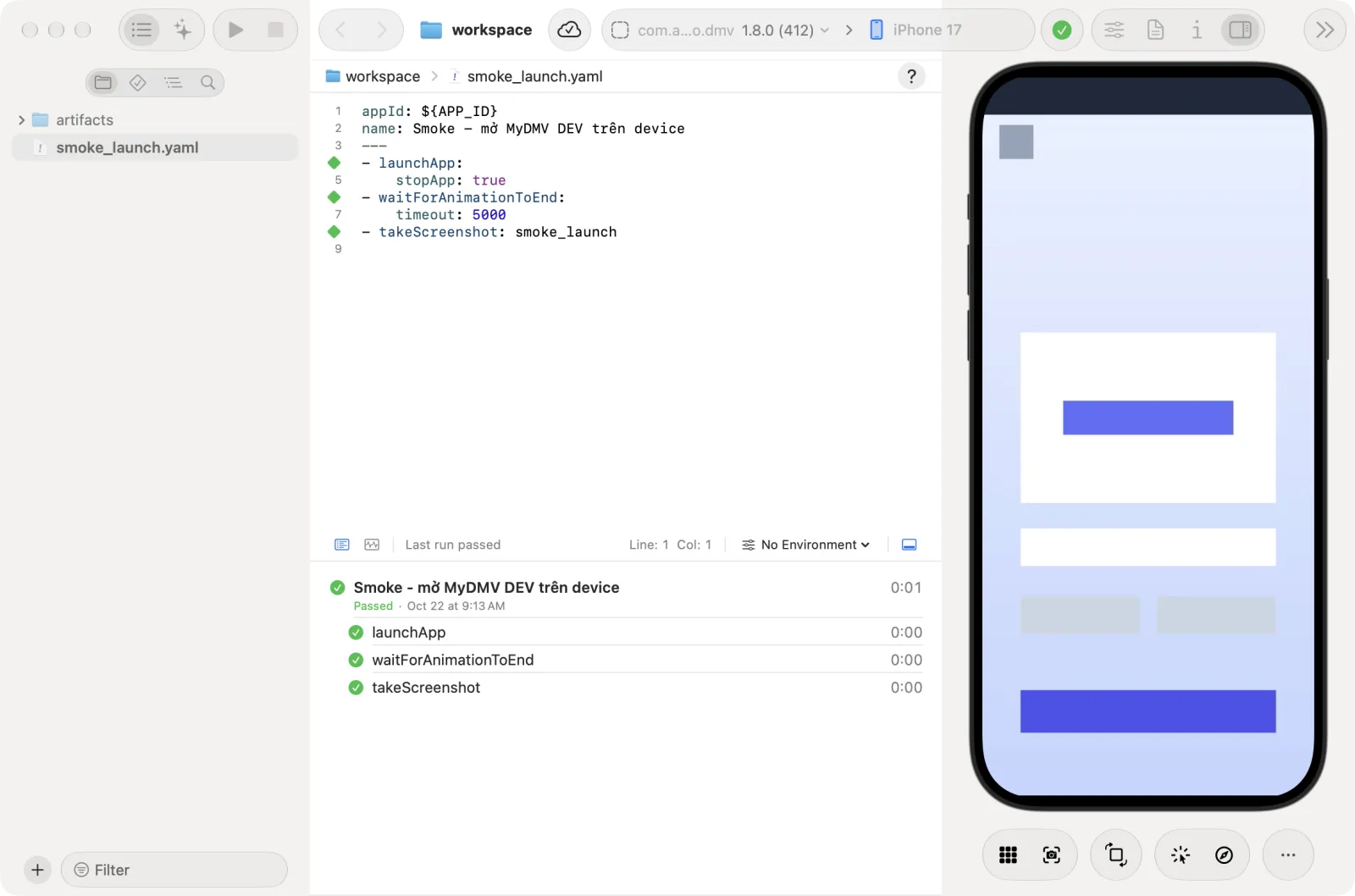
Open the environment menu in the toolbar and choose your environment. Without one the toolbar says "No Environment".
Connect the iOS device (see Devices) and open the flow.
Click Run Test (
Cmd+R) and watch the steps.
The flow
Keep the whole sequence in one flow:
- tapOn: "6 Month"          # button in the app; the sheet appears after 1-12 s
- tapOn: "Subscribe"        # on the sheet; plain text must match the whole string
- tapOn: "Password"         # sandbox password field
- inputText: ${SANDBOX_PASSWORD}
- tapOn: "Confirm"
Plain text must match the element's whole text, ignoring case, so Subscribe does not match a line such as "…has subscribed…". A regex such as .*Subscribe.* must also match the whole text and is case-sensitive. If the text is not on the sheet, the step fails with SYSTEM_OVERLAY. iOS does not ask for the password again if you entered it a moment ago, so the password steps may not be needed on a second run; the example flow flows/mydmv/purchase_6month_selectors.yaml handles this.
Explore the app with purchases
Connect the test device.
Choose Device > Explore the App… (
Shift+Cmd+E). The Explore app window opens.Fill in App (appId), pick a Persona, and optionally type a Goal. Under Limits and safety, set Max steps and Max minutes. The info button there repeats the purchase and password rules.
For an iOS device, select the environment that holds
SANDBOX_PASSWORDin the toolbar of the main window before you start. The exploration uses the environment selected at that moment.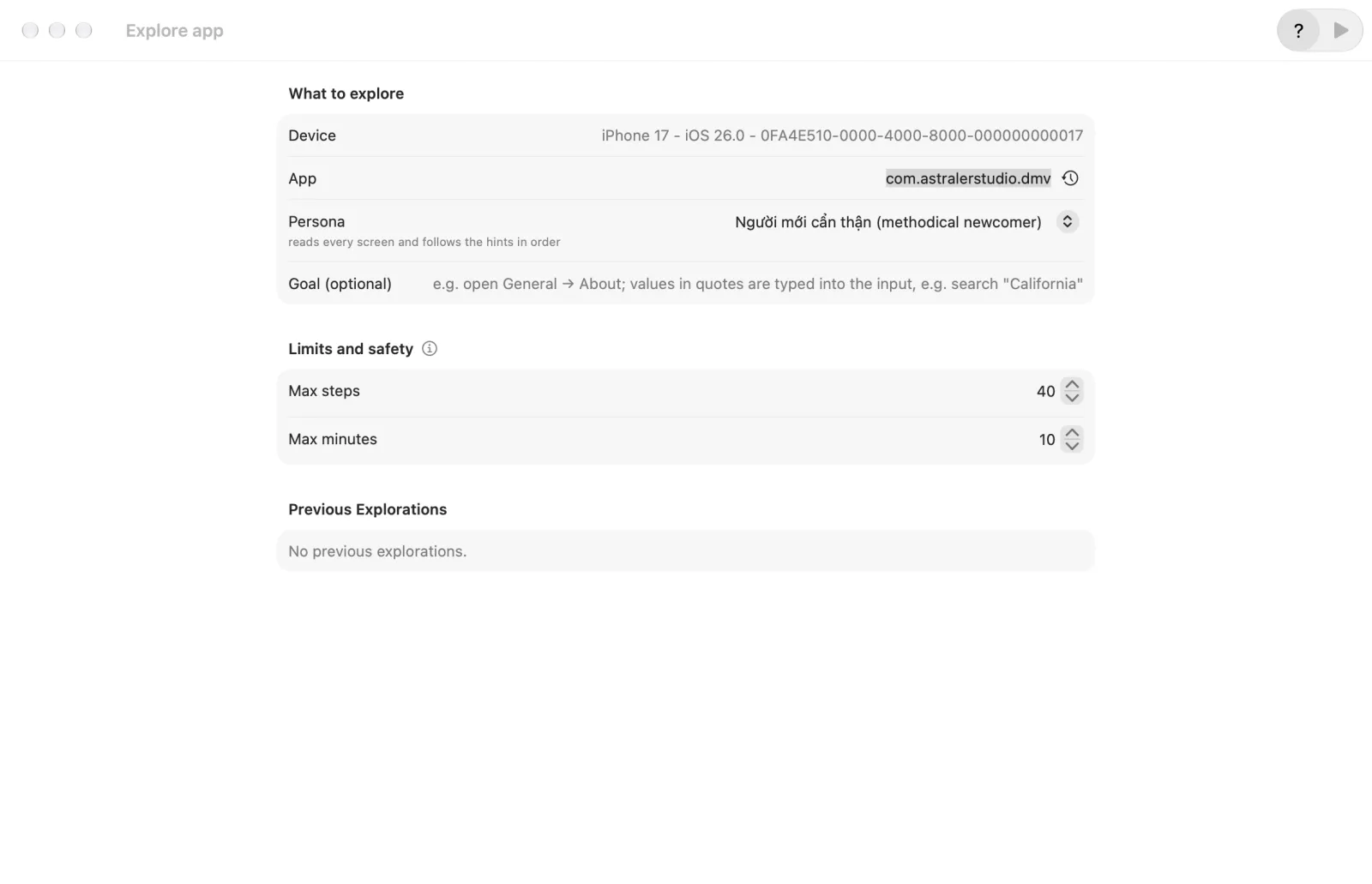
Click Start Exploring. Watch the progress card. In the Steps tab, a purchase tap reads like
Tap "Subscribe" (purchase – sandbox).When it ends, the header shows why: for example AI finished, Step limit reached or Tester needed.