
Devices
Connect iOS Simulators, iOS devices, and Android devices and fix connection problems.
A device is the phone or tablet where the app runs during a test. Connect one of four kinds to Astra Scout: the iOS Simulator (a virtual iOS device on the Mac), an Android emulator (a virtual phone), an iOS device or an Android device. The later sections cover the controls available once a device is connected.
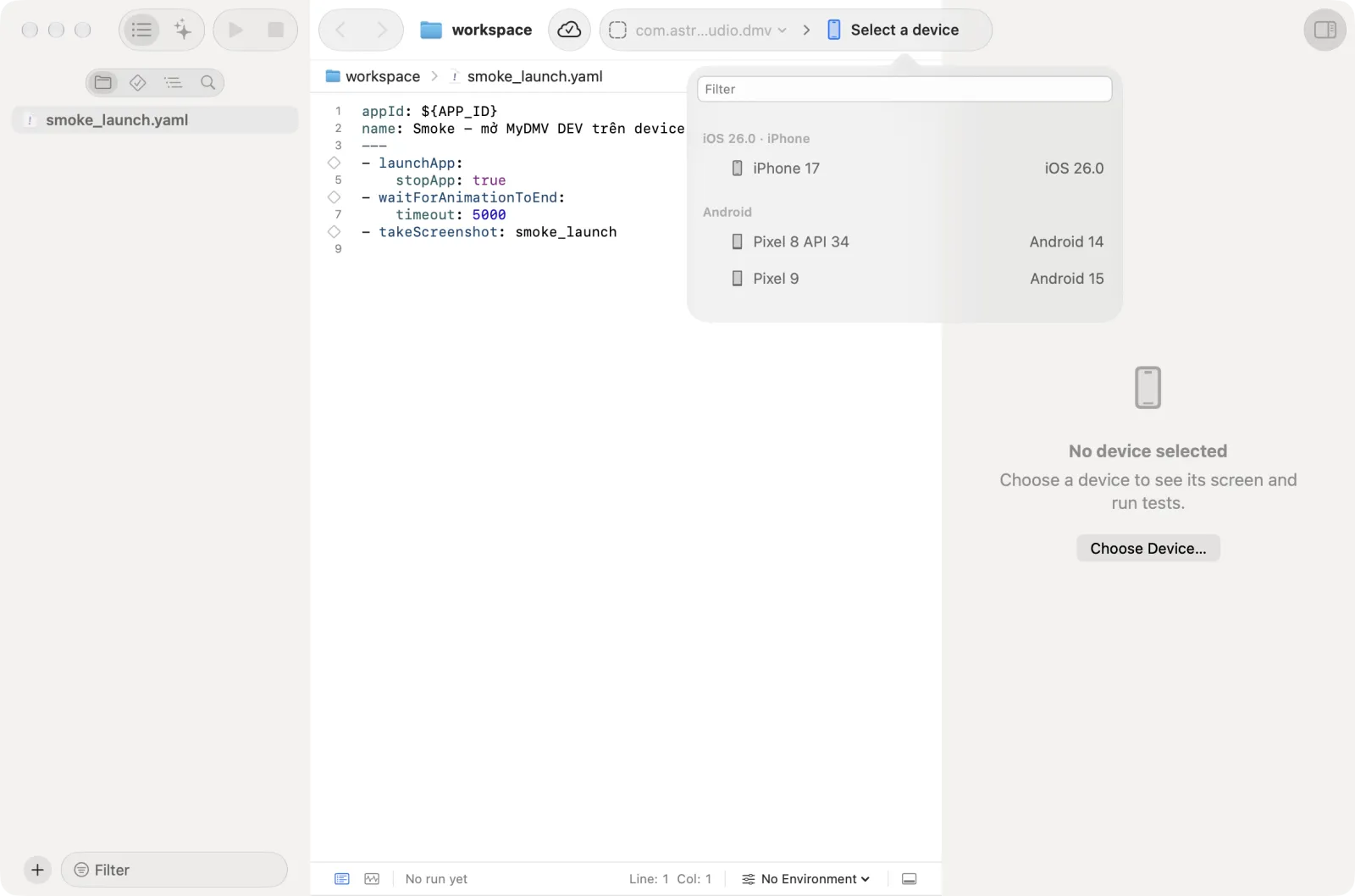
Pick a device with the device picker in the middle of the toolbar. It reads Select a device until one is chosen. Choosing a device connects it, and Disconnect (the last row of the picker) releases it. The list updates when simulators or devices appear. When the app opens again, it reconnects the last chosen device if it is there; after Disconnect it does not.
Choose a device
- Click the device picker in the toolbar. A popover opens with a filter field and a list in sections: iOS devices, simulators grouped by OS, and Android devices. Each row shows the device name and its OS; the current device has a check mark; unusable devices are dimmed. An empty list says "No devices found." and a filter without a match says "No match.".
- To find a device in a long list, type in the filter field at the top. Use the up and down arrows to move and
Returnto connect. - Click a device, or press
Returnon the highlighted one. The popover closes and the connect panel appears in the mirror area. - To release the device, open the picker again and click the last row, Disconnect followed by the device name. When a device is connected, Disconnect is also in the ⋯ menu under the mirror.
Disconnect also stops WebDriverAgent on the iOS device or simulator, so no test keeps running there. When you switch to another device or press Reconnect, WebDriverAgent keeps running for 10 minutes, and coming back within that time connects in about a second.
Ways to get a device
- iOS Simulator: no cable and no Apple signing. See iOS Simulator.
- Android emulator: the same for Android, from a virtual device in Android Studio. See Android.
- iOS device: when you need a physical device, for example a purchase with a Sandbox account. It needs a signing setup. See iOS device and Purchase testing.
- Real Android phone: turn on USB debugging and connect the cable. See Android.
While connecting, the panel lists steps such as Connect to simulator, Connect to iOS device, Connect to emulator, Connect to driver and Stream to Astra Scout, and a Cancel button. The first iOS connection builds WebDriverAgent (WDA), a small app that runs inside the iOS device or simulator and receives Astra Scout's tap and type commands. The first connection is longer than later ones. Watch the steps in the panel until the device screen appears. Later connections reuse the build. If a step fails, the panel shows the error with Reconnect and Disconnect buttons.
Check the Mac first
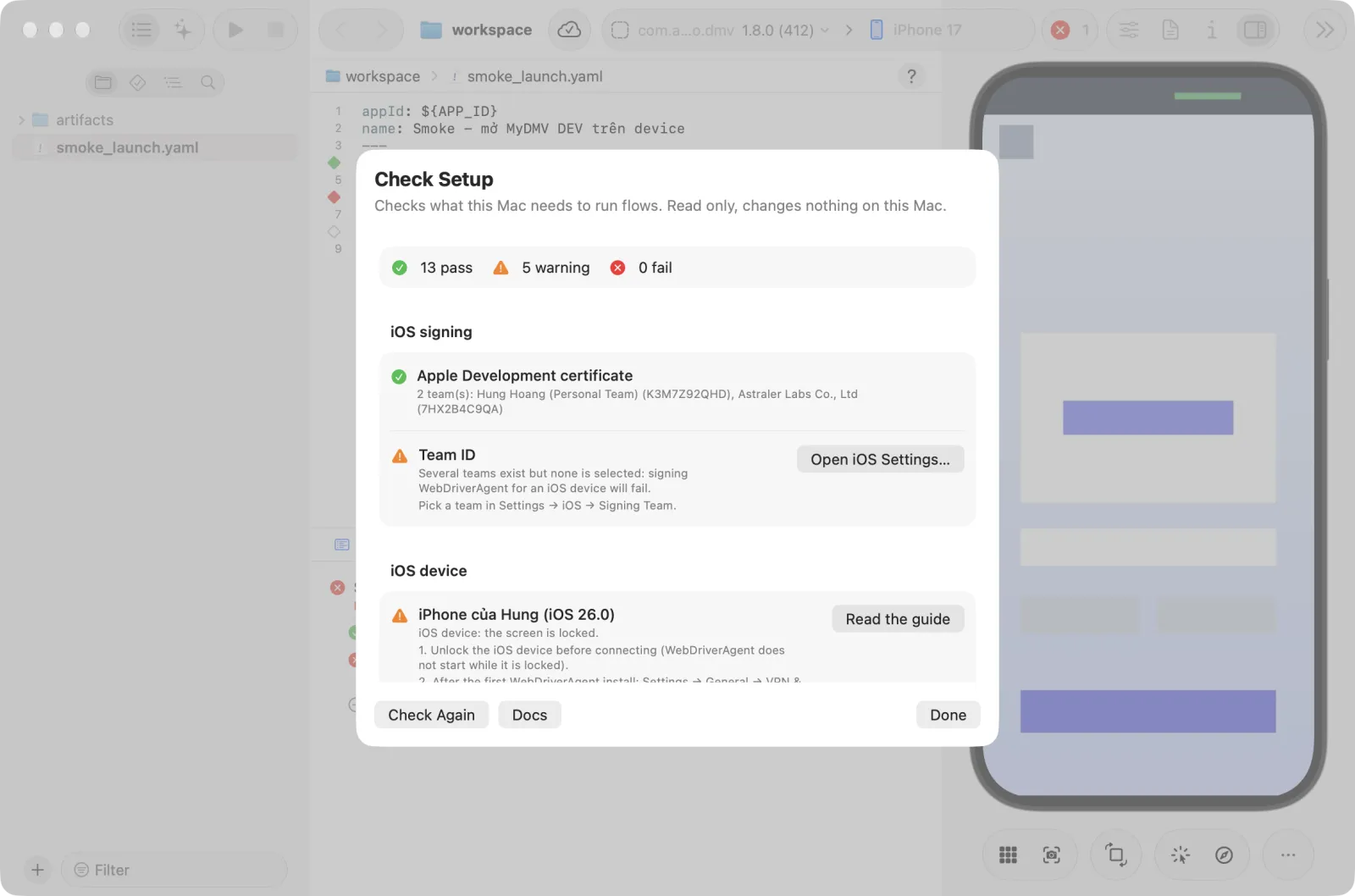
Help > Setup Check… tests everything on this page and says how to fix each item. See Settings.
iOS Simulator
Install Xcode from the App Store, then open it once to accept the license and install the components it offers.
In Xcode > Settings > Components, download an iOS Simulator runtime.
Point the command-line tools at Xcode. If you do not use Terminal, ask IT or a developer to run these commands. Open Terminal and paste these three commands one at a time:
bashsudo xcode-select -s /Applications/Xcode.app/Contents/Developer sudo xcodebuild -license accept sudo xcodebuild -runFirstLaunchTerminal asks for the Mac password. It prints nothing when a command succeeds.
Check with the command
xcrun simctl list runtimes: the output must include a line starting withiOS. If not, download the runtime from step 2.Choose a simulator in the device picker. The connect panel runs through Connect to simulator, Connect to driver and Stream to Astra Scout, then the simulator screen appears.
On the mirror you tap, type, press hardware buttons and rotate the screen as on an iOS device. The mouse wheel becomes a one-finger drag. Astra Scout also records a video of every flow run on a simulator. Technical details are in For developers at the end of this page.
iOS device
Astra Scout controls an iOS device through WebDriverAgent (WDA), a small app it installs on the iOS device to receive tap and type commands. The iOS device runs WDA only if it is signed with an Apple Developer account, so each Mac and each iOS device needs the steps below.
1. Sign in to Xcode
- Finish the iOS Simulator steps above.
- In Xcode > Settings > Accounts, add an Apple ID that belongs to the company's Apple Developer team, or a personal one.
- Select the team, then Manage Certificates… > + > Apple Development. The Mac's Keychain now has a certificate named "Apple Development: Your Name (XXXXXXXXXX)".
The code in parentheses is not the Team ID
The Team ID is the 10-character value on developer.apple.com > Membership details. The app reads the correct Team ID from the certificate.
A Personal Team (free Apple ID) works, but its provisioning profile (Apple's permit for the app to run on the iOS device) lasts 7 days. When it expires, WDA no longer opens, and a reconnect signs the app again. Use the company team if there is one.
2. Choose a team in the app
- Open Settings (
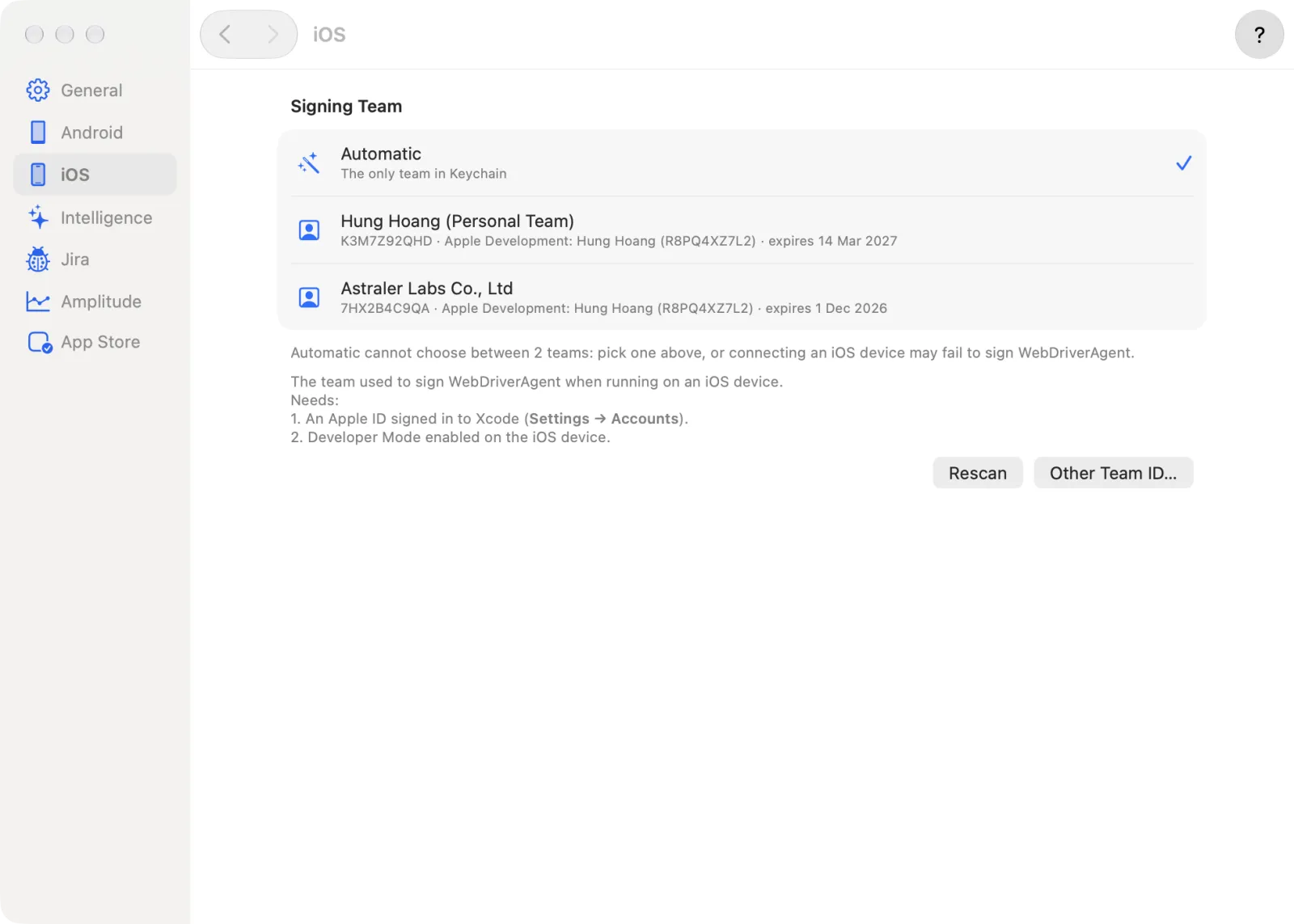
Cmd+,) and select the iOS pane, section Signing Team. - The list has an Automatic row ("The only team in Keychain"), one row for each team found (name, Team ID, certificate and expiry) and, below the list, the buttons Rescan and Other Team ID…. Click a team row to use it. The choice is saved immediately, with no restart. Automatic uses the only team in Keychain, so with exactly one team, no choice is needed.
- If the team is missing, recheck the step above and click Rescan. Or click Other Team ID…, type the Team ID by hand (10 characters, A to Z and 0 to 9) in the popover and click Save. Cancel closes the popover.
- The line "In use: …" shows the Team ID the next connection will use.
3. Prepare the iOS device
- Connect it with a cable and unlock it. Tap Trust when it asks "Trust This Computer?".
- In Xcode, open Window > Devices and Simulators, select the iOS device and wait for it to finish preparing.
- On the iOS device, turn on Settings > Privacy & Security > Developer Mode. It restarts. Unlock it and confirm again. This item only appears after the iOS device has been connected to Xcode.
- Set Settings > Display & Brightness > Auto-Lock > Never while testing. Astra Scout cannot read this setting, but Setup Check reminds you.
4. Connect and trust the developer
- Choose the iOS device in the device picker. The first time, the app builds and installs WDA.
- If the iOS device shows "Untrusted Developer", go to Settings > General > VPN & Device Management on the iOS device, choose the Apple Development: … certificate and tap Trust, then connect again.
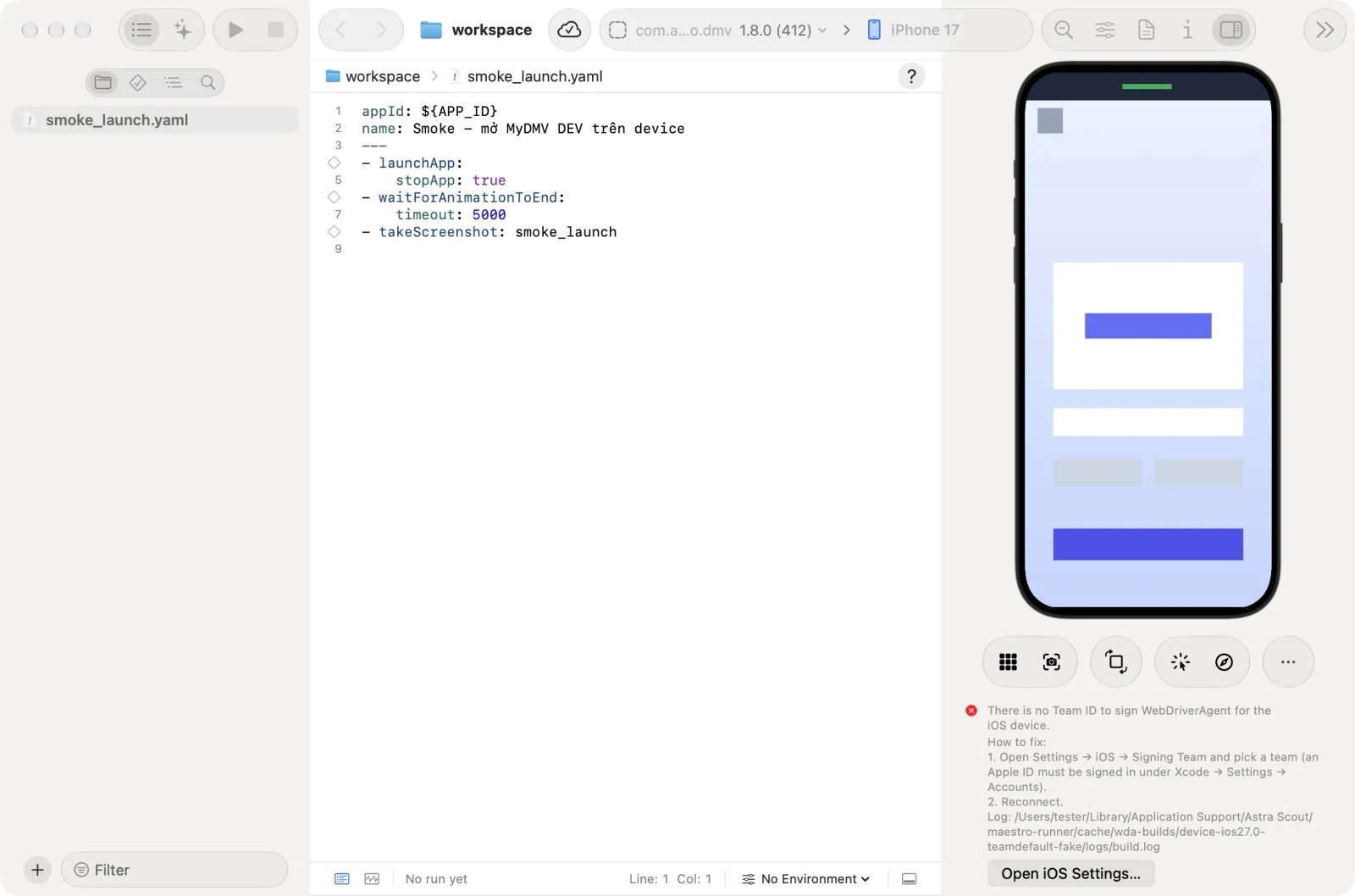
- If the WDA build fails because of signing, the connect panel shows the error and the path to
build.log, with an Open iOS Settings… button that opens Settings > iOS. Fix the team there, then click Reconnect.
When the iOS device locks itself
A locked iOS device gives a black mirror, a very slow inspector and failing steps. Before each run, exploration, autofix, MCP command and inspector use, Astra Scout asks WDA whether the screen is locked.
- An iOS device without a passcode is unlocked automatically and the run continues.
- An iOS device with a passcode only lights up. Astra Scout refuses the run with "iOS device screen is locked — unlock the iOS device and try again".
- The mirror shows a The iOS device screen is locked notice when it sees the lock.
- If the iOS device locks mid-run, the verdict is Blocked with the code
DEVICE_LOCKED. It is not treated as an app bug.
clearState on an iOS device
clearState is the flow command that wipes the app's data (logins, settings) so a test starts from a clean state. iOS has no "clear app data" command, so clearState uninstalls and reinstalls the app. On the Simulator Astra Scout takes the installed app itself. On an iOS device it reinstalls the build in use from Builds.
To choose the build:
- Connect the iOS device.
- Choose Window > Builds (
Option+Cmd+B), or choose Builds… in the app picker. - Select the project, then iOS, then a build, and click Use This Build.
The build stays in use until you choose another. Without a choice, clearState uses the recommended build. A build is usable only if it is signed and its provisioning profile includes the connected iOS device. The inspector shows In the profile or Not in the profile. App Store release builds cannot be installed on a test device.
If no build is in use, the run stops before its first step with the verdict Blocked and the code APP_FILE_REQUIRED. The run shows Open Builds….
clearState erases app data
It removes all of the app's data on the device (logins, settings, downloaded files), just like uninstalling by hand.
Android
- Install Android Studio and let it download the Android SDK (default
~/Library/Android/sdk). - In Android Studio > Settings > Languages & Frameworks > Android SDK > SDK Tools, enable Android SDK Platform-Tools and Android Emulator.
- Create a virtual device in Device Manager > Create Virtual Device (for example Pixel 8, API 34 or later).
- In Astra Scout, open Settings (
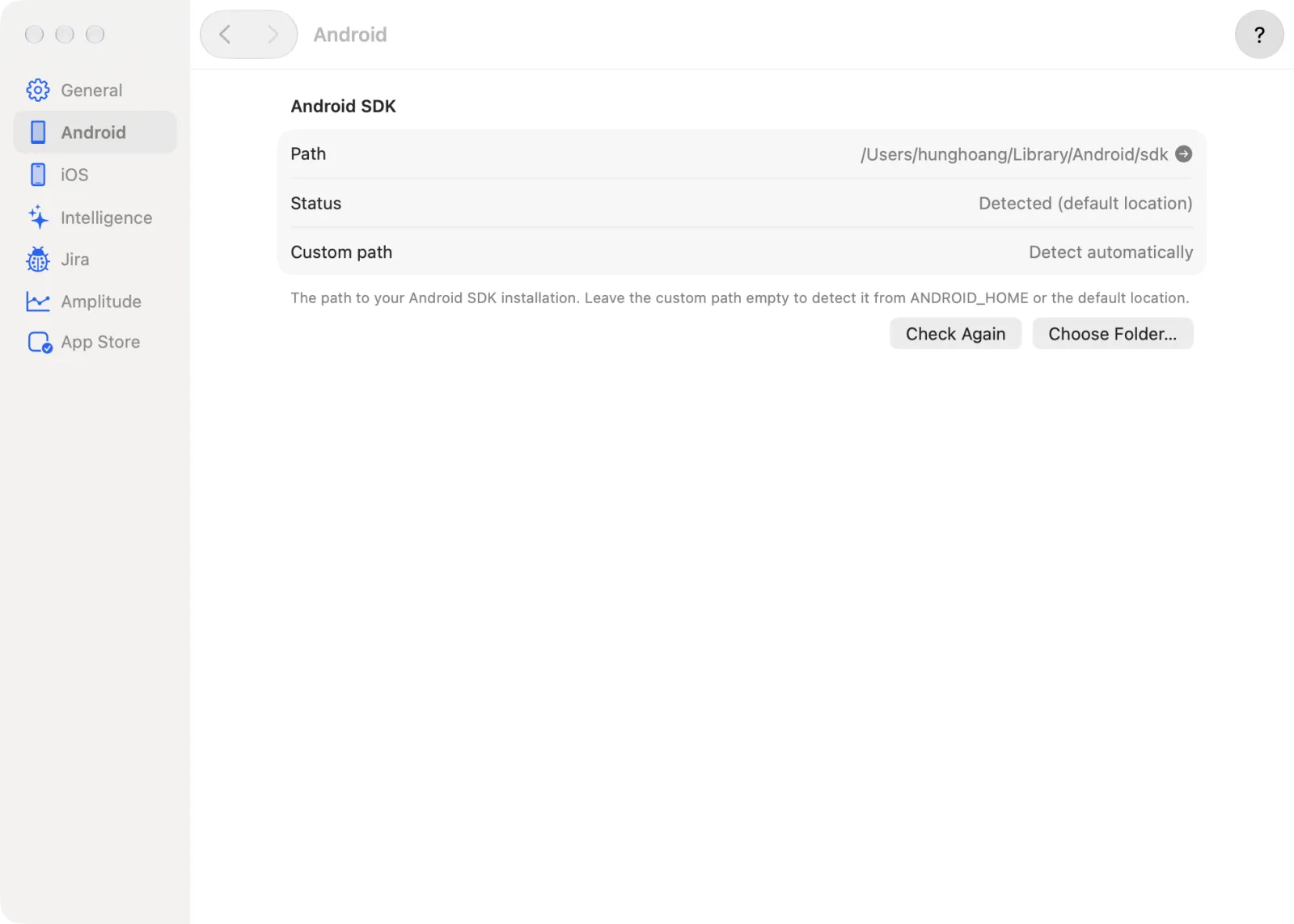
Cmd+,) and select the Android pane, section Android SDK. It shows the Path it found and a Status ("Detected" with the source, "Set in Settings" or "Not found"). Leave Custom path empty ("Detect automatically") if the SDK is in a default location, or type the path, or click Choose Folder…. Check Again looks again, and "Path verified" confirms a good path. - Choose the emulator in the device picker.
For an Android device, tap Build number 7 times in Settings > About phone to enable Developer options, turn on USB debugging, connect the cable and tap Allow USB debugging on the device (tick "Always allow from this computer"). Check with:
~/Library/Android/sdk/platform-tools/adb devicesThe device must show the status device, not unauthorized.
Working with a connected device
Controls under the mirror
The action bar under the mirror has buttons that appear only when the connected device supports them. Hover over a button to see its tooltip.
| Where | iOS | Android |
|---|---|---|
| Action bar | Home, Screenshot, Rotate, Inspect, Explore | Back, Home, Screenshot, Rotate, Inspect, Explore |
| More Device Actions (⋯) menu | Volume Up, Volume Down, Siri (iOS device), Action Button, Lock, then Install App… (opens Builds), Clear Sandbox Purchase History…, Maximize Mirror (or Show Other Panes), Open in Window and Disconnect | Volume Up, Volume Down, Power, Dark Mode, then Install App…, Maximize Mirror (or Show Other Panes), Open in Window and Disconnect |
The side buttons are listed in the ⋯ menu only when the mirror has no device bezel that shows them. Inspect and Explore match Device > Inspect Elements and Device > Explore the App….
The App Switcher (iOS) and Recents (Android) are not in the ⋯ menu. Double-click Home to open them. A single click on Home waits a moment (about 0.35 s) to be sure it is not a double click.
On an iOS device with Xcode 27 on the Mac and iOS 27 on the iOS device, Siri, Action Button, Screenshot and App Switcher go through the CoreDevice HID path (see Direct control (HID)), and Home, volume and Lock use it too when the iOS device offers buttons. Otherwise Home, volume and Lock go through WDA. Without Xcode 27 and iOS 27 the iOS device only gets the buttons that WDA can press (Home, volume and Lock); Siri, Action Button and Screenshot are not available then.
While Inspect is on, a line under the mirror shows the key attributes of the element under the pointer. With nothing under it, it reads "Hover an element on the screen. Click to pick it, right-click for its commands."
Open the Settings, Reports and Info panes
Settings, Reports (iOS only) and Info are toggle buttons at the top right of the window, left of the Inspector button. They show only while the device column is open.
- Connect a device. Open the device column (View > Show Inspector,
Option+Cmd+0). - Click Settings, Reports or Info in the toolbar. The pane opens under the mirror.
- Click the same button again to close it.
Simulator settings (iOS Simulator)
Change simulator settings without leaving the mirror, in the Settings pane or in Device > Simulator:
- Appearance: Light or Dark.
- Text Size: Smaller, Larger or Default in the menu, or a slider in the pane.
- Increase Contrast: On or Off in the menu.
- Accessibility switches in the pane: Larger Accessibility Sizes, Reduce Motion, Show Borders, Reduce Transparency and VoiceOver. Each one shows only when the simulator supports it.
- Location: a preset, Custom… (latitude and longitude separated by a comma, for example
37.3349, -122.009) or None to clear it. - Face ID / Touch ID. In the pane, turn on Face ID / Touch ID Enrolled, then click Matching or Non-Matching on the Simulate row to answer a prompt. In the menu, Device > Simulator > Face ID / Touch ID has Enrolled, Not Enrolled, Matching Face / Finger and Non-Matching Face / Finger.
- Shake.
The pane also has Look & Feel and a Liquid Glass Opacity slider, when the simulator supports them.
Android settings
On an Android device or emulator, the Settings pane (and the Device > Android menu) changes the device without leaving the mirror:
- Appearance: Light or Dark. Device > Android > Dark Mode and the Dark Mode item in the ⋯ menu do the same.
- Font Size and Display Size: sliders.
- TalkBack: on or off.
- Navigation: Gestures or 3-Button.
- App Language: System default or a language.
- Reset in the pane, or Device > Android > Reset Android Settings, puts the settings back to their original values. Both are disabled while nothing has changed.
Zoom
Zoom the mirror with the zoom buttons in the toolbar or Device > Zoom: Zoom Out (Cmd+-), Zoom to Fit (Cmd+9), Physical Size (Option+Cmd+9) and Zoom In (Cmd+=), in this order in the toolbar. The toolbar buttons show only while the device column is open and a device is shown. Hold Option and scroll to move around a zoomed mirror.
Reports tab (iOS device)
The Reports pane lists the crash, log, spin and diagnostic reports of an iOS device.
- Click Reports in the toolbar.
- Use Report type to filter by kind (All shows everything), and the Filter field to filter by text. Click Refresh to read the reports from the iOS device again.
- Select a report and click Open to open it, or Show in Finder to see the file.
A simulator has no such reports; the pane says "Reports are unavailable for simulators".
Info tab
The Info pane lists what Astra Scout knows about the connected device. It has three segments: Info, Apps and Profiles (Profiles only on an iOS device).
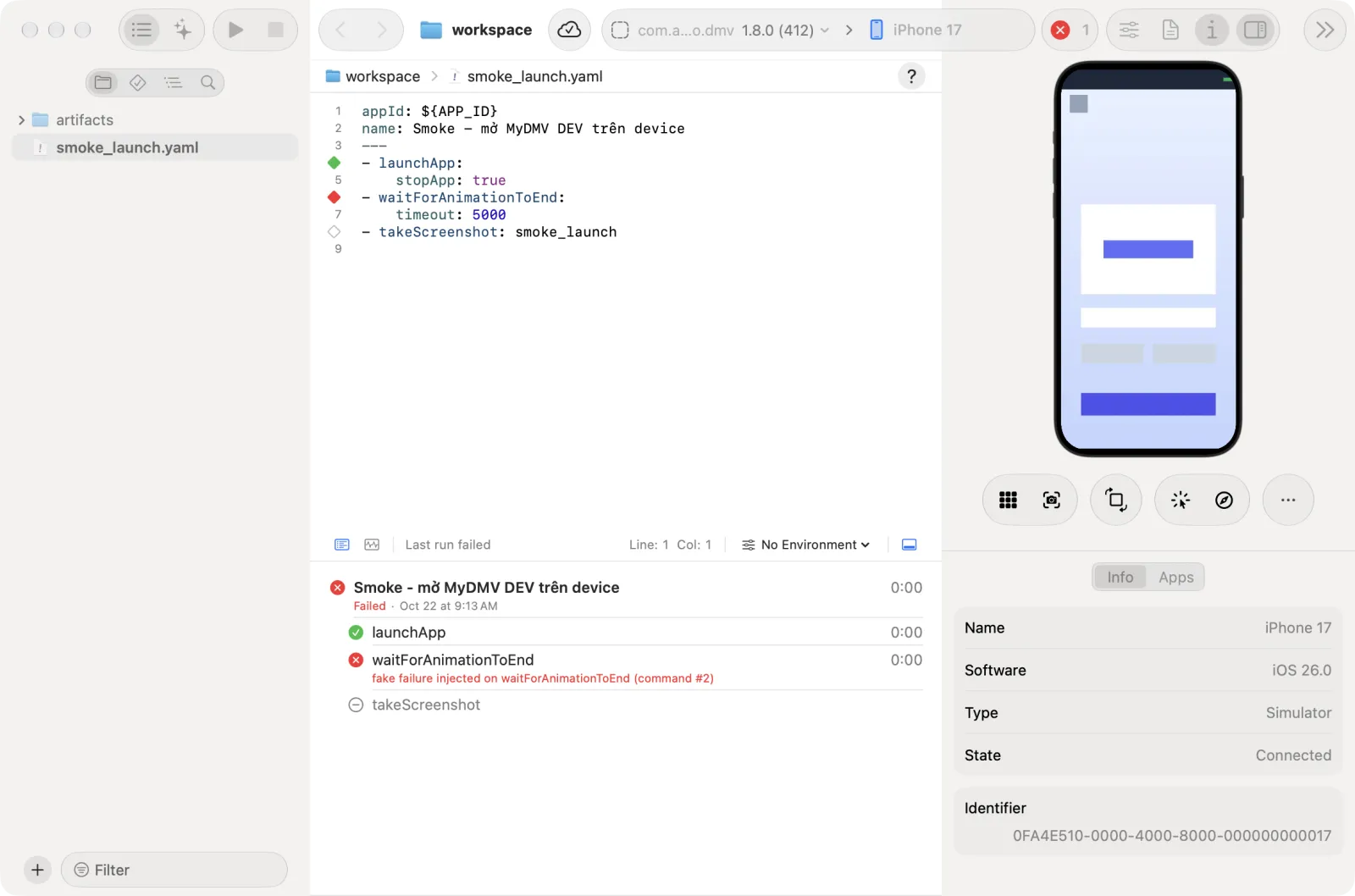
- In Apps, the + button (Install App…) opens Builds and the − button (Uninstall App…) uninstalls the selected one. Uninstalling asks for confirmation and removes the app and its data.
- In Profiles, each profile shows "Valid until" its expiry date, or "Expired". The − button (Remove Profile…) removes the selected profile after confirmation.
Gestures on an iOS device
Drag up from the bottom edge of the mirror to perform the Home gesture, like on the phone. A touch that starts within about 3% of the screen edge counts as an edge swipe. Flows use the same edge swipes.
Landscape, Maximize and separate window
- Landscape: when you rotate the device, the device bezel turns with the screen.
- Maximize Mirror: gives the mirror the whole window. Click Show Other Panes to bring the layout back. The stream keeps running. While the mirror is maximized, the View menu items that show or hide the navigator, the inspector and the runner, and the Inspector toolbar button, are disabled.
- Open in Window: pops the mirror out into its own window with full touch and keyboard input. The window keeps the aspect ratio of the screen and turns with the device. The main window shows a placeholder, "Mirror is in a separate window", with a Bring Back button, and the Element Hierarchy stays in the main window. The window closes with the device, the main window or the server.
iOS device notes
- While the control session is open, the iOS device shows "<Mac name> is viewing and controlling this iOS device". Never tap Stop Session: it unpairs the iOS device. To pair again, plug it in, tap Trust and use Xcode > Window > Devices and Simulators.
- macOS must see the iOS device. A cable always works. Over Wi-Fi sync the iOS device is visible only while it is awake and can disappear when it sleeps, so use a cable.
Clear sandbox purchase history
On an iOS device or simulator, Clear Sandbox Purchase History… in the ⋯ menu asks Apple to clear the purchase history of your sandbox tester.
- Click ⋯ (More Device Actions) under the mirror and choose Clear Sandbox Purchase History….
- If no App Store Connect key or tester is set up yet, Astra Scout opens Settings > App Store instead. Set it up there; see Sandbox testers.
- Otherwise Astra Scout asks for approval of the request. Approve it.
- An alert says "Clear request sent". Apple does not say when it finishes. The alert also lists what to do on the iOS device afterwards.
See also Purchase testing.
Install an app
Astra Scout installs the team's builds. See Builds.
- Choose Device > Install App… (
Shift+Cmd+I), or Install App… in the ⋯ menu under the mirror. The Builds window opens. - Select a build for the kind of the connected device.
- Click Install on and the device name.
Driver health
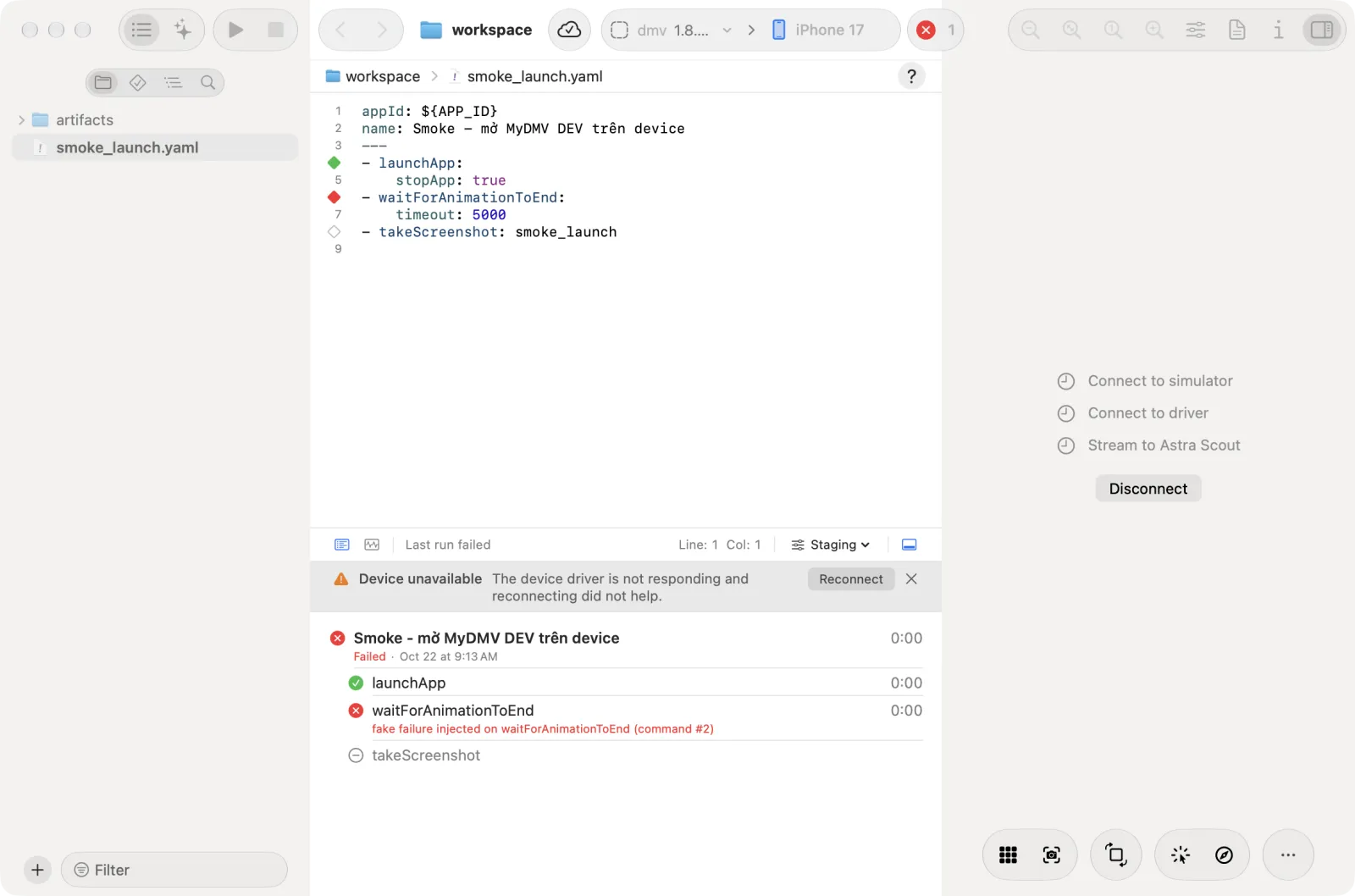
The driver is the part inside the device that receives commands (WDA on iOS, DeviceLab on Android). Astra Scout checks the driver before each run and every 15 seconds while connected. If the driver stops answering, the device shows Reconnecting driver and the driver restarts once. If that fails, the run notice reads "Device unavailable" and the device shows an error with a Reconnect button (next to Disconnect), and runs do not start.
Element hierarchy
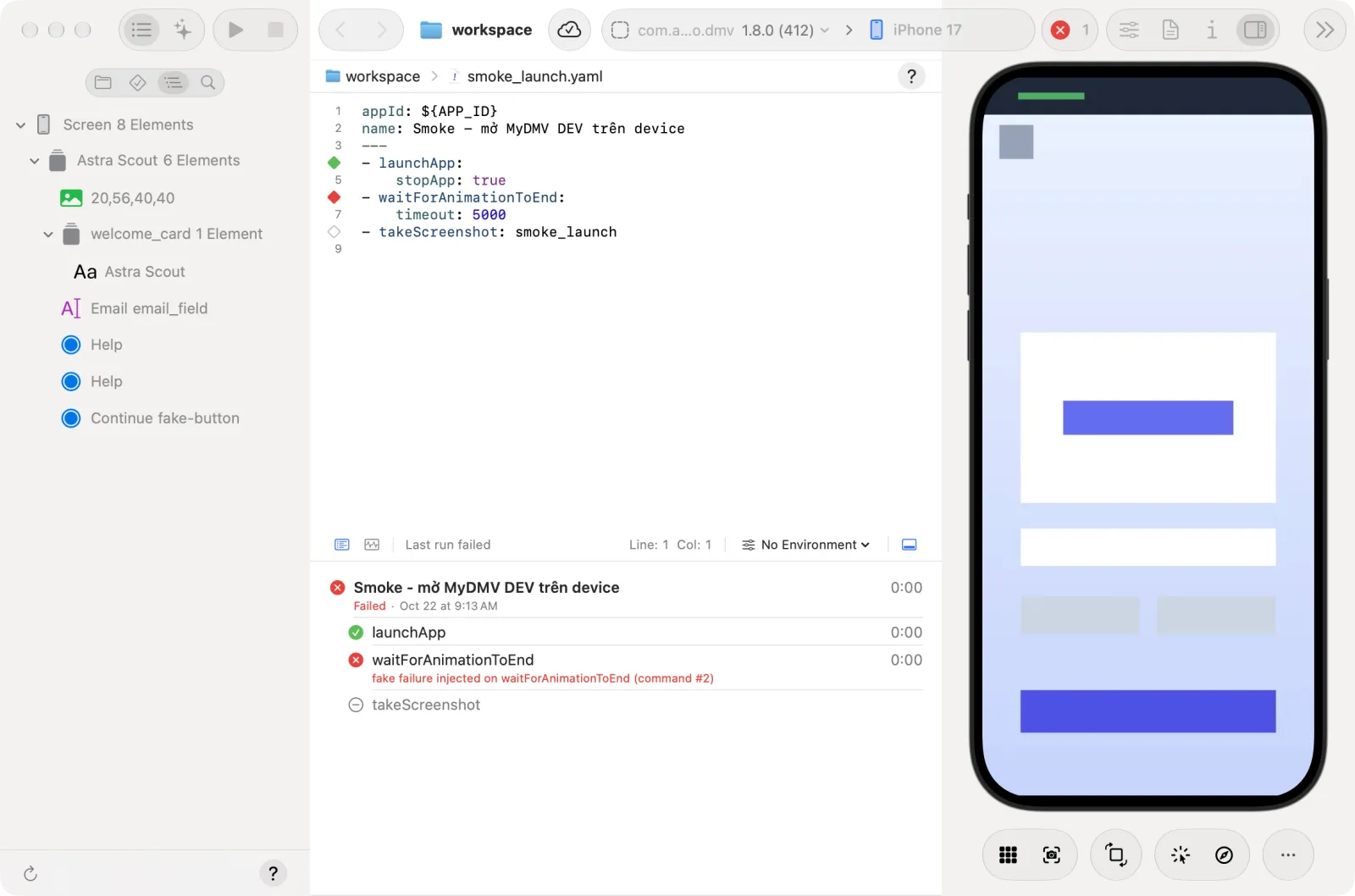
Device > Element Hierarchy (Option+Cmd+E) shows a tree of the elements on the current screen in the navigator. See Inspector.
For developers
Testers need nothing from this section.
- The iOS Simulator screen is rendered by the app itself through Xcode's SimulatorKit. Touches, keys, hardware buttons and rotation go through the
devicehidtool. Without the native app, the server shows simulators as slower WDA screenshots. - Flow videos on a simulator are recorded with
xcrun simctl io recordVideo. - The simulator's element tree is read through
xcuiax, which is faster than WDA but needs an iOS 27+ simulator. Older simulators, screens with web content, and any error fall back to WDA automatically. Run the server withSCOUT_FAST_AX=0to turnxcuiaxoff. - When the server runs from the command line, set the Team ID with
--team-idorMAESTRO_TEAM_ID. The value chosen in Settings takes priority. devicehidis tied to the Xcode CoreDevice framework version, so after an Xcode update a newer build is needed if the HID check reports an error. Turn HID off by running the server withSCOUT_IOS_HID=0.
Mirroring
The iOS device screen appears in Astra Scout's device frame through Apple's video stream (CoreDevice), over a cable or Wi-Fi. It needs Xcode 27 and iOS 27. It is the only mirror, and it needs no Camera permission. Typing and buttons still go through WDA.
- If the iOS device is locked or not reachable yet, the frame asks for an unlock and starts by itself once the iOS device answers.
- An iOS device that offers no video stream shows "this iOS device cannot stream its screen over CoreDevice". Flows still run normally; the screen is not visible.
- If you disconnect and reconnect within 15 seconds, the running stream is reused.
- Flow recordings on an iOS device come only from this video stream. When it is not available, the flow runs without a video and the reason is logged.
Direct control (HID)
HID is a way to send touches straight to the iOS device's touchscreen, like a real finger. It works only when the Mac has Xcode 27 and the iOS device runs iOS 27. With it, taps and drags on the mirror respond almost instantly: the finger presses on click, follows the mouse and lifts on release. Without HID, gestures replay through WDA after you release the mouse, and flows still run.
- Siri, the Action Button, Screenshot, the App Switcher and edge swipes use HID. Home, volume and Power also use HID when the iOS device offers buttons; otherwise they go through WDA (Power then only locks the screen). Typing, scrolling and rotation always go through WDA.
- The control session opens at the first tap on the mirror and stays open while the mirror is open, plus 15 seconds after you disconnect.
- While it is open, the iOS device shows "<Mac name> is viewing and controlling this iOS device". This is normal.
Do not tap "Stop Session" on the iOS device
It unpairs the iOS device from the Mac. To pair again, plug it in, tap Trust and pair it in Xcode.
To check whether the iOS device can use HID, choose Help > Setup Check… > iOS device > Direct iOS device control (HID). If it reports a failure after you update Xcode, get a newer Astra Scout build from the team.