
Installation
Download Astra Scout, install it, and add the tools your devices need.
Install Astra Scout on a Mac and prepare the Mac for testing. There are three steps: install Astra Scout, install the tools for the devices you test on, then run the app's setup check.
What you need
| You want to test on | Install | Where to get it |
|---|---|---|
| Everything | Astra Scout (Mac with Apple silicon, macOS 14 or later) | Download Astra Scout |
| iOS Simulator or an iOS device | Xcode (about 30 GB with a simulator) | Xcode on the Mac App Store |
| Android emulator or an Android device | Android Studio | developer.android.com/studio |
| AI features (optional) | One AI CLI that runs in Terminal: Claude Code, OpenAI Codex or Gemini CLI | See Set up an AI CLI |
Find the chip under the Apple menu → About This Mac. "Apple M1" or later is Apple silicon. The download link is the Apple silicon build. For an Intel Mac, ask the team for the x64 build.
1. Install Astra Scout
Open the downloaded
.dmgand drag Astra Scout onto Applications, then eject the DMG.Open Applications → Astra Scout. macOS asks whether to open an app downloaded from the Internet. Click Open.
The app shows a sign-in screen. Click Sign in with Google. The browser opens. Pick the company Google account. Signing in checks that the account is allowed to use the app. Every
astraler.comaccount is allowed, plus emails the team added one by one.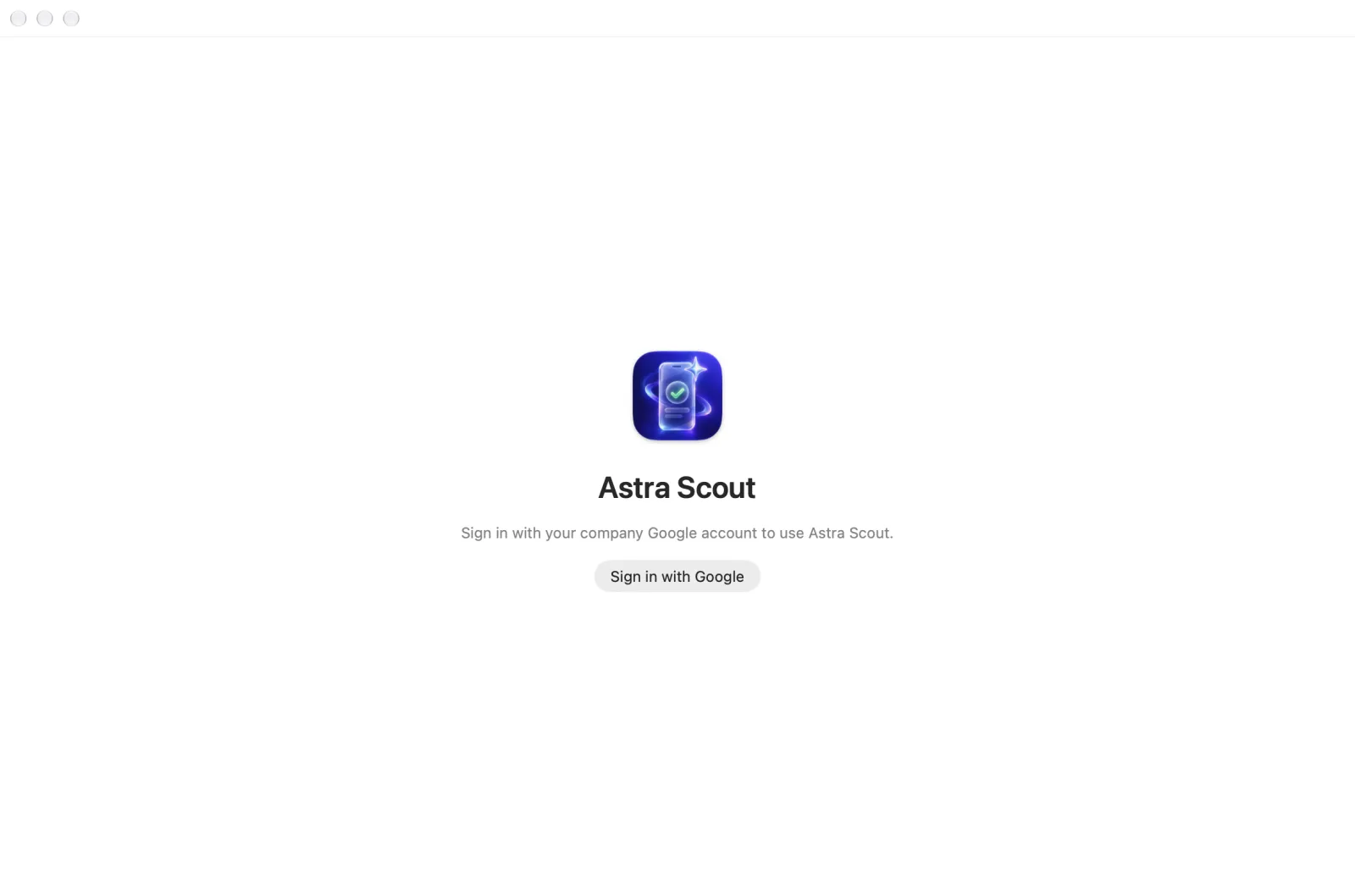
If the app says the email is not allowed, ask the team to add it, then sign in again.
The Welcome to Astra Scout window appears.
Astra Scout is signed by Astraler and checked by Apple. If macOS says the app "cannot be opened" or "is damaged", the copy did not come from the link above. Download it again.
2. Install the tools for your devices
Install only the tools for the devices you test on.
iOS device and iOS Simulator:
- Install Xcode from the App Store and open it once. Accept the license and install the components it offers.
- In Xcode → Settings → Components, download an iOS Simulator. It is a virtual iOS device on the Mac and needs no cable.
- An iOS device needs two more things: sign in to Xcode with an Apple ID, so the app that controls the iOS device can be signed, and turn on Developer Mode on the iOS device. Follow iOS device.
Android:
- Install Android Studio and open it once. It downloads the Android SDK, which Astra Scout uses to talk to Android devices.
- Create an emulator in Device Manager → Create Virtual Device, or prepare an Android device with USB debugging. Follow Android.
Astra Scout finds Xcode and the Android SDK by itself. Restarting it after the install is not needed.
AI features (optional): install and sign in to one AI CLI. Follow Set up an AI CLI.
3. Check your setup
The setup check lists what the Mac is still missing, before a device connection fails.
- Choose Help → Setup Check…. The Check Setup sheet opens and runs the checks. The checks only read and change nothing on the Mac.
- Read the three counts at the top: pass, warning and fail. Below them, each tool has a row with a status icon. A row that is not ready says (required) when Astra Scout cannot run flows without it, and shows how to fix it. Some rows have a button that opens the matching Settings pane, the docs or a download page.
- Fix what is missing, then click Check Again at the bottom left. Docs opens the documentation. Click Done to close the sheet.
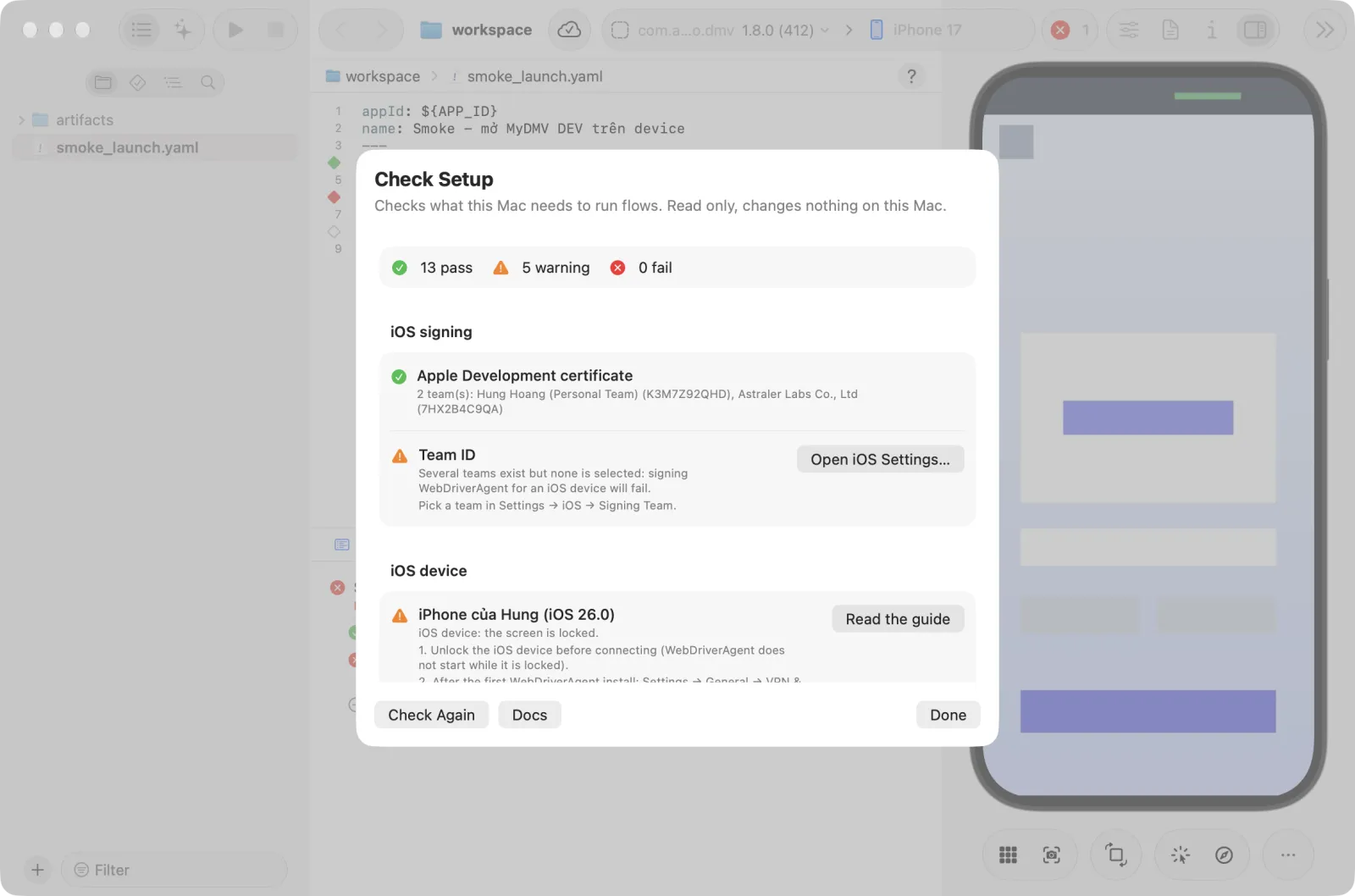
The app also runs this check in the background. If a required item is missing, it opens the sheet and says "This Mac is not set up enough to run flows" with the names of the missing items.
Choose a workspace
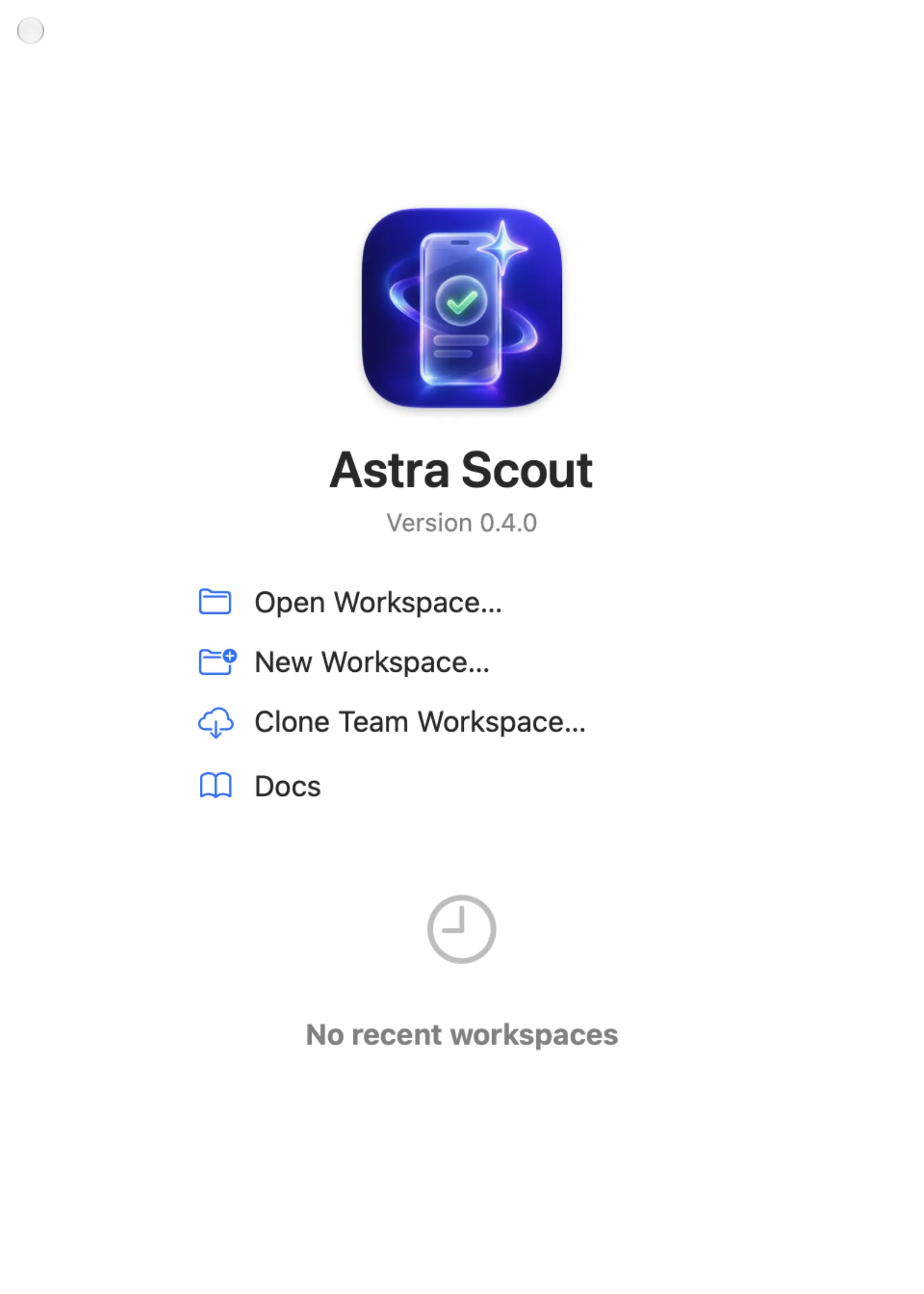
A workspace is a folder on the Mac that holds the flows as .yaml files. Open one before anything else. While no workspace is open, the Welcome to Astra Scout window stands in for the main window. It shows the app icon and version, three rows, and the recent workspaces.
- Click Open Workspace… to open a folder that already has flows (ask the team which folder), or New Workspace… to start a new one. Docs opens the documentation.
- Choose or create the folder in the dialog and click Open or Create.
- The main window opens and the Welcome to Astra Scout window closes. To reopen a recent workspace later, double-click it in the Welcome window or use File → Open Recent.
See Run flows, then continue with the Quickstart.
Settings
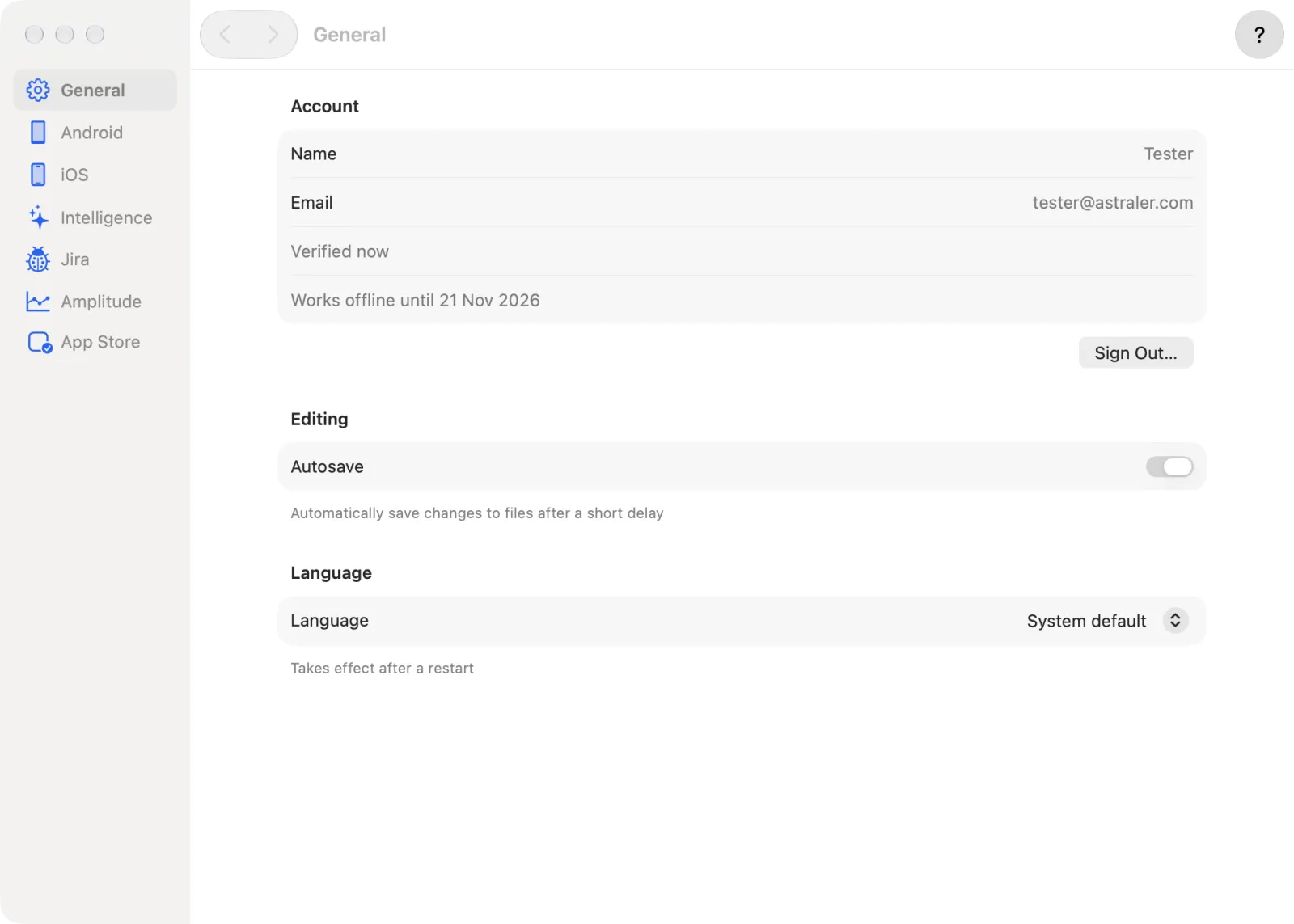
Open Settings with Astra Scout → Settings… (Cmd+,). The sidebar lists seven panes: General, Android, iOS, Intelligence, Jira, Amplitude and App Store. See Settings for each one.
General has these controls:
- Autosave: saves changes to files after a short delay.
- Language: System default, English or Tiếng Việt. It takes effect after a restart; a Restart Now button appears when you change it.
- Updates: Automatically check for updates, the Version and Check for Updates…. This section only exists in release builds.
- Account: the Google account you are signed in with and a Sign Out… button (also in the Astra Scout menu). After you sign out, you must sign in again to use the app.
Updating
A release build of Astra Scout checks for a new version once a day and asks before it installs one. A development build has no updater.
- To check now, choose Astra Scout → Check for Updates…, or click Check for Updates… in Settings → General.
- When an update is found, the update window shows what changed. Click Install Update. This button belongs to the macOS updater, so it uses the system language. The app restarts on the new version.
- To turn the daily check off, clear Automatically check for updates in Settings → General.
Report a problem
Attach ~/Library/Logs/Astra Scout/server.log (open it with Help → Show Server Log) and a screenshot of Help → Setup Check….