
Quickstart
Go from a fresh install to a passing flow on the iOS Simulator.
Run a first flow on the iOS Simulator after installing Astra Scout. The flow tests the iOS Settings app, which is already on the simulator.
Before you start
You need Astra Scout installed (Installation), Xcode opened once, and an iOS Simulator runtime downloaded. See Devices.
1. Open a workspace
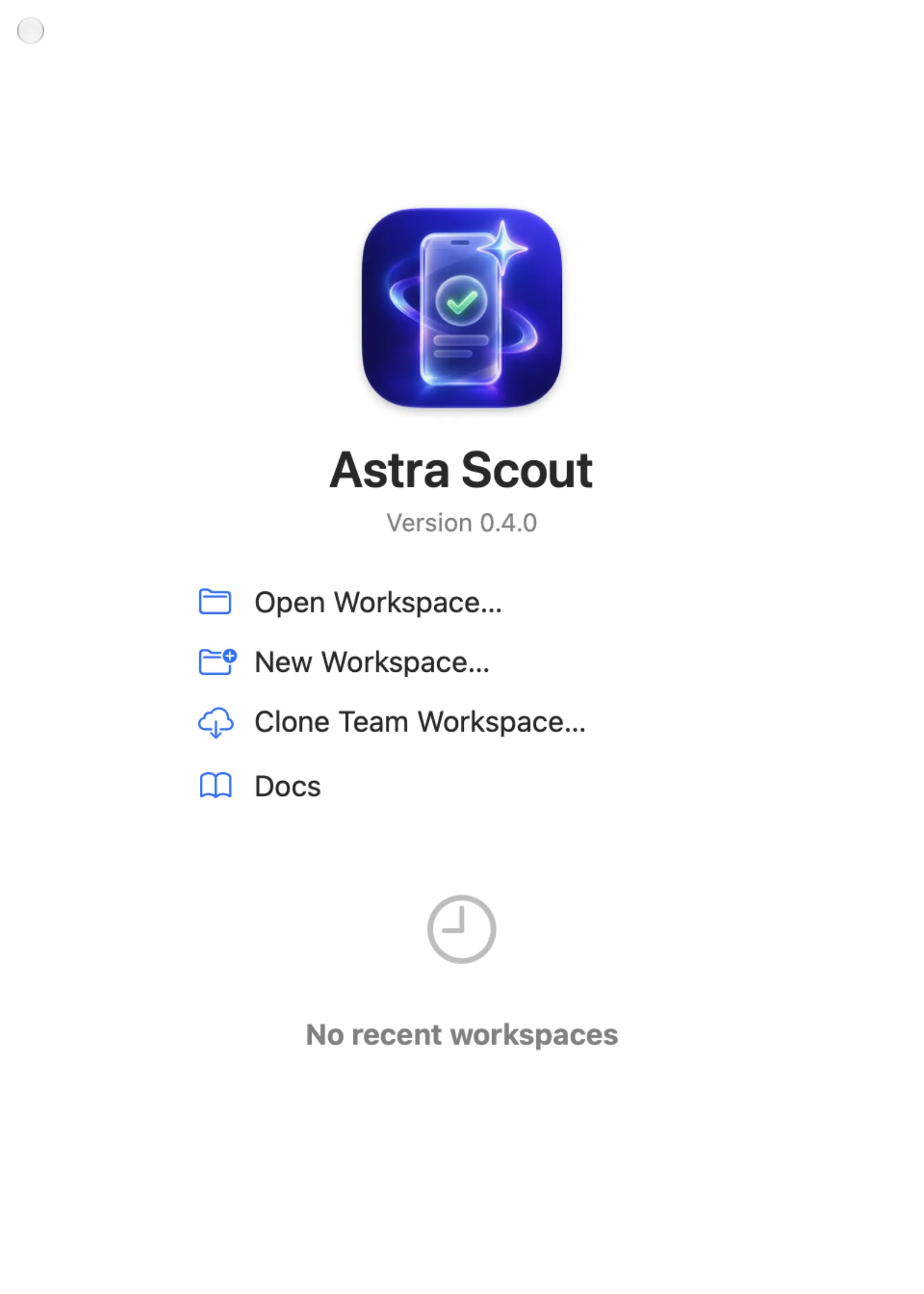
- Launch Astra Scout. The Welcome to Astra Scout window opens. It lists the recent workspaces.
- Click New Workspace… to create a folder, or Open Workspace… to open a folder that already has flows. To reopen a recent workspace, double-click it.
- Choose or create the folder in the dialog and click Create or Open.
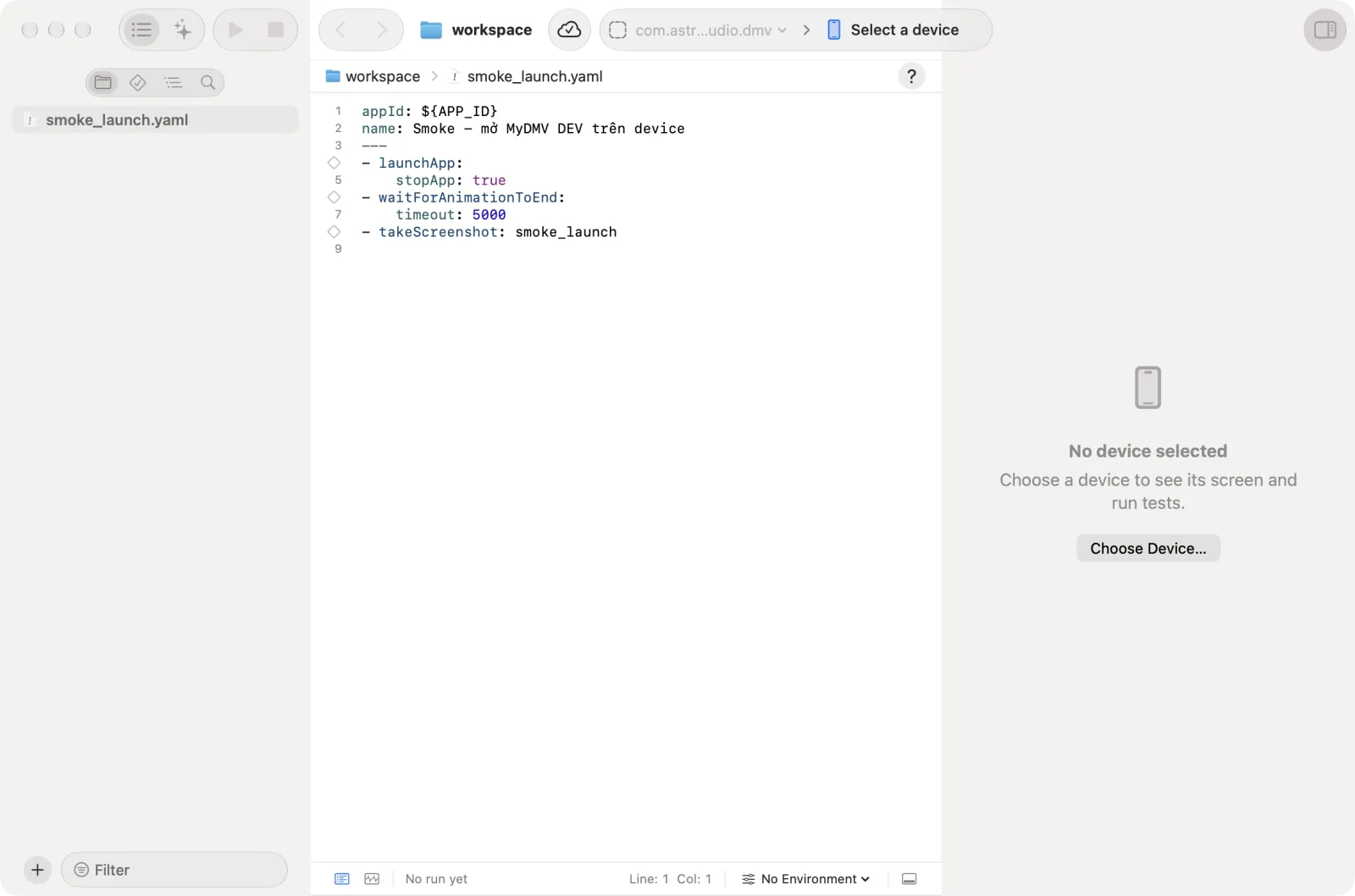
The main window opens. The Files navigator on the left shows the folder. The editor in the middle says No file open until you open a file.
A new workspace comes with a sample flow, first-flow.yaml, and a sample tracking catalog in tracking-specs/. This walkthrough does not use the catalog. A folder that already has flows is left as it is, with no sample added. Click first-flow.yaml in the navigator to look at the sample flow.
Recent workspaces are also under File → Open Recent.
2. Pick the app under test
Every flow runs on one app, picked in the toolbar. The toolbar has one capsule with two menus side by side: the app picker on the left and the device picker on the right. Before you pick an app, the app picker reads No App.
Every app has a bundle id, a unique identifier such as com.apple.Preferences. A flow whose first line is appId: ${APP_ID} uses the app picked here. The sample flow first-flow.yaml and every new Mobile test file start that way. If no app is picked, a run asks for one.
- Click the app picker (No App). A menu opens. The main items:
- This Project: the app already saved for this workspace.
- On and the device name: the apps installed on the connected device. This section only appears after you connect a device.
- Recent: apps picked before.
- Other App ID…: type a bundle id by hand.
- Builds…: the team's builds, for an iOS device. This walkthrough does not use it.
- Choose Other App ID…. A sheet opens with an App ID field.
- Type
com.apple.Preferences, the bundle id of the Settings app, and click Use. The button stays off while the id is not valid.
The picker now shows the app. The choice is saved in the workspace. It can be changed at any time, for example from the On section after a device is connected in the next step.
3. Connect a device
- Click the device picker on the right of the capsule (Select a device).
- Choose an iOS device simulator.
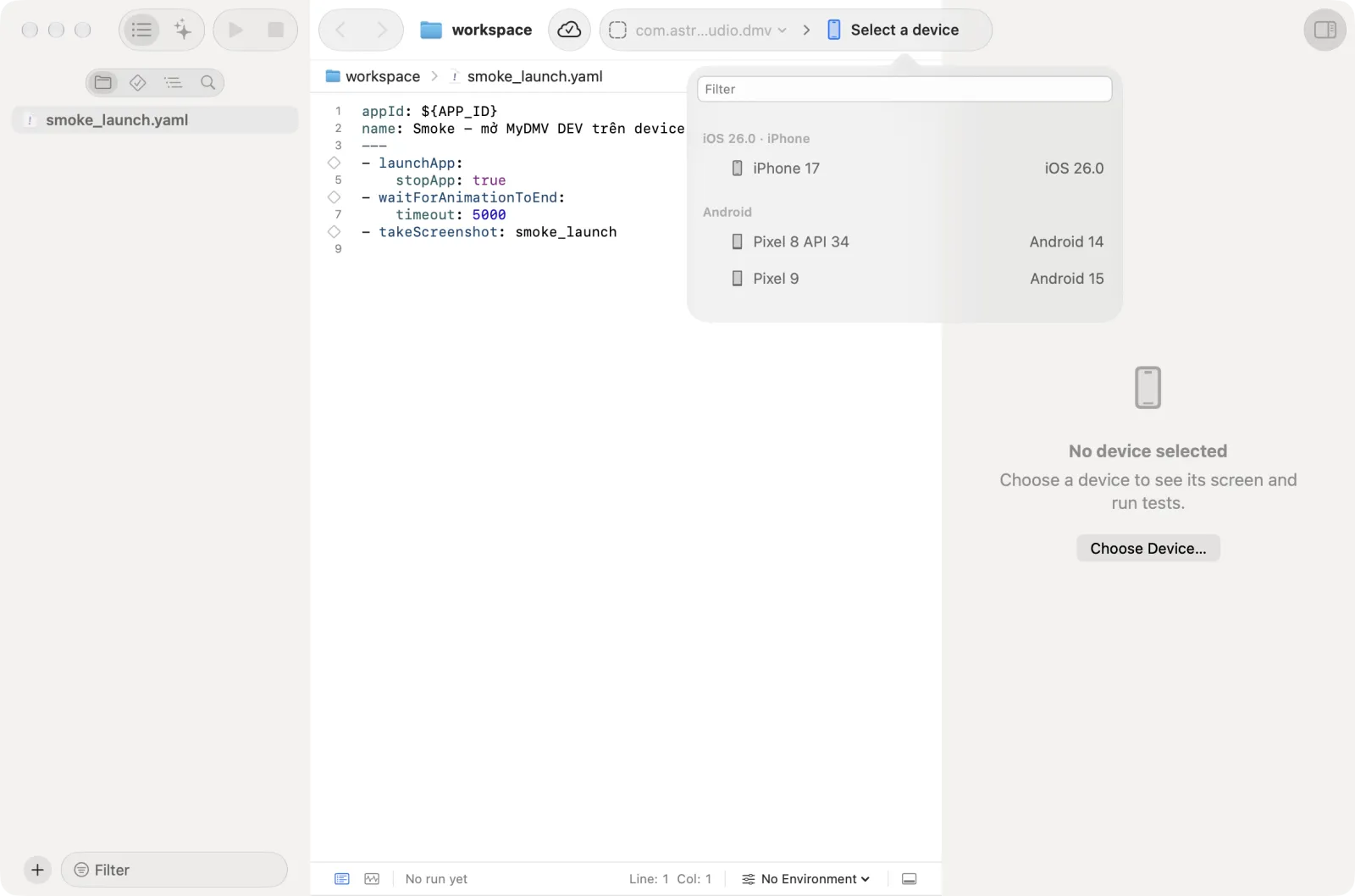
The first connection to an iOS device or simulator is longer than later ones. Astra Scout builds WebDriverAgent (WDA), a small app that runs on the device and performs the taps. Later connections reuse the build.
- Watch the steps in the connection panel, such as Connect to simulator and Stream to Astra Scout, until the device screen appears.
- The device screen shows in the Inspector, the device column on the right. If it is hidden, choose View → Show Inspector.
4. Create a flow
Open the New File sheet in any of these ways: click Add (the + button at the bottom of the Files navigator) and choose New File…; right-click the workspace in the Files navigator and choose New File…; or choose File → New File… (Shift+Cmd+N).
The sheet shows Choose a template for your new file. Click the Mobile test tile, then Next.
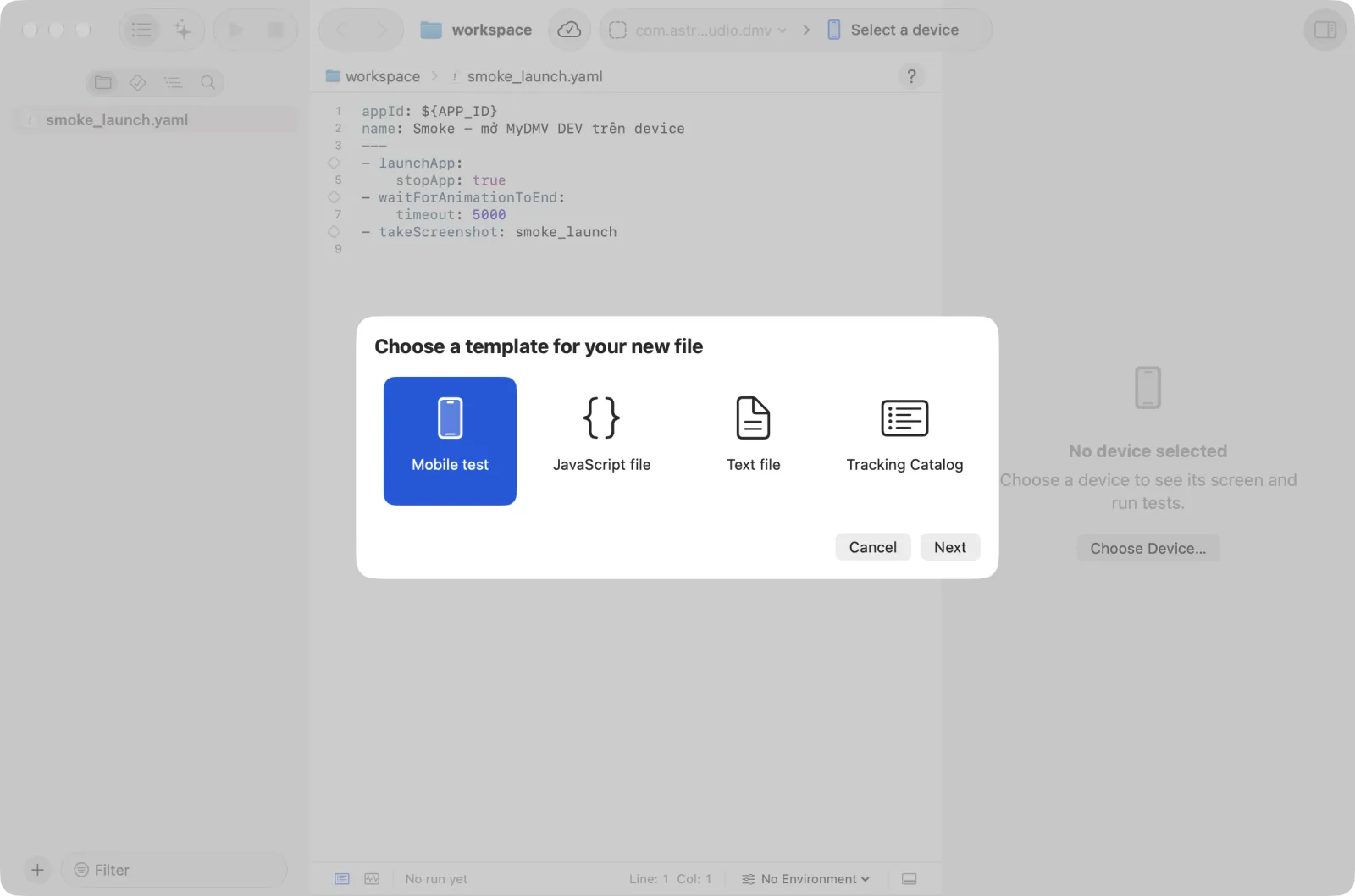
Enter a Name. For this first flow, type
com.apple.Preferencesinto App ID. This is the Settings app, which exists on every iPhone and simulator. If you already picked the Settings app on the toolbar, keep the pre-filled${APP_ID}instead. The menu next to the field offers App Picked in the Toolbar (${APP_ID}), Recently used ids, and ids On connected device. The folder the file goes to is shown at the bottom. Click Create.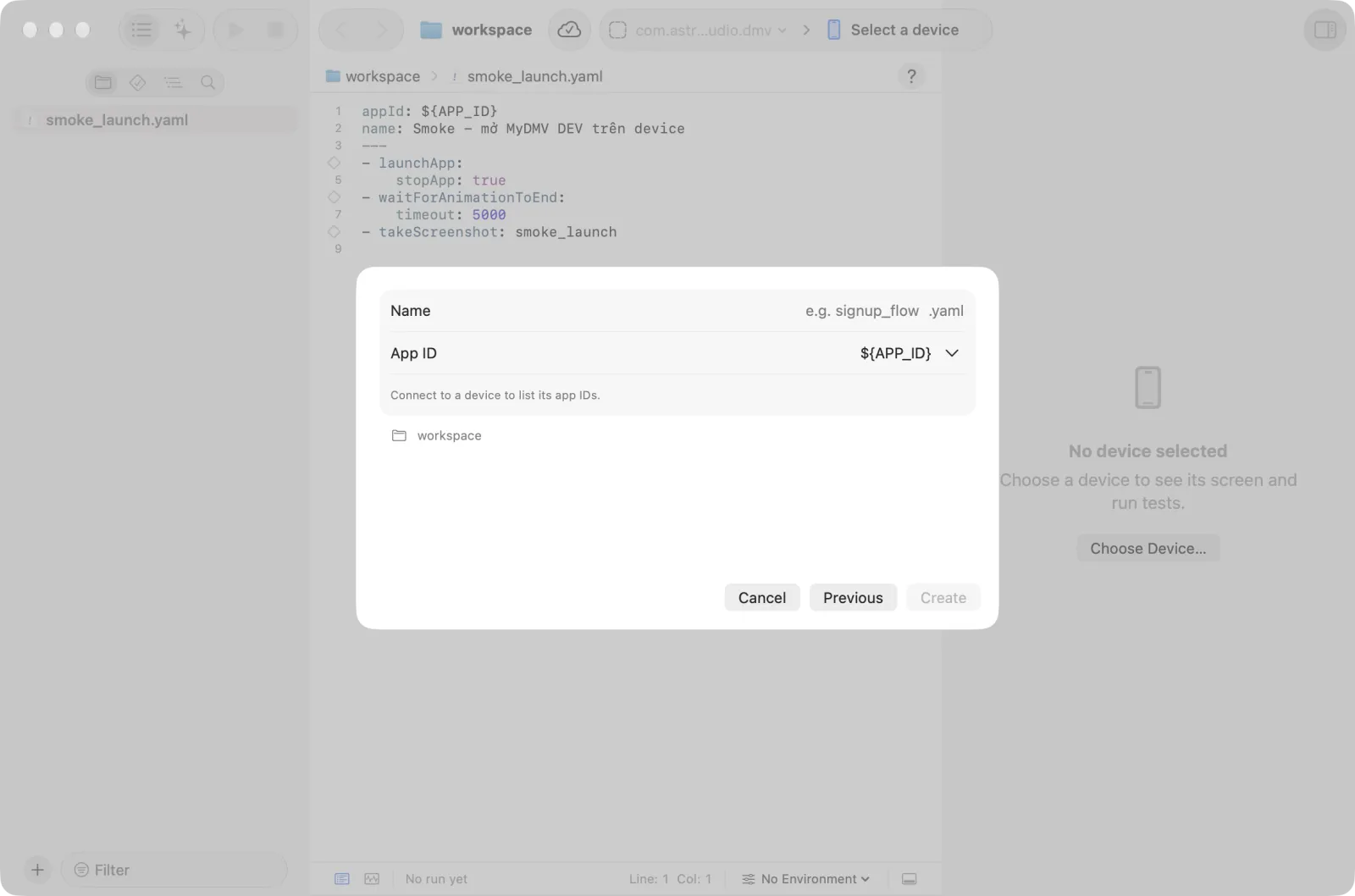
The new file opens in the editor. Click in the editor, press
Cmd+A, and paste the following:
appId: com.apple.Preferences
name: Settings smoke
---
- launchApp:
    stopApp: true
- tapOn: "General"
- assertVisible: "About"
The lines above --- describe the flow. The lines below it are the steps, and each step starts with - .
The file saves after a short delay (Autosave, on by default; File → Autosave turns it off). Cmd+S saves at once.
Each step does one thing.
launchAppopens the app (stopApp: truequits it first if it is running).tapOn: "General"taps where the text "General" is.assertVisible: "About"checks that the text "About" is showing. If it is not, the step fails.
The flow matches visible text, so it works on a simulator set to English.
There are other ways to create a flow, such as the AI chat or Explore. See Create a flow.
5. Run it
- Click Run Test (the play button in the toolbar), or press
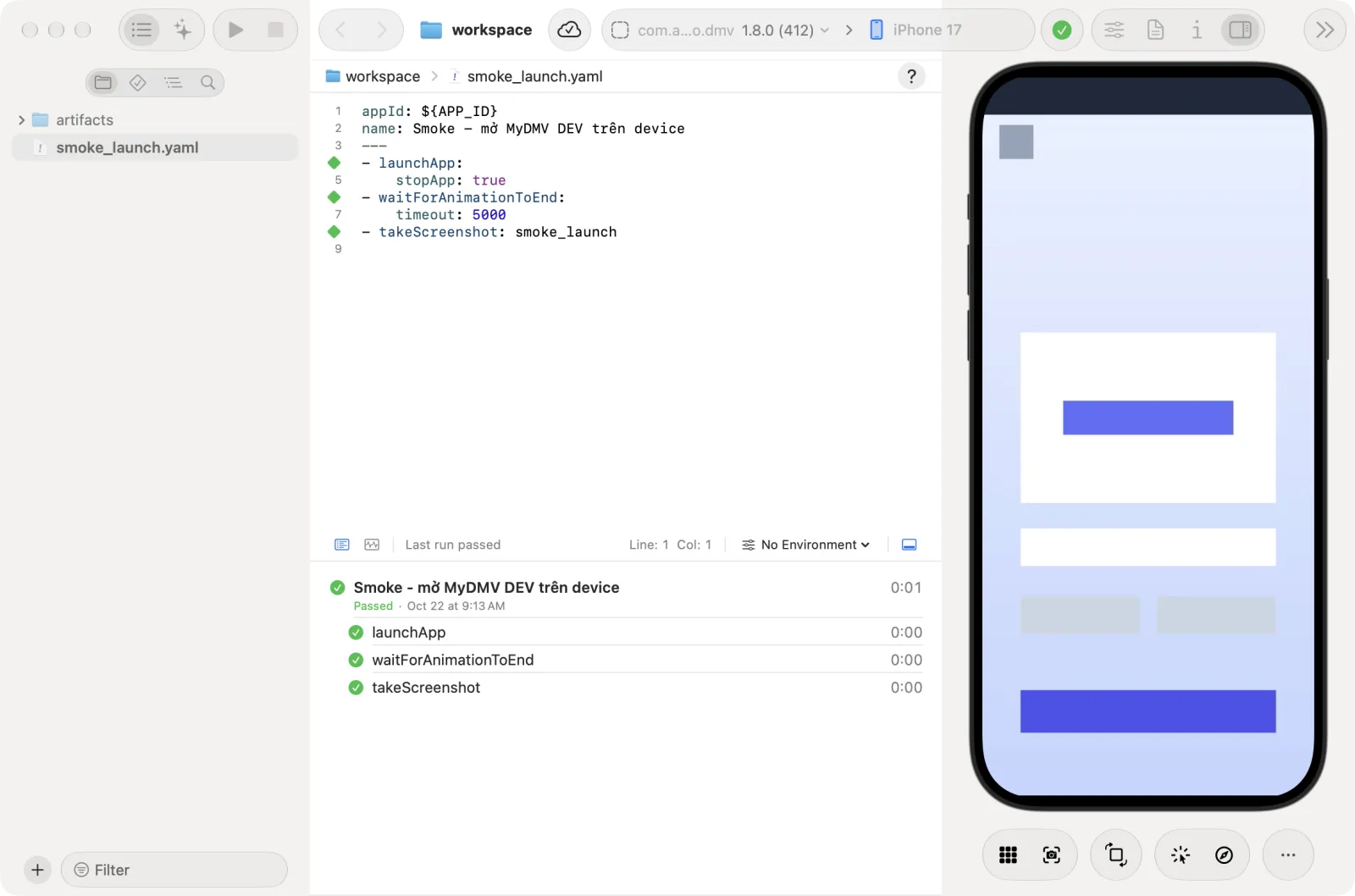
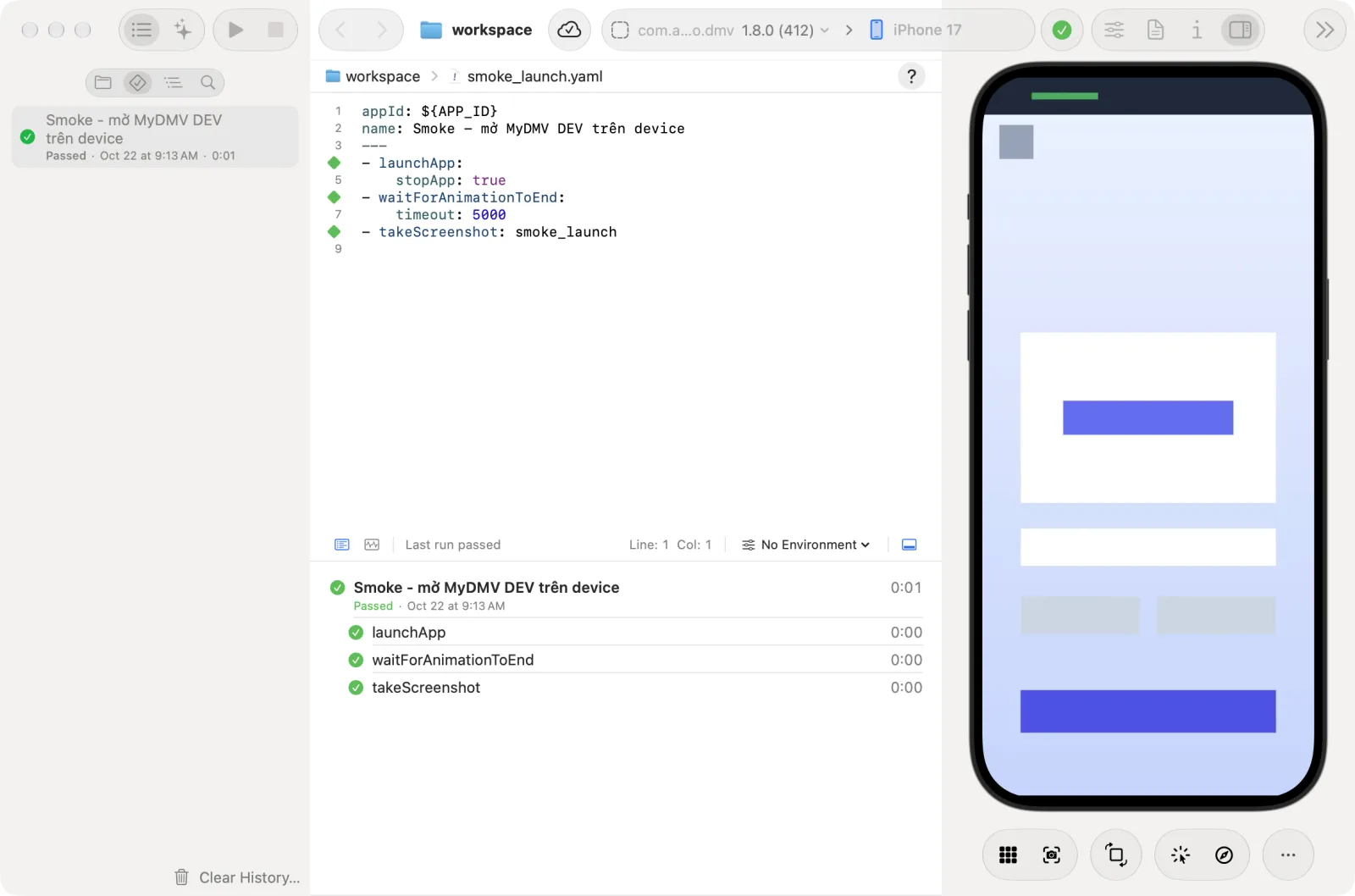
Cmd+R. The same command is in the Run menu, which also has Run All Tests (Shift+Cmd+R) and Stop (Cmd+.). - Watch the editor. Each line shows its state as the flow runs: pending, running, completed or failed. The runner below the editor lists the steps and the device mirror shows the app.
- When the run ends, a verdict label appears. The flow in this walkthrough ends with Passed.
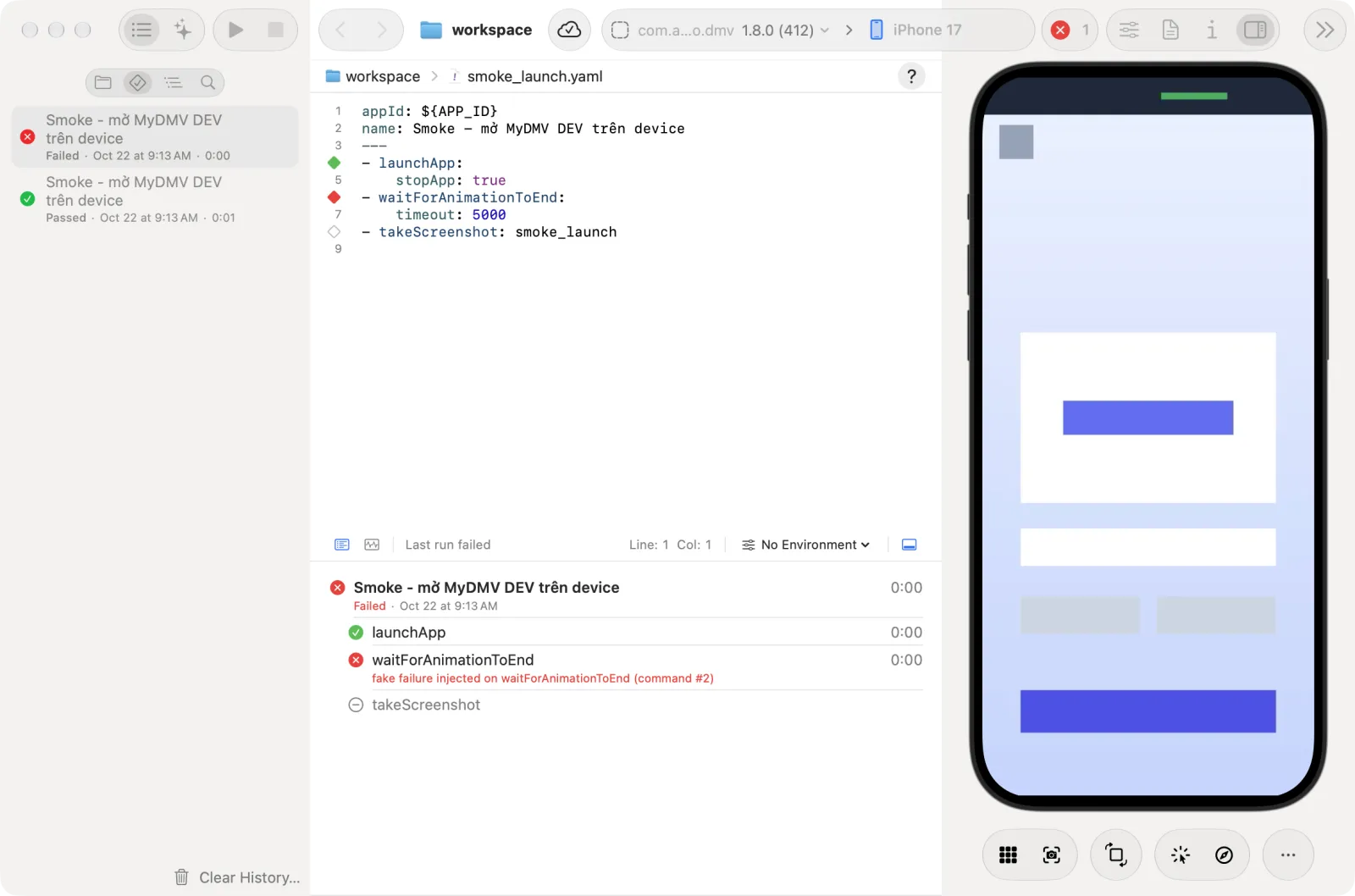
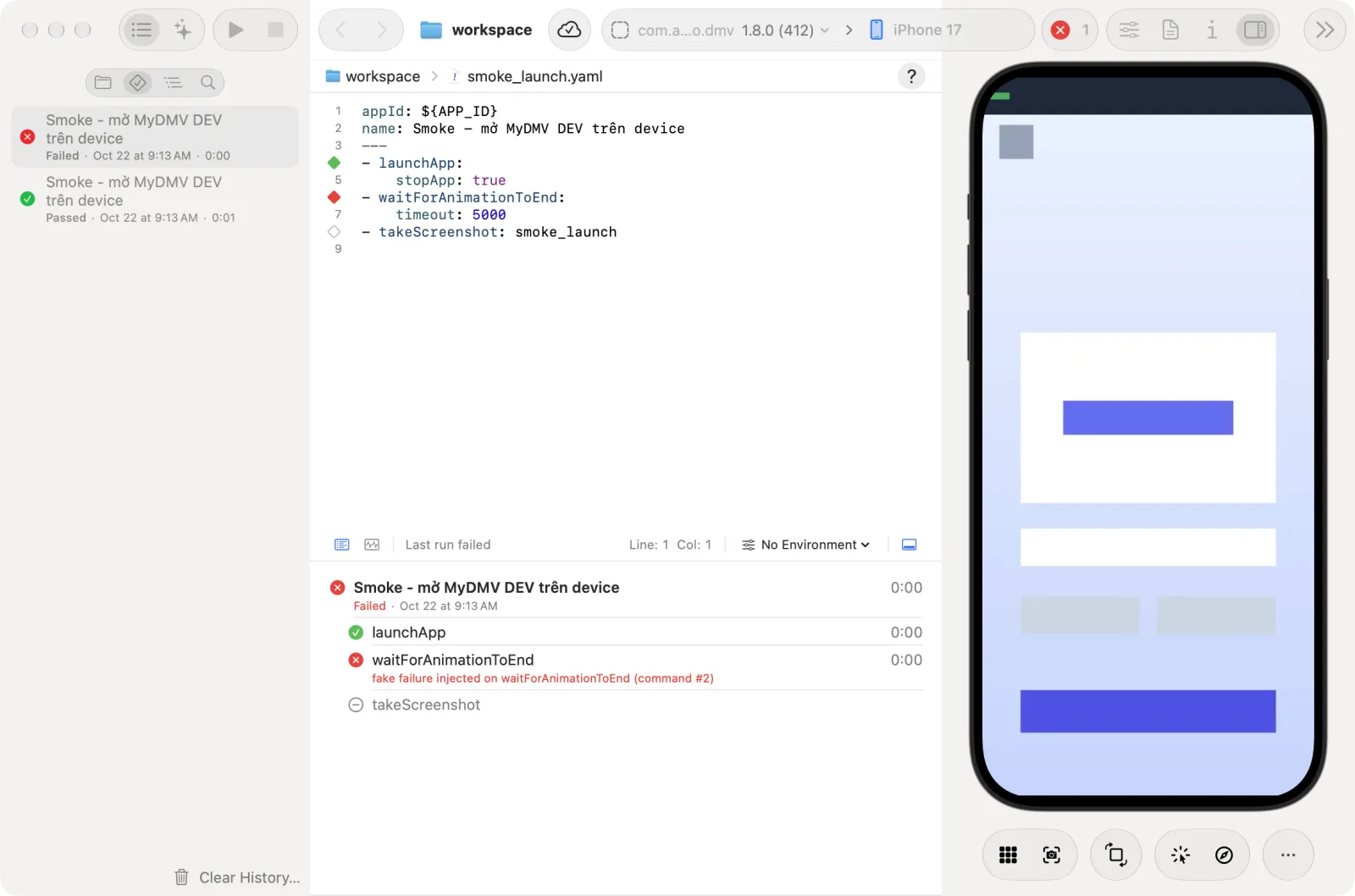
If a step fails, for example because the text "General" is not on the screen, the verdict is Failed and the failing step is shown.
6. Add a step with the inspector
Click an element on the device screen in the inspector, and Astra Scout writes the matching step.
- Choose Device → Inspect Elements (Opt+Cmd+I). The menu item is off until a device is connected.
- Hover over the device screen. The element under the pointer is outlined.
- Right-click it. A menu offers commands such as
tapOn(tap) andassertVisible(check it is showing) with a preview of the YAML. - Choose Insert into Editor to add the command to the open flow, then run it.
Device → Element Hierarchy (Opt+Cmd+E) shows the element tree in the left sidebar. Read more in Inspector.
7. Look at past runs
Every run is saved. Click Test Runs in the icon bar under the top of the left sidebar to list past runs with their verdicts.
Where to go next
- Create a flow: every way to create a flow and which to use.
- Run flows: logs, videos, running all flows in a workspace.
- Writing flows: Maestro syntax and selectors.
- Settings: configure signing, AI and integrations.